Step 1
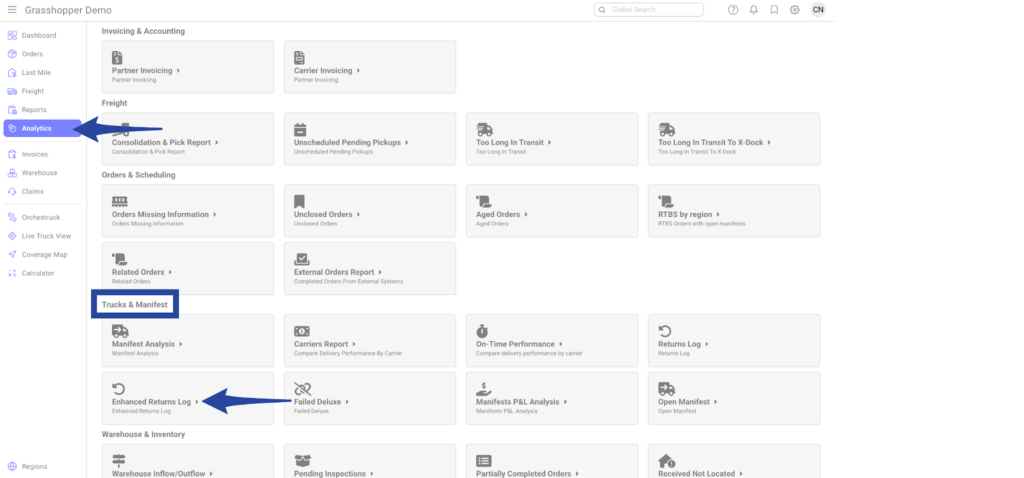
Click on the Analytics and select Enhanced Returns Log under Trucks & Manifest
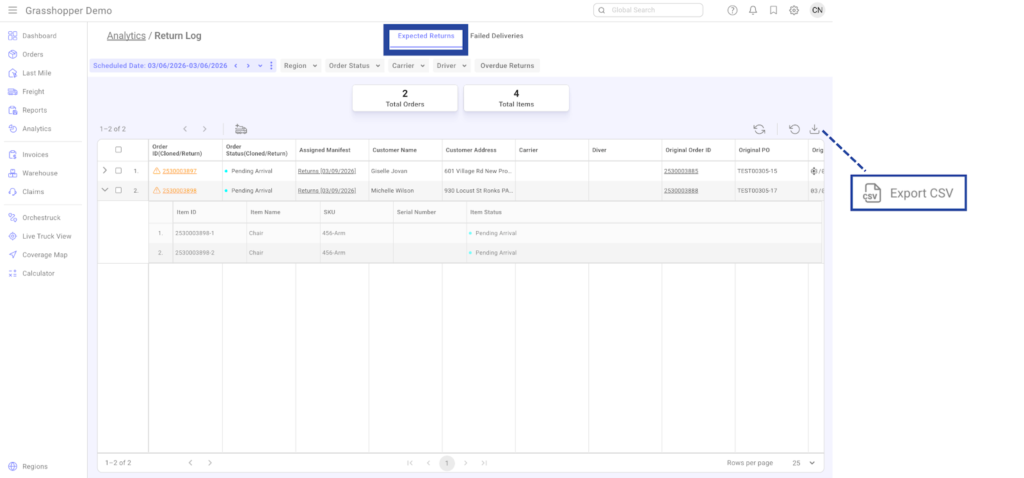
You can narrow down results using the available filters:
| Expected Returns | Failed Deliveries | |
| Date range | Available | Available |
| Region | Available | Available |
| Order Status | Available | – |
| Carrier | Available | Available |
| Driver | Available | Available |
| Overdue Returns | Available | – |
Step 2
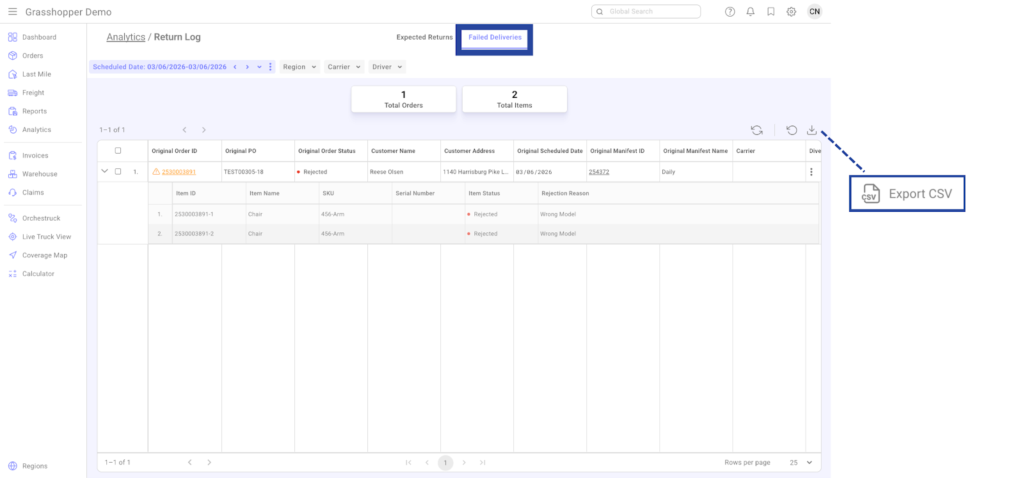
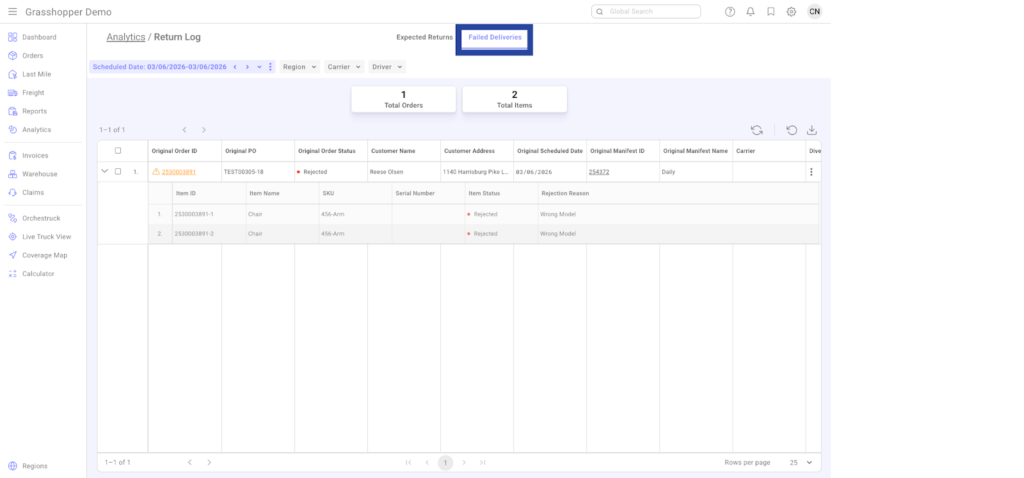
Go to the Failed Deliveries section.
The Failed Deliveries section lists orders that were not delivered and are expected to return to the warehouse.
If an order appears in this section, it means the dispatcher has not yet processed the failed delivery.
When cloning the order, the dispatcher will determine the appropriate action, such as:
– Redelivery
– Return
Once the order has been cloned, it will no longer appear in the Failed Deliveries section.
Step 3
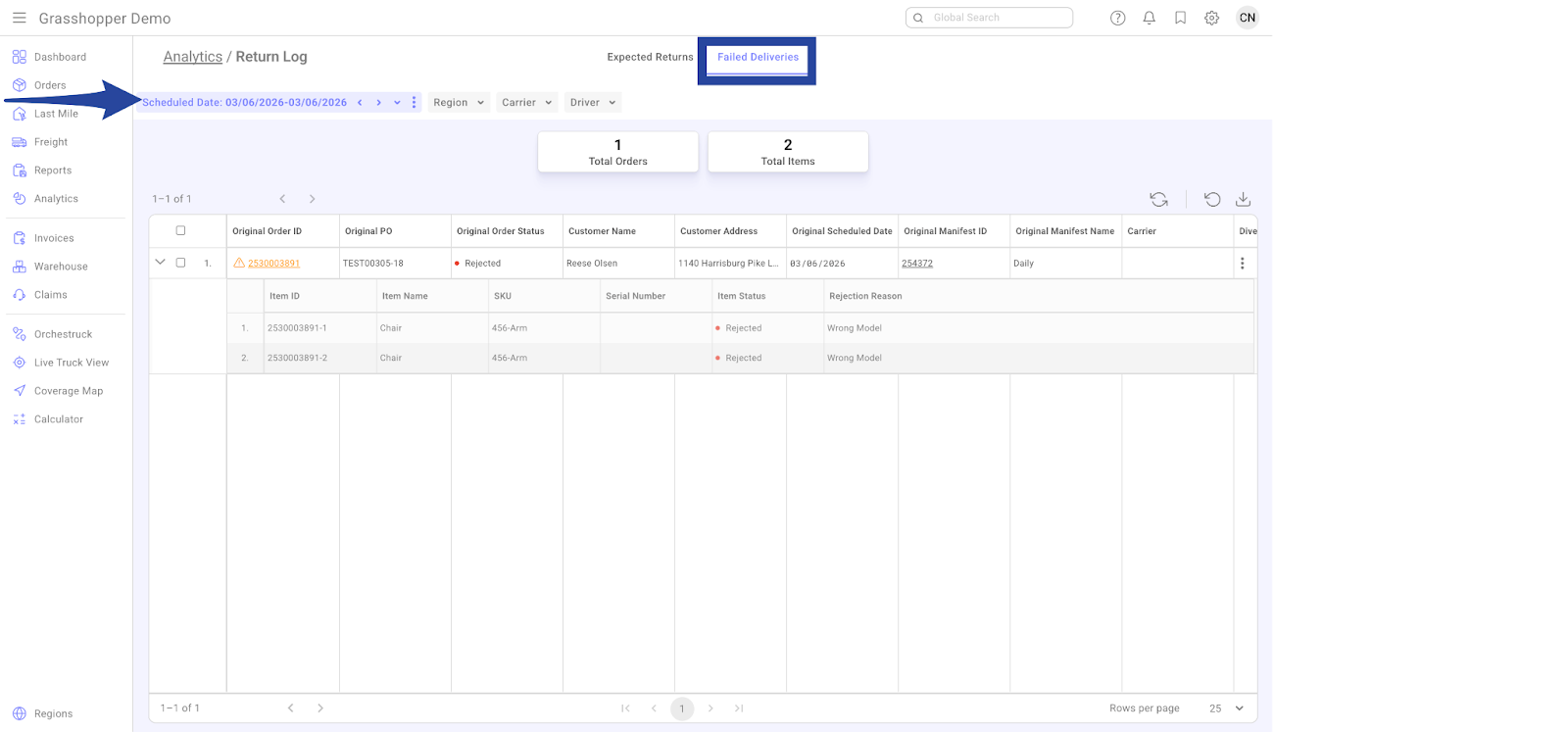
Use the Date Range filter to define the time period you want to review.
The default view typically shows items from the previous working day.
Step 4
Clone orders that contain items that need to be returned to the warehouse.
After an order is cloned, the order moves into the Expected Returns processing stage.
*Until the Failed Deliveries tab is empty, the Dispatcher is not done with the process and should not move to the Expected Returns tab.
Step 5
From the Expected Returns section, select the order(s) that are ready to be returned to the warehouse. Then, either right-click or click the truck icon to add the order to an Inbound Manifest.
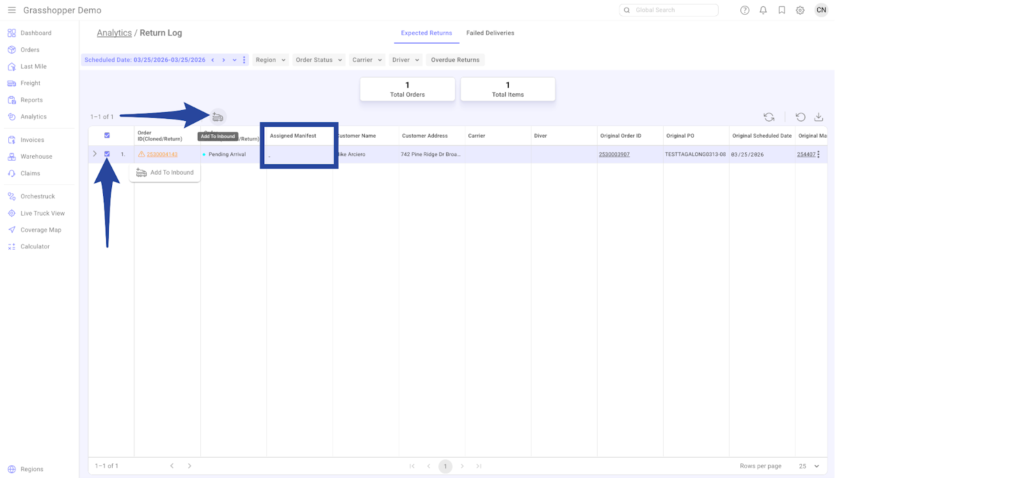
Choose one of the following options:
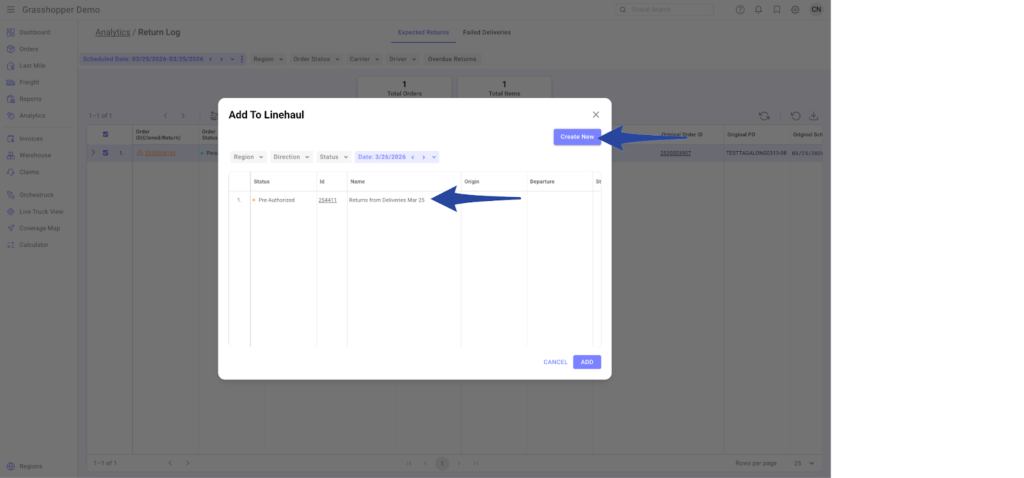
- Assign to an existing manifest (if one is already created), or
- Create a new manifest, then add the selected orders to it
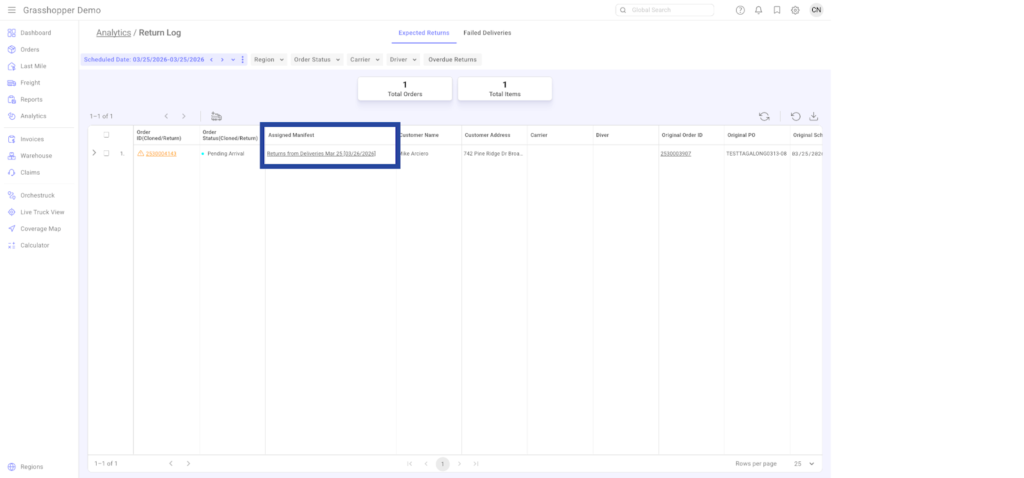
Once assigned, ensure the orders are included in the correct manifest for return processing.
At the end of the day, the warehouse team should scan all returned items.
Expected Result:
- Orders are successfully assigned to a manifest
- Returned items are received and scanned into the warehouse
- Order statuses are updated accordingly
Downloading Reports
Click the download icon to export the report in CSV format. The file will be generated instantly and available for download.