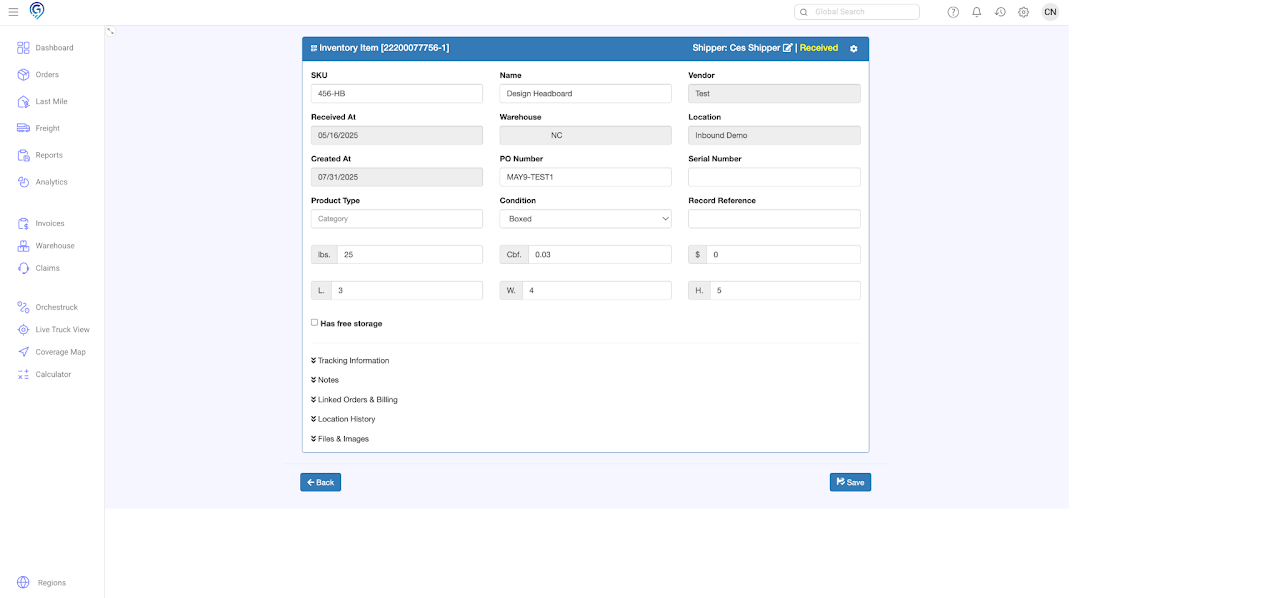
Step 1
Select the item/s you wish to assign to inventory, right click then choose Assign To Inventory
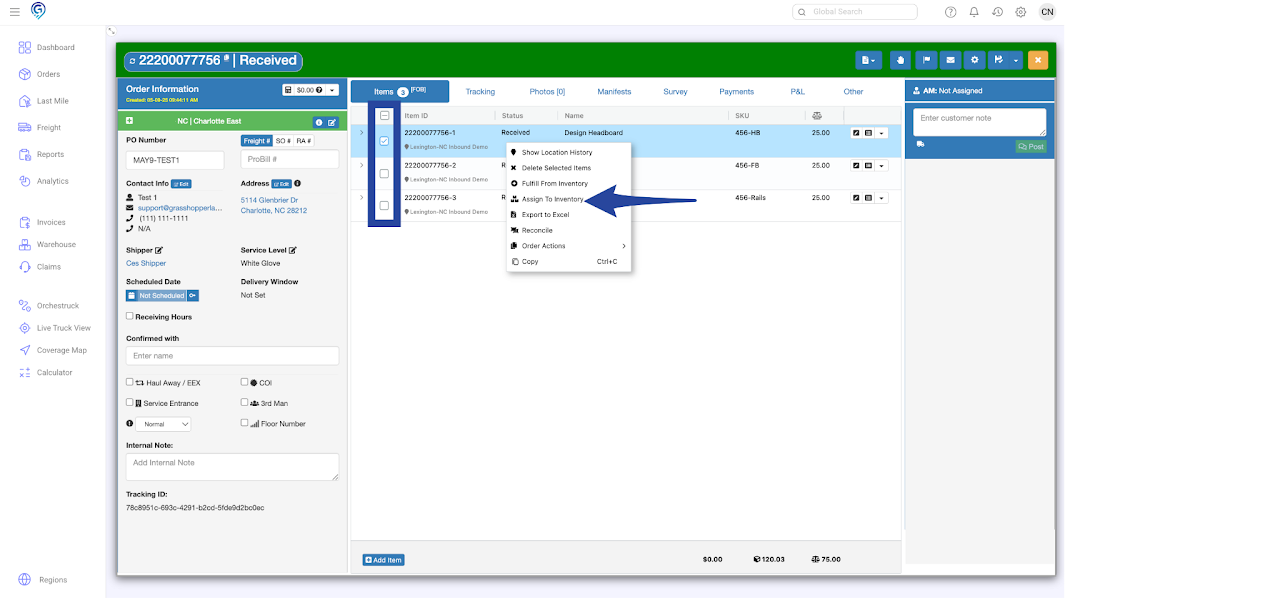
Step 2
Review the item(s) you have selected for inventory assignment.
Choose the appropriate item condition from the drop down list. If needed, you may opt to Keep line items in order.
Add note.
Once done, click Next to proceed.
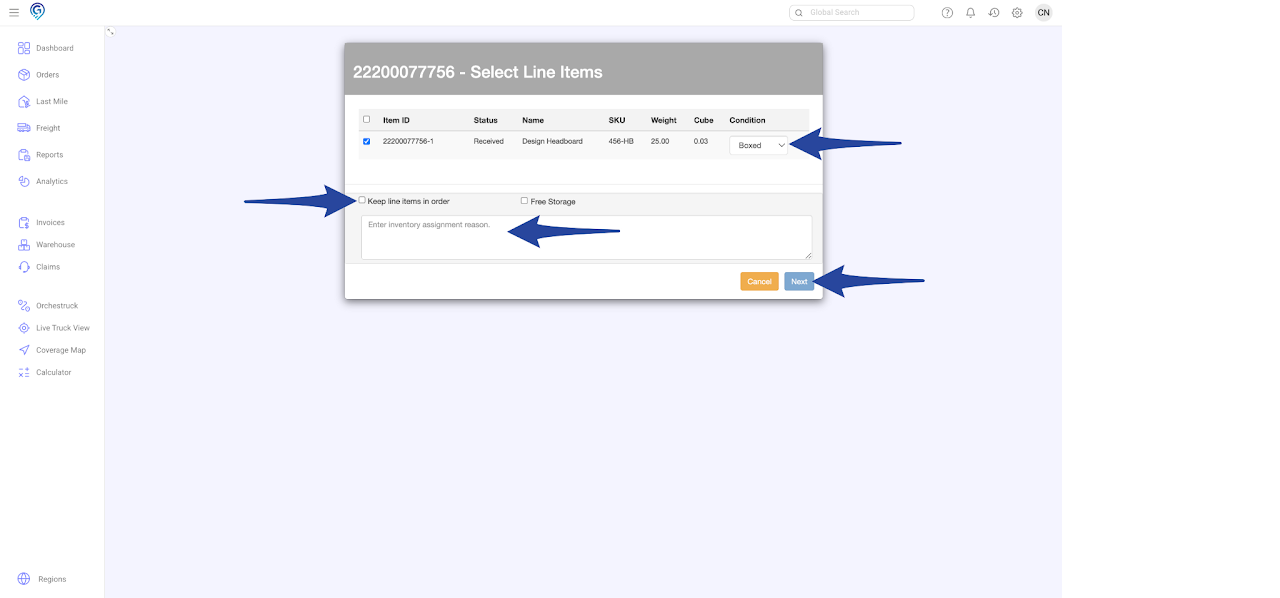
Notification on the lower left showing item(s) have been added to inventory
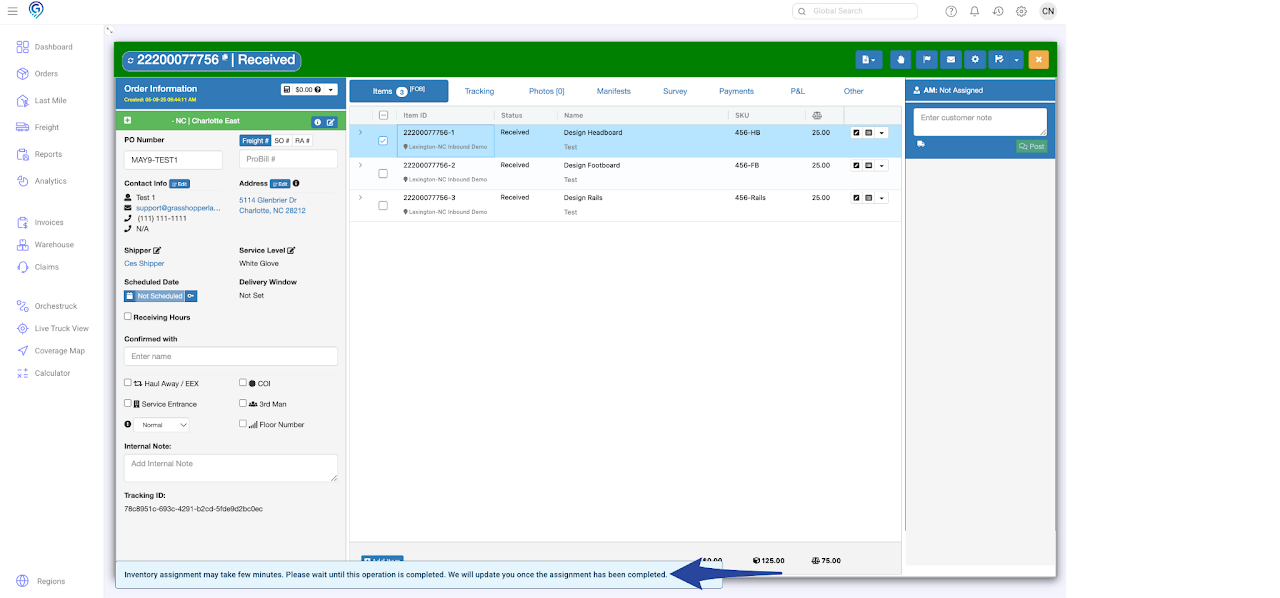
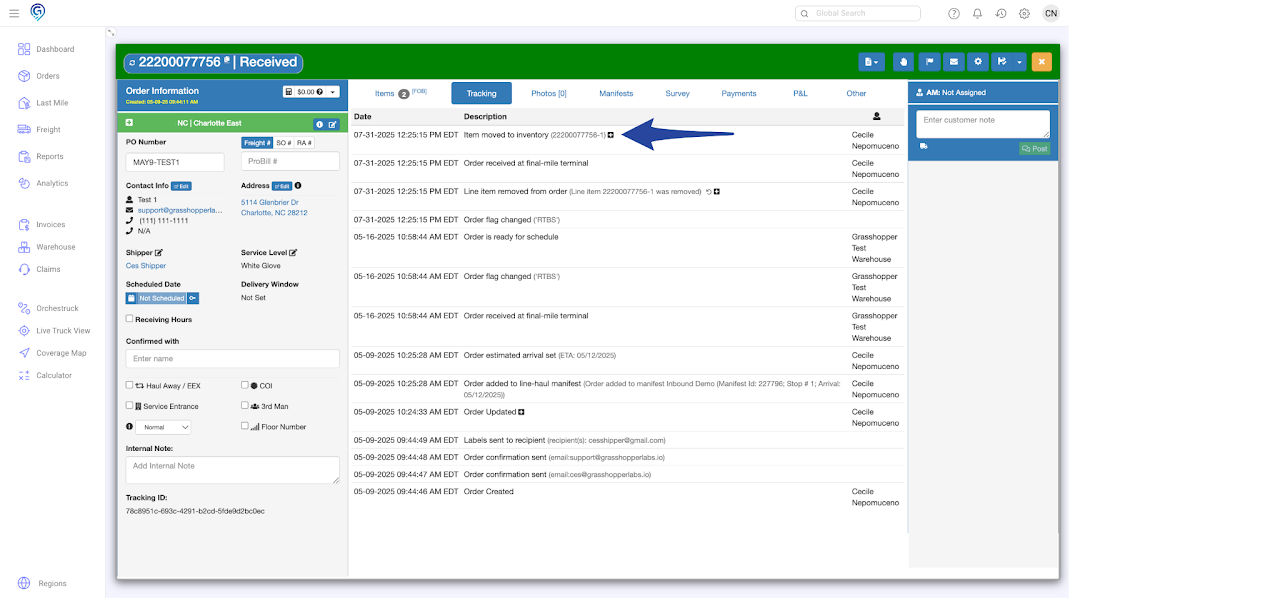
Tracking confirmation that the item(s) have been successfully added to inventory
View of the Item within the Warehouse Management System