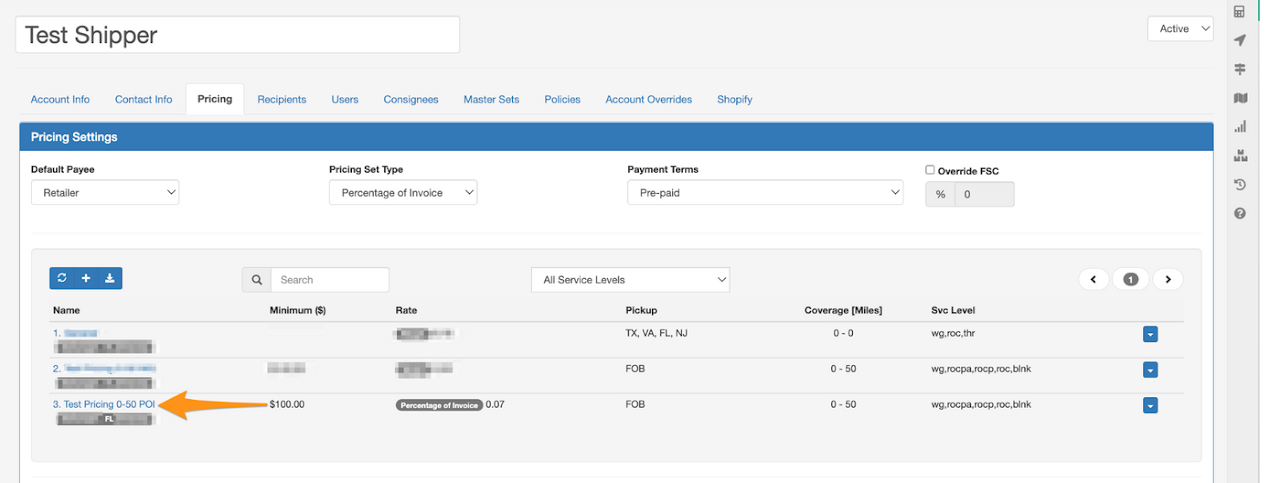
Step 1
Click on the gear icon then select Shippers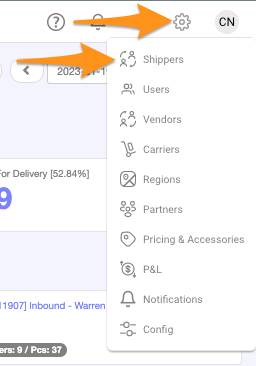
Step 2
Click + New Account
Step 3
Create a Shipper Name (Account Name)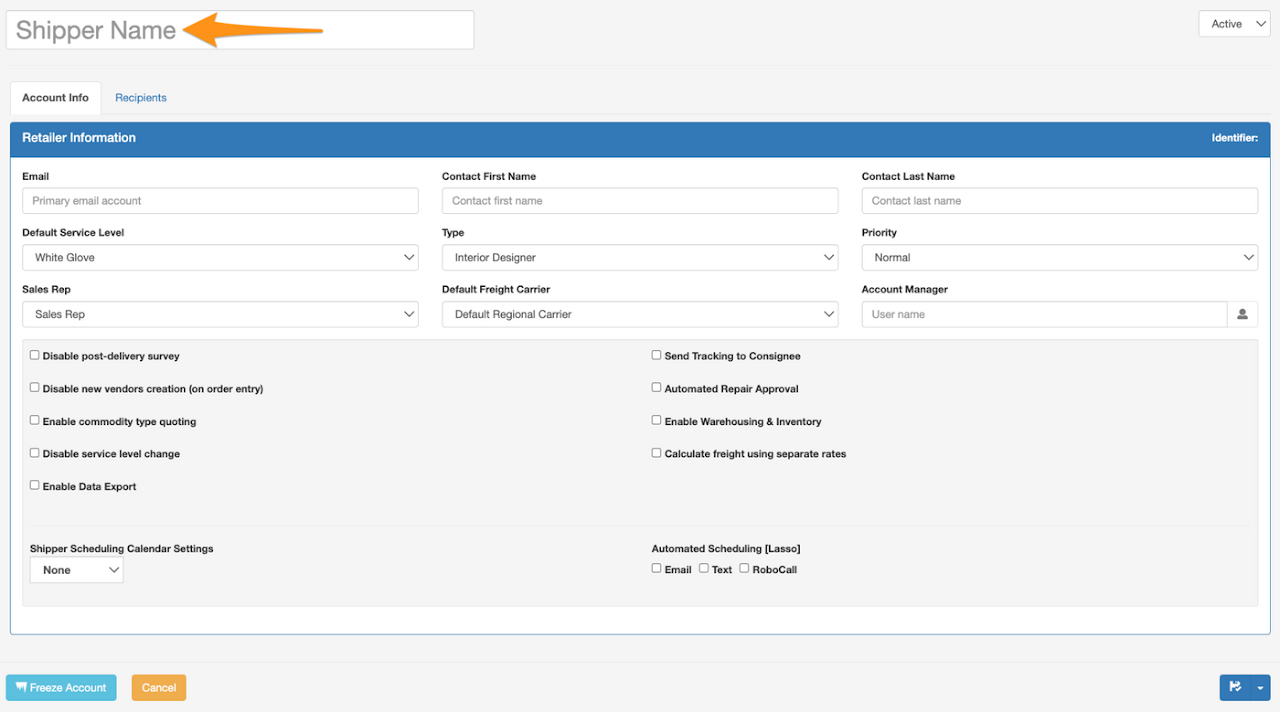
Step 4
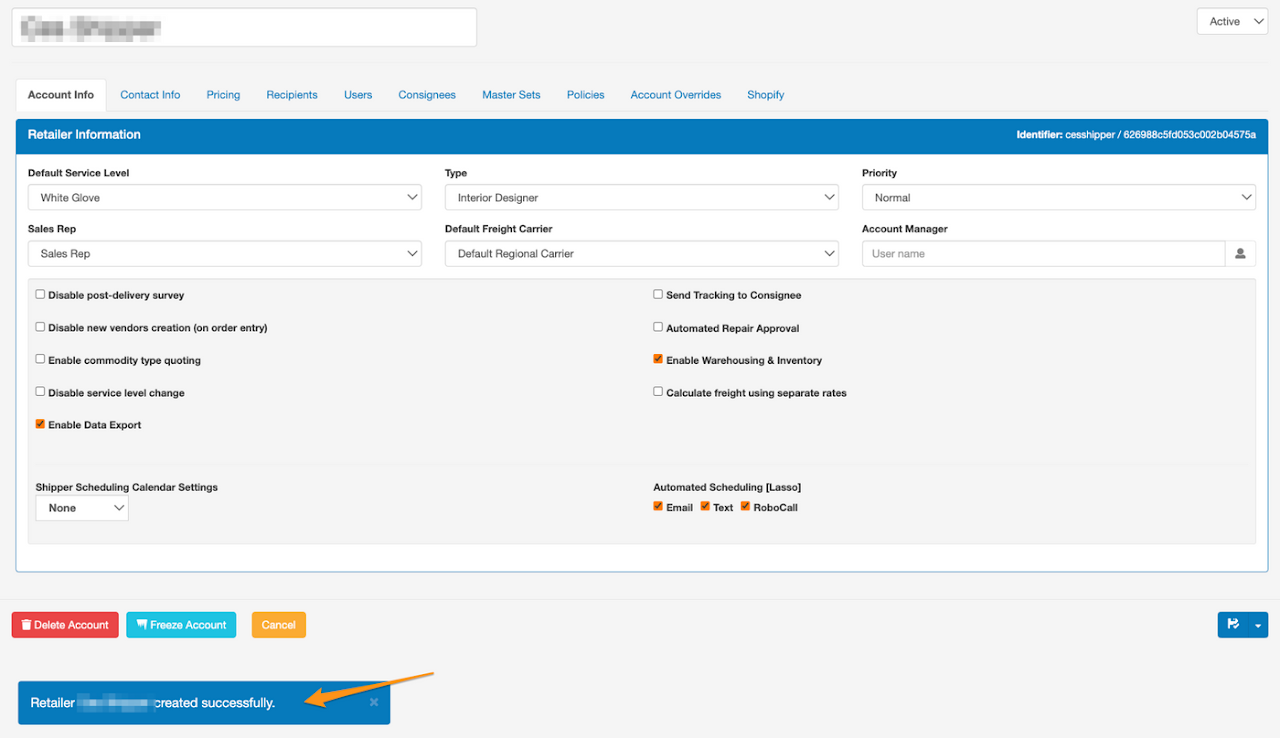
Enter Email Address, Contact First Name and Contact Last Name You may opt to Save only or Save and Close by clicking the disk icon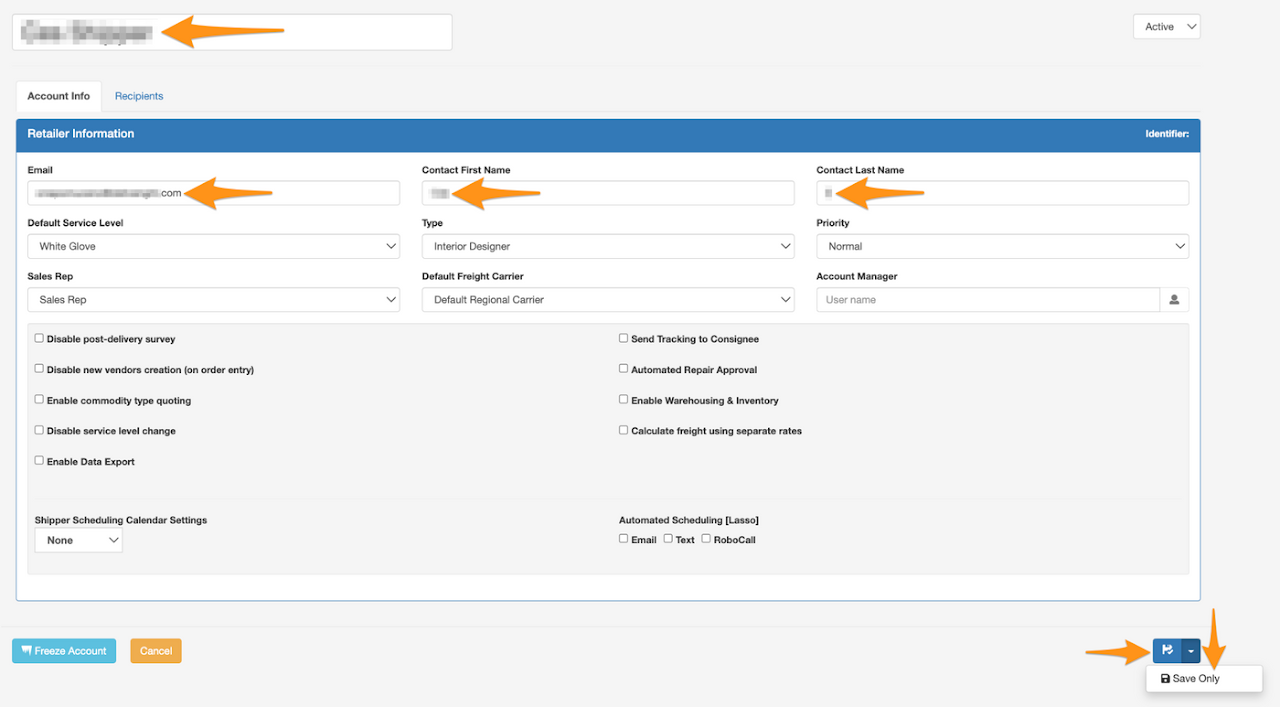 Confirmation that Shipper creation has been completed
Step 5
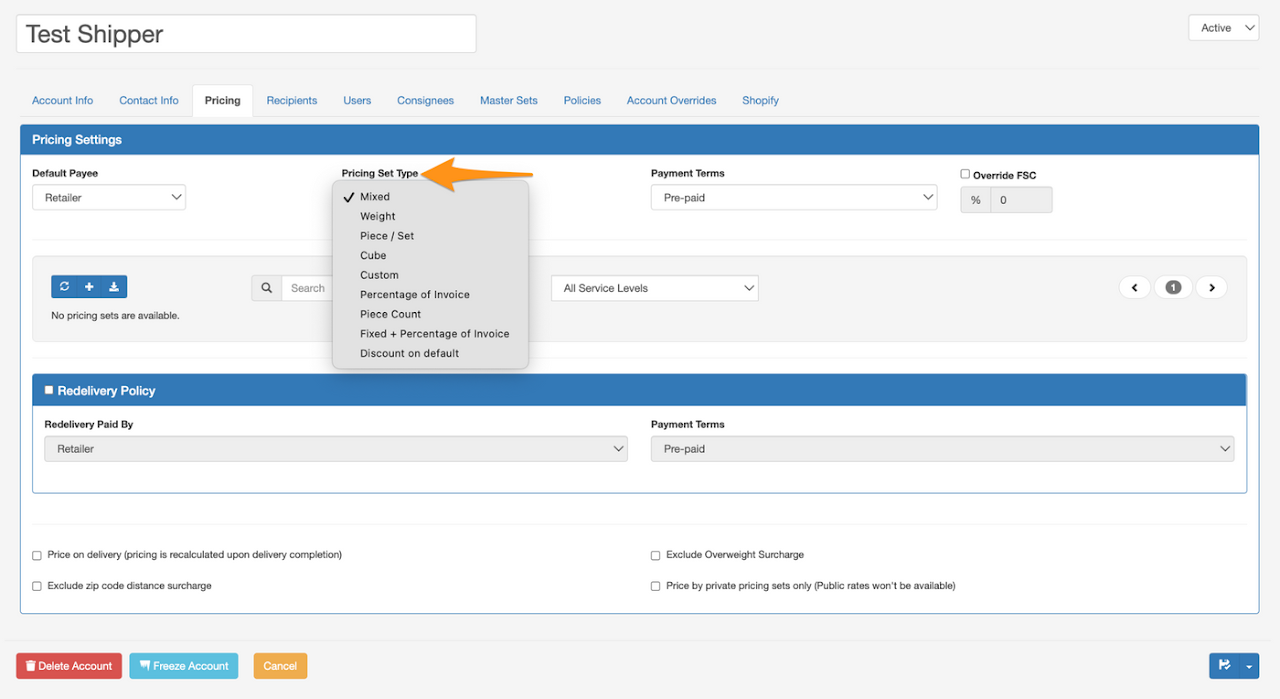
On Pricing tab:- Pricing Set Type – select Percentage of Invoice
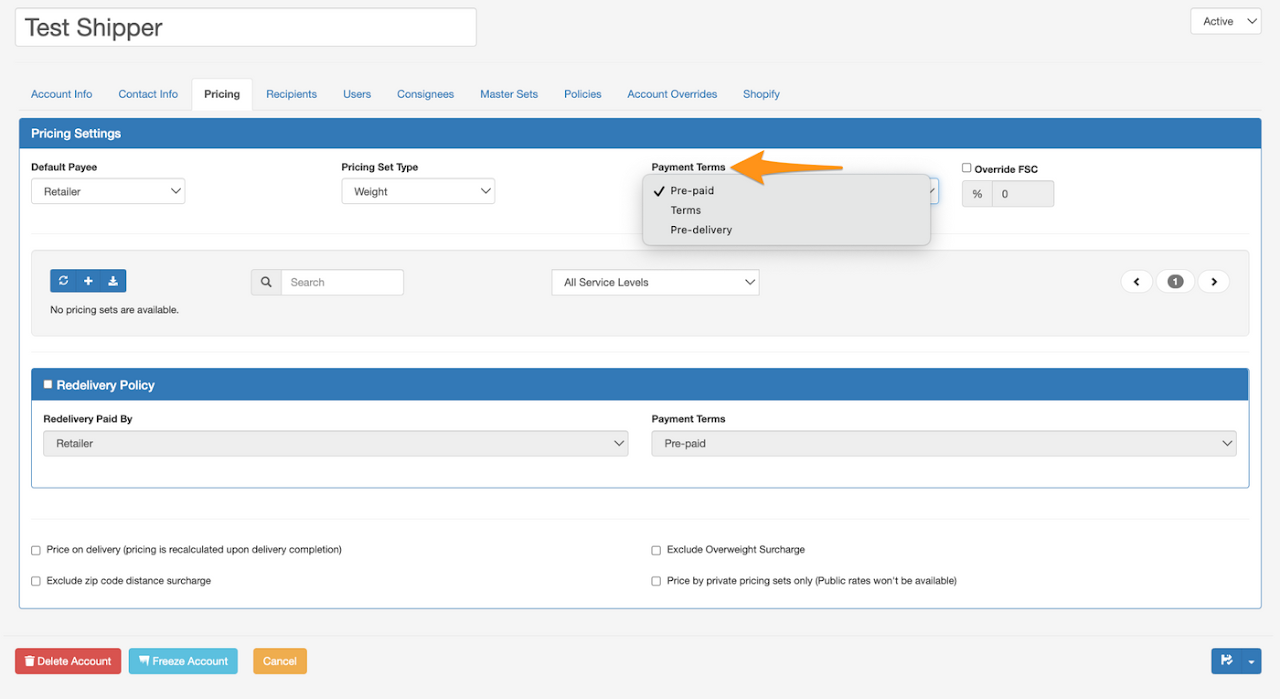
- Payment Terms – select either Prepaid, Terms or Pre-Delivery
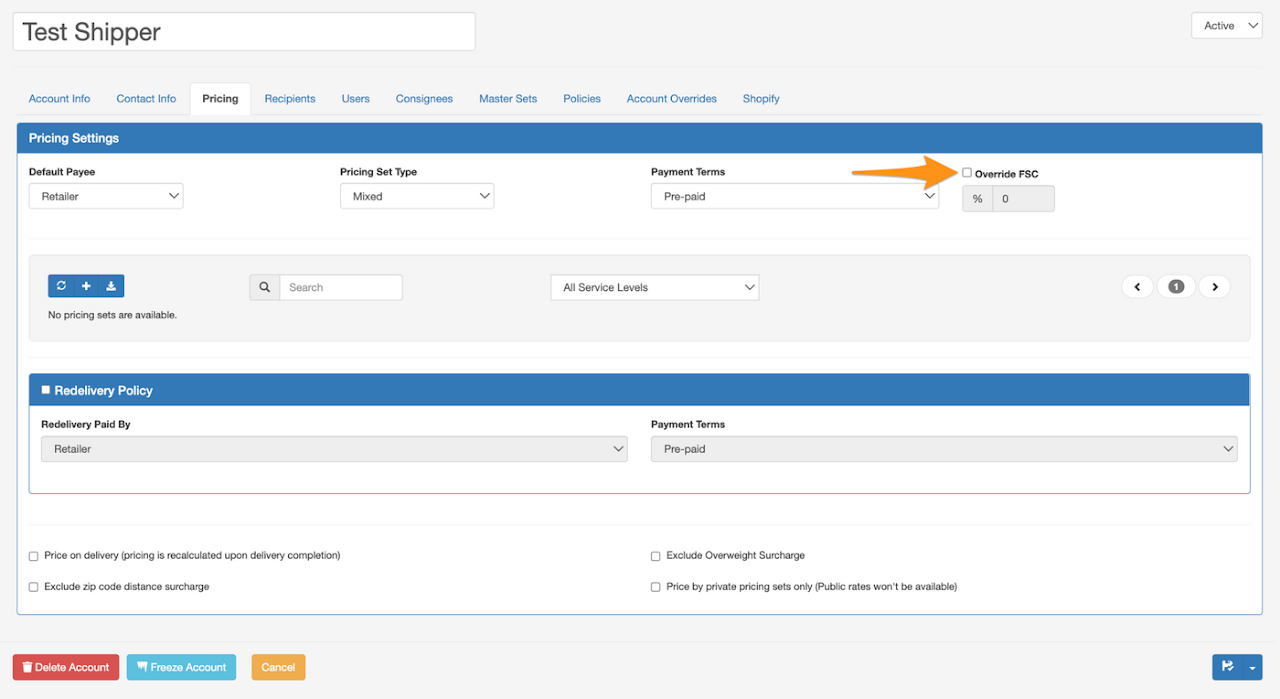
- You may tick the box for Override FSC (Fuel Surcharge Cost) if you wish to set it differently
Step 6
Click on the + symbol to set the Pricing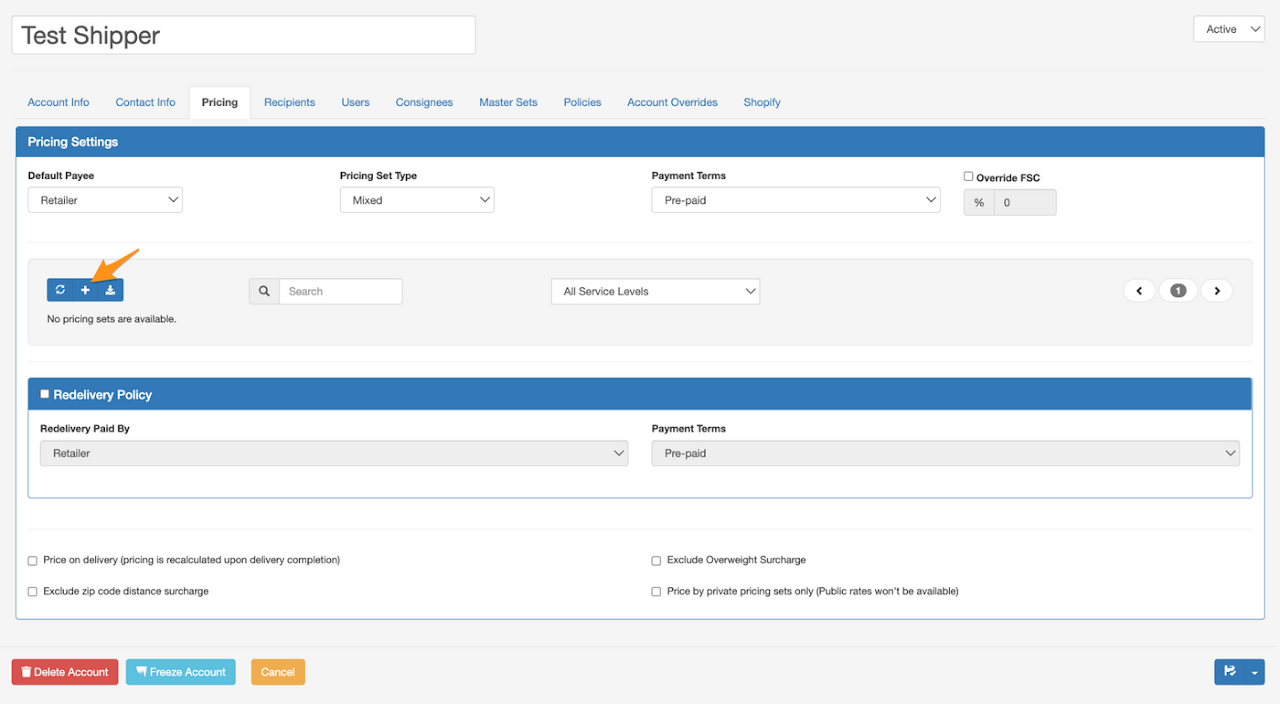
Step 7
Enter the Pricing Set Name and information on the required fields Please note that when entering percentage, decimal point should be entered. Example: 8% = .08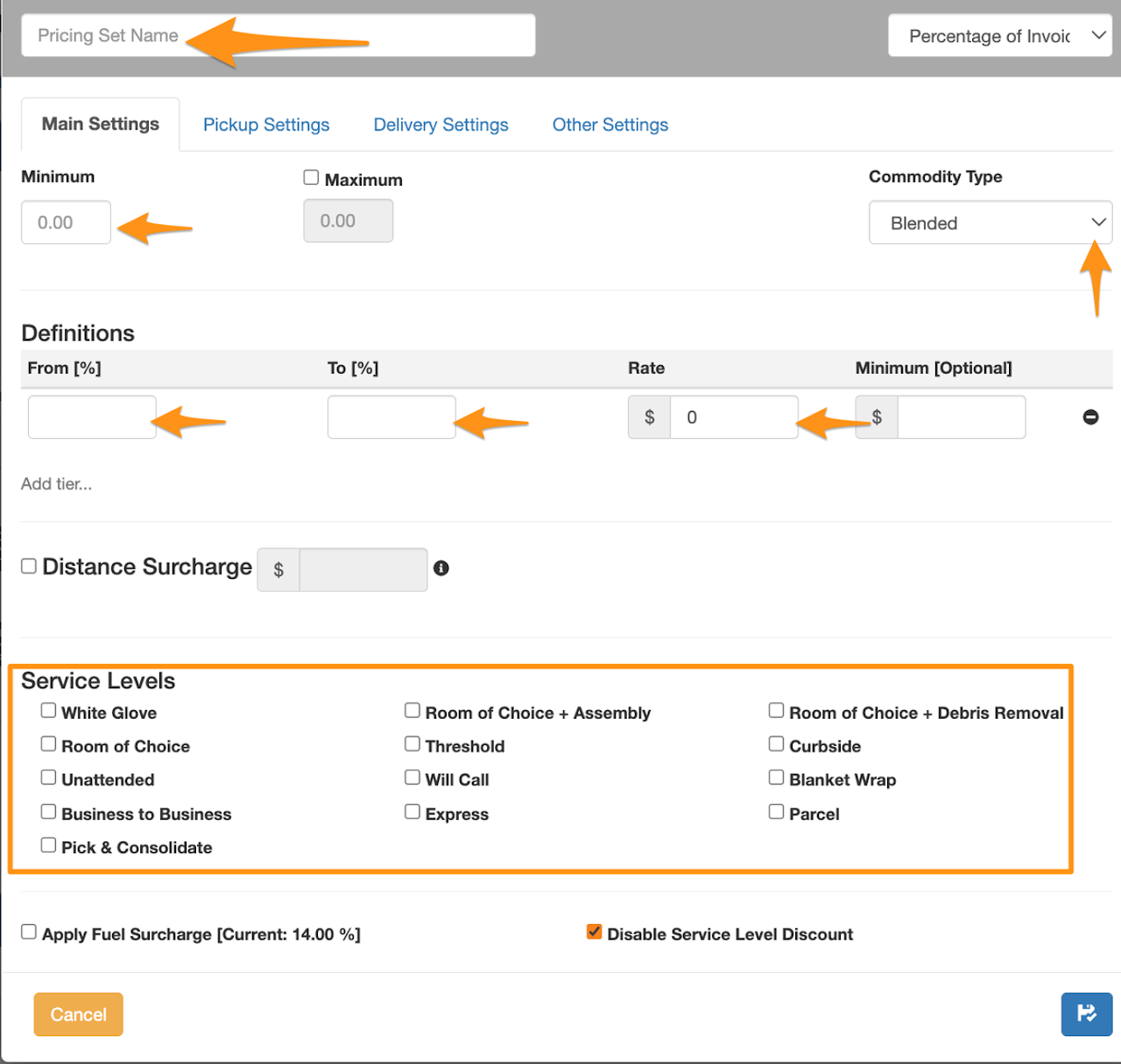
Step 8
Select the Pickup Settings tab and click on the + symbol.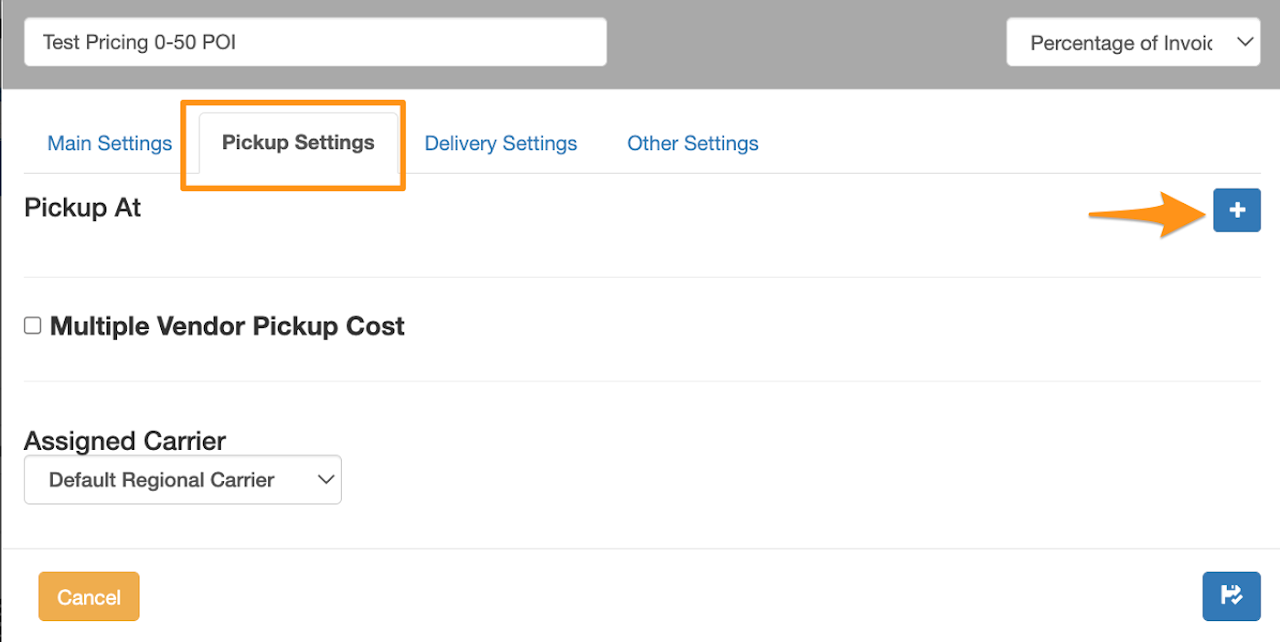
Step 9
Enter the Pickup State (if any) or FOB (Freight On Board) then click Done.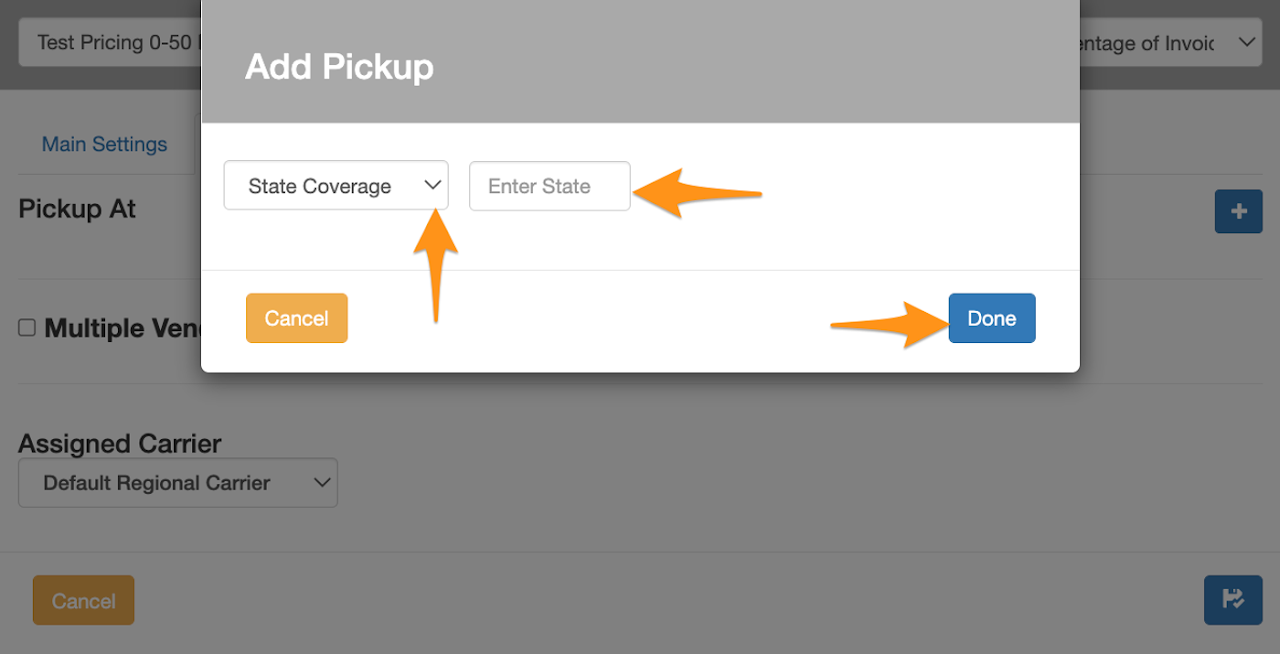
Step 10
On Delivery Settings tab – select applied Region, Distance Limit (by miles) and click the disk icon to Save and exit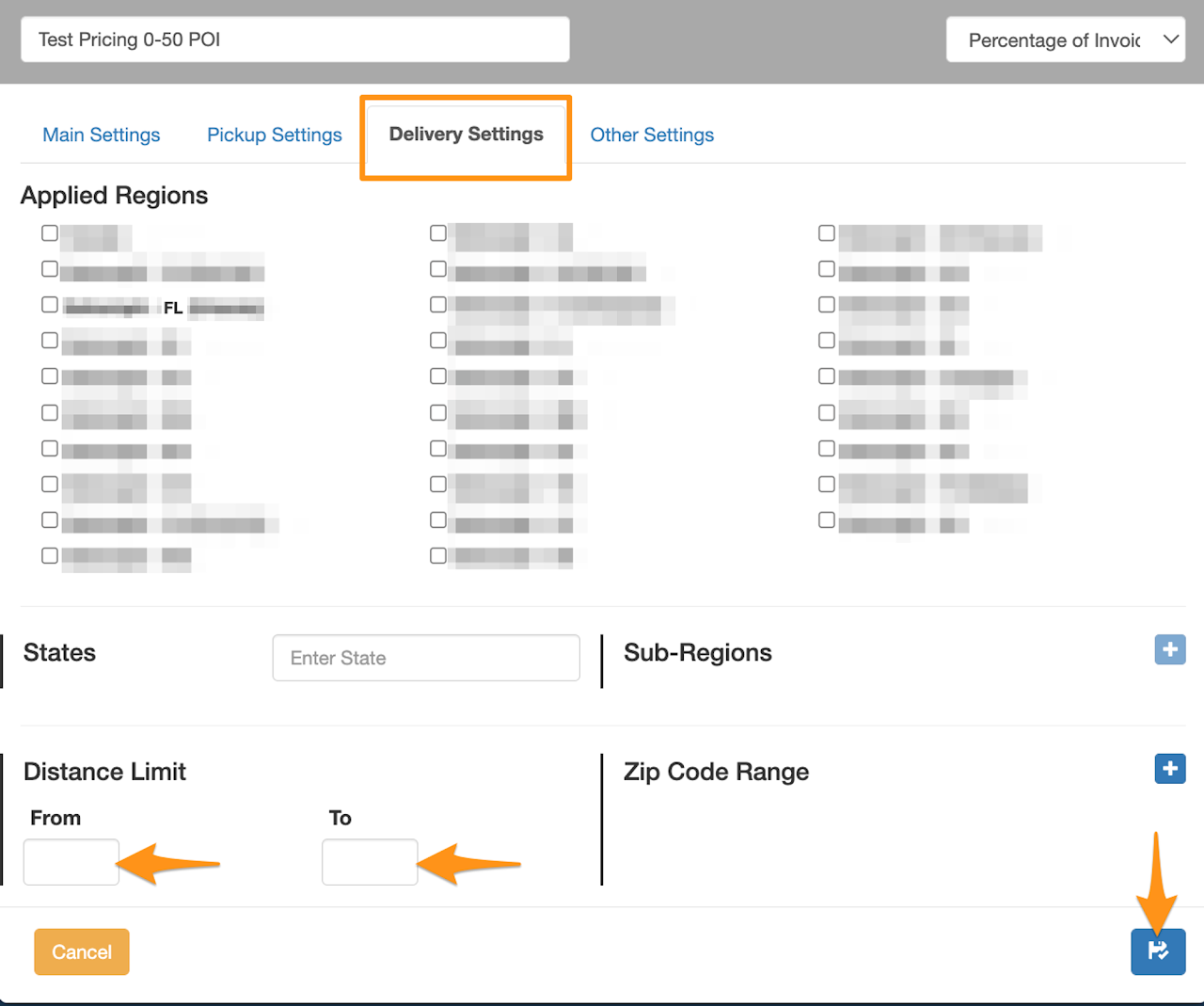 Confirmation of added Pricing Set for the Shipper’s Account