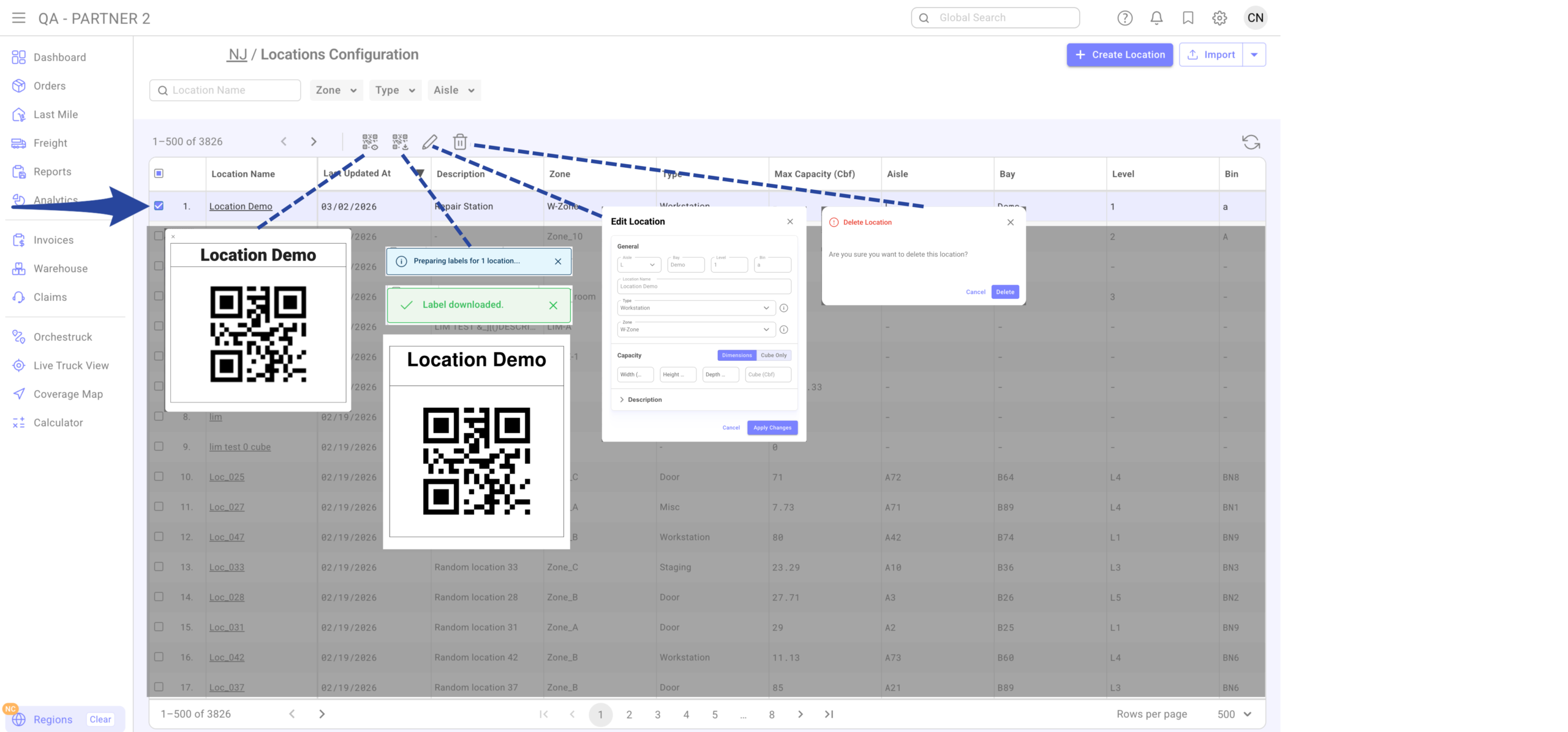
Creating Individual Location
Step 1
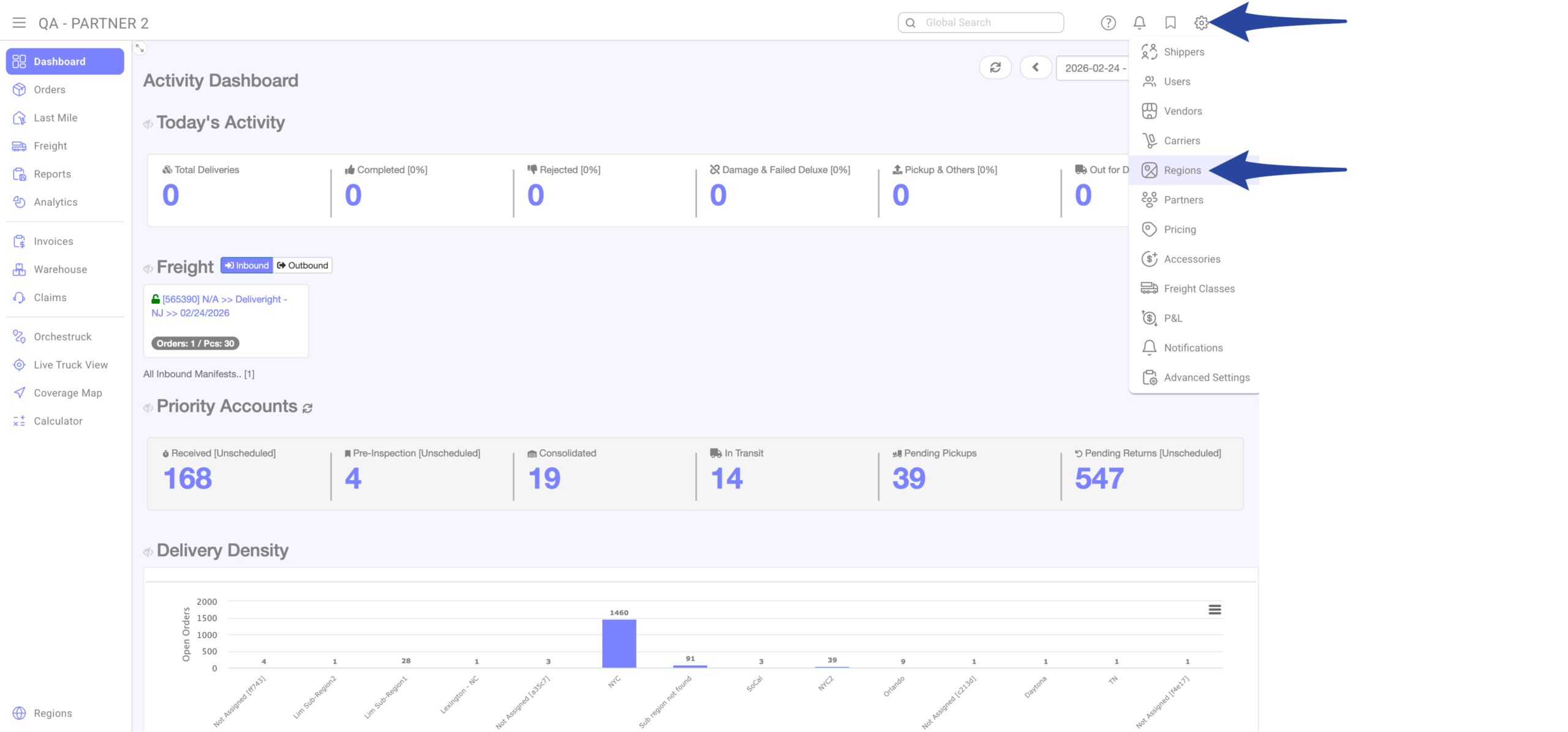
Click the gear icon from the main Dashboard and select Regions.
Step 2
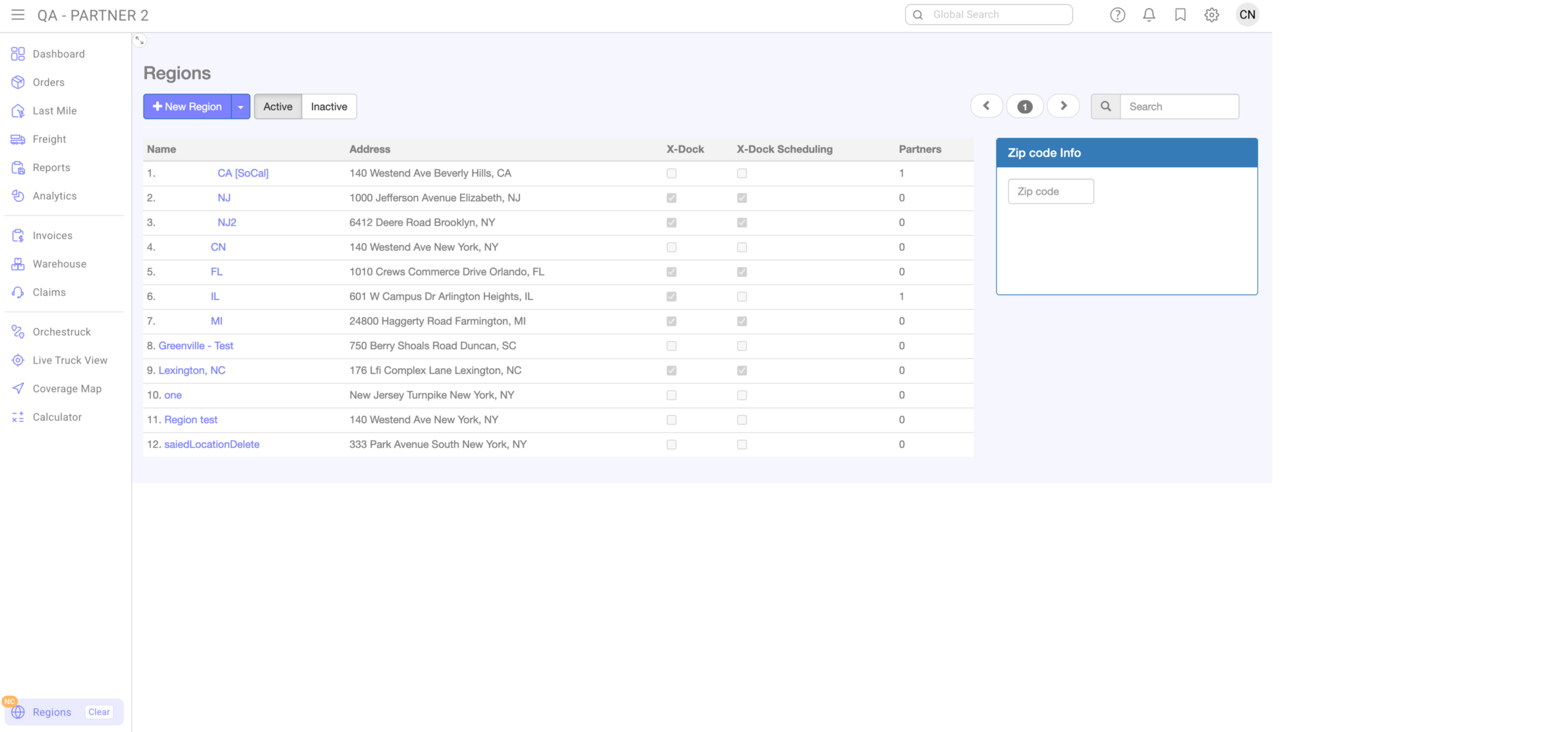
Navigate to the correct Region.
Step 3
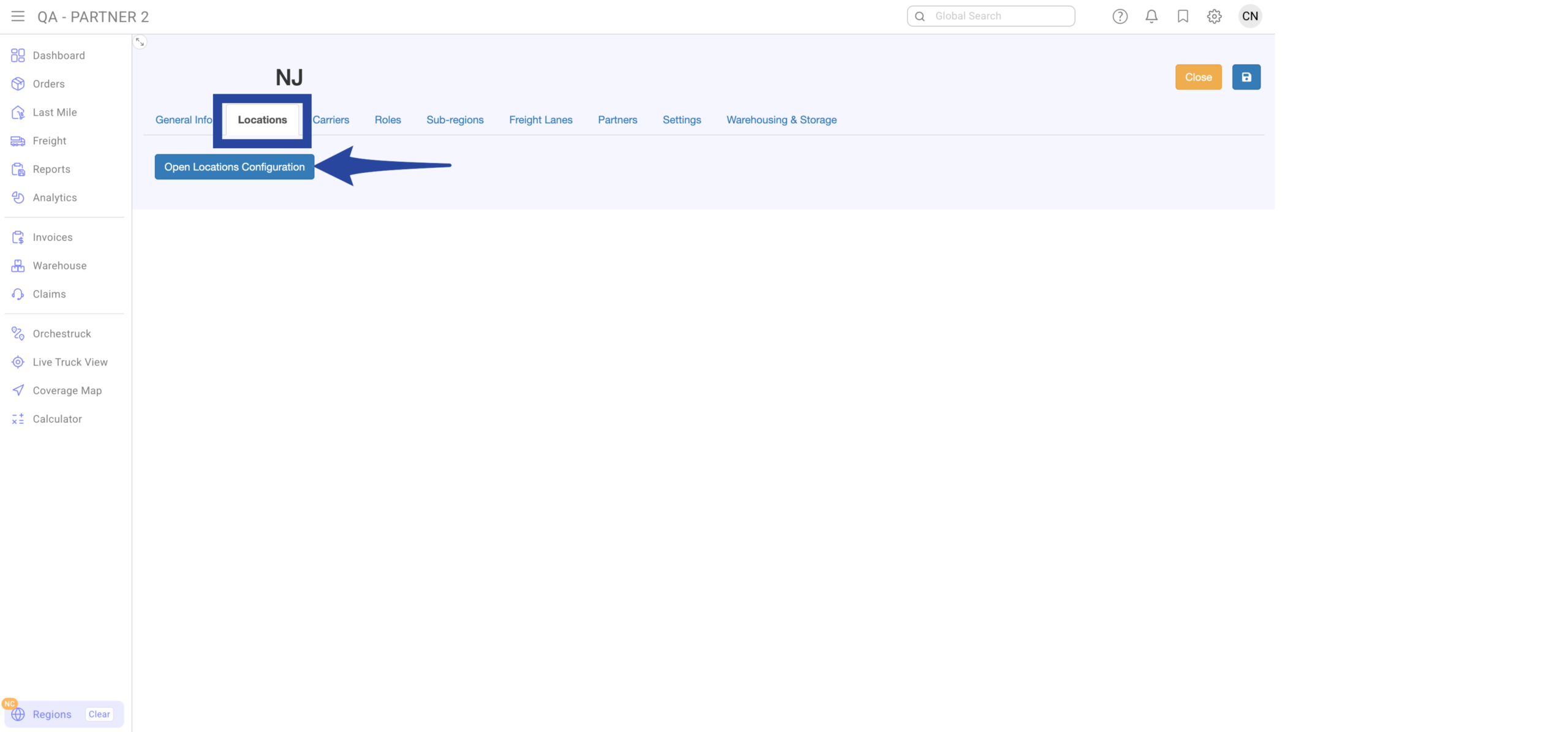
Go to Locations tab and click Open Locations Configuration.
Step 4
Click +Create Location
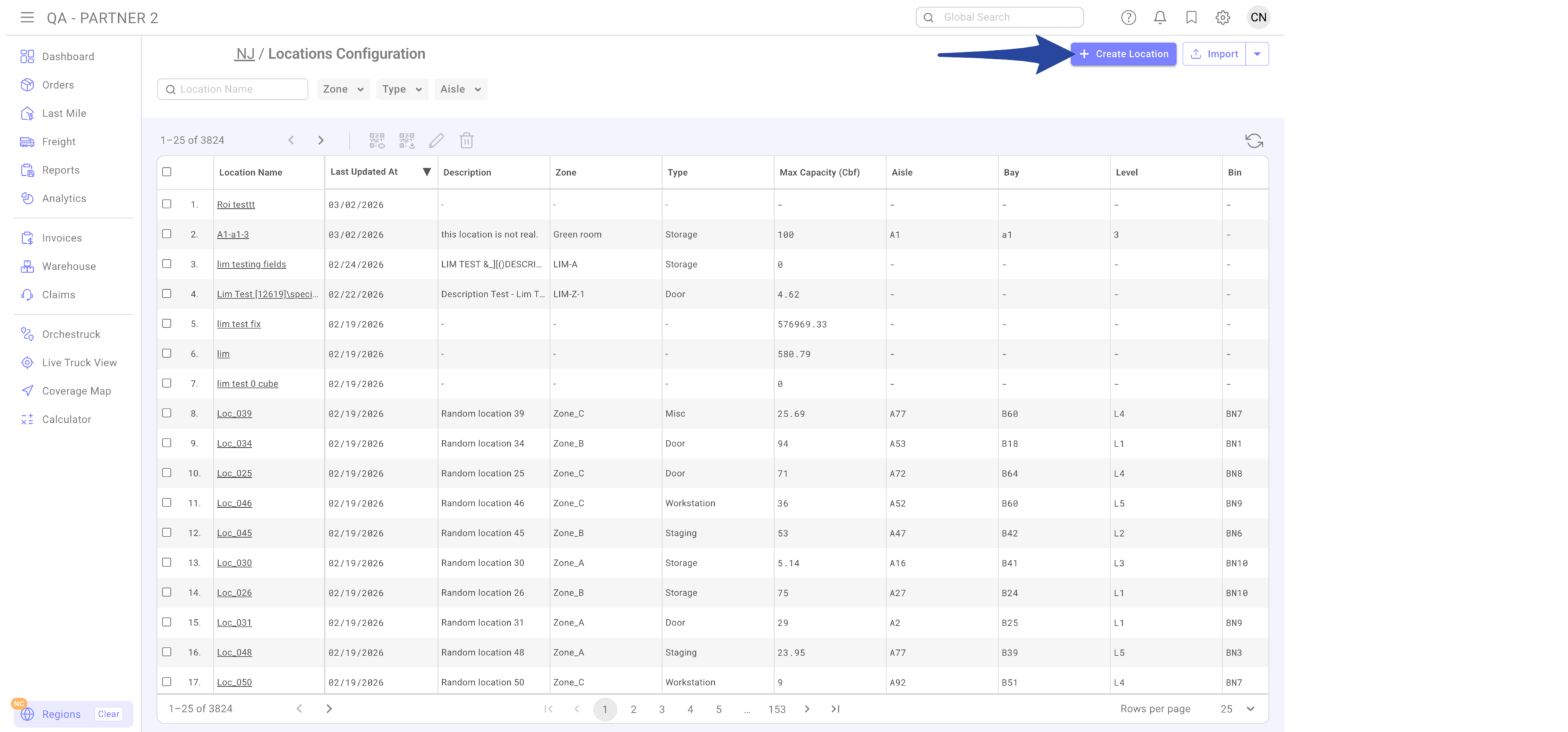
Step 5
A. Enter the details:
-
Aisle (optional)
-
Bay (optional)
-
Level (optional)
-
Bin (optional)
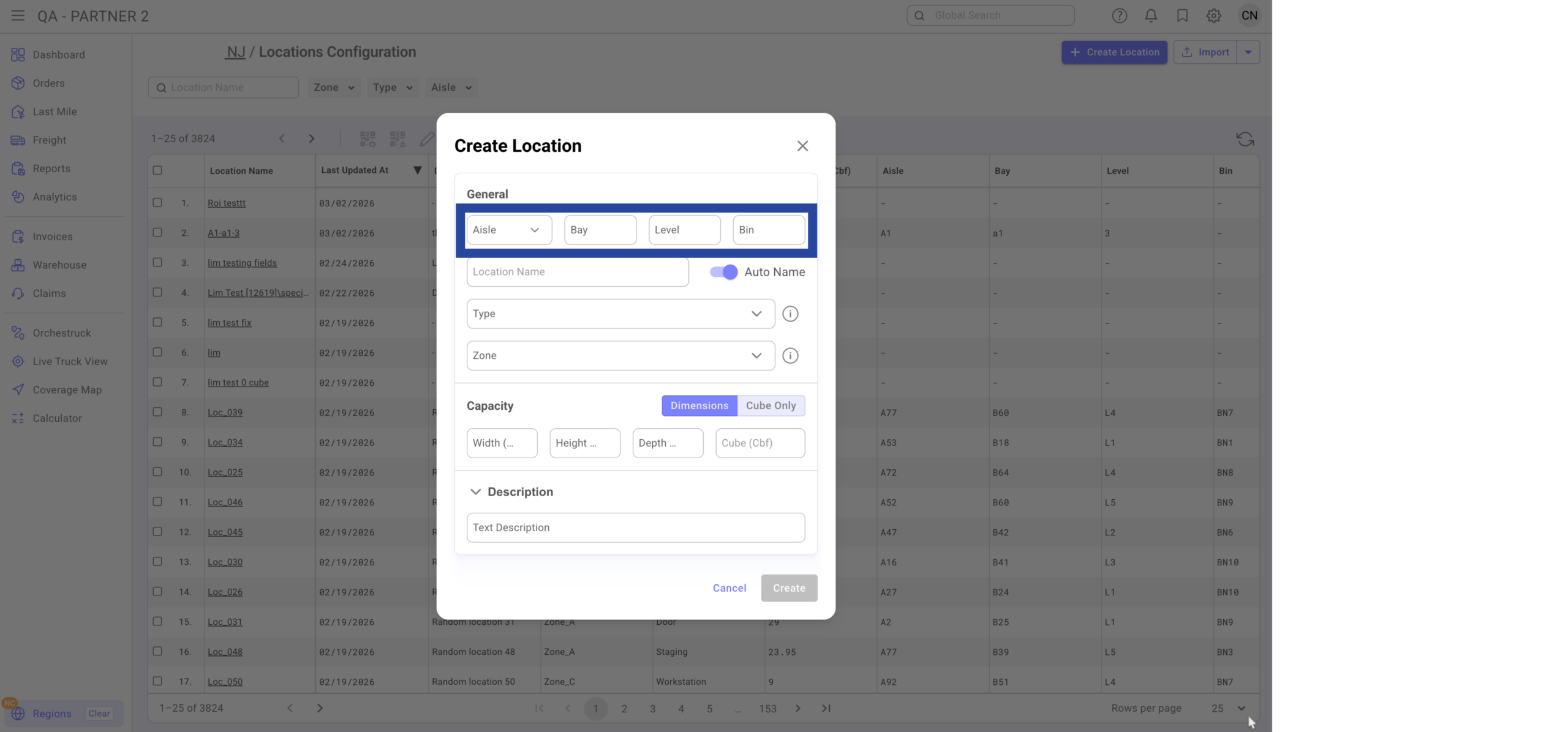
When entered, the system auto-generates the location name.
Example:
-
Aisle: 1
-
Bay: A
-
Level: 2
-
Bin: A
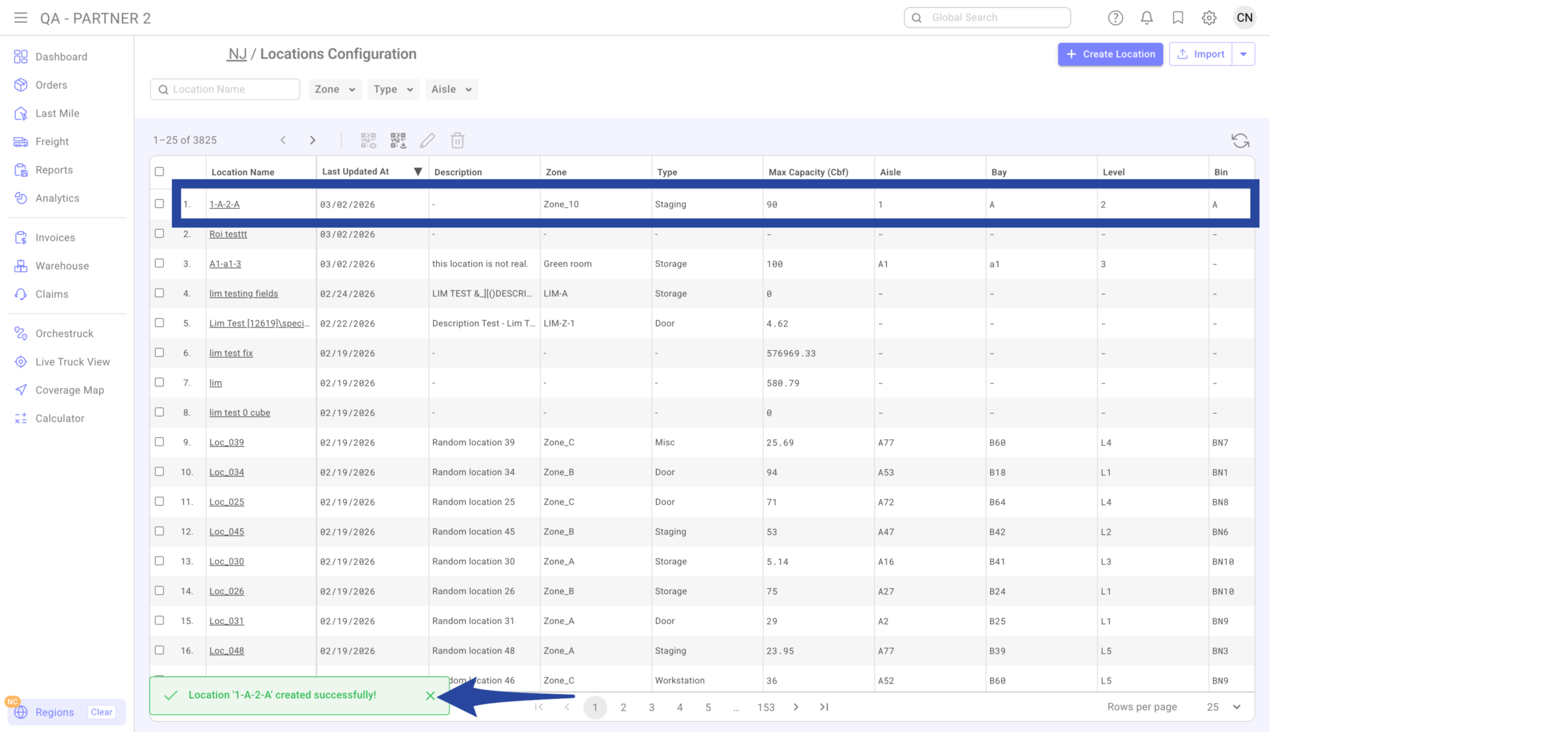
Location name becomes 1-A-2-A
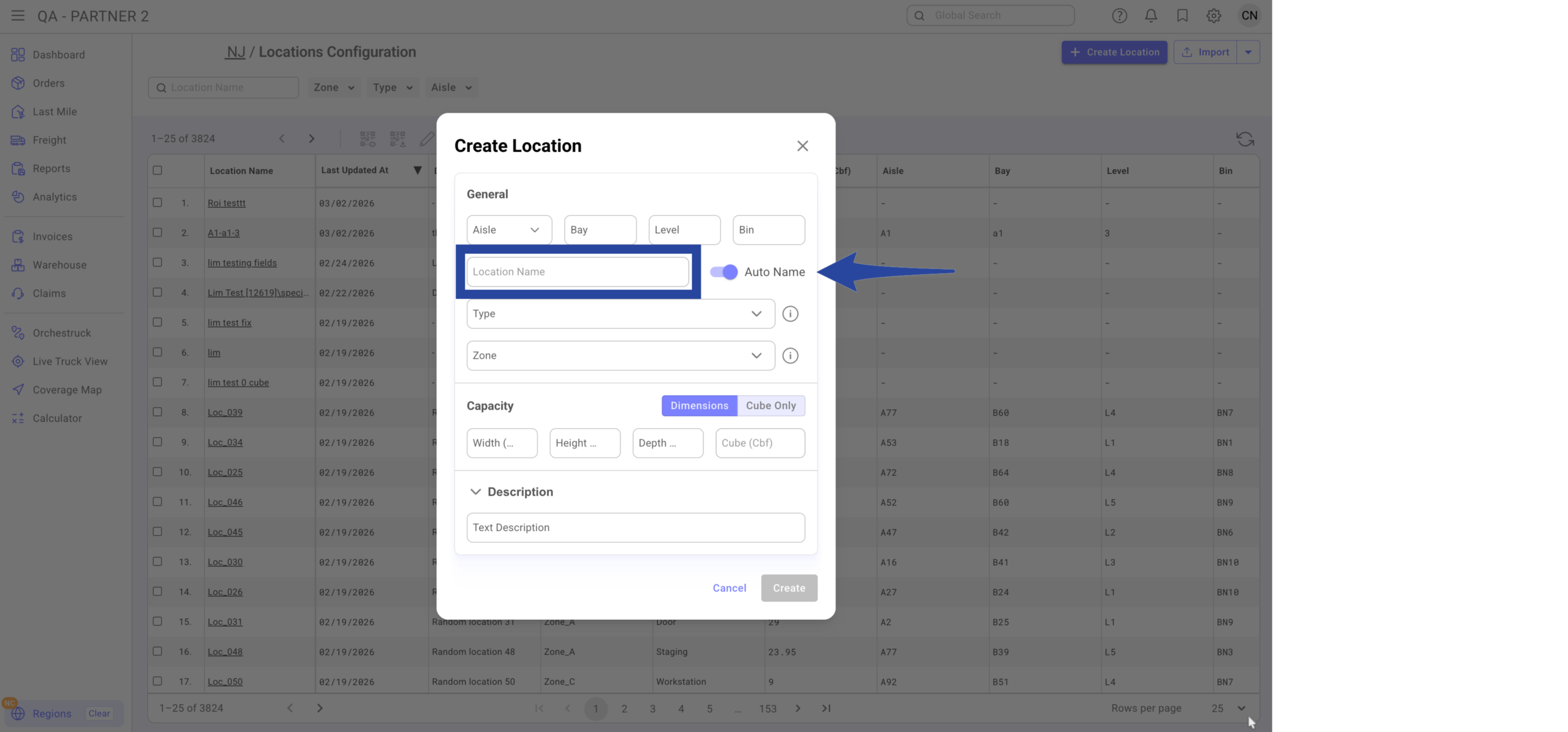
B. If you prefer, you can turn off Auto-Name and enter a custom name (e.g., Location Demo)
** Only the Location Name is mandatory, all other fields are optional.
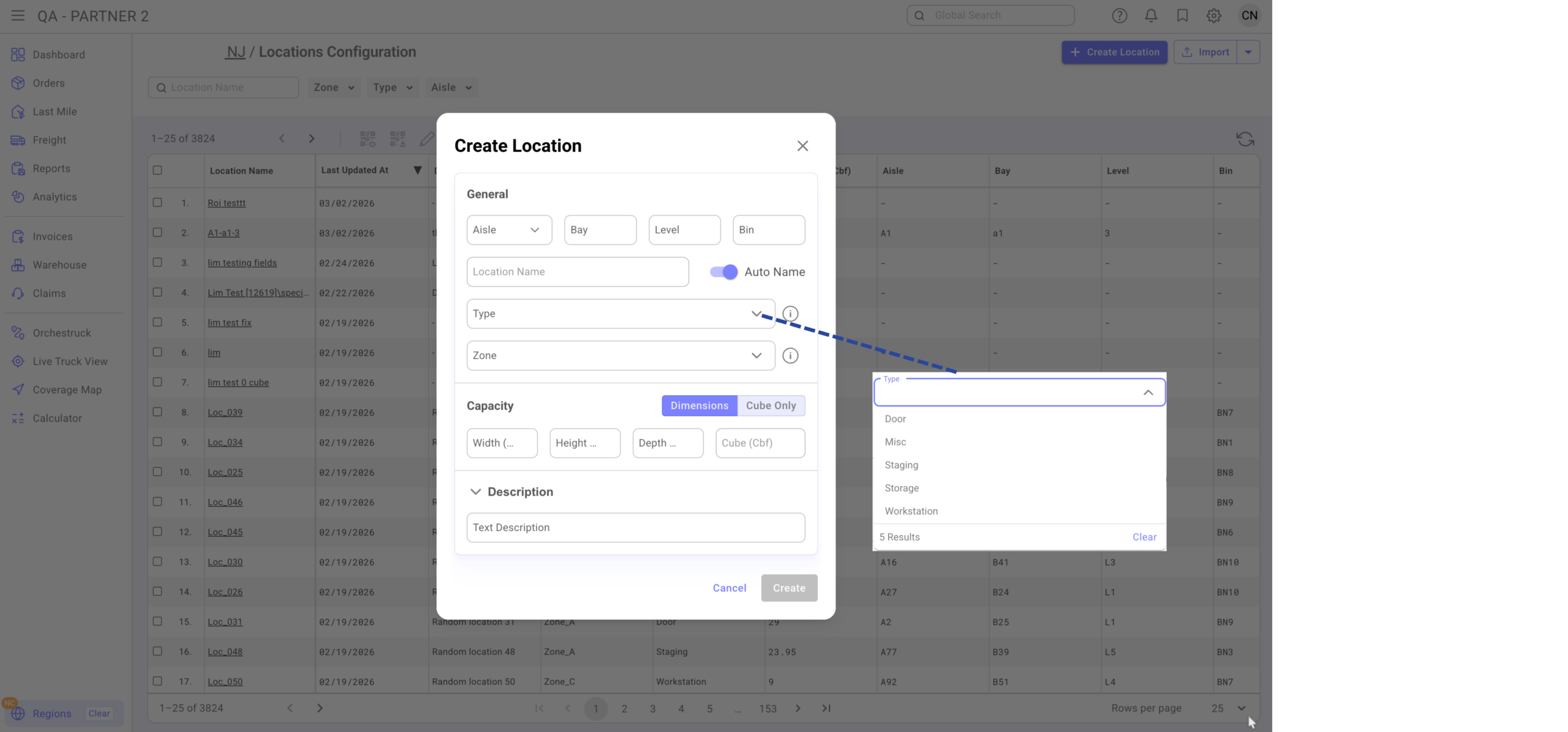
C. Location Type (Optional)
Define the functional role of the location:
-
Door
-
Staging
-
Storage
-
Workstation
-
Other
This helps:
-
Filter locations
-
Suggest locations during inbound
-
Generate future reports by function
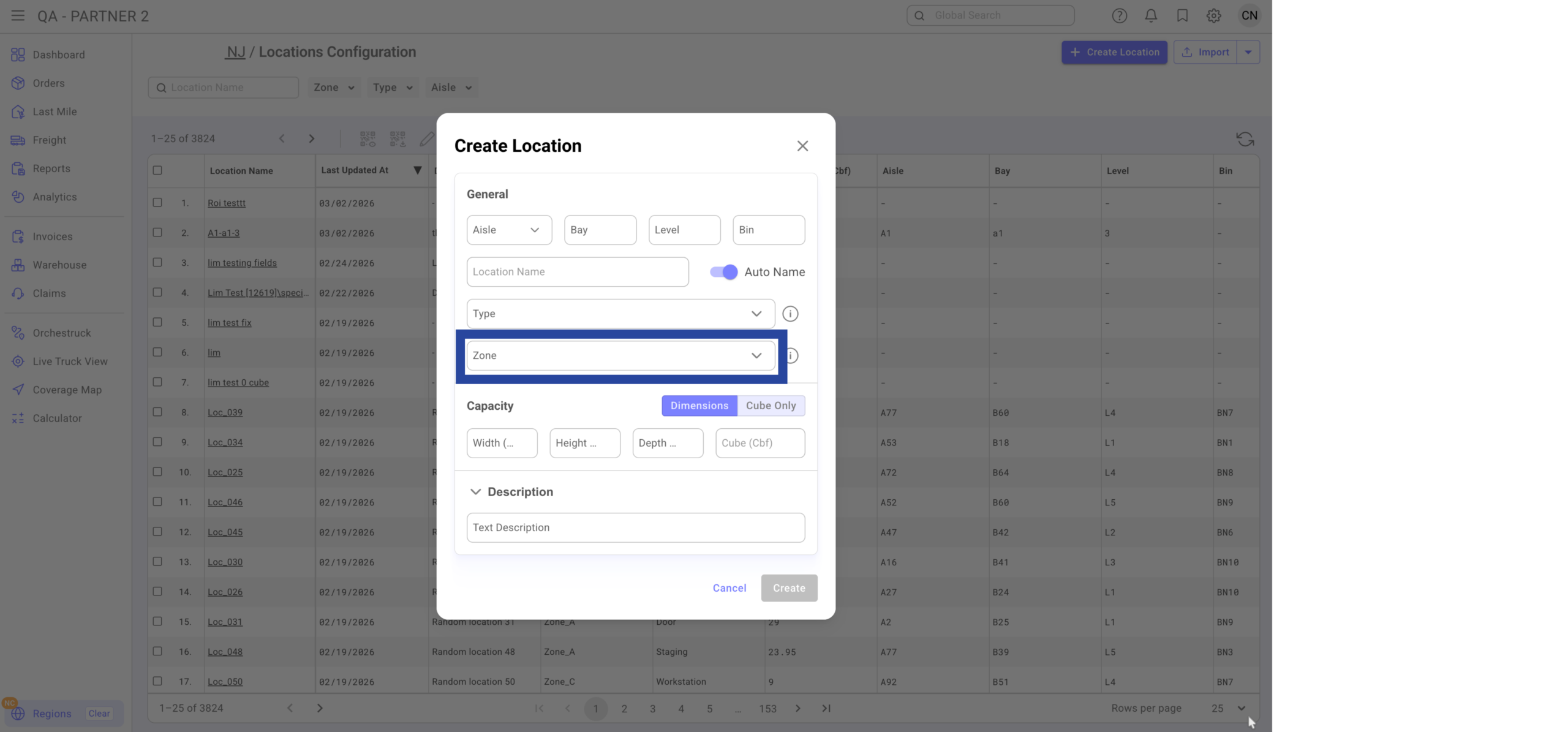
D. Zone (Optional)
Zones allow grouping by warehouse areas like:
-
Receiving
-
Picking
-
Storage
-
Custom areas (e.g., “Green Area”)
Benefits:
-
Filter by zone
-
Future rule-based automation
-
Zone-level reporting
You can create zones directly while creating the location.
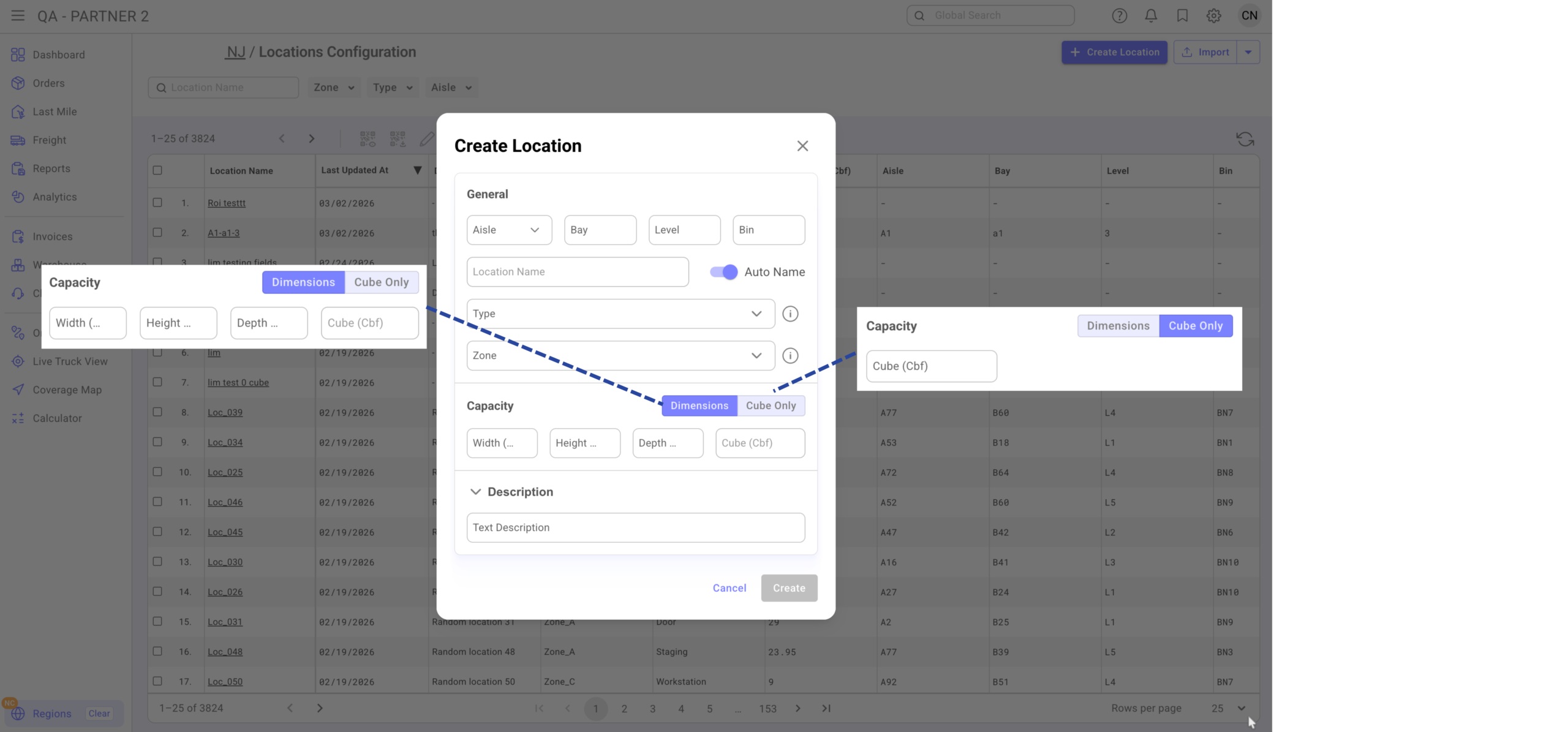
E. Capacity (Optional)
Define:
-
Width (inches)
-
Height (inches)
-
Depth (inches)
Or enter cube directly.
The system:
-
Calculates cube automatically
-
Tracks cube usage
-
Flags locations nearing capacity (future warning behavior)
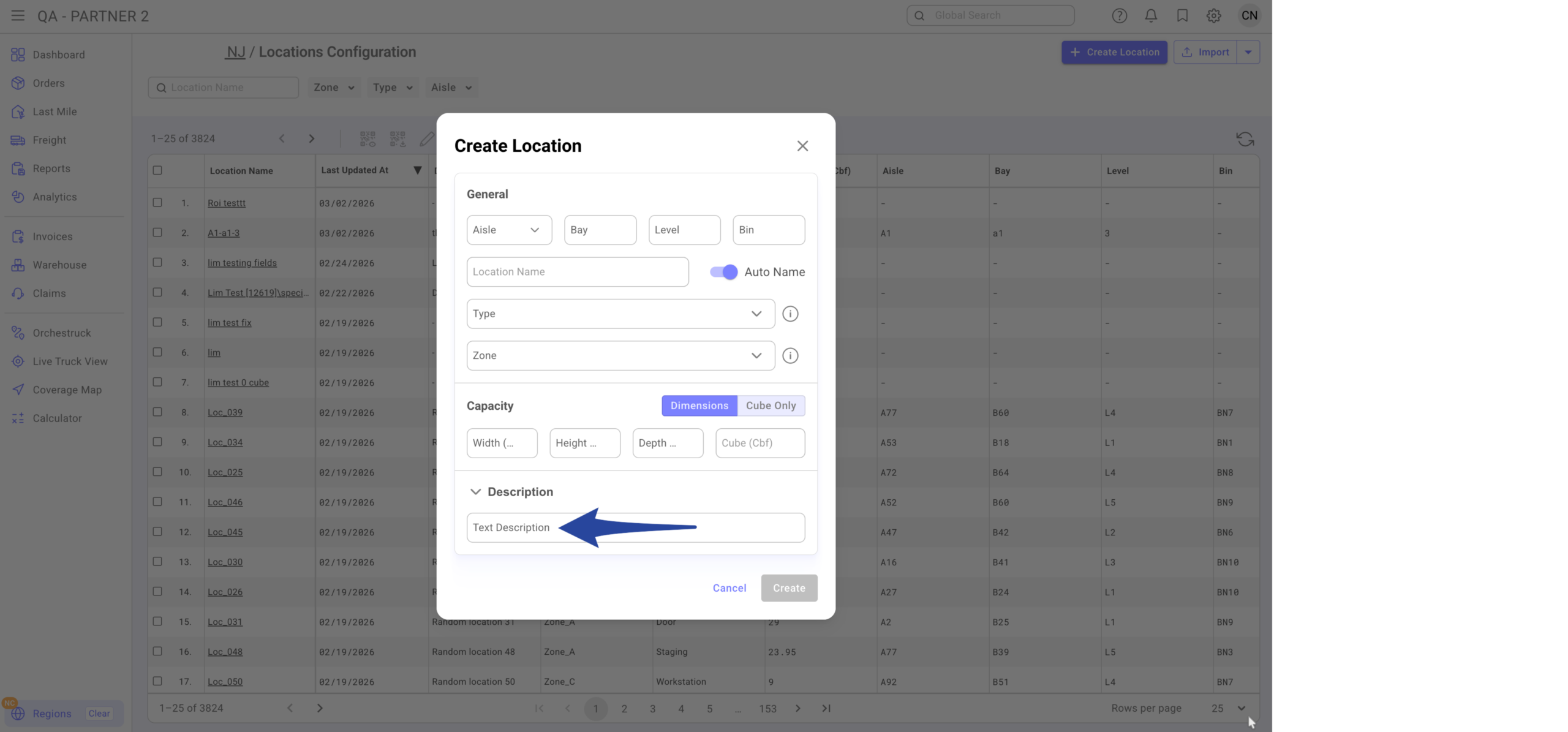
F. Description (Optional)
Free text field for internal notes.
Step 6
Click Create.
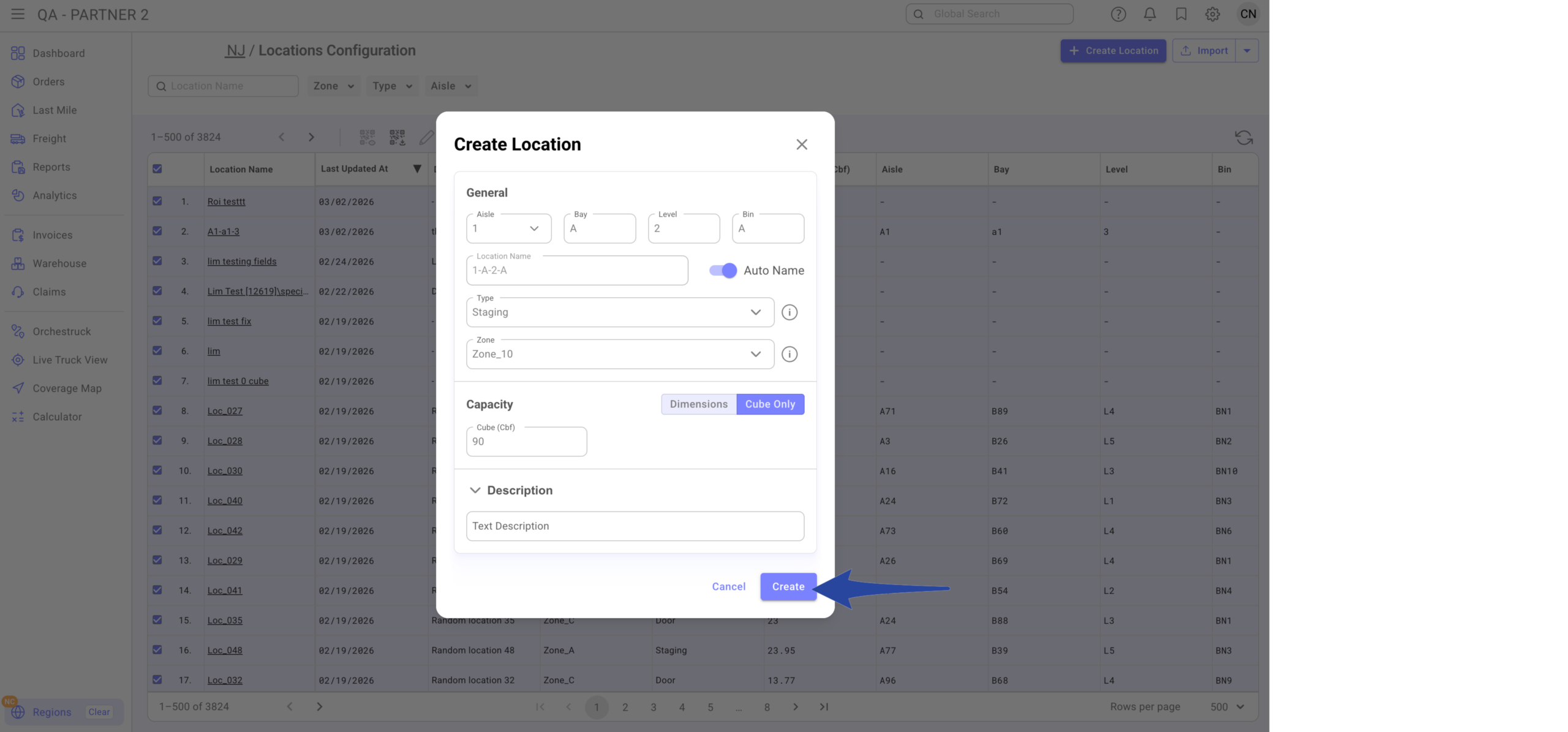
Confirmation that the location has been successfully created.
Bulk Import Locations
Step 1
Click the gear icon from the main Dashboard and select Regions.
Step 2
Navigate to the correct Region. And select the specific Region you wish to import locations.
Step 3
Go to Locations tab and click Open Locations Configuration.
Step 4
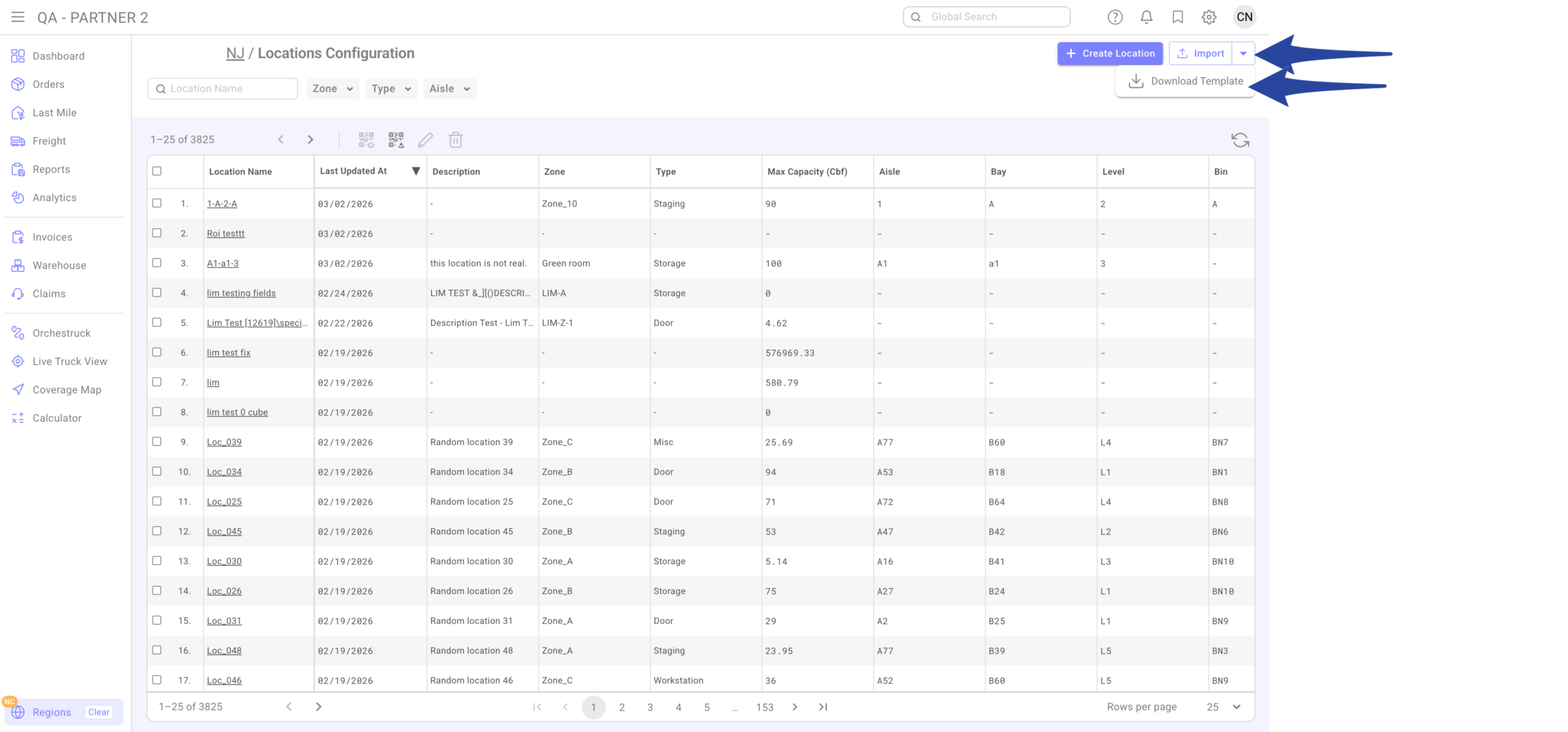
Click the drop-down arrow and select Download Template
Step 5
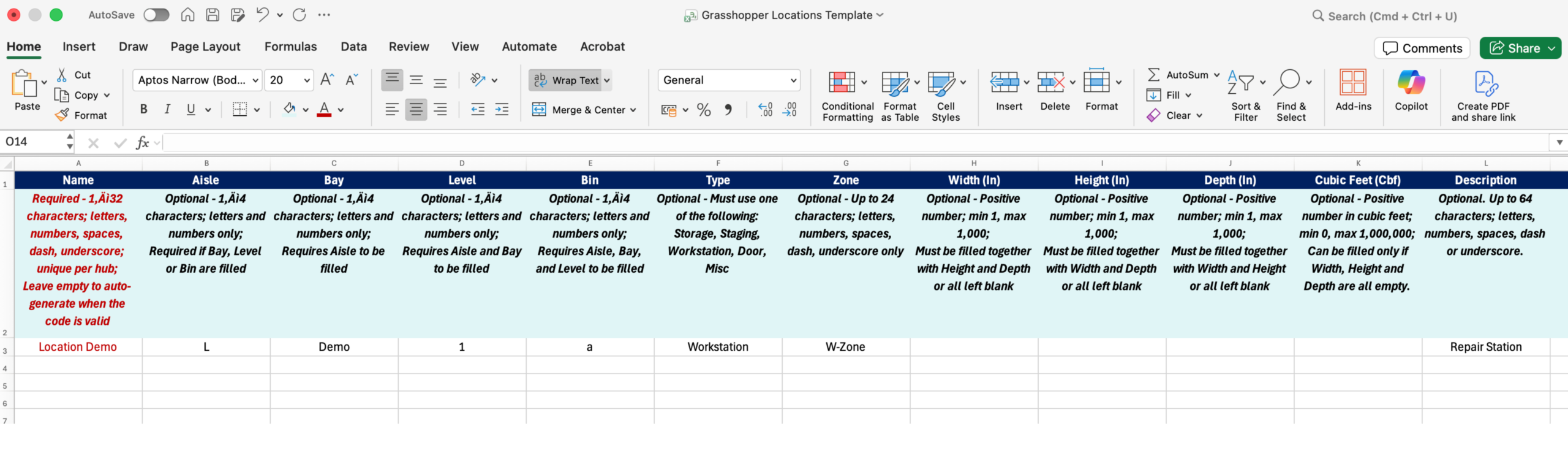
Fill in the template:
-
Name (Required)
-
Aisle
-
Bay
-
Level
-
Bin
-
Type (must match allowed values)
-
Zone
-
Dimensions
-
Description
All limitations are explained inside the template placeholders.
Do NOT delete:
-
Header Row
-
Placeholder row (currently required)
Step 6
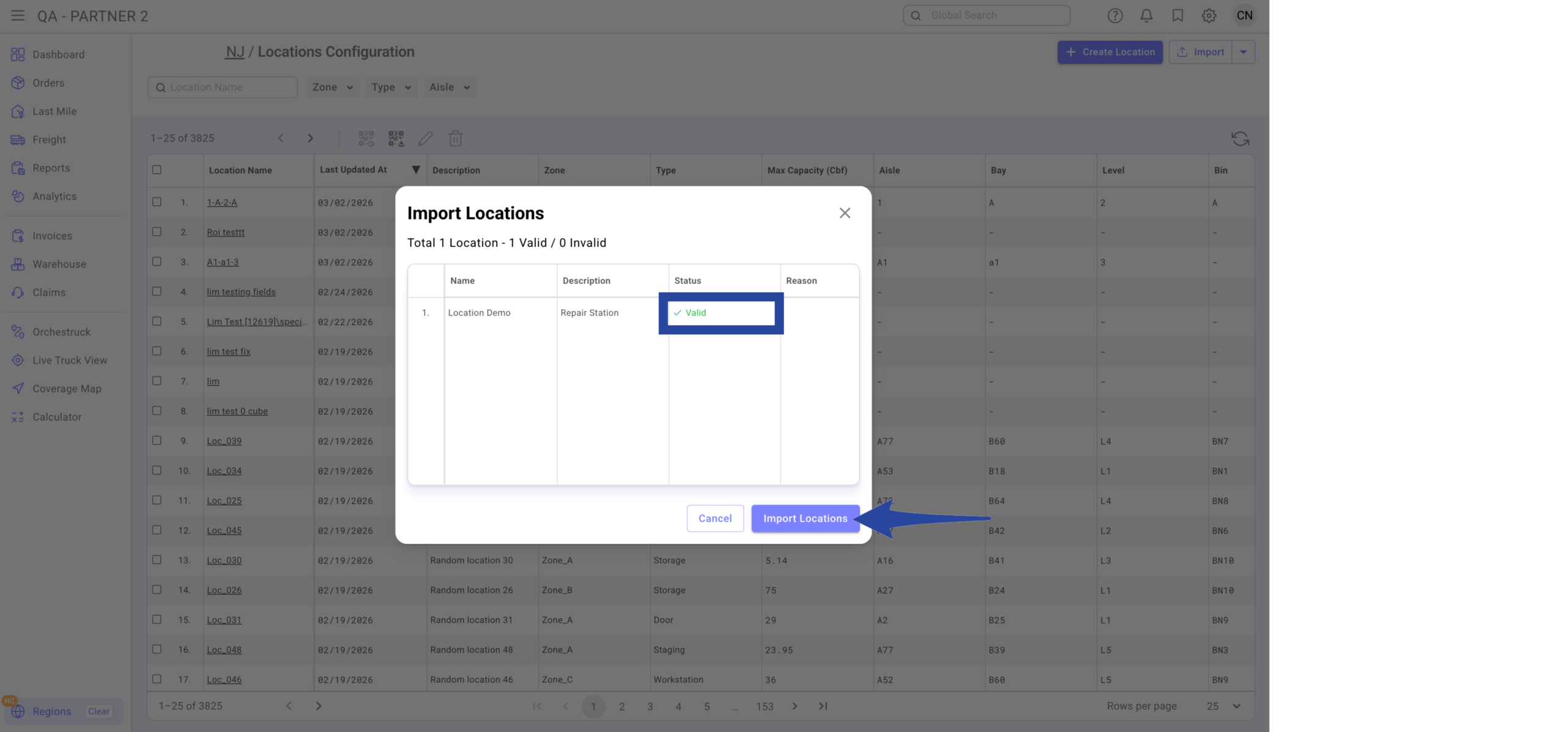
Upload the file in CSV. Review the preview screen and click Import Location.
If a location already exists, it will update (not duplicate). Location Name and Code cannot be changed after creation.
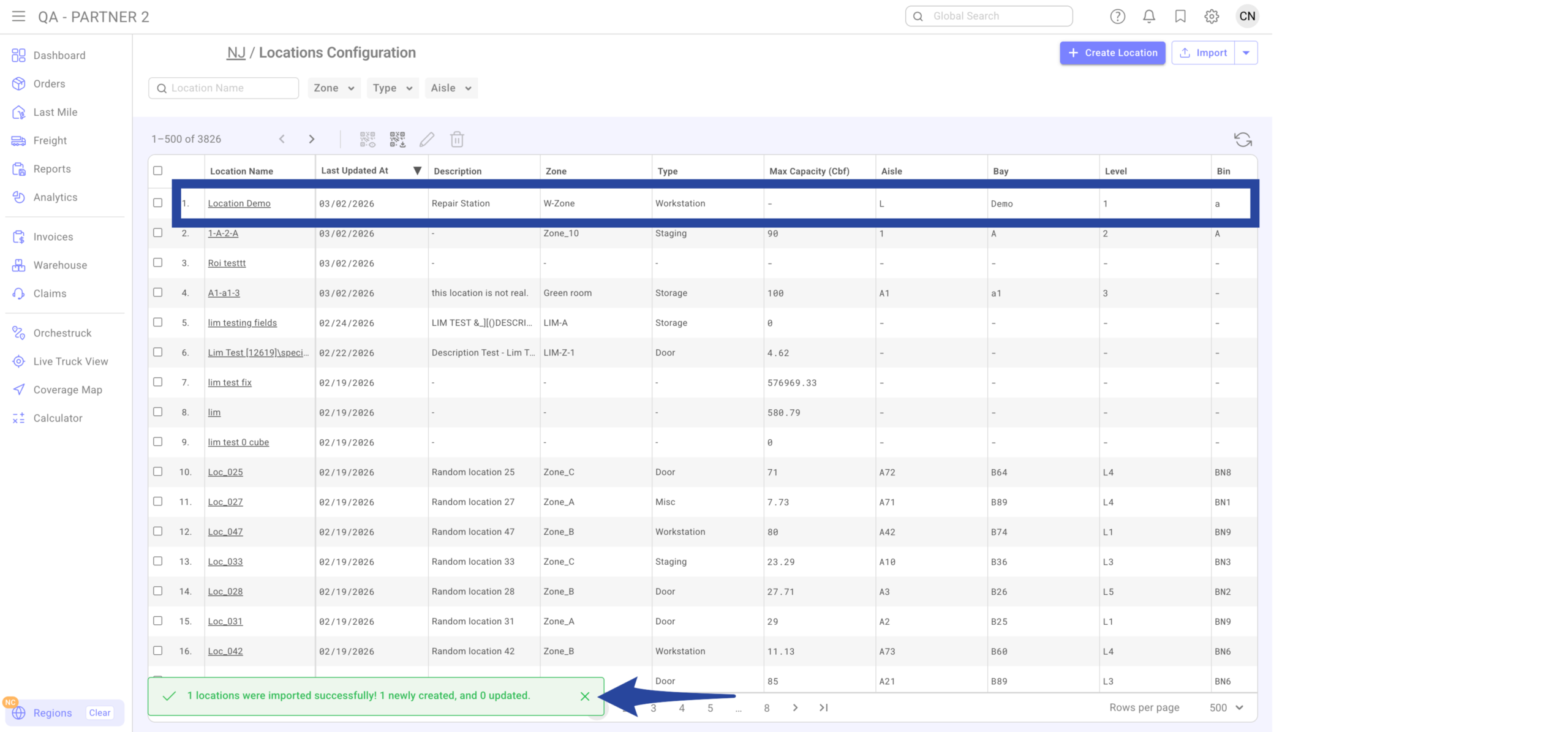
Confirmation that the location(s) has been successfully imported.
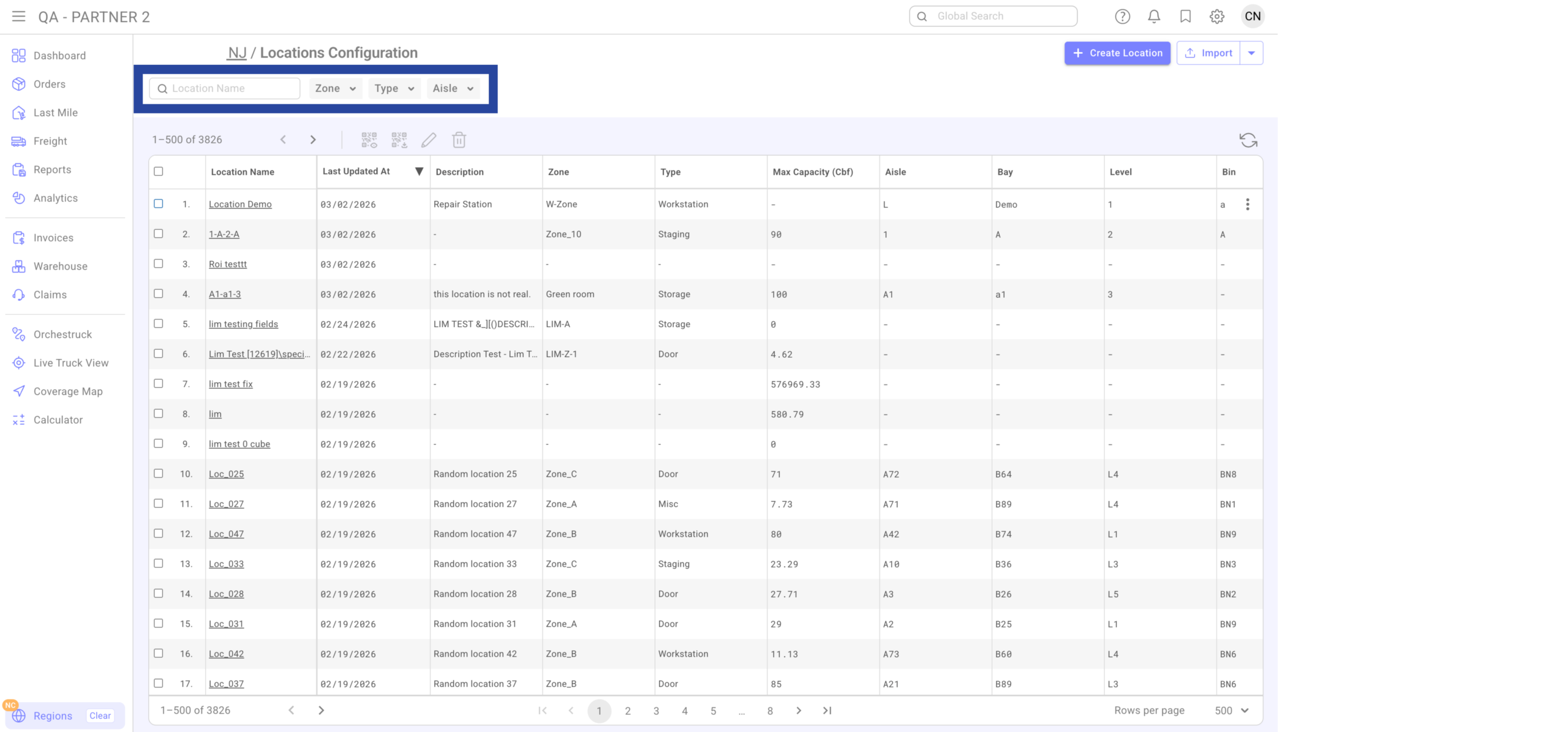
From the Locations Grid you can:
-
Search by name
-
Filter by:
-
Zone
-
Type
-
Aisle
-
-
Preview Labels
-
Download Labels (individual or bulk)
-
Edit Location
-
Delete Location