
Help Center Menu
Claims - Grasshopper Labs Help Center

CATEGORIES

Orders
Upload and Download Files in the Order
Roles: Orders

Upload Files

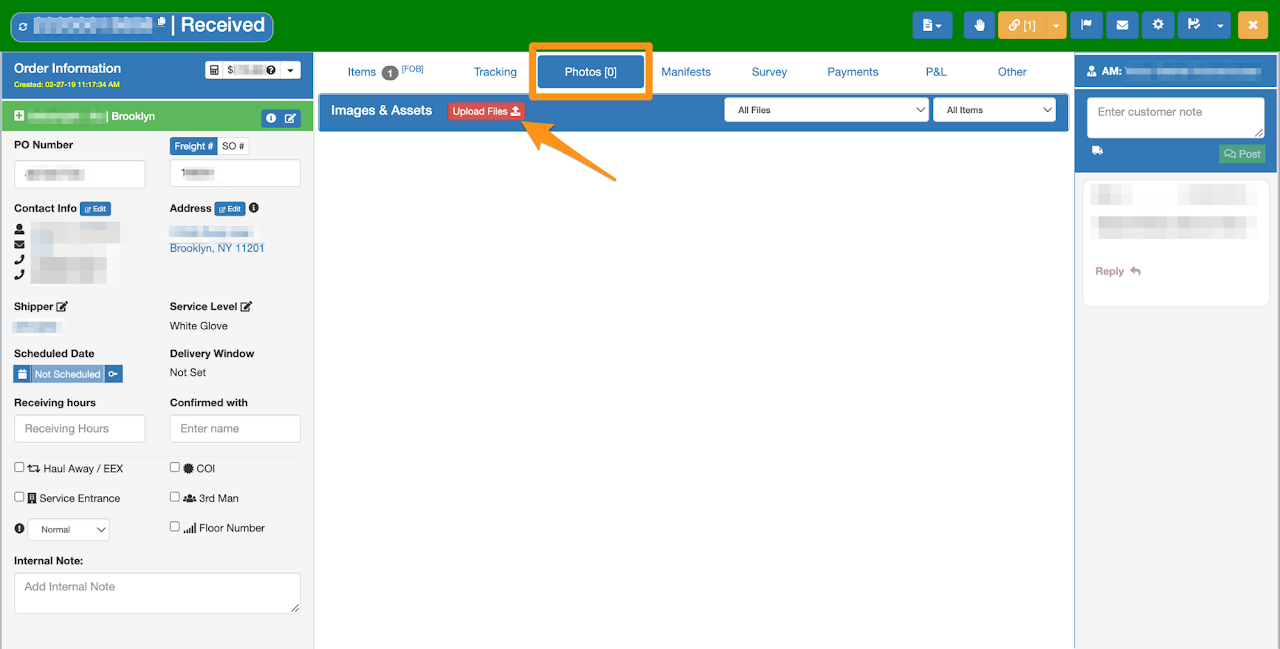
Step 1

Go to the Photos Tab and click on the Upload Files
Upload and Download Files in the Order

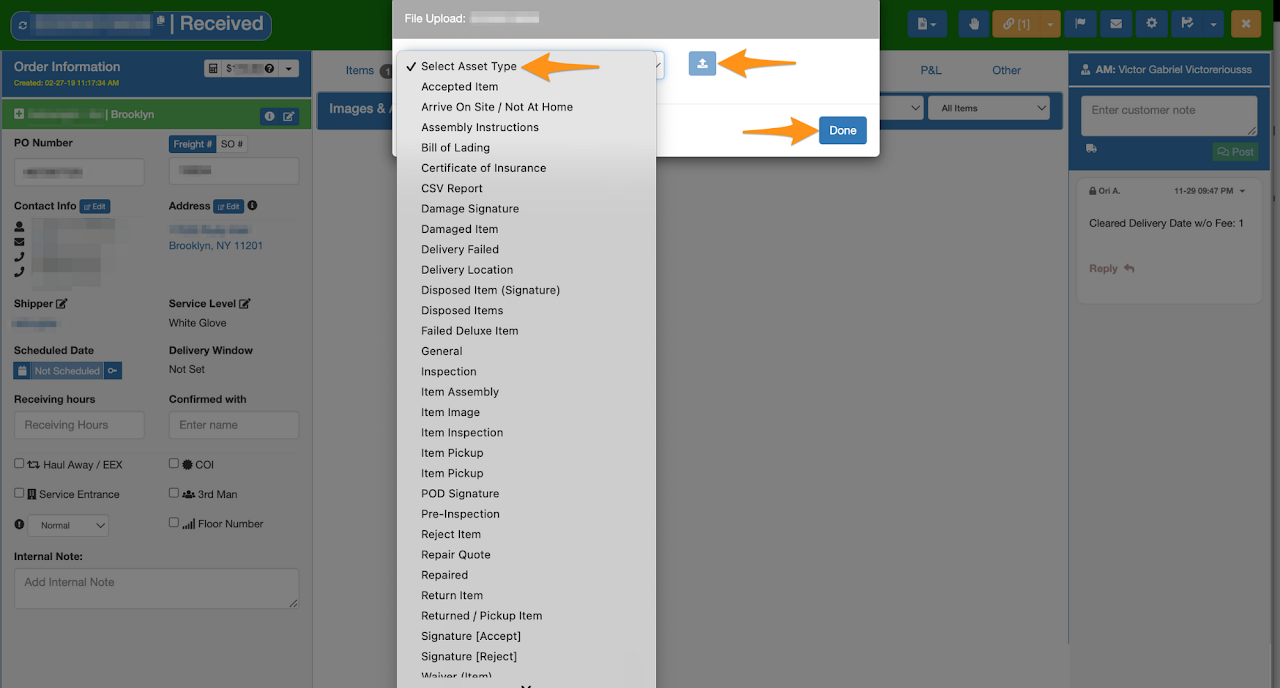
Step 2

Select the Asset Type, click on the Upload icon and Done
Upload and Download Files in the Order

Download Files

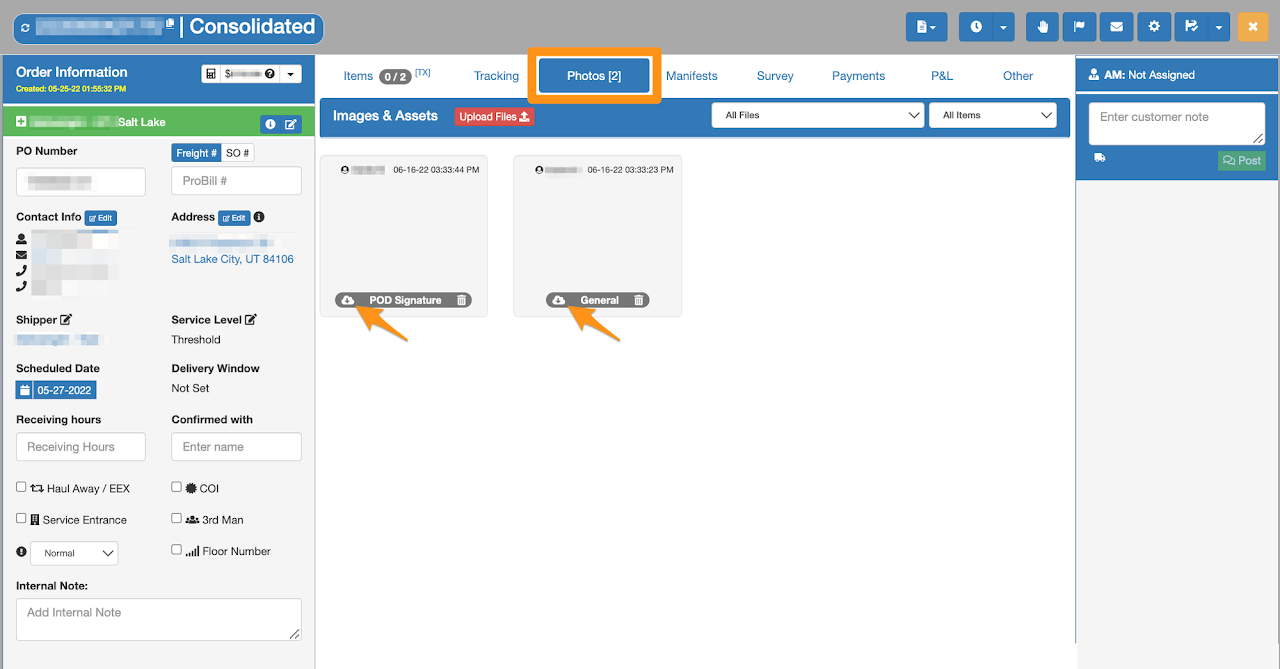
Step 1

Go to the Photos Tab and click on the Download icon
Upload and Download Files in the Order

Photos/Documents will be downloaded which you can view from your download folder or where you are saving your downloaded files

Was this article helpful?

Still stuck? Submit a ticket. and someone on the team will get back to you.

On This Page