Step 1
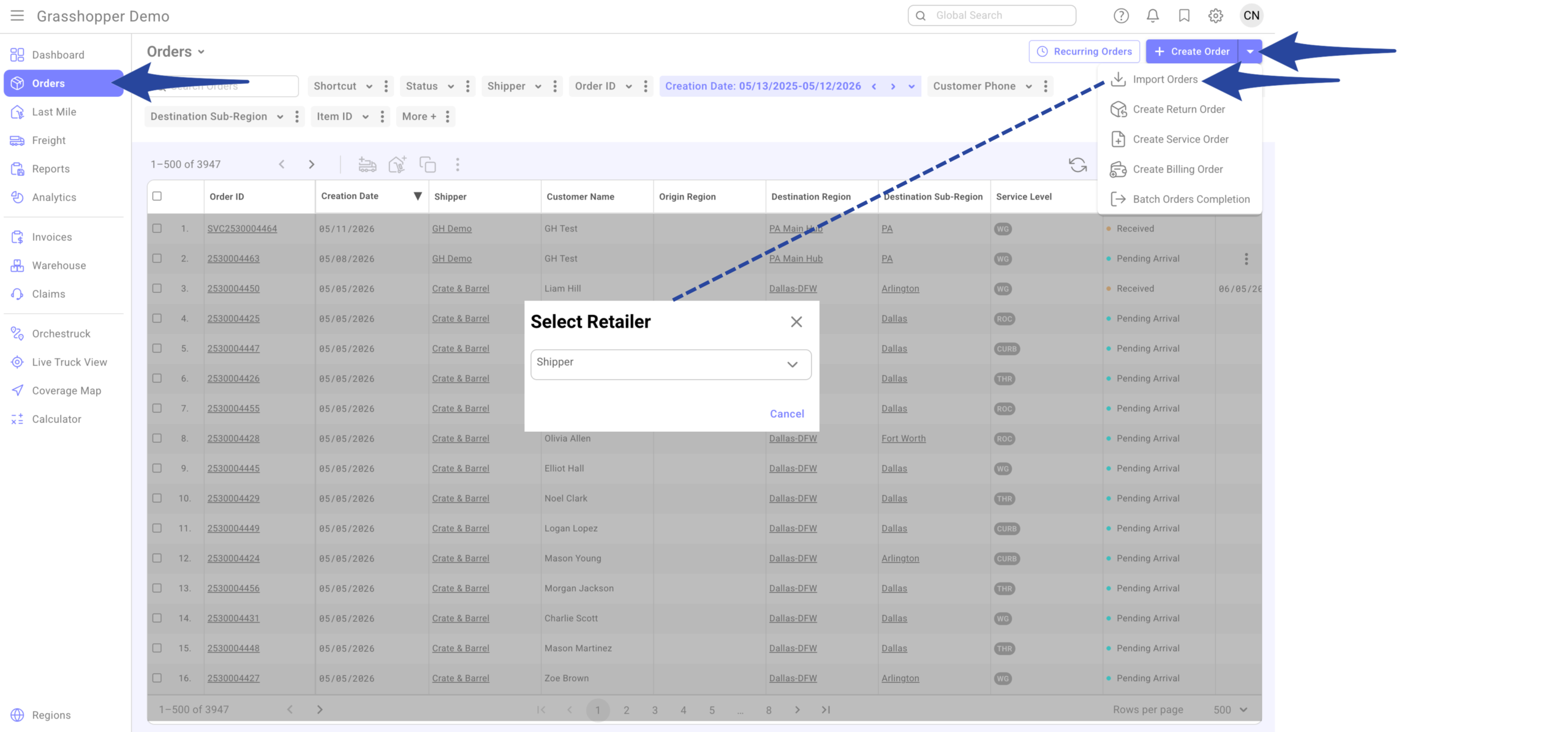
Import Orders In the Orders section, click + Create Order, then select Import Orders from the dropdown menu.
Enter the Shipper Name (Account Name)
Step 2
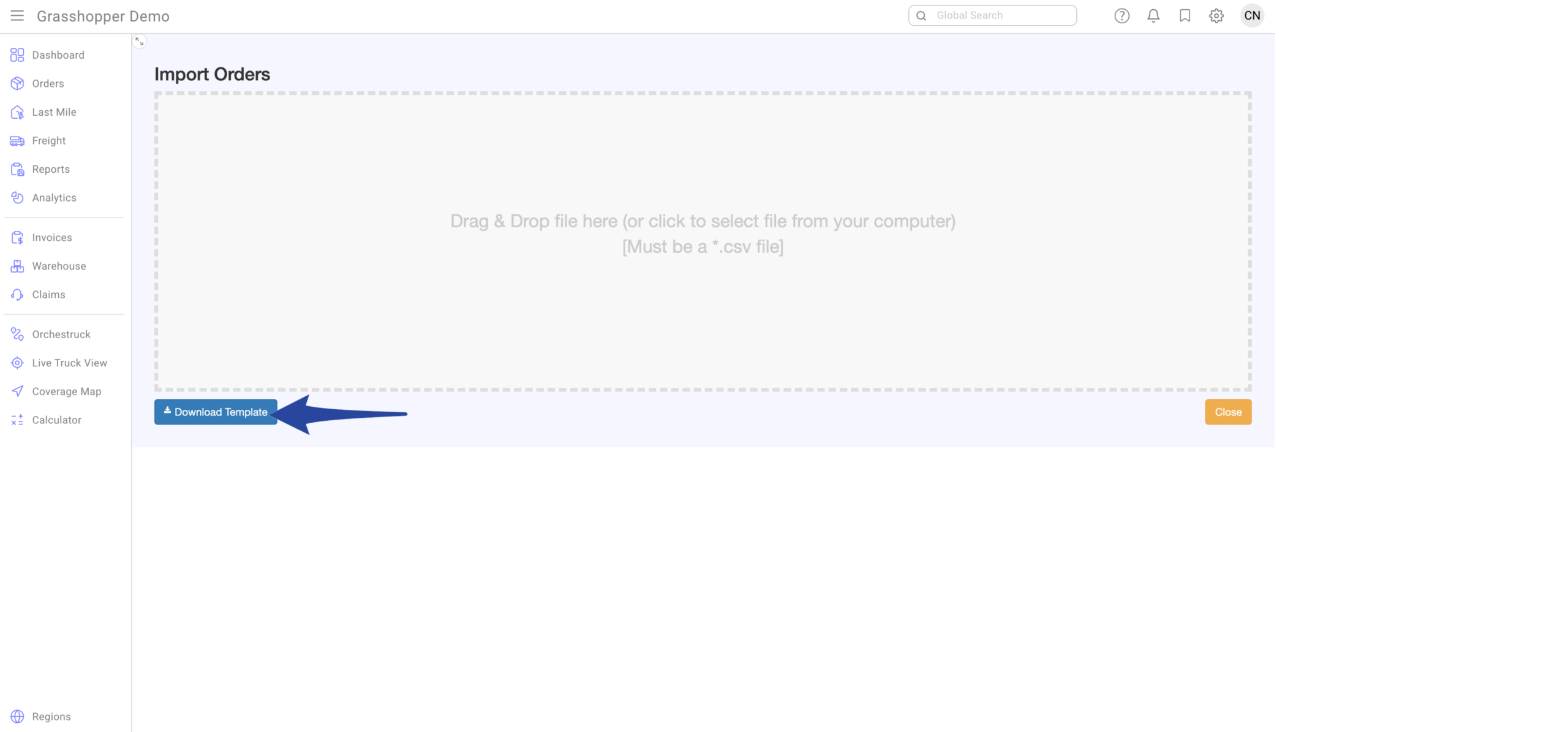
Click Download Template.
* We highly recommend downloading the template each time you import orders to ensure you are using the latest version.
Step 3
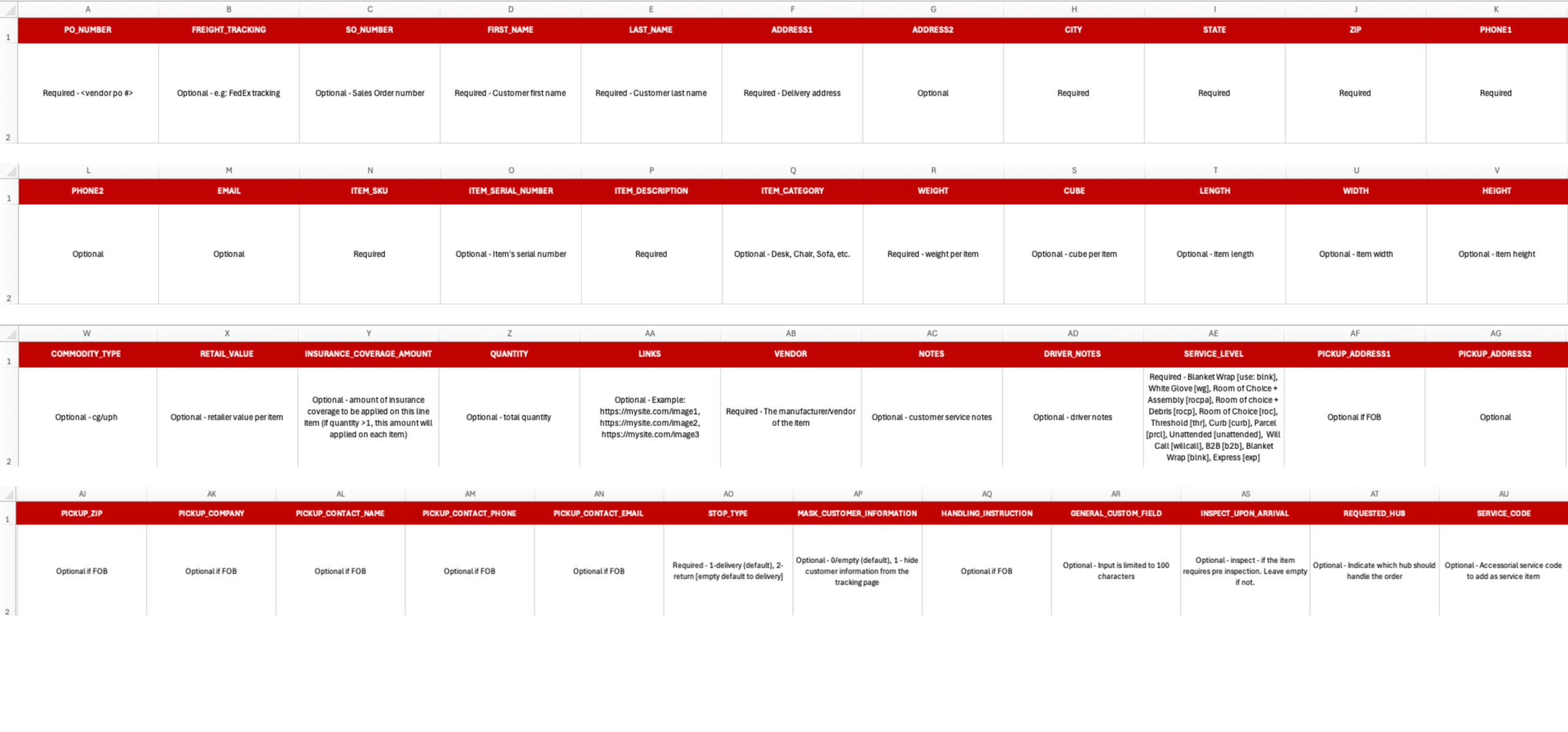
Fill out the required and/or optional fields.
Type Inspection in the INSPECT_UPON_ARRIVAL column (Column AS).
Important: Do not modify, delete, or change the formatting of Row 1, as it contains the system headers.
Row 2 serves as a guide/example for completing the template.
Step 4
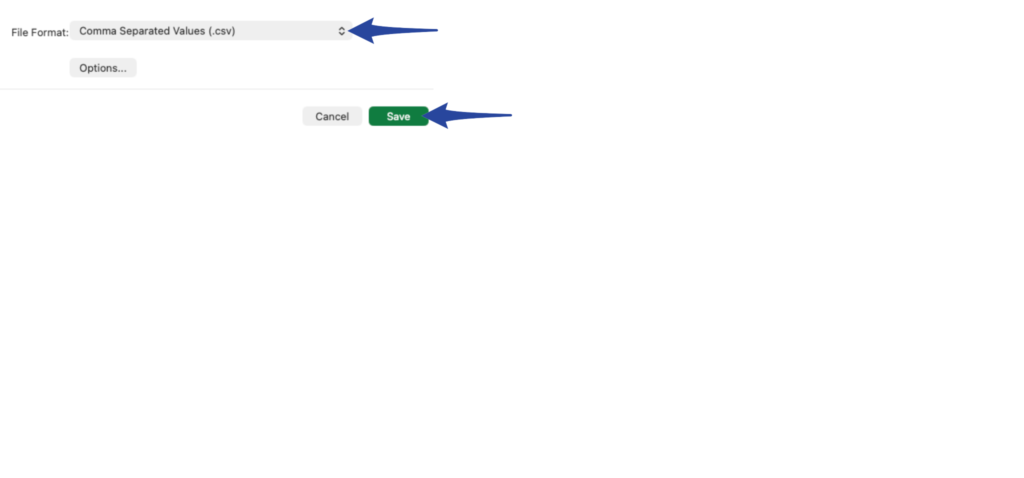
Save the file in CSV format.
Step 5
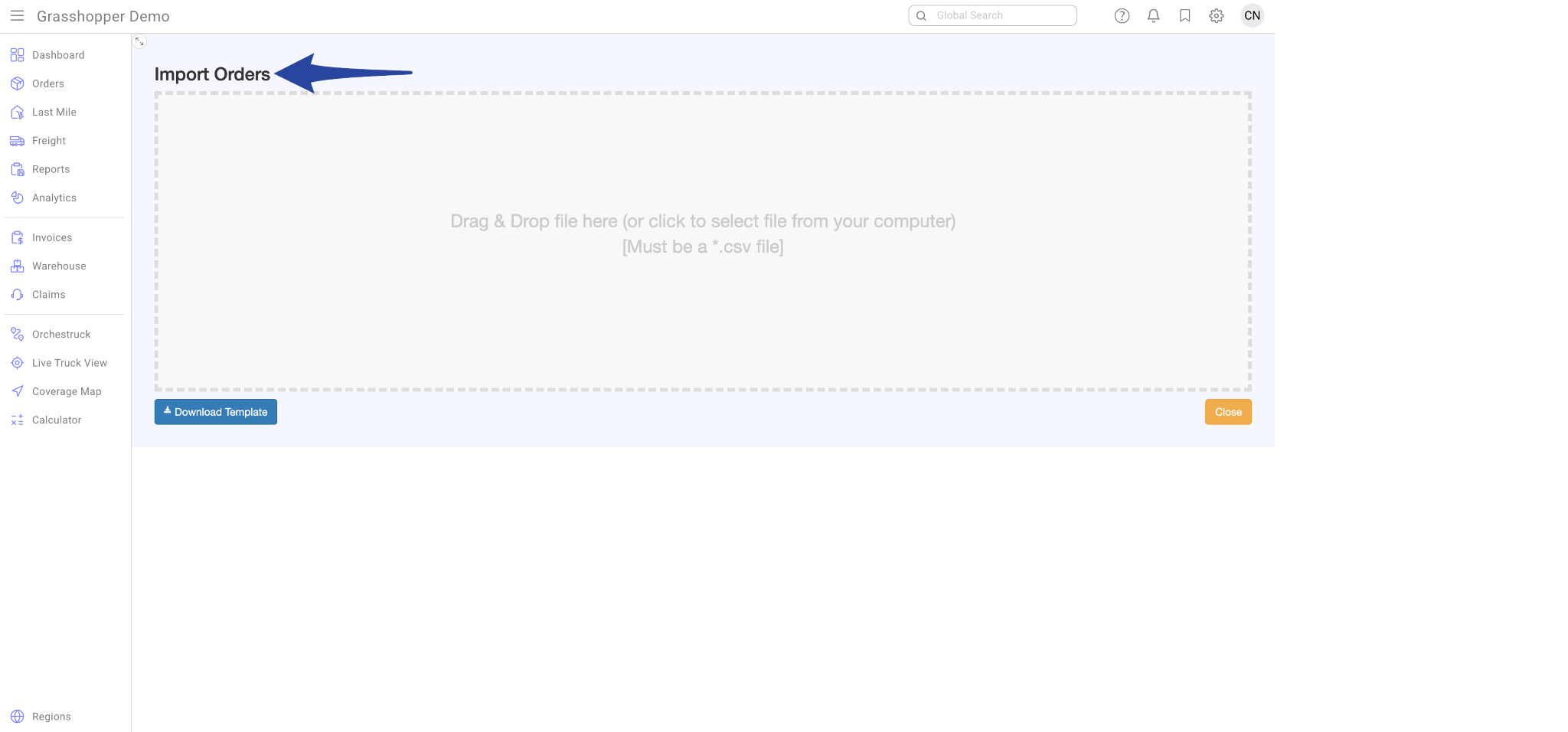
Drag and drop the file or click the Import Orders box to select the file from your computer. Please note that the file must be in CSV format.
Step 6
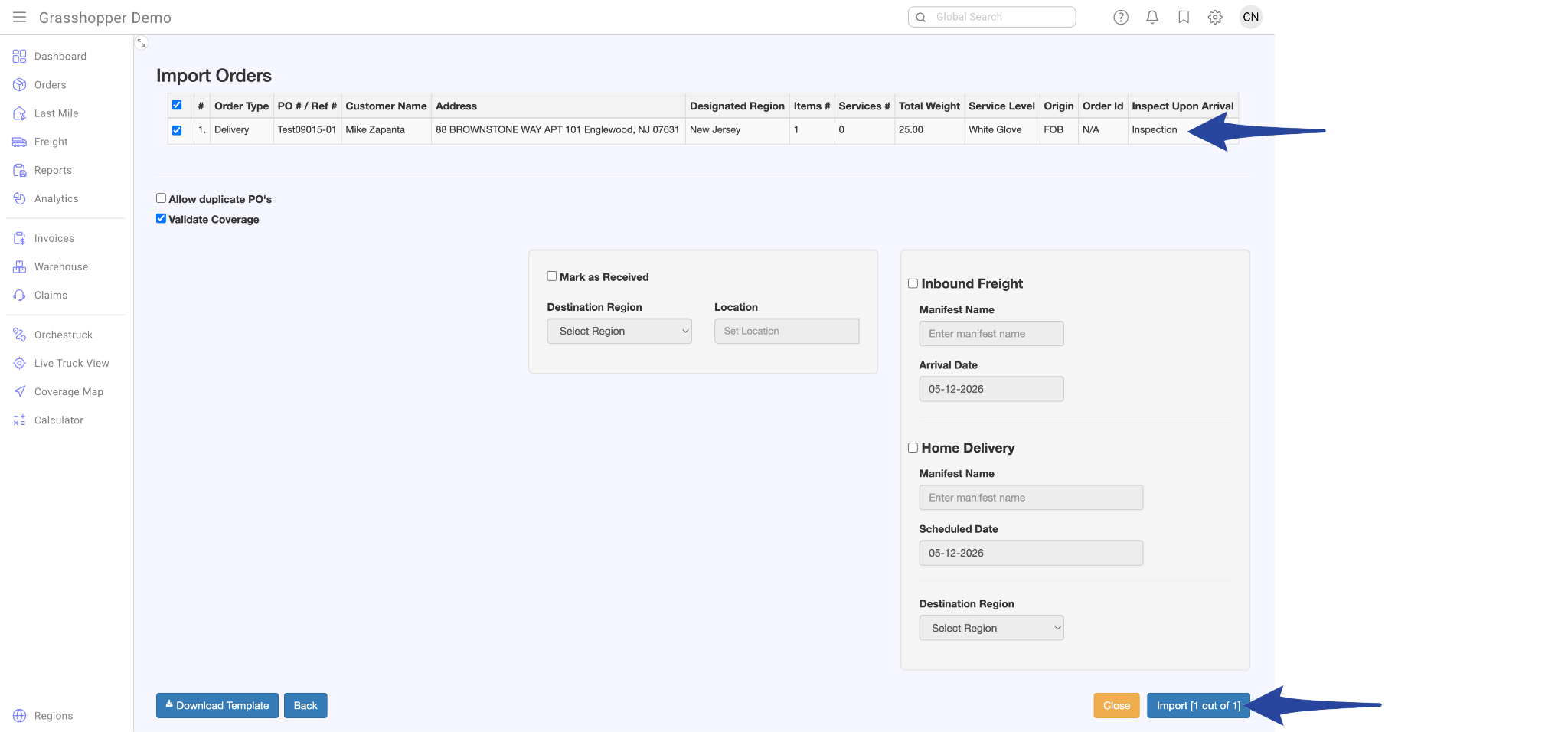
Items that require pre-inspection would have Inspection in the Inspect Upon Arrival column.
Confirmation page that the import has been completed.
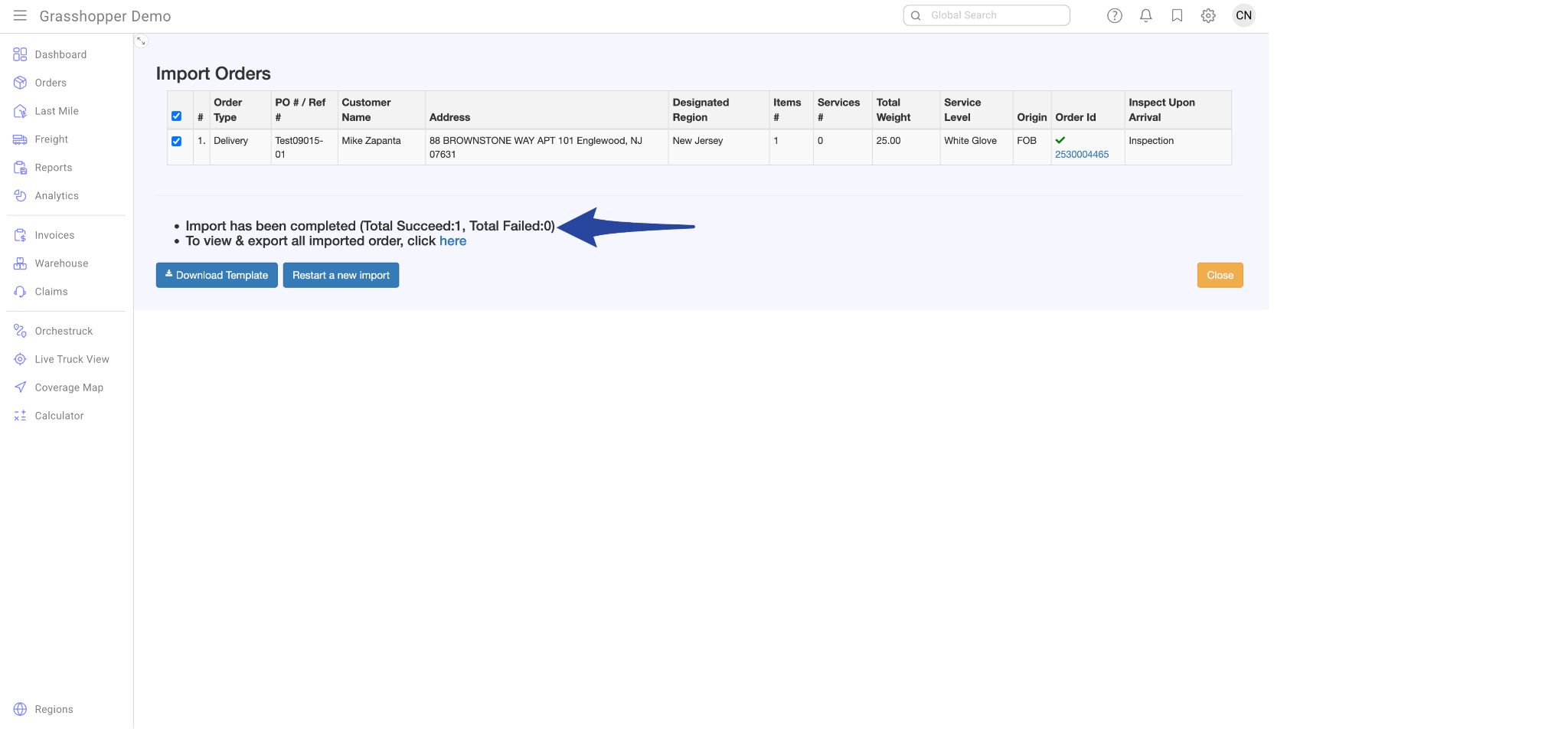
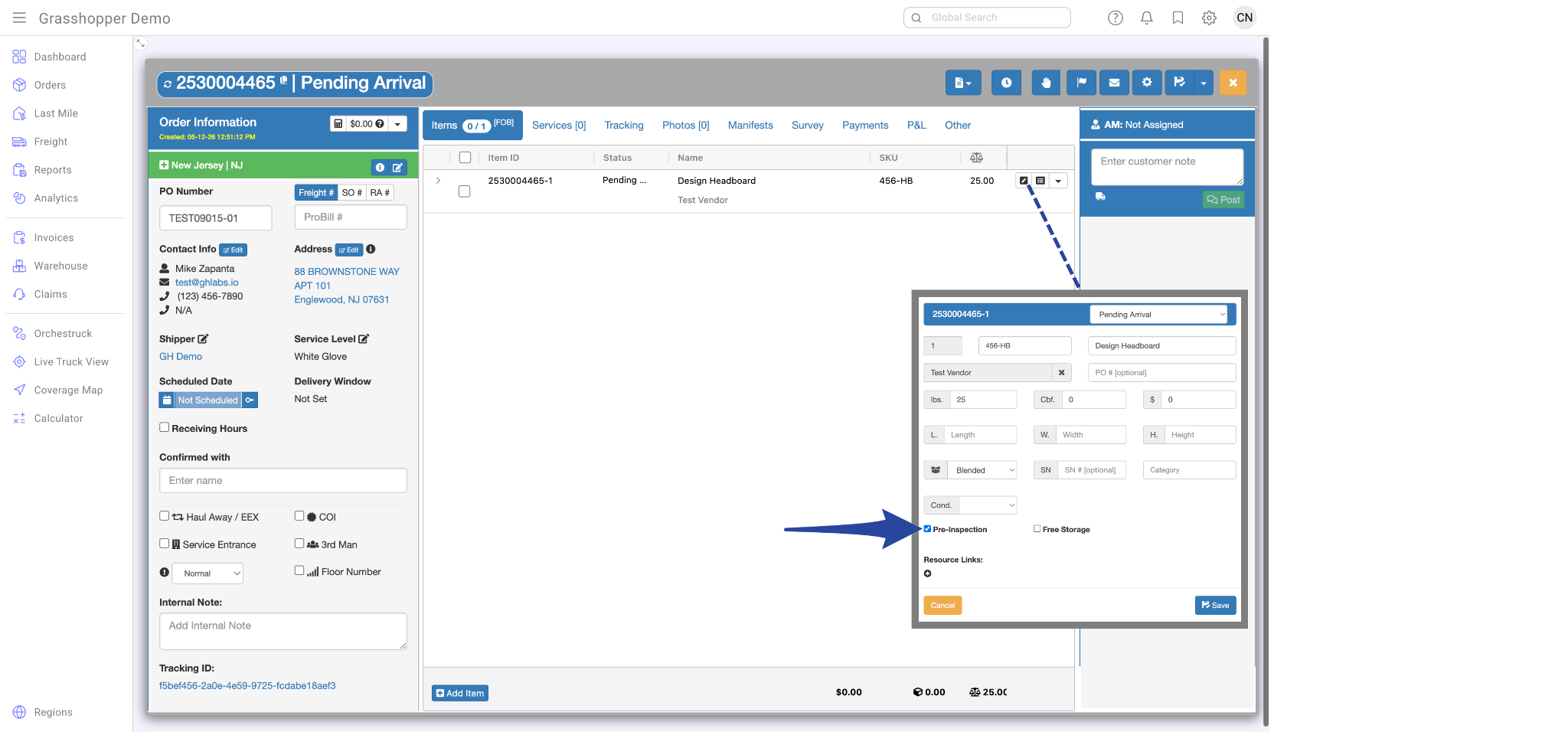
The item status is Pending Arrival, and the item has Pre-Inspection enabled.