From an Order
Step 1
Enter the Purchase Order Number or Grasshopper Order ID, click the order number

Step 2
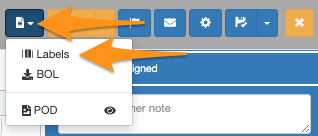
- To download labels for all line items – Click the dropdown menu on the page icon and select Labels to download
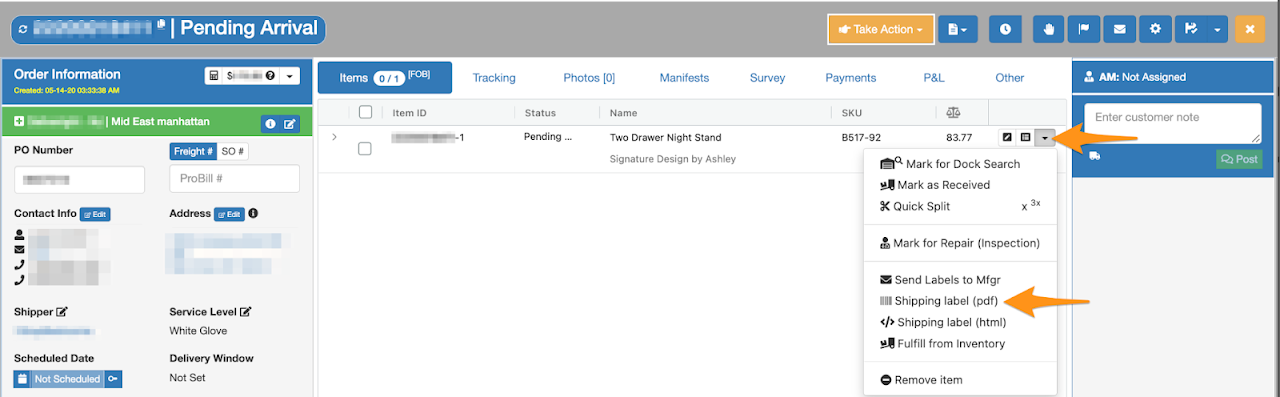
- To download label per line item – Click the arrow down and select Shipping Label (pdf) to download
From a Manifest – Home Delivery or Freight
Step 1
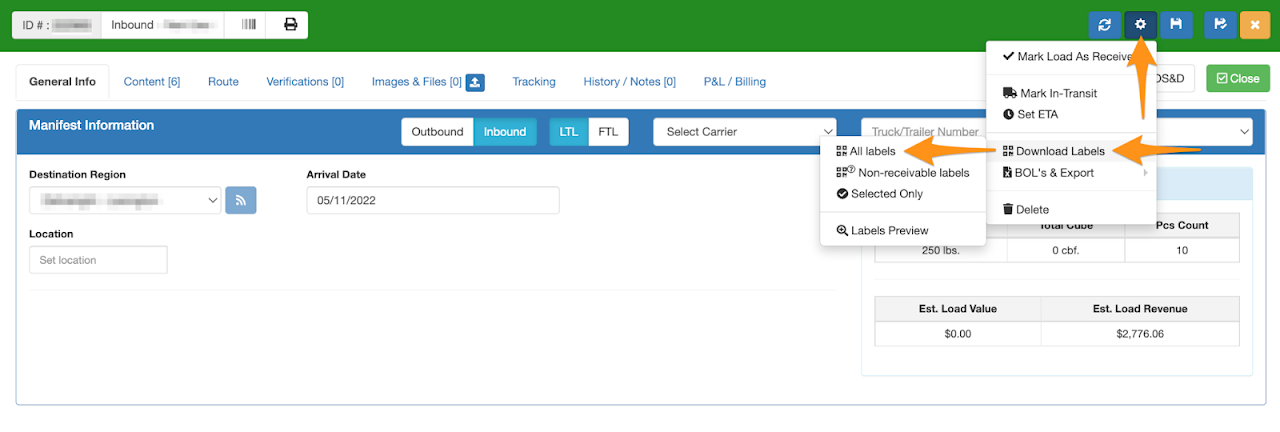
Open the Manifest then click the gear icon, select Download Labels then All labels
Step 2
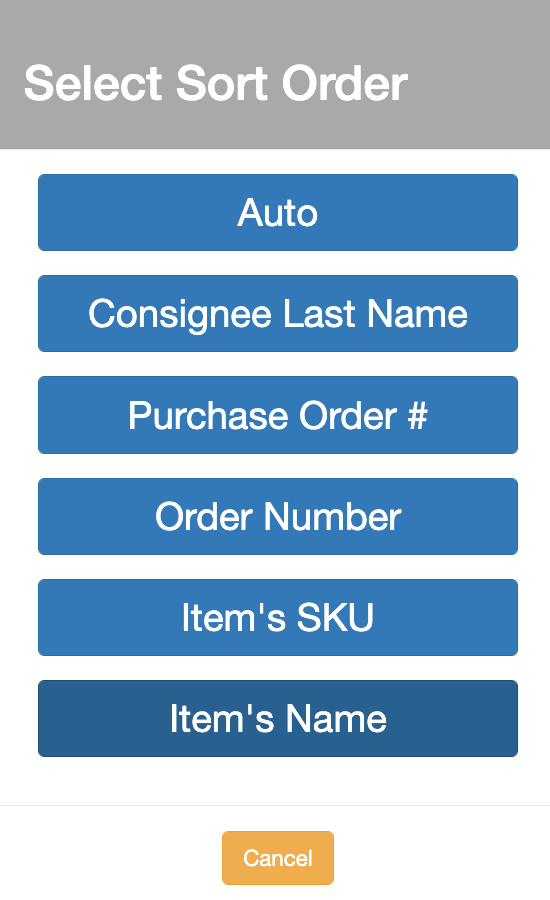
Choose from the list how you want the labels to be sorted / downloaded
From GIMS – Licensee / Operator’s View
Step 1
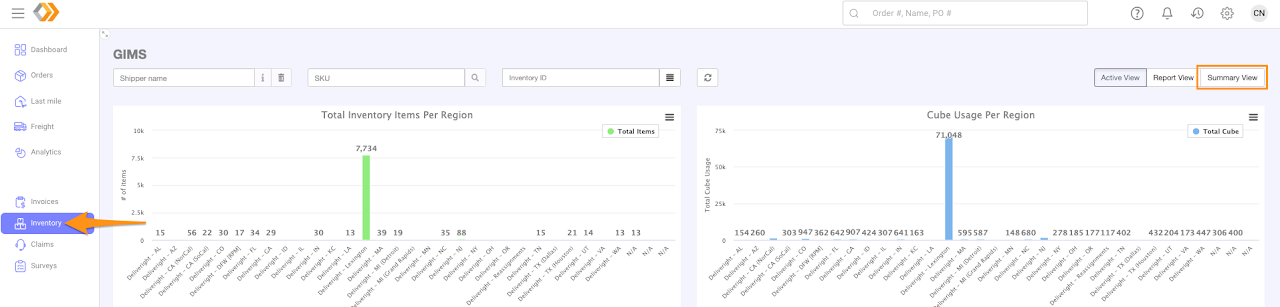
On the main Grasshopper page, select Inventory to go to GIMS then click the Summary View
Step 2
Enter the criteria of the piece you are searching for then select to open

Step 3
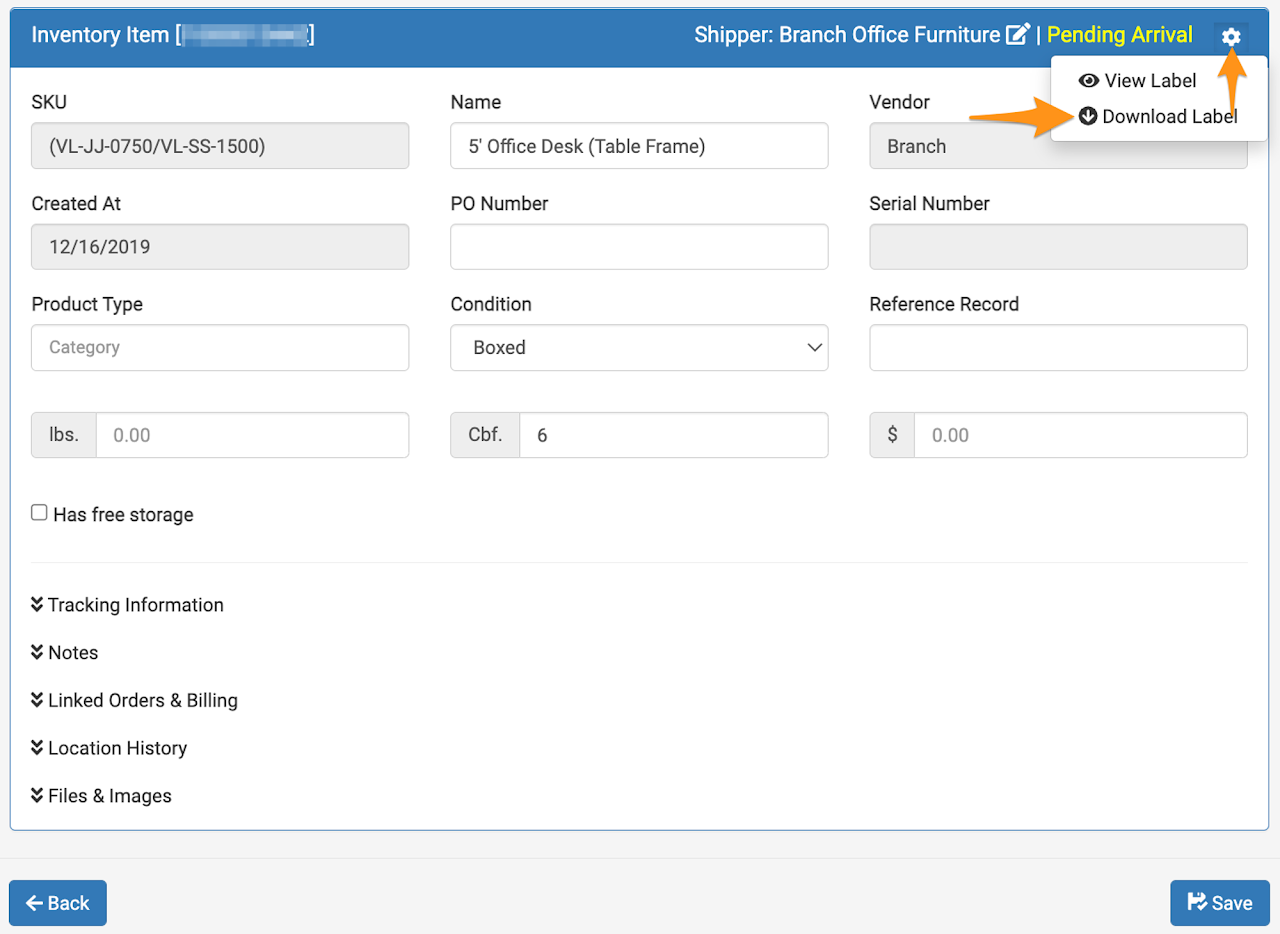
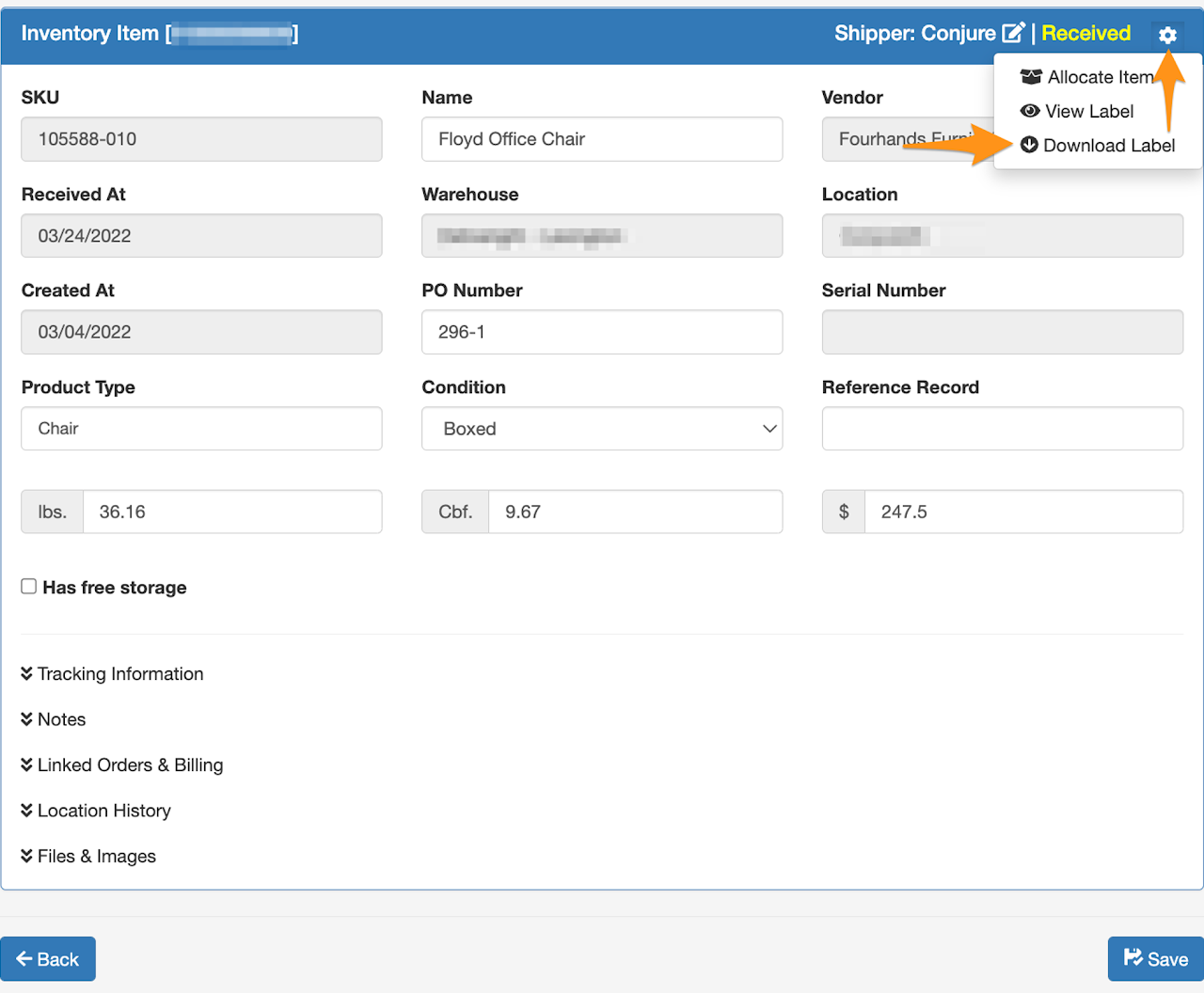
Click on the gear icon then Download Label
From GIMS – Shipper’s View
Step 1
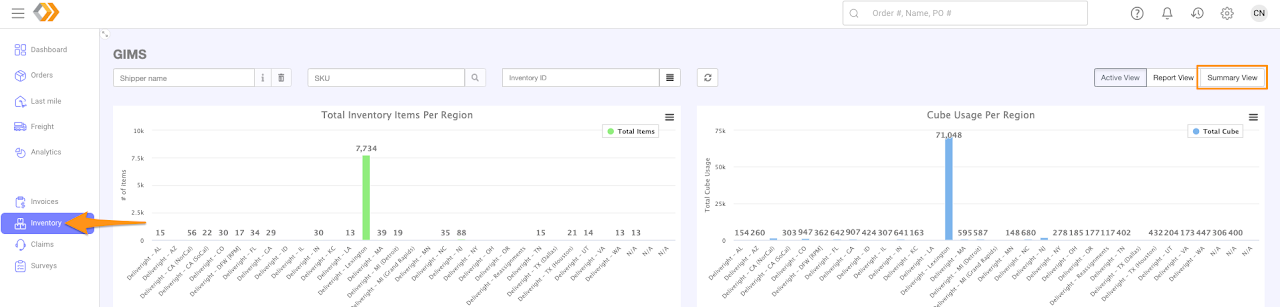
On the main Grasshopper page, select Inventory to go to GIMS then click the Summary View
Step 2
Enter the criteria of the piece you are searching for then select to open

Step 3
Click on the gear icon then Download Label