Help Center Menu
Claims - Grasshopper Labs Help Center

CATEGORIES

Orders
Adding Driver’s Note
Roles: Orders

Step 1

Enter the Purchase Order Number or Grasshopper Order ID, click the order number

Adding Driver's Note

Step 2

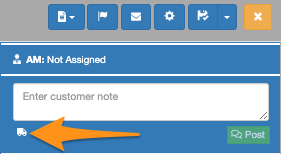
Click on the truck icon

Adding Driver's Note

Step 3

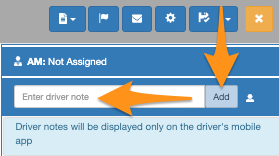
Enter your note then click Add
Adding Driver's Note

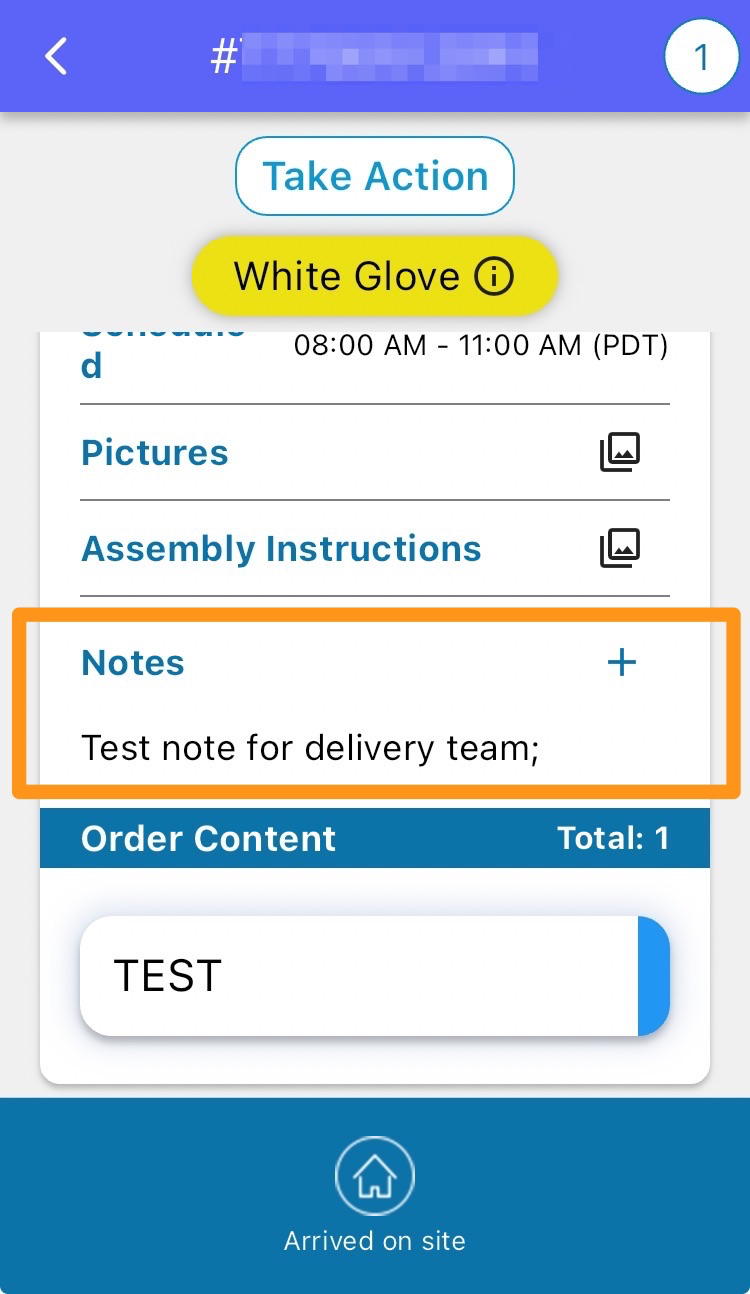
The driver’s note is displayed at the bottom of the screen for each stop within the Driver’s Mobile App.
Adding Driver's Note

Was this article helpful?

Still stuck? Submit a ticket. and someone on the team will get back to you.

On This Page