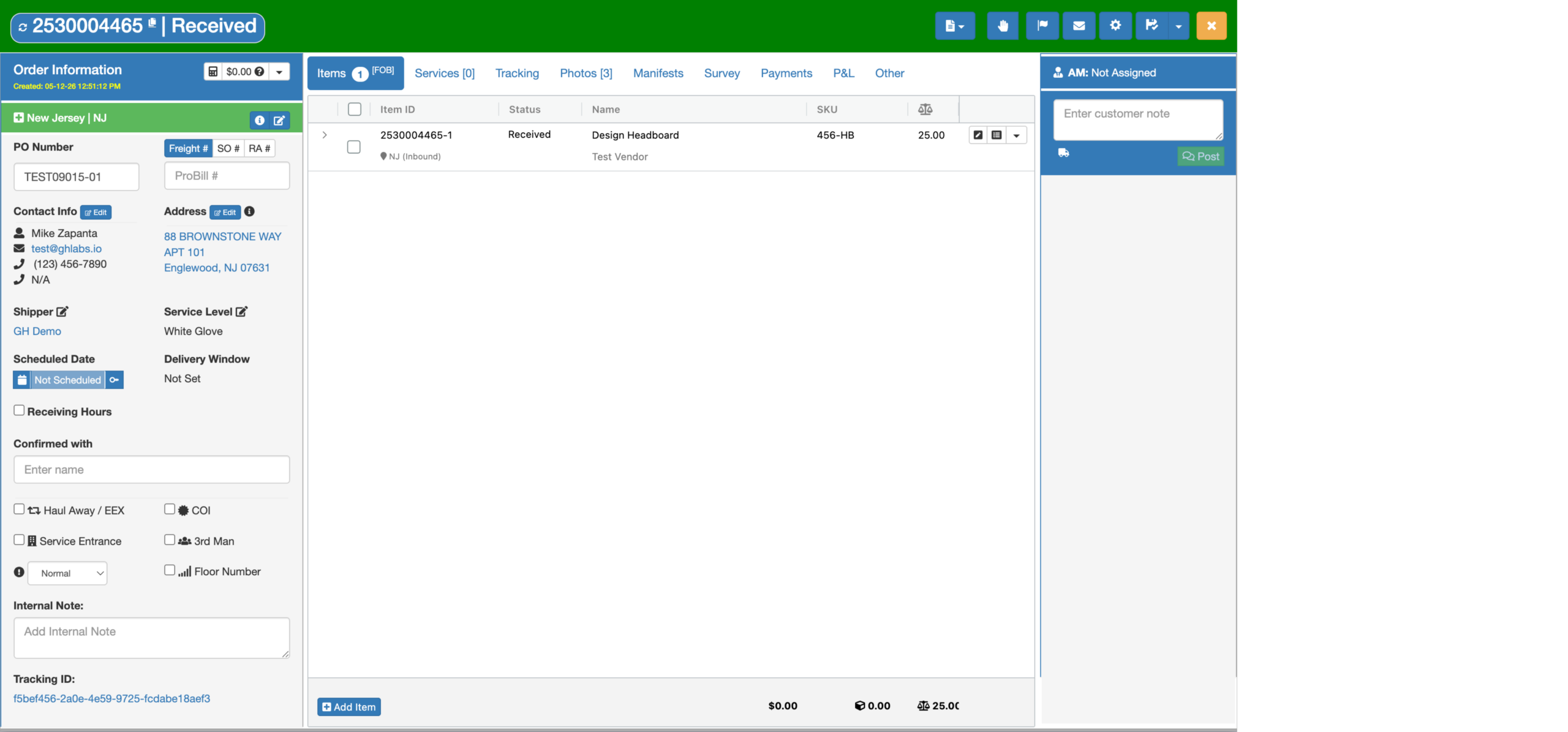
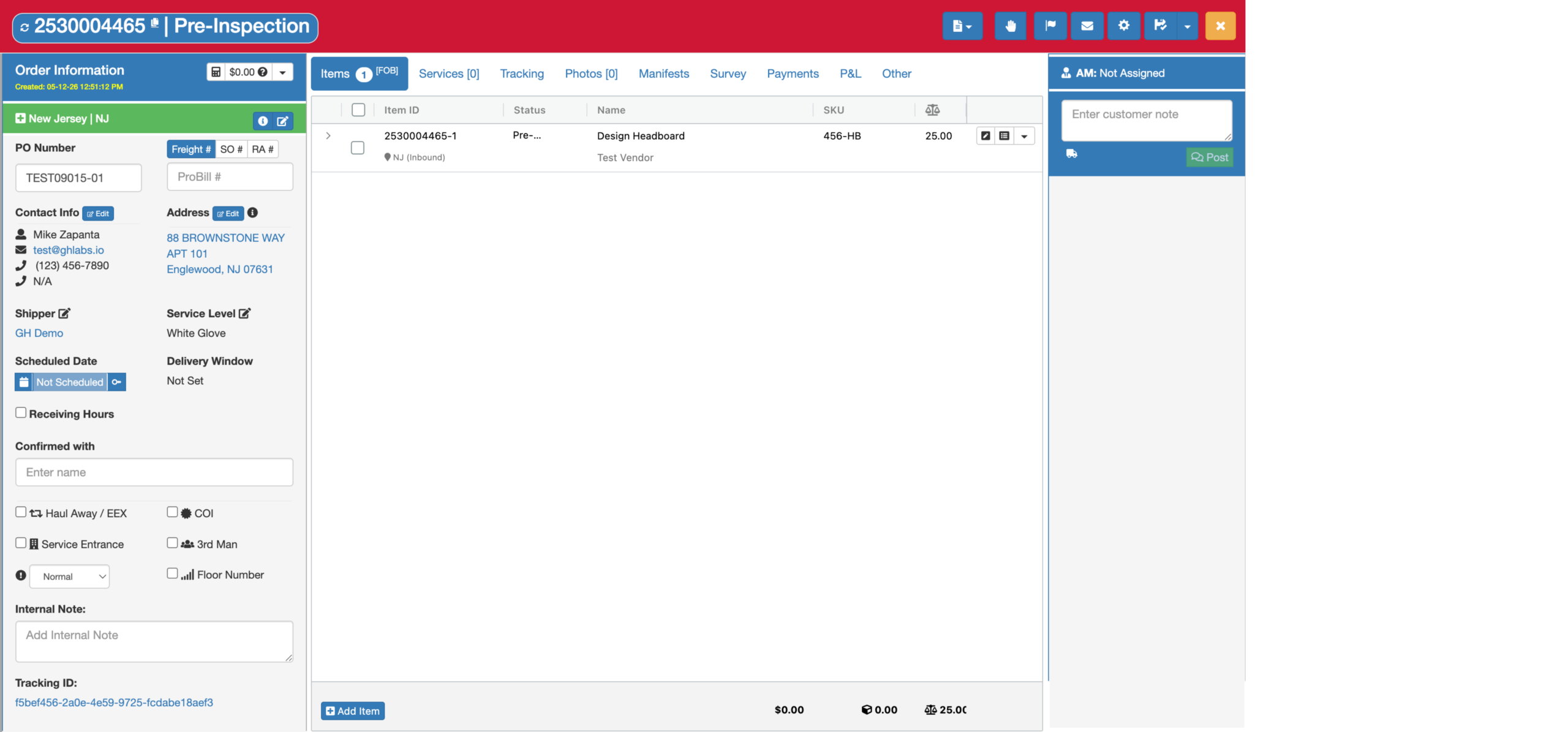
This is how the order appears in Grasshopper Web when an item or order requires a Pre-Inspection or needs to complete a Pre-Inspection.
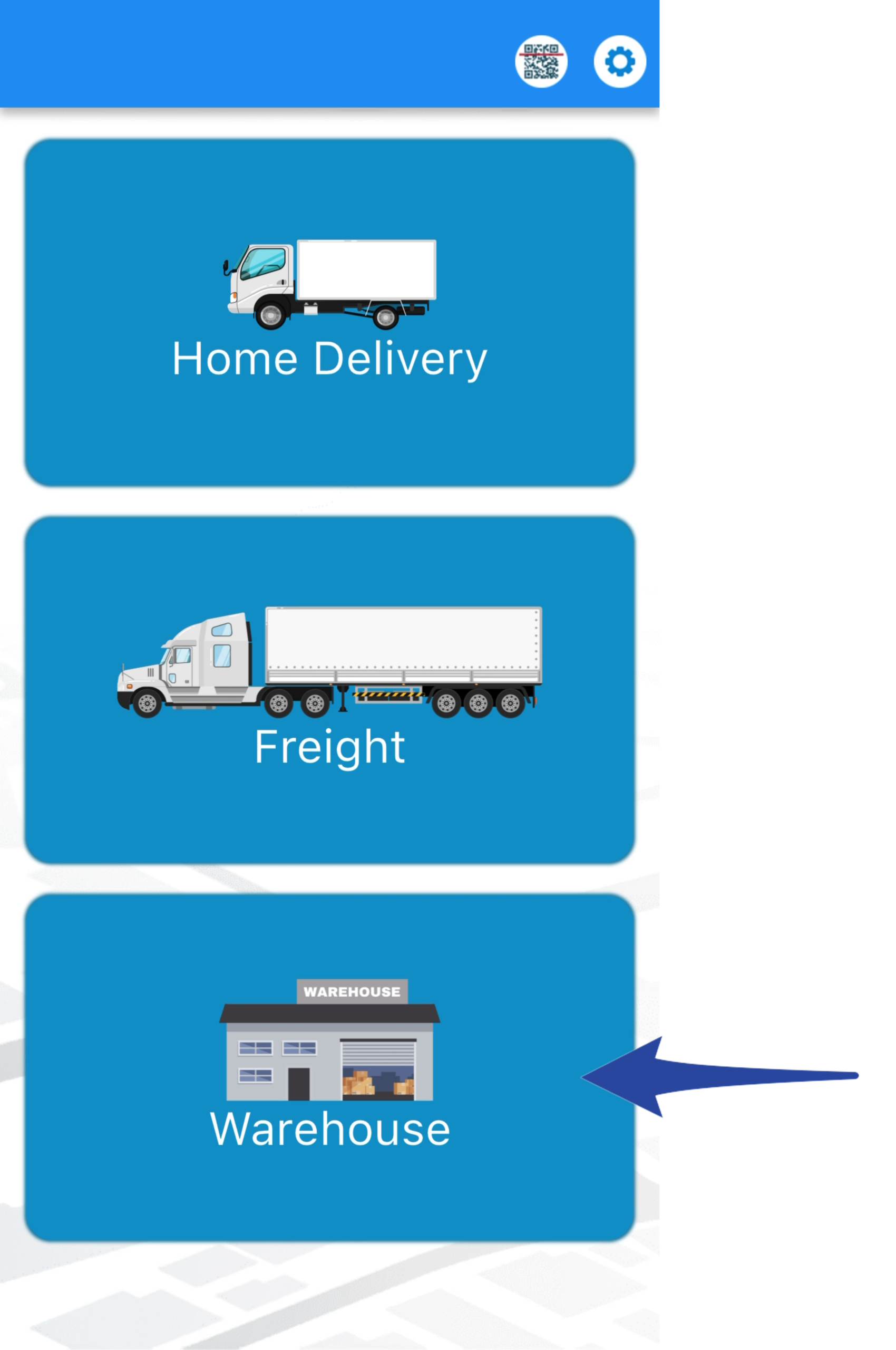
Step 1
Tap on Warehouse
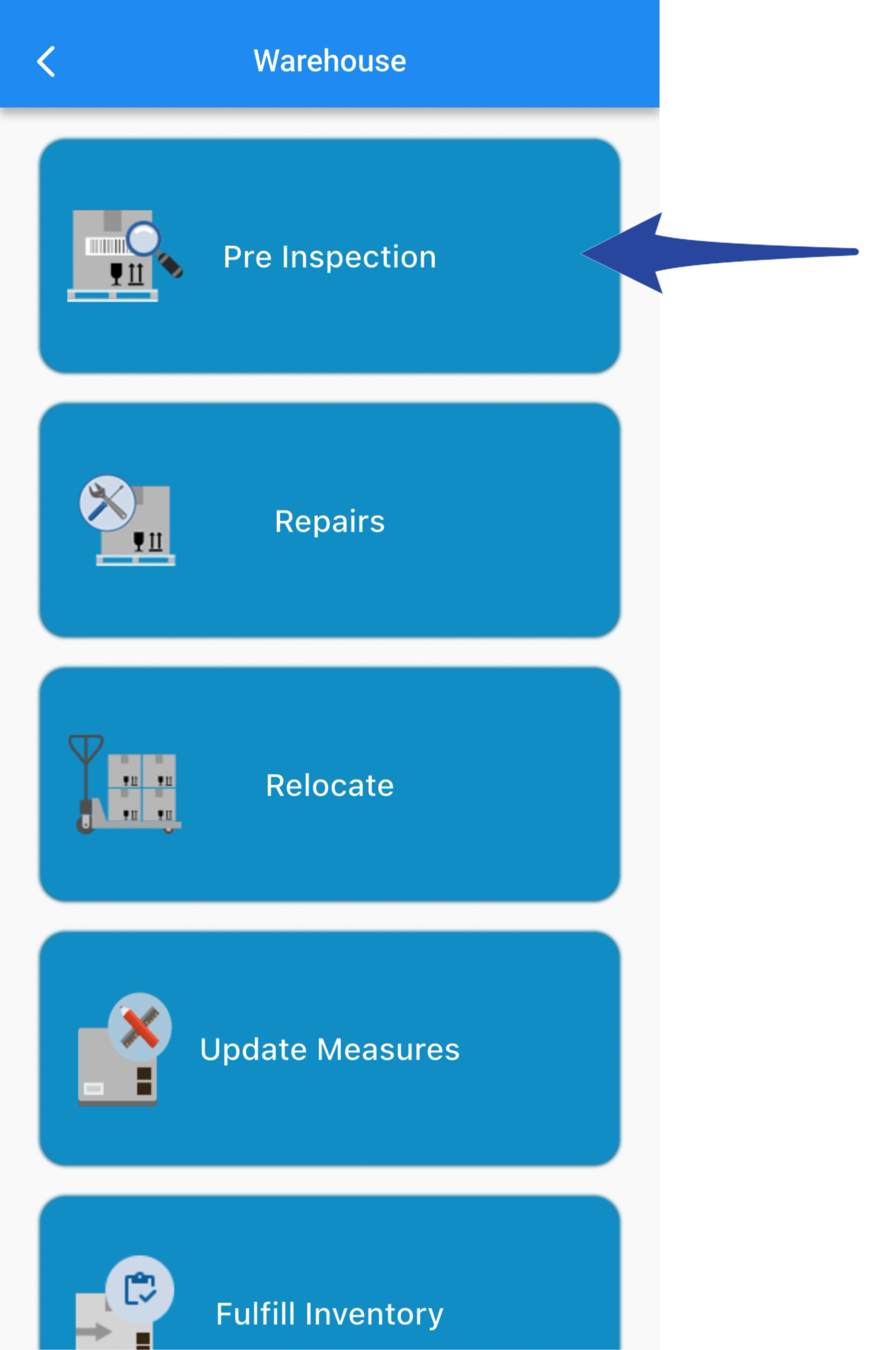
Step 2
Then Pre Inspection
Step 3
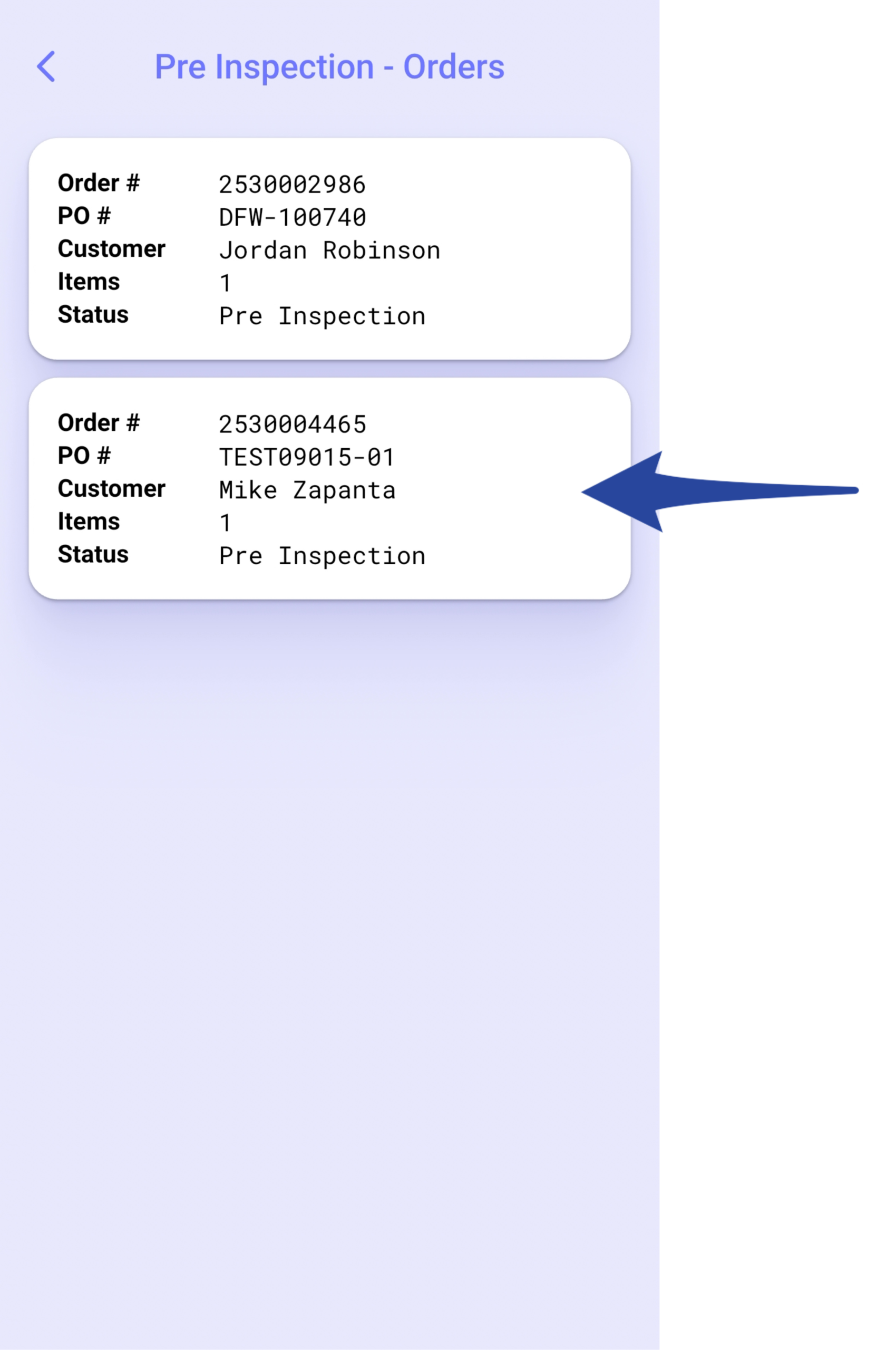
Select the order that requires pre-inspection.
Step 4
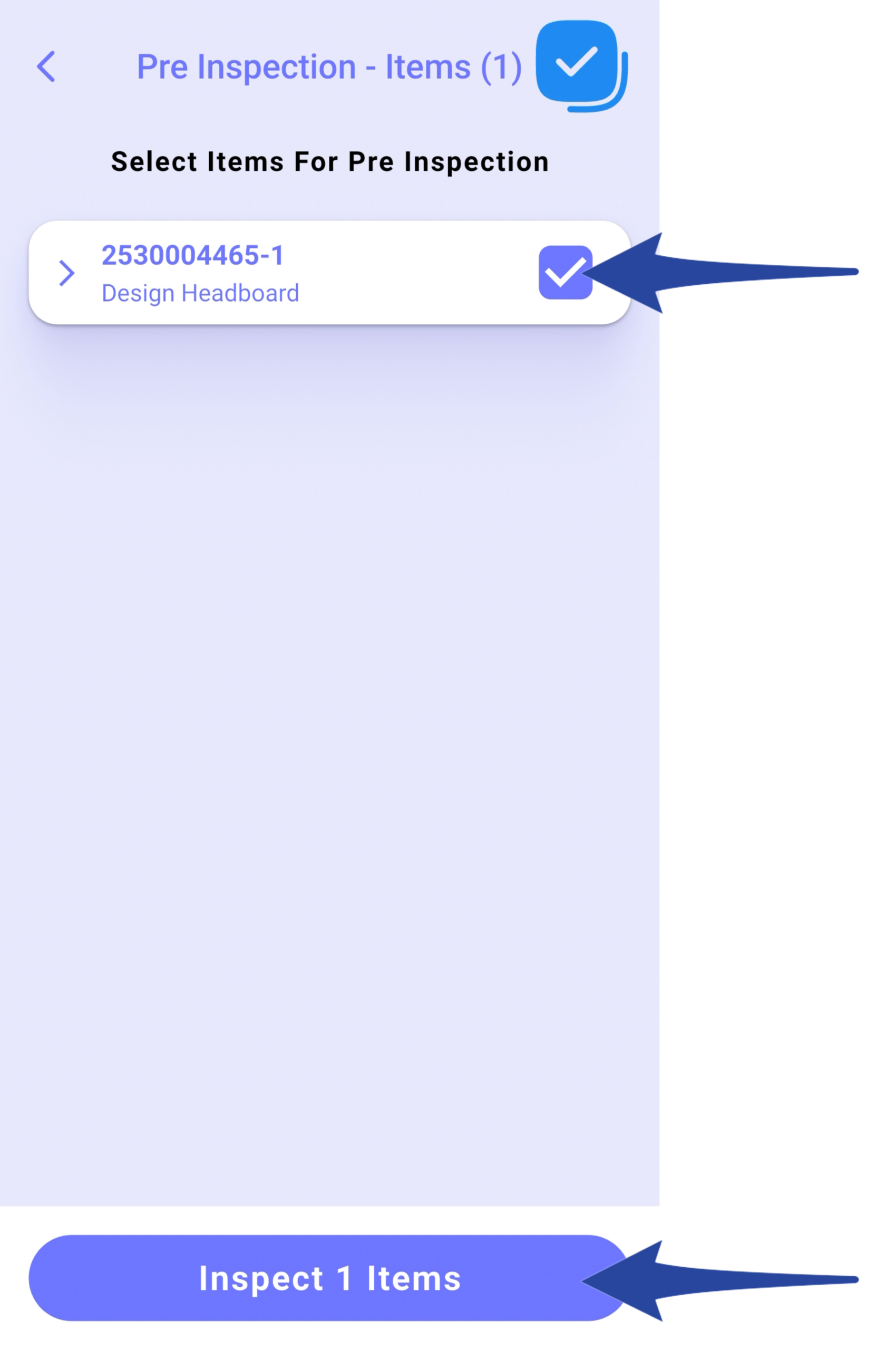
Check the item(s) to be pre-inspected.
You may select one or multiple items, then tap Inspect Item(s).
Step 5
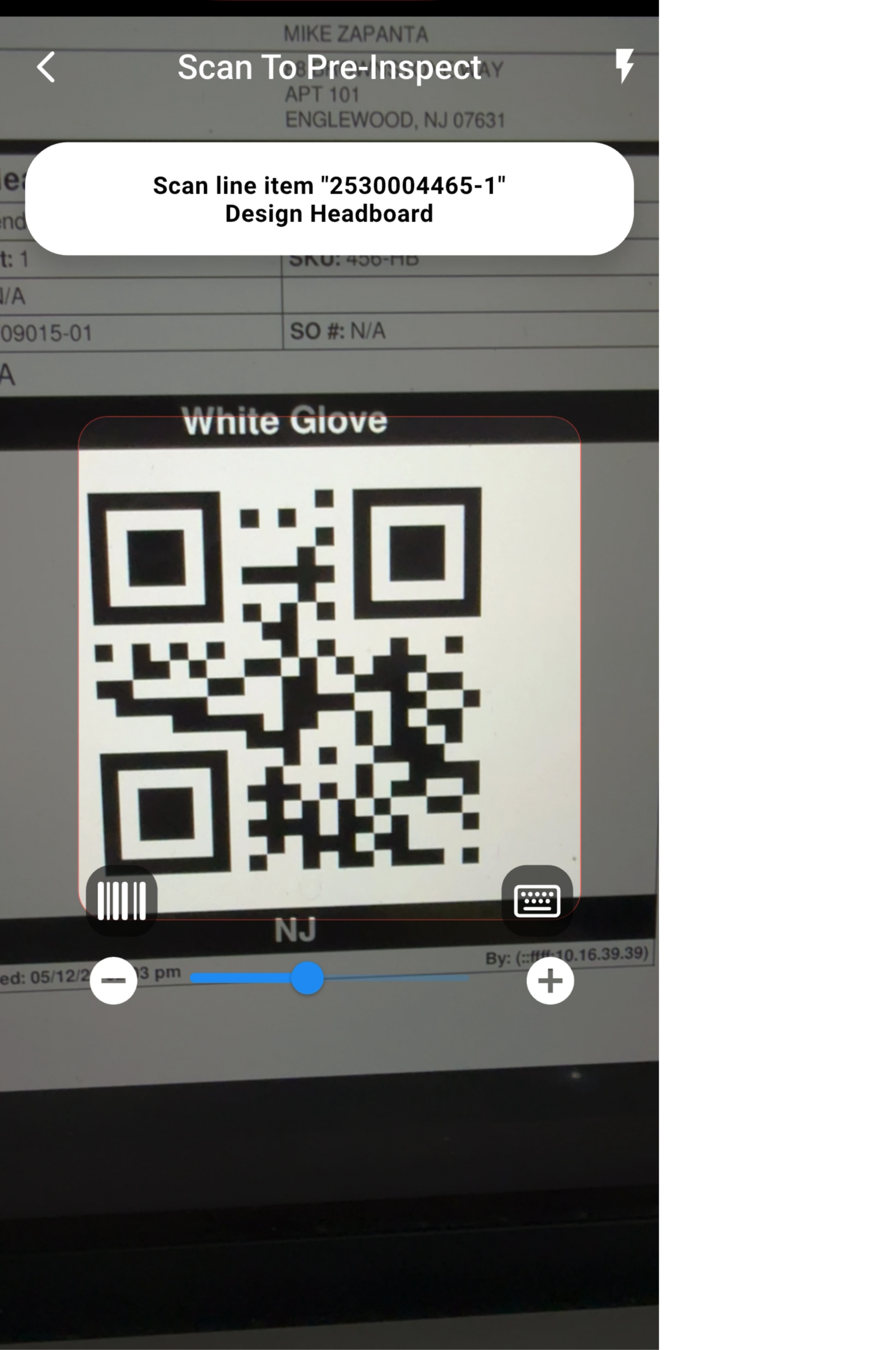
Scan the label(s) of the item(s).
Step 6
Take at least 3 photos, then tap Done.
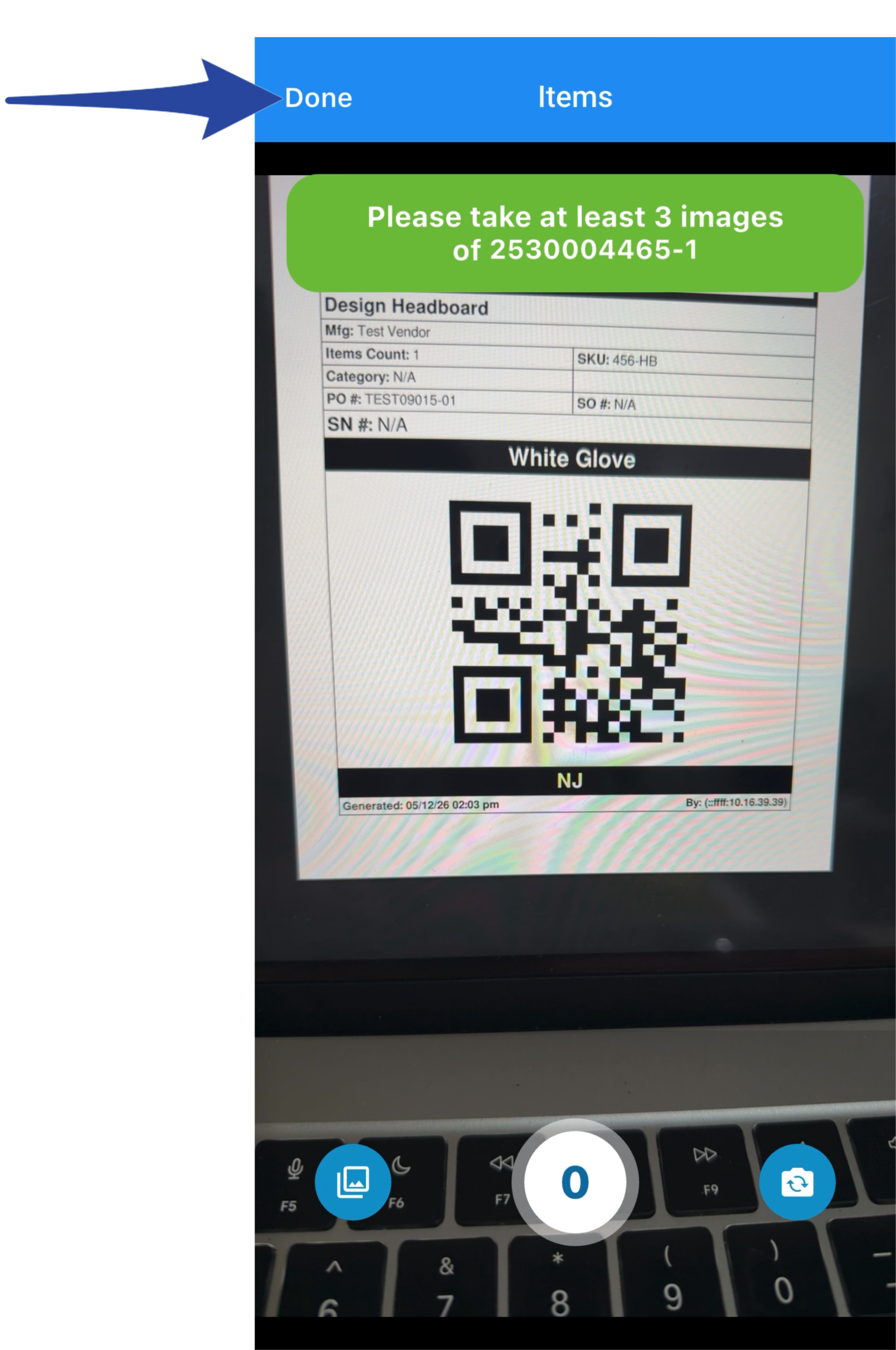
Repeat Steps 5 and 6 if there is more than one item to pre-inspect
Step 7
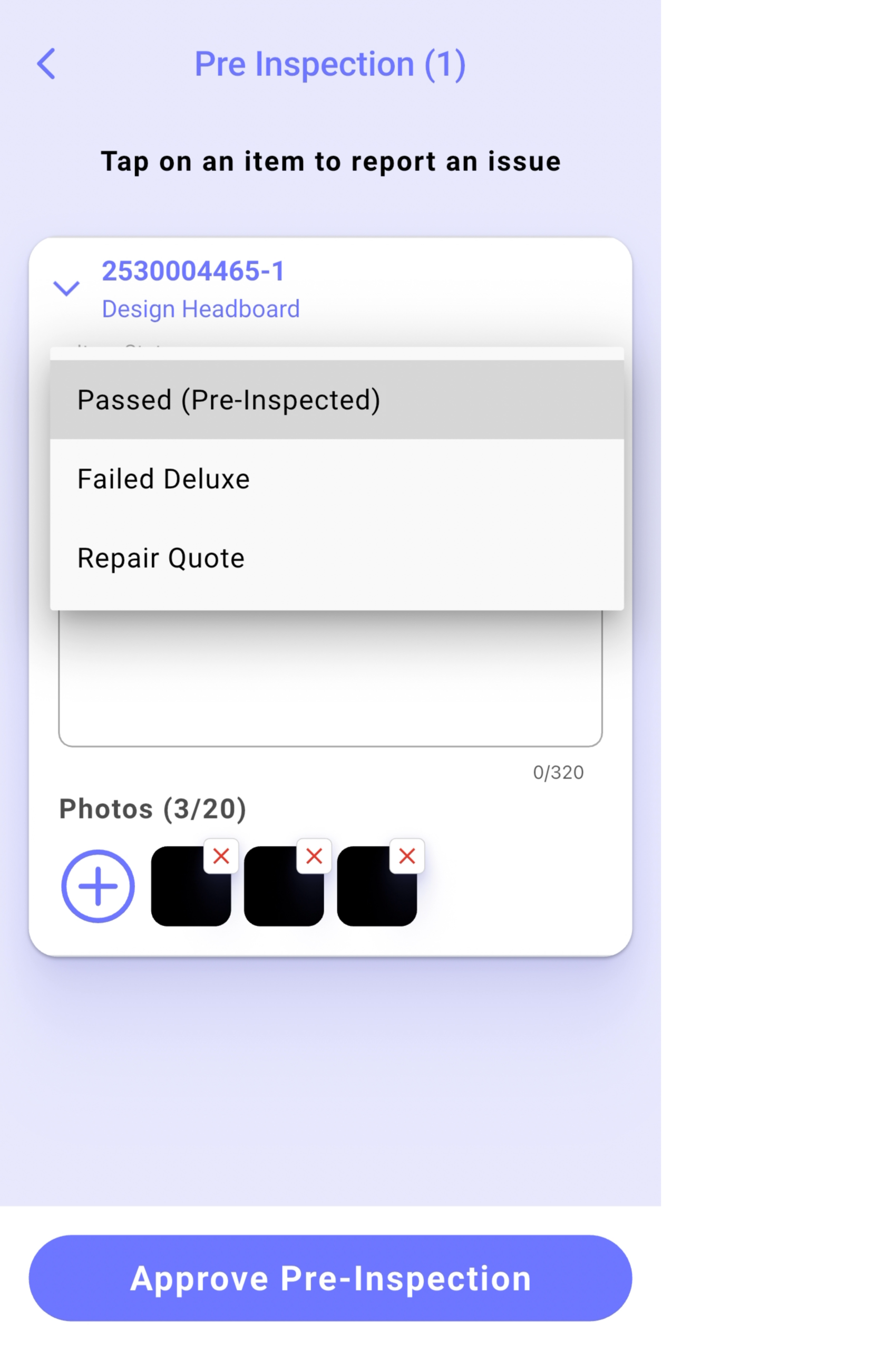
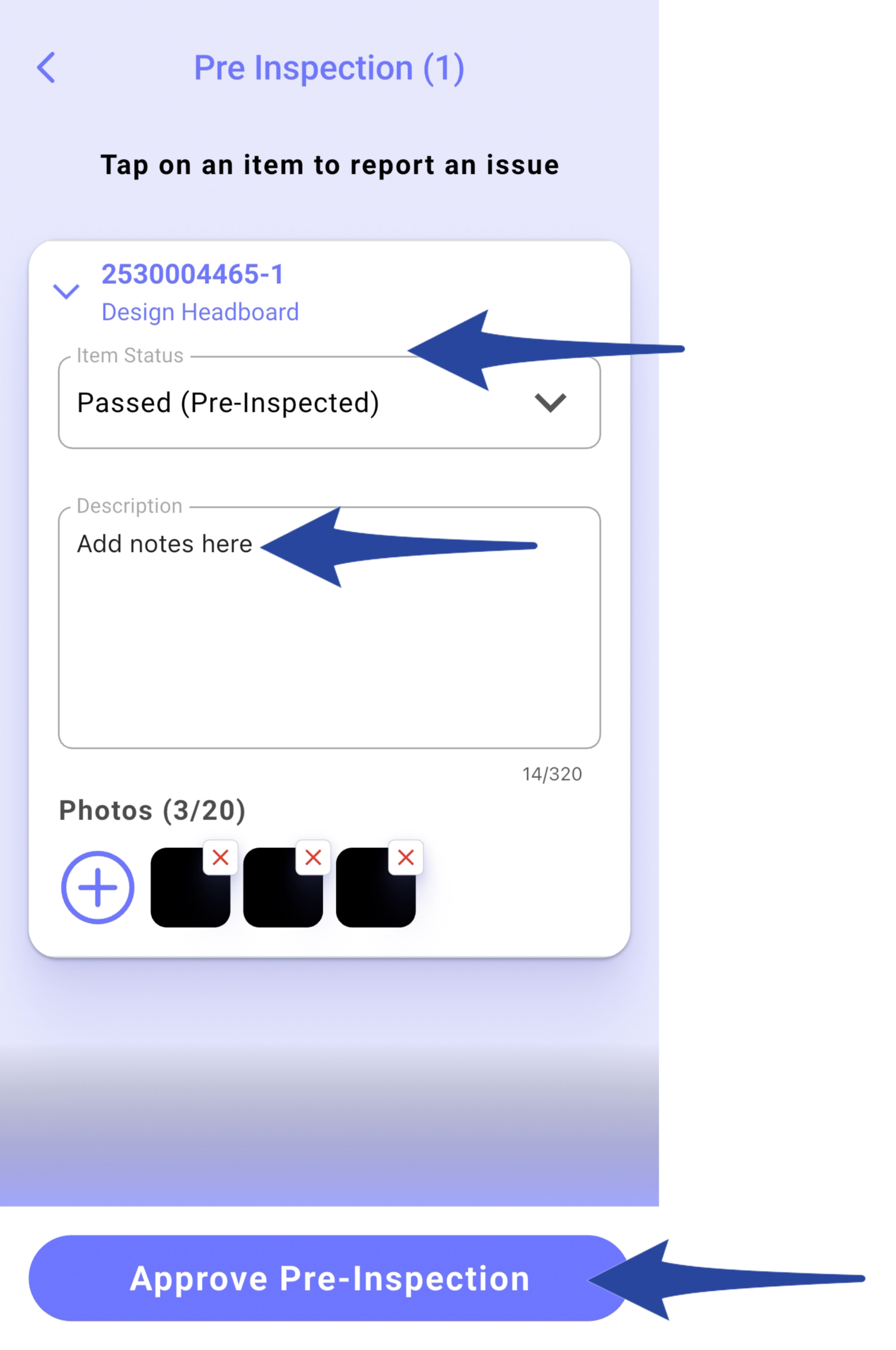
This is the summary view where you can add notes and view thumbnails of the photos taken during the pre-inspection.
Select the appropriate status based on the condition of the item during the pre-inspection.
Once completed, tap Approve Pre-Inspection.
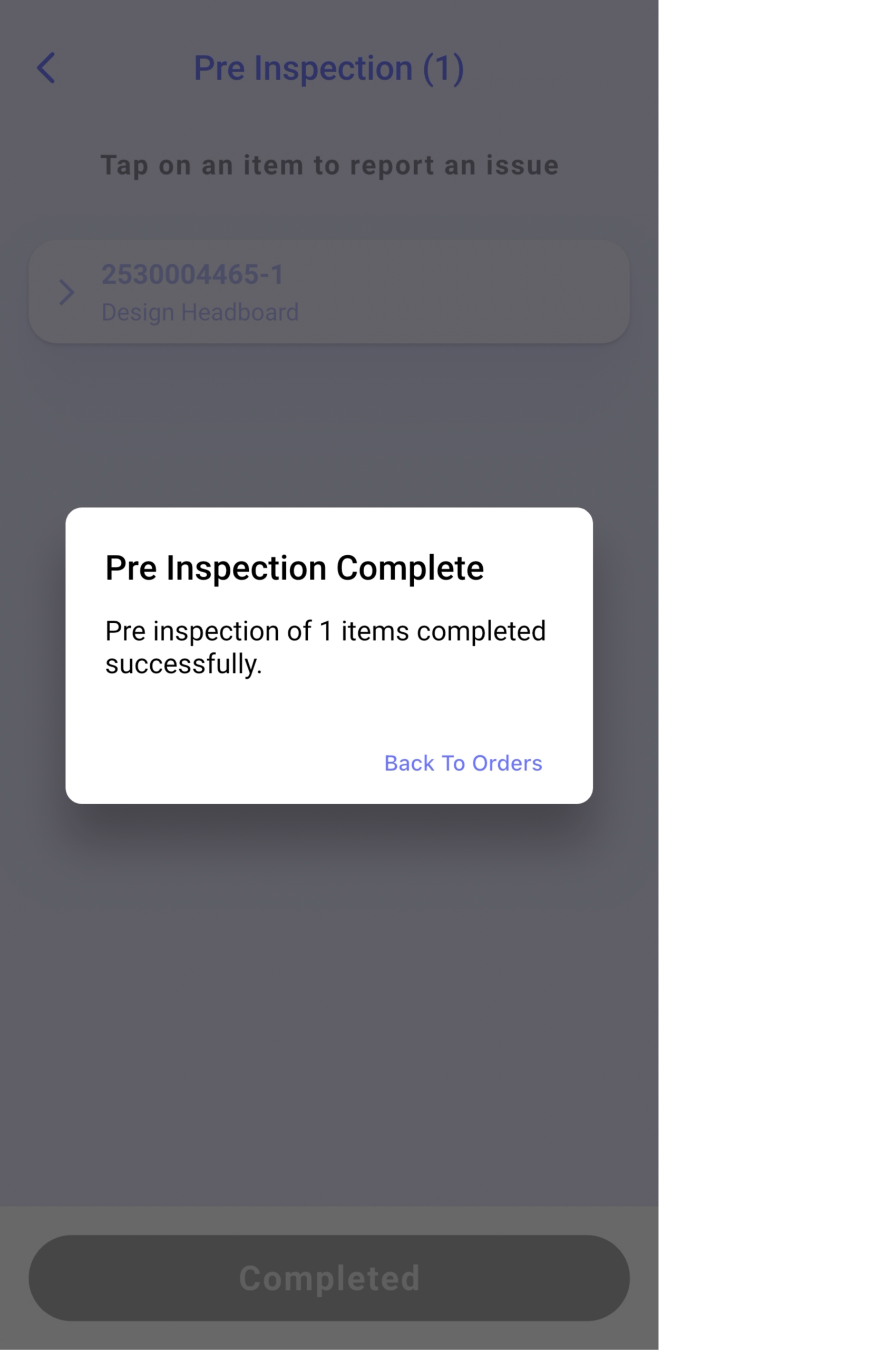
Confirmation that the Pre-inspection has been completed
The order status is now Received from Pre-Inspection.