Step 1
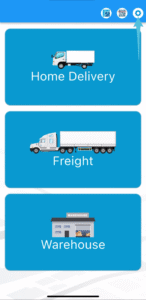
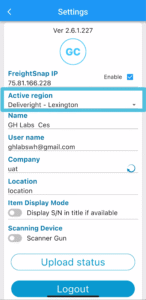
Begin by tapping the gear icon to access the settings. Ensure that your access is set to the correct Active region
Step 2
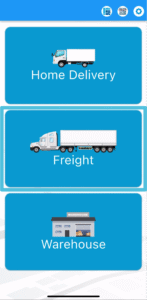
Go back to the main page and choose Freight.
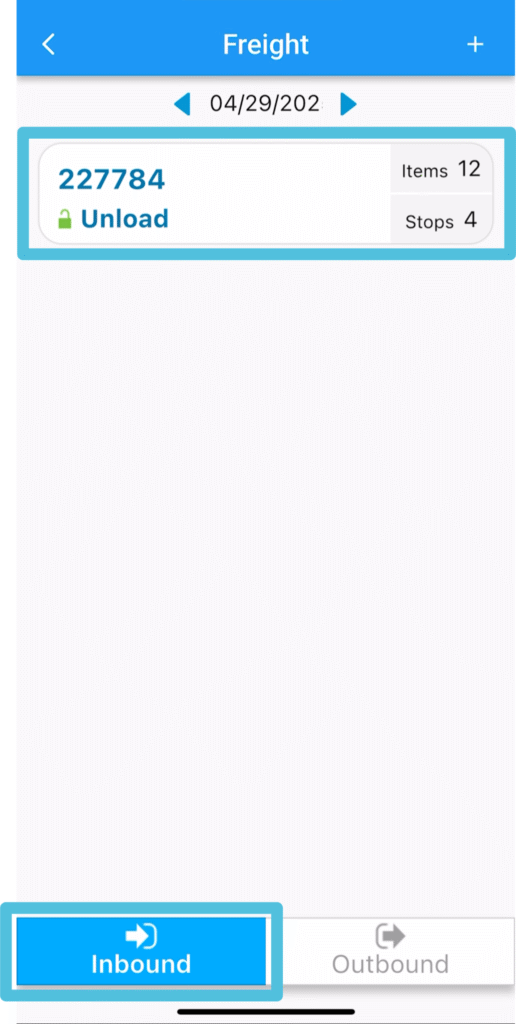
Select the Inbound Manifest that you wish to receive / unload. Make sure that Inbound tab is selected.
Step 3
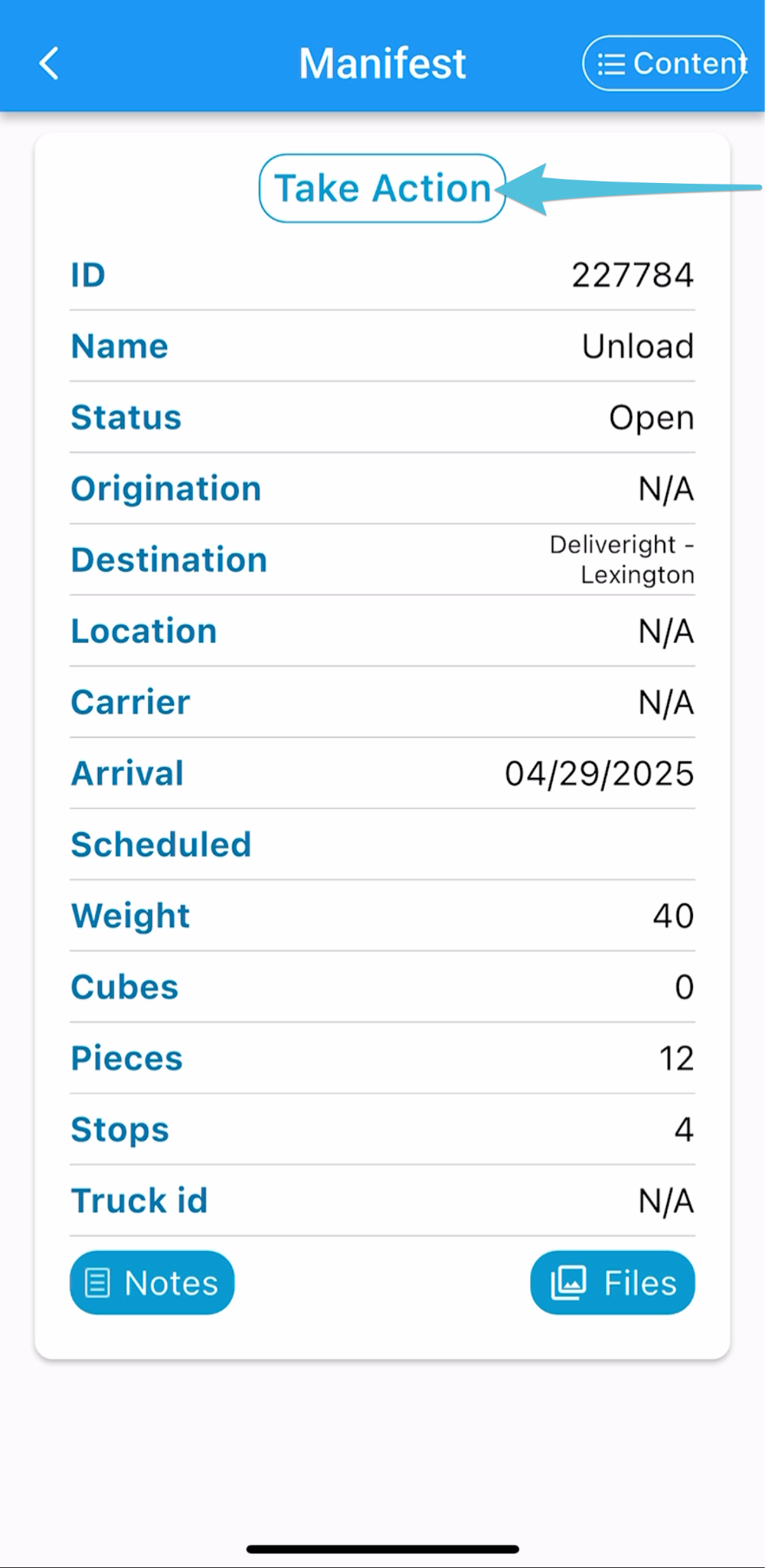
Click Take Action
Step 4
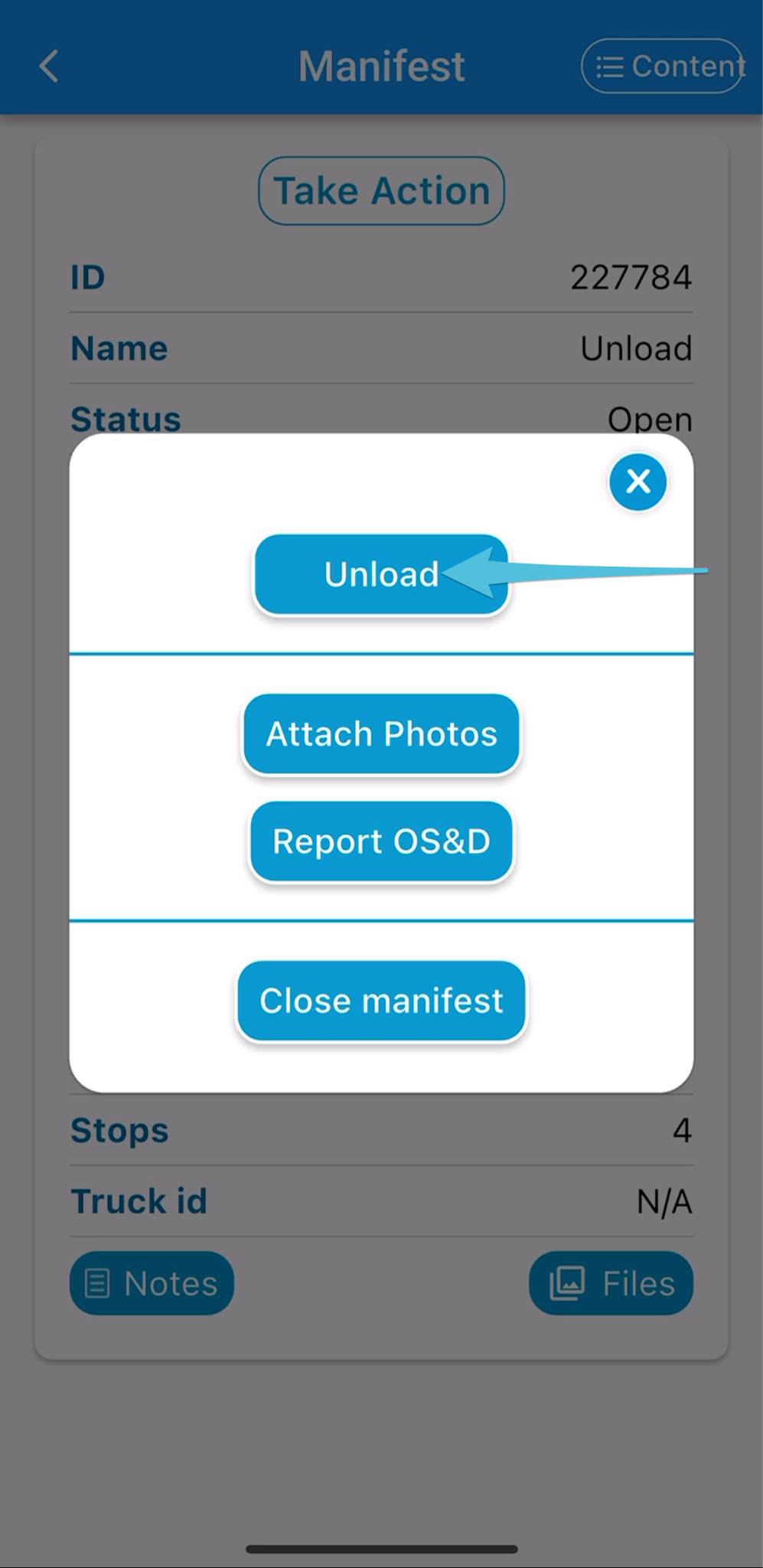
Then select Unload
Step 5
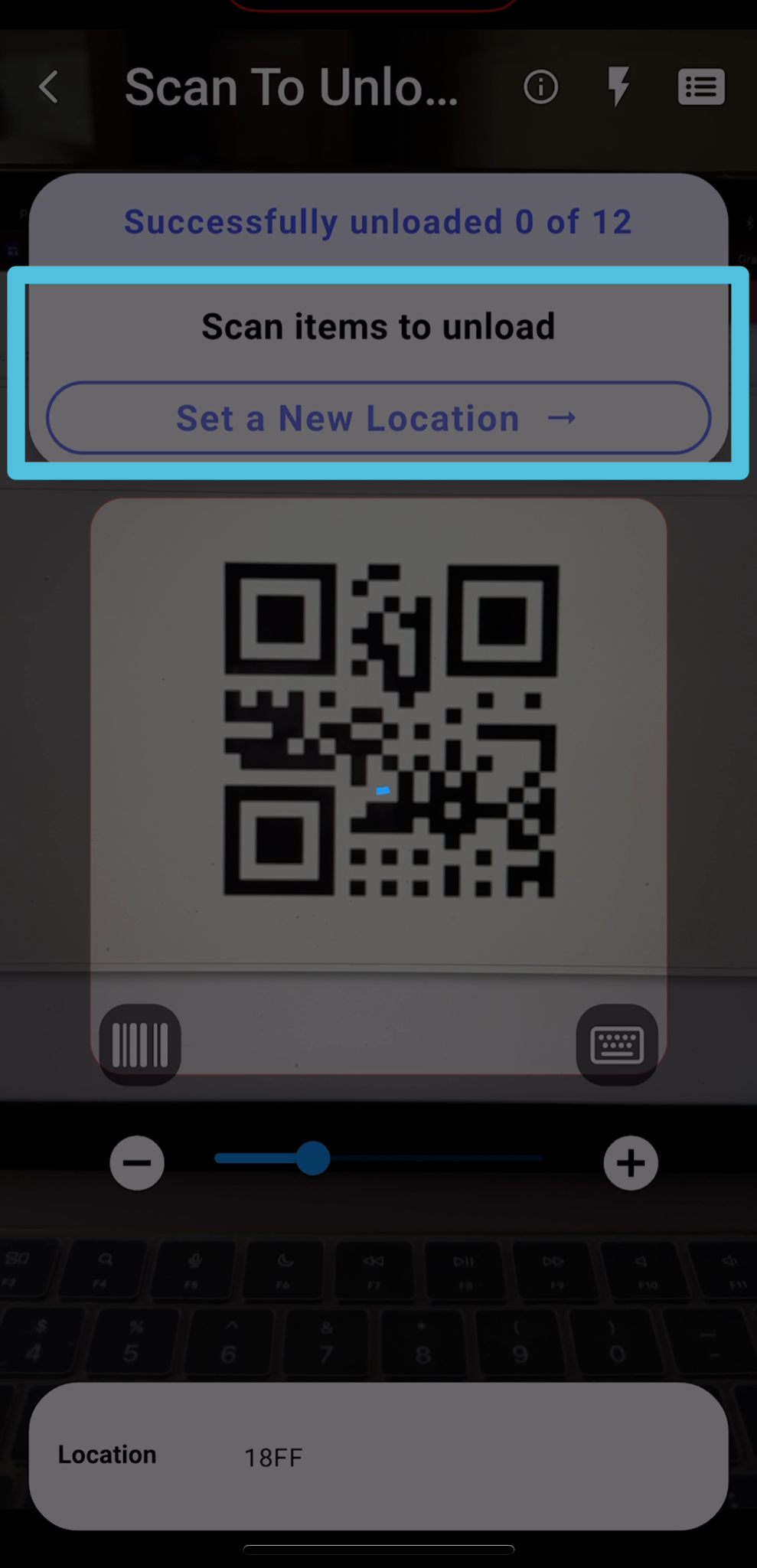
Begin by scanning the location. The screen will display the number of pieces you need to unload or scan.
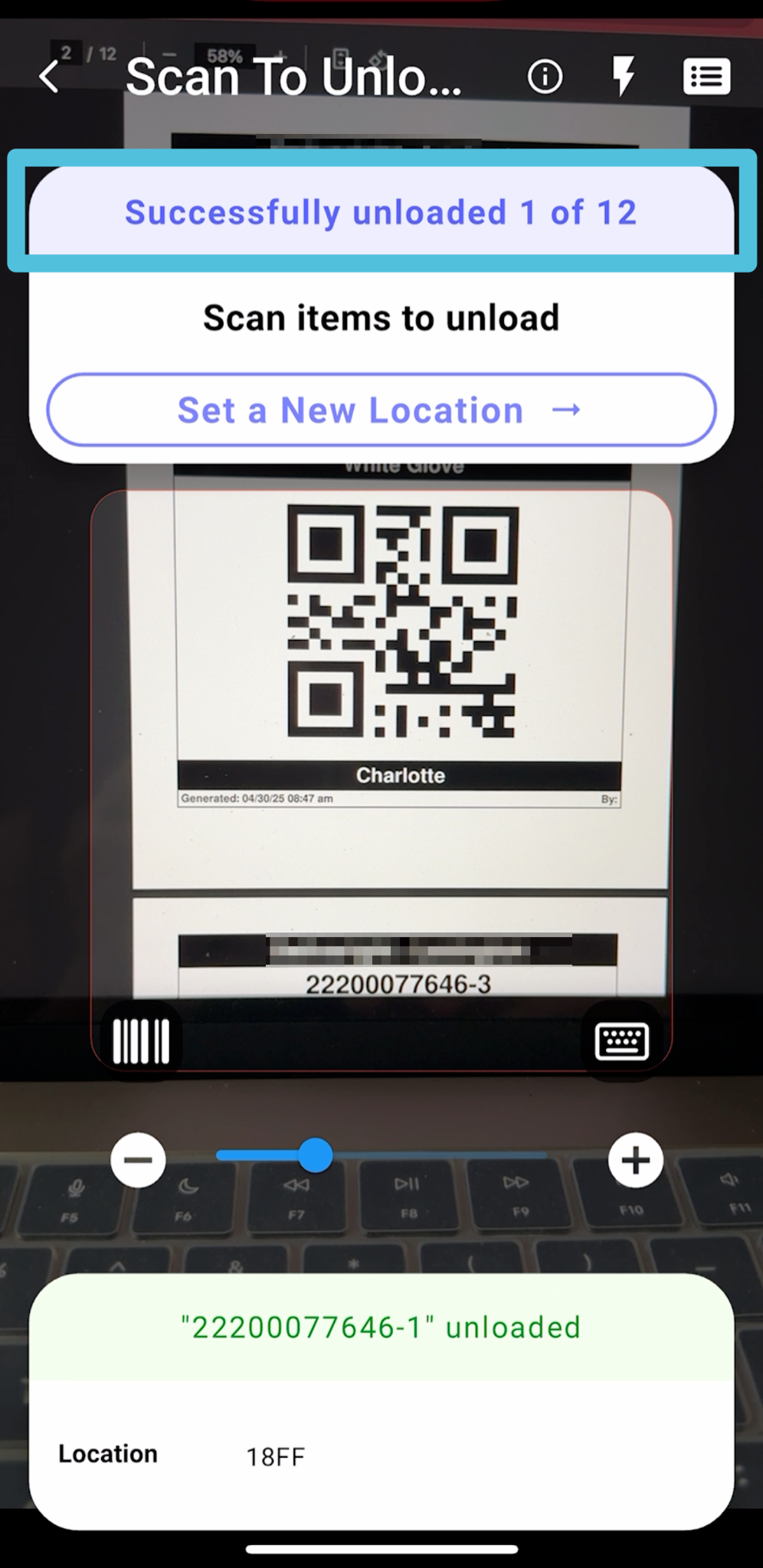
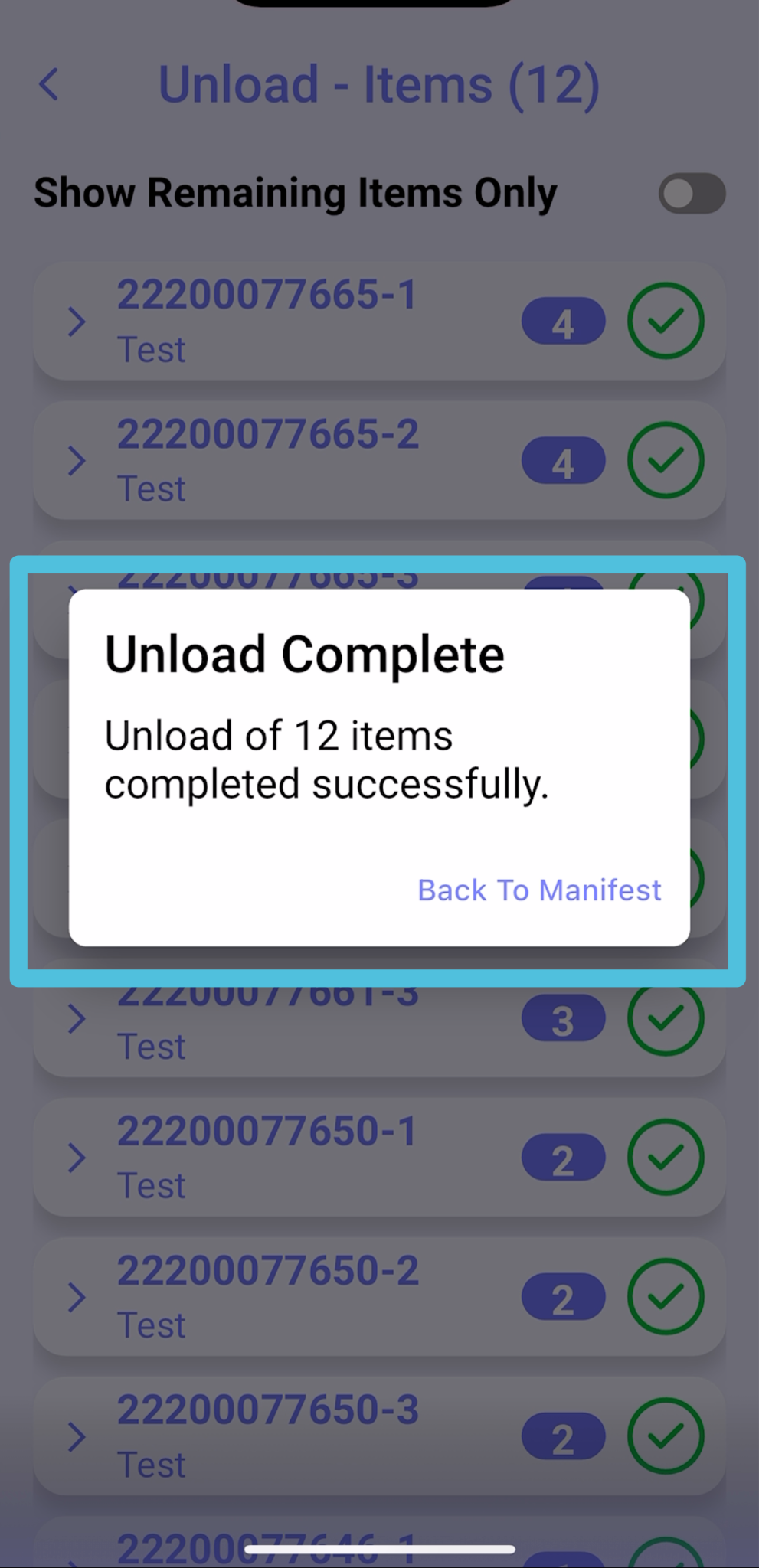
After that, scan all the labels until you receive the message Unload Complete
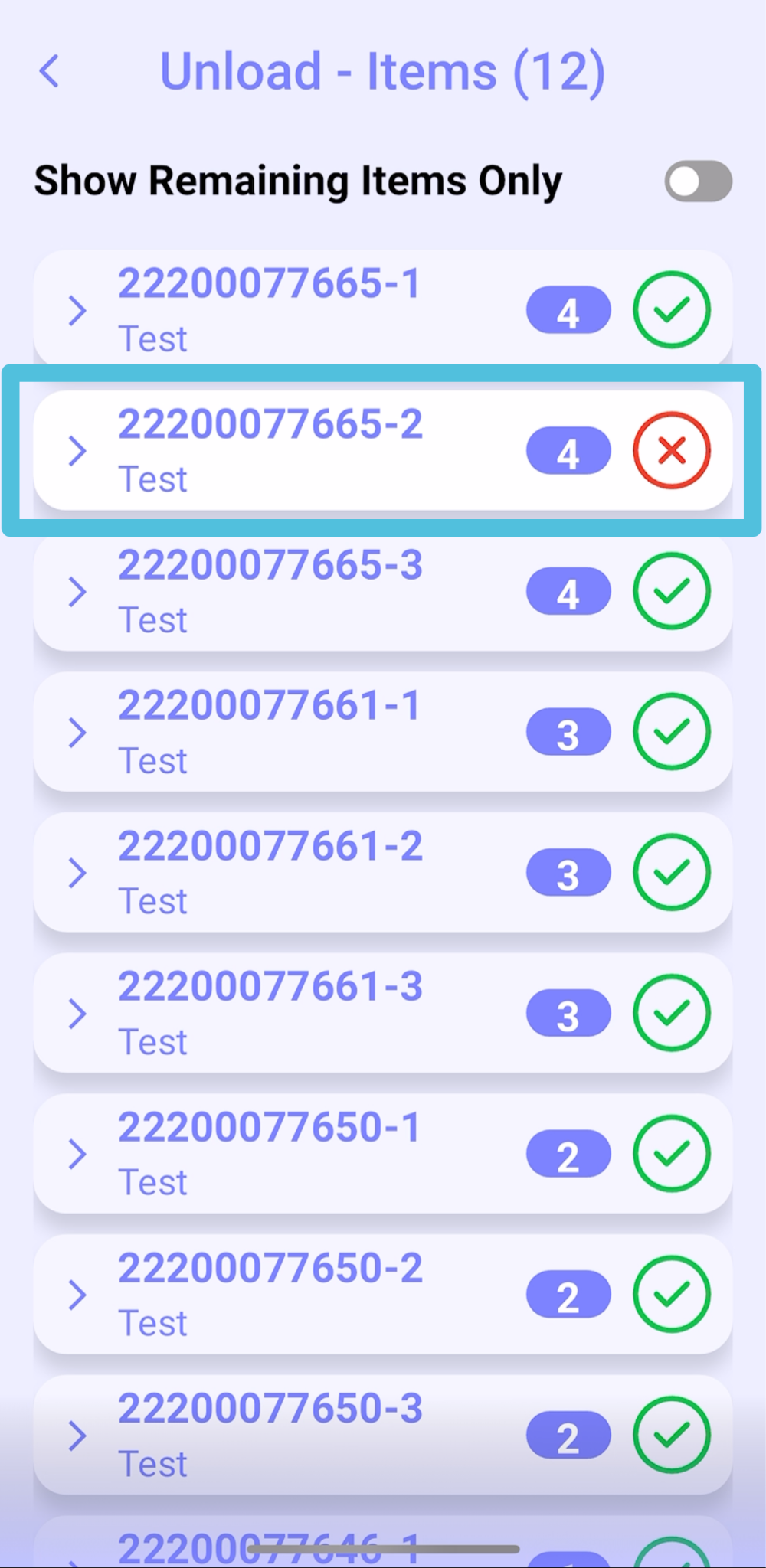
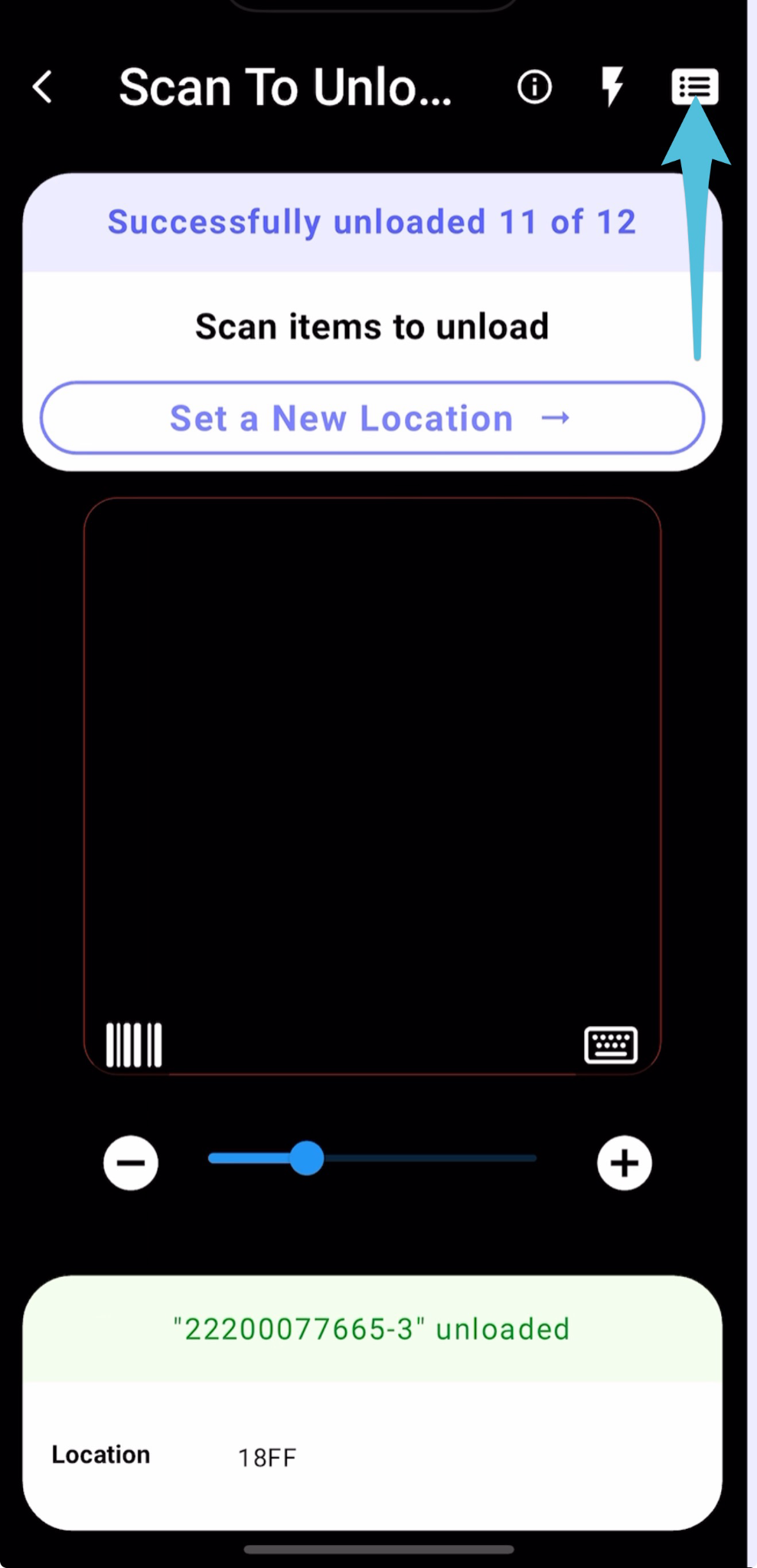
If an item is missing, click the items list box in the top right corner. This will display a list of all items that still need to be scanned.
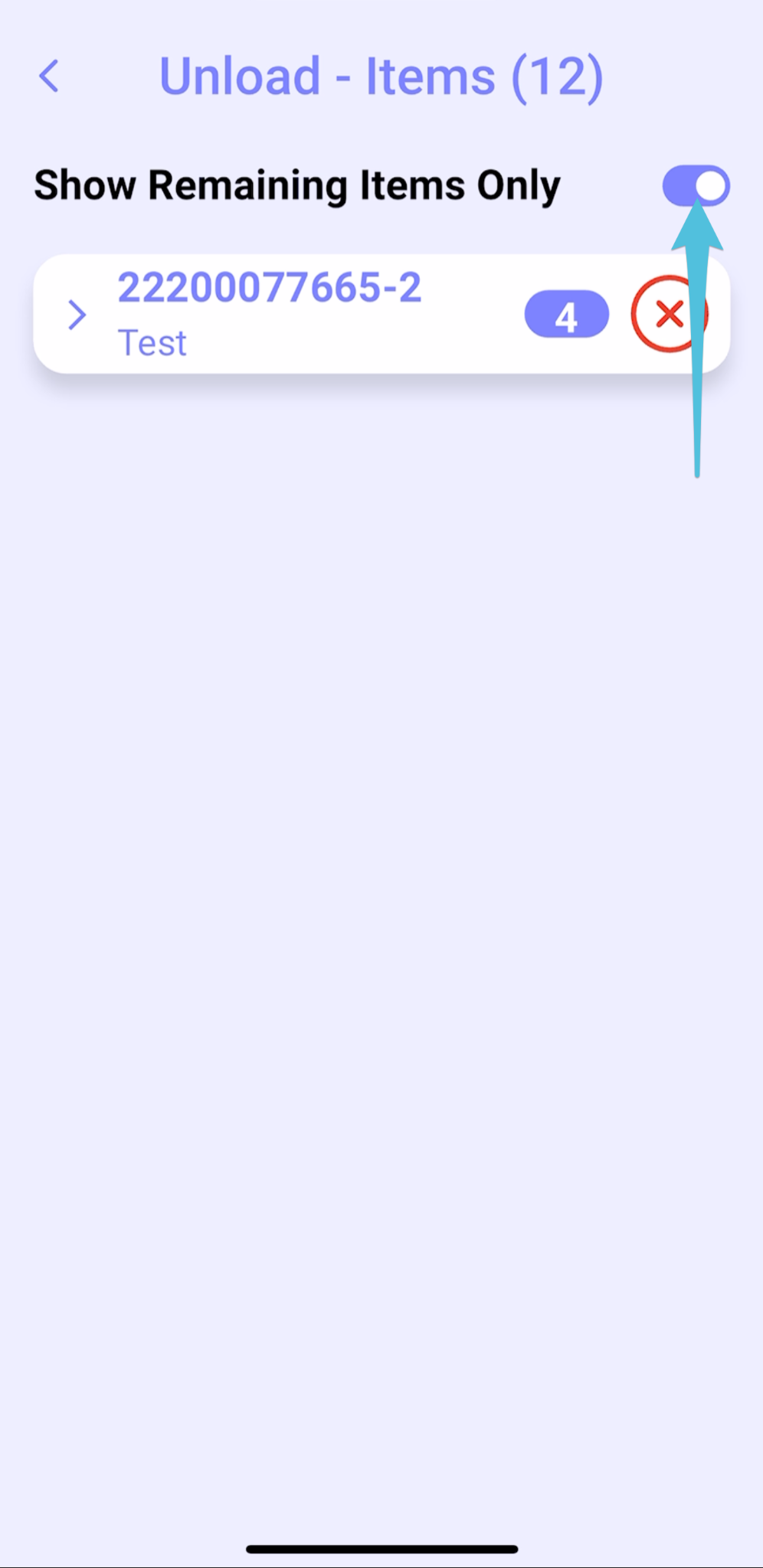
Here’s what the screen will look like when there are items that haven’t been unloaded. Items that haven’t been scanned will have an “X” next to them.
You can toggle the view to show only the items that haven’t been scanned, or display all items, depending on your preference.