Step 1
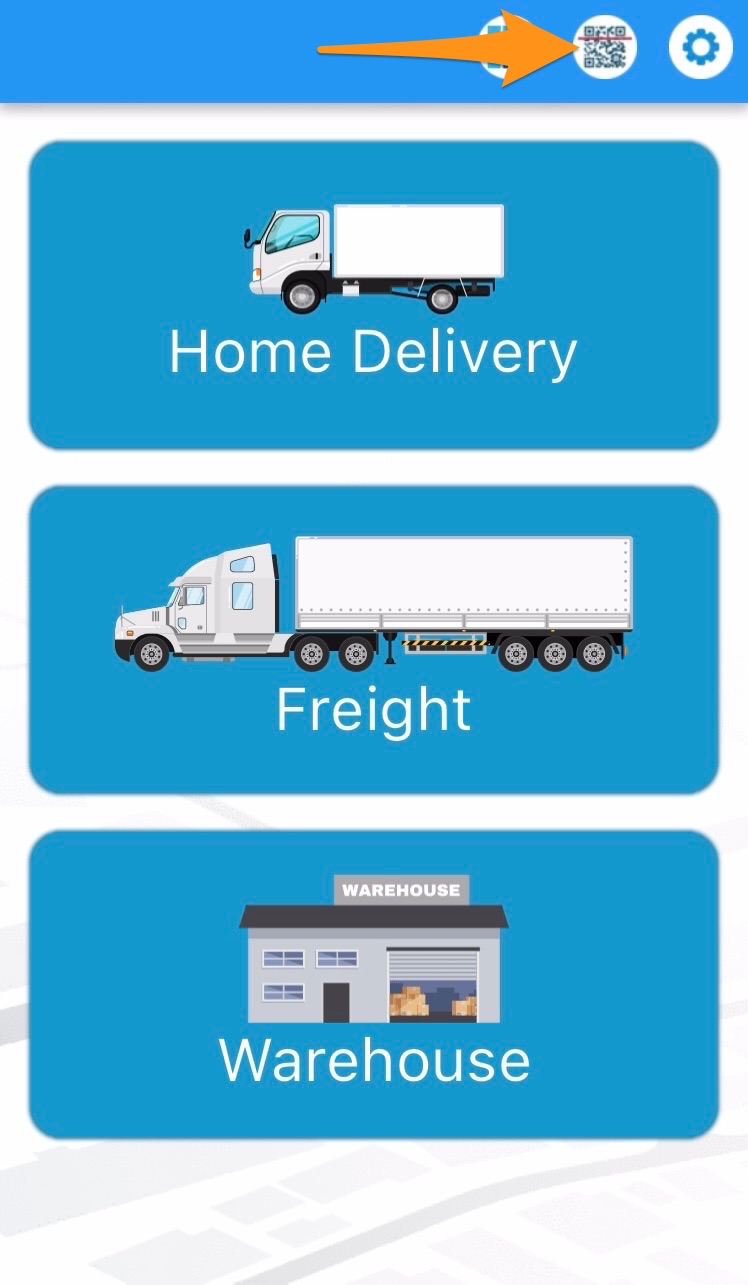
Open the Warehouse Mobile App and tap on the QR / Search Button
Step 2
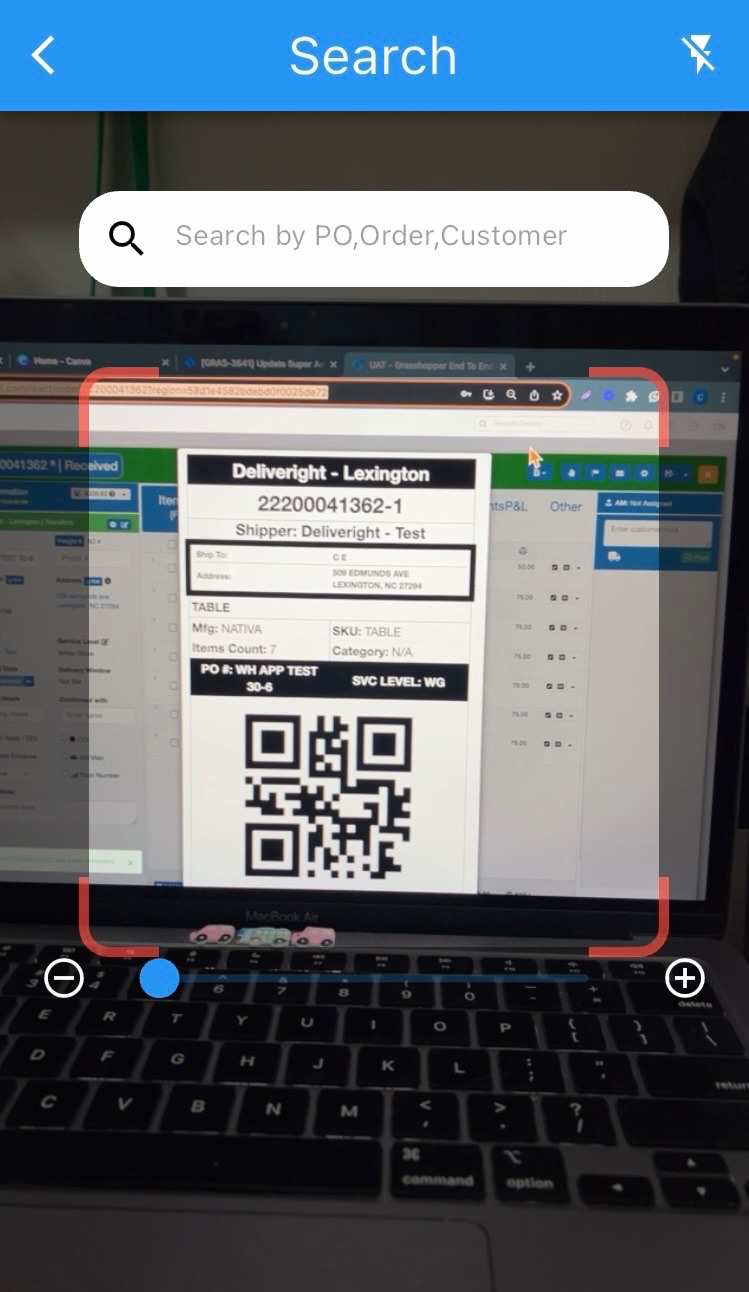
Scan the label of the item
Step 3
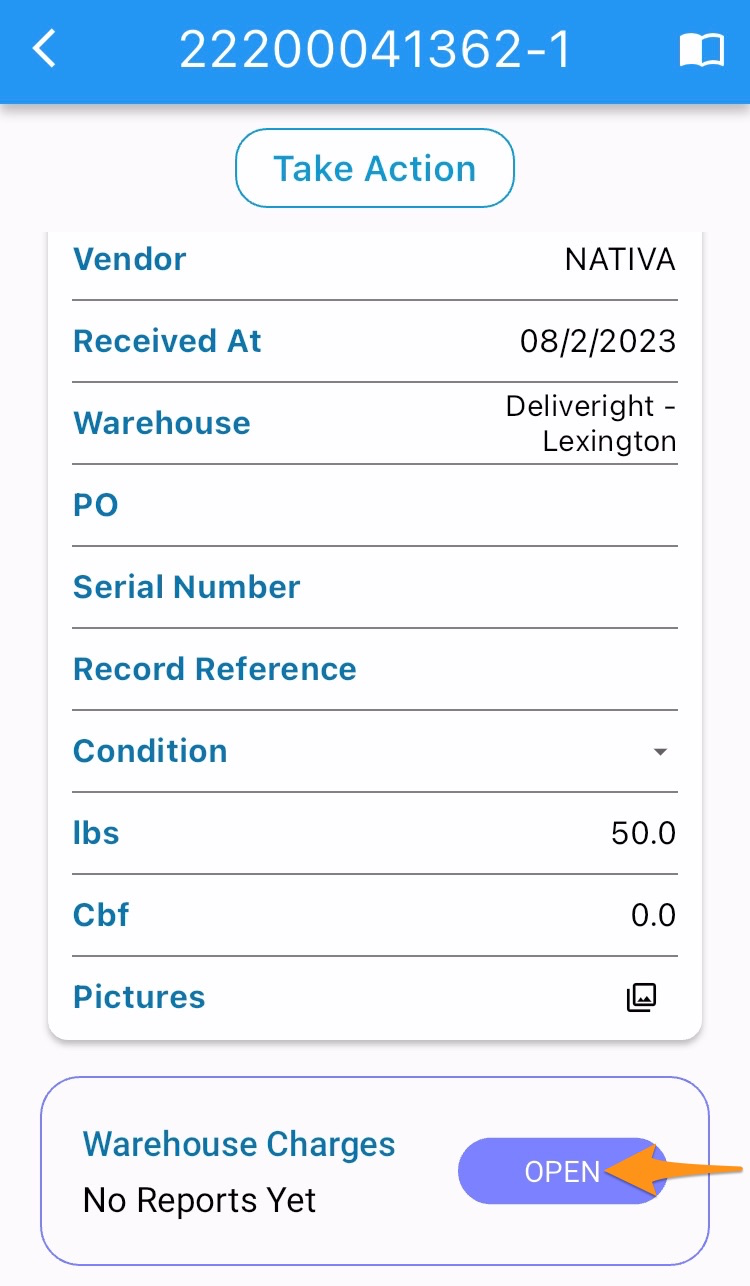
Scroll down to the Warehouse Charges and tap Open
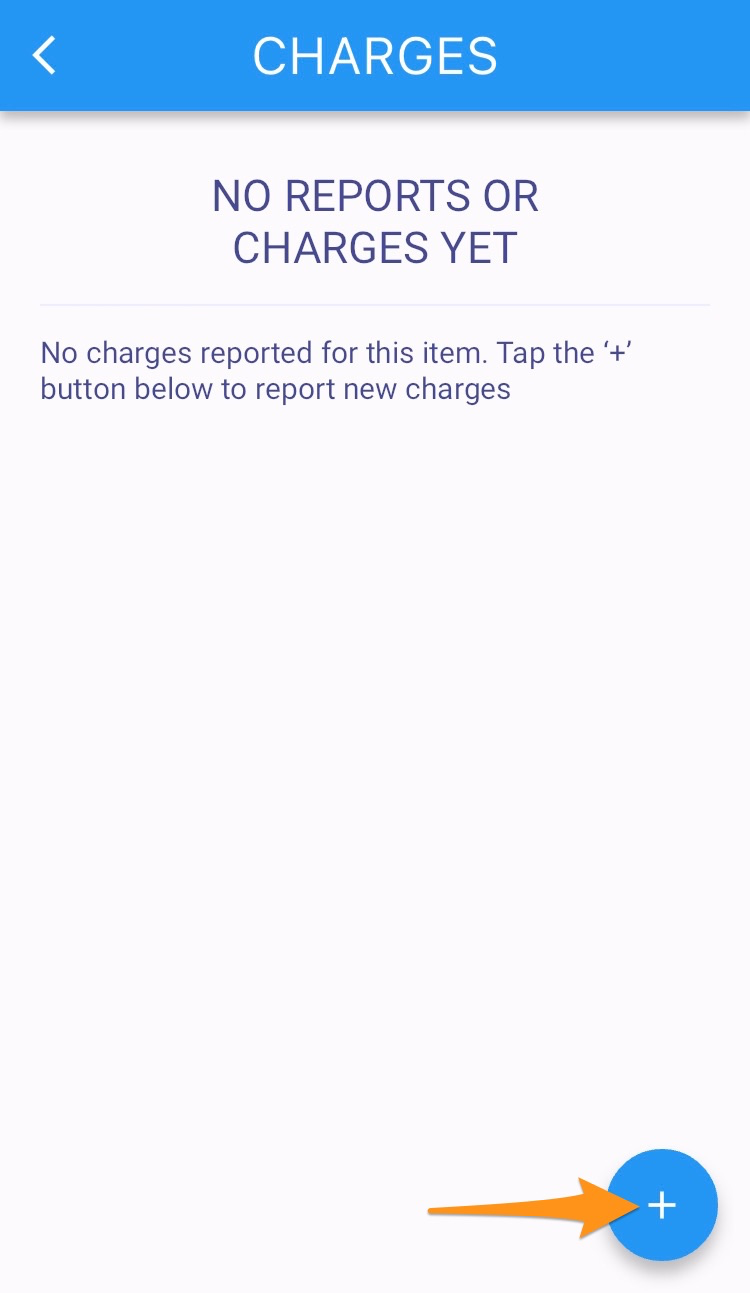
Tap the ‘+’ button to report new charges
Step 4
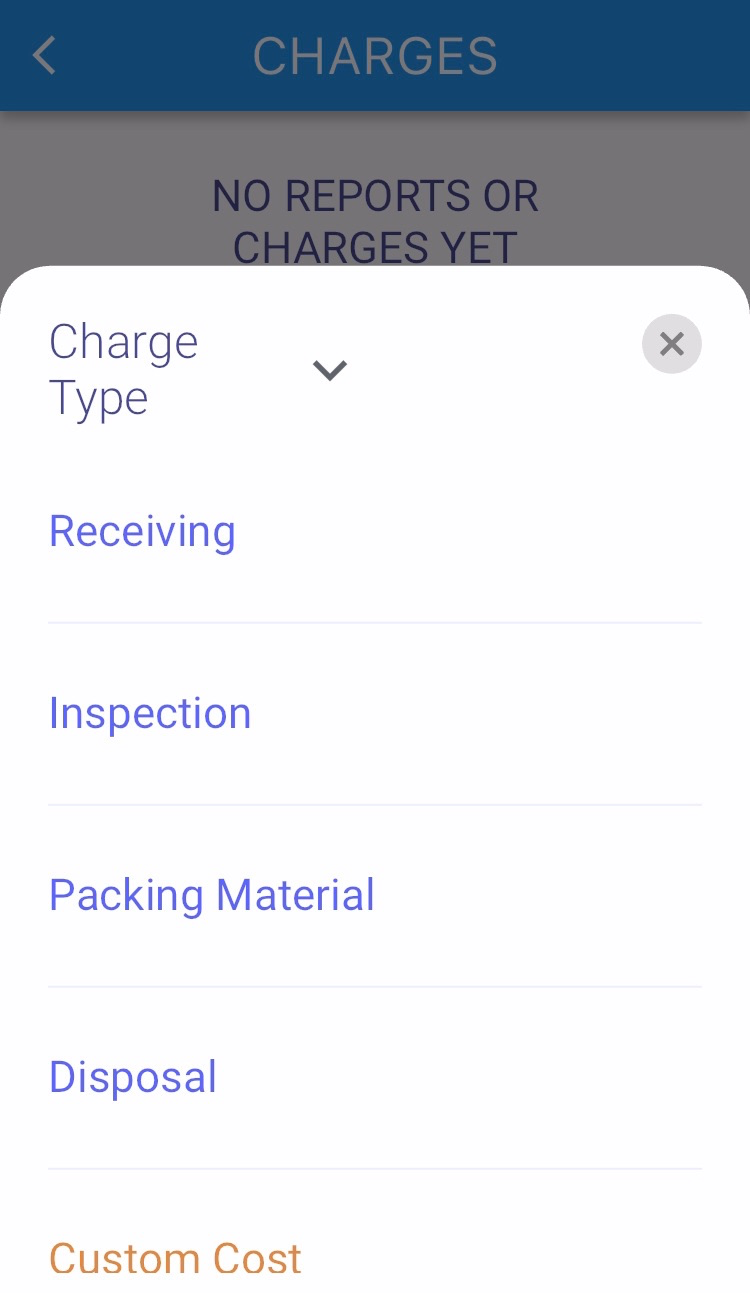
Select which type of charges – Receiving, Inspection, Packing Material, Disposal, Custom Cost, Custom Time
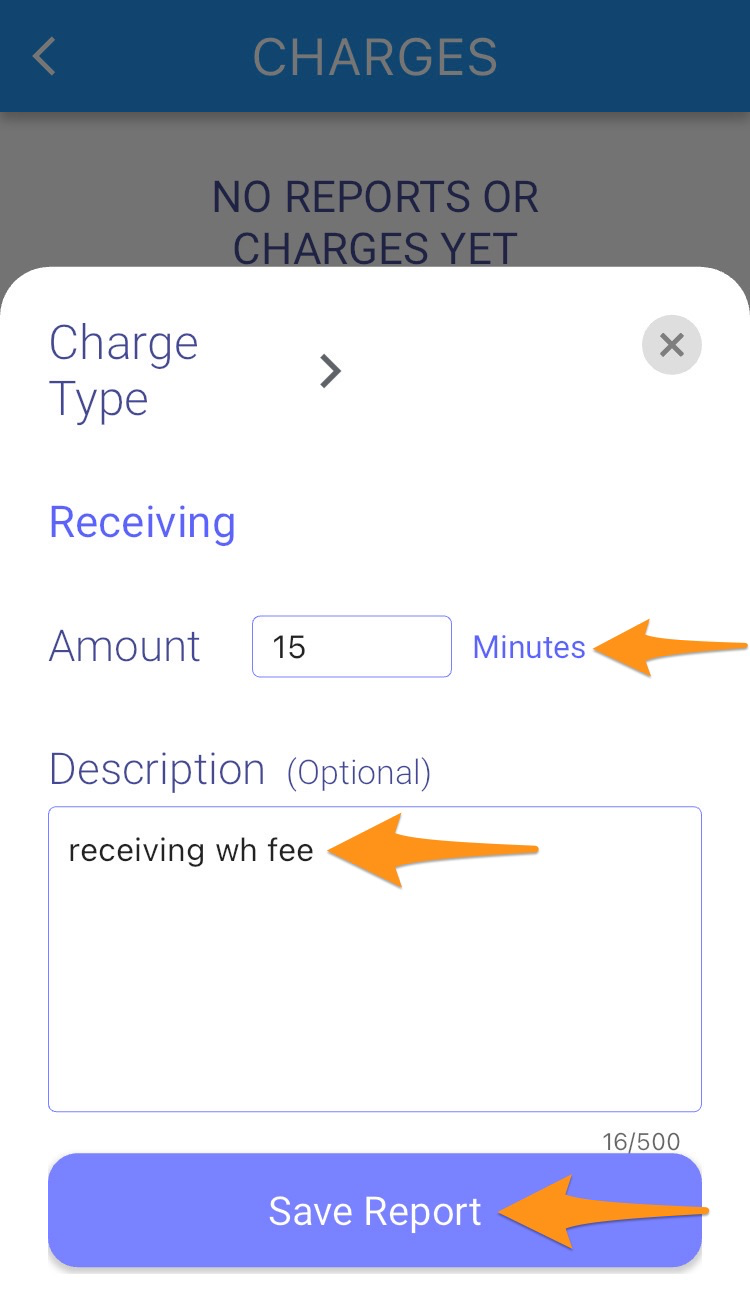
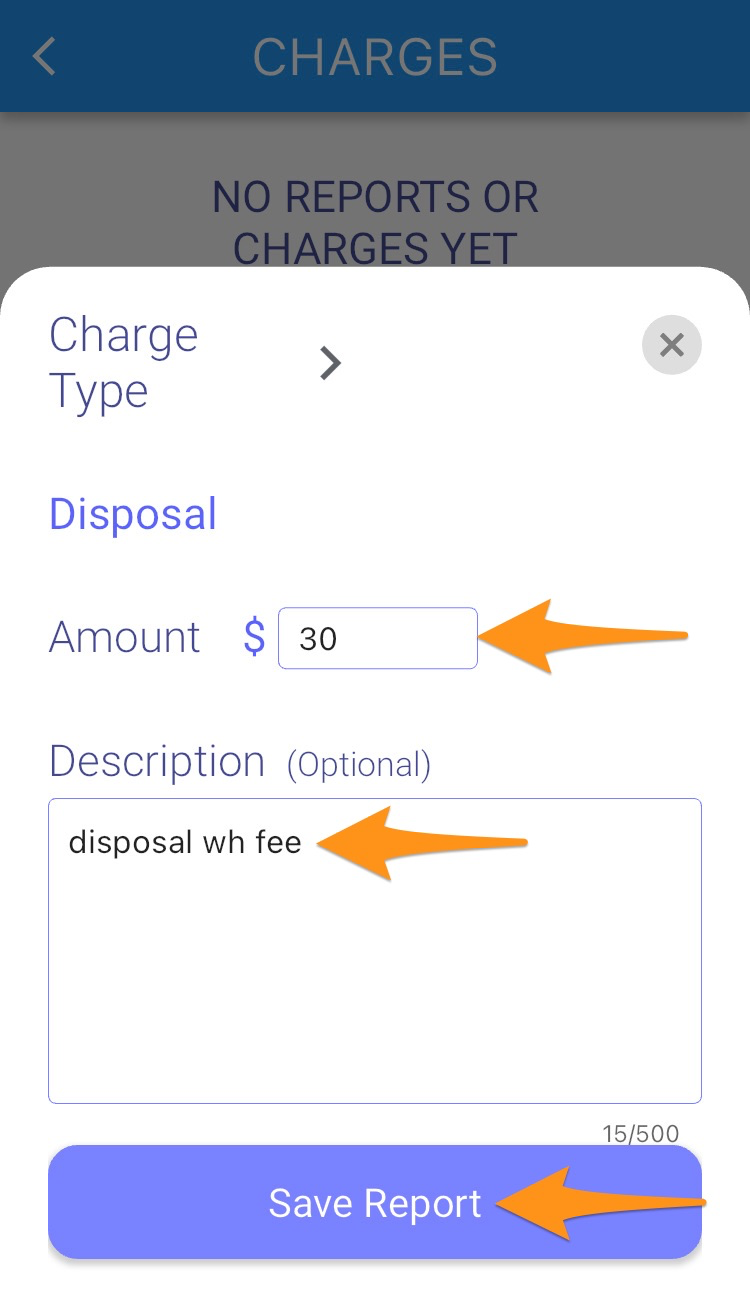
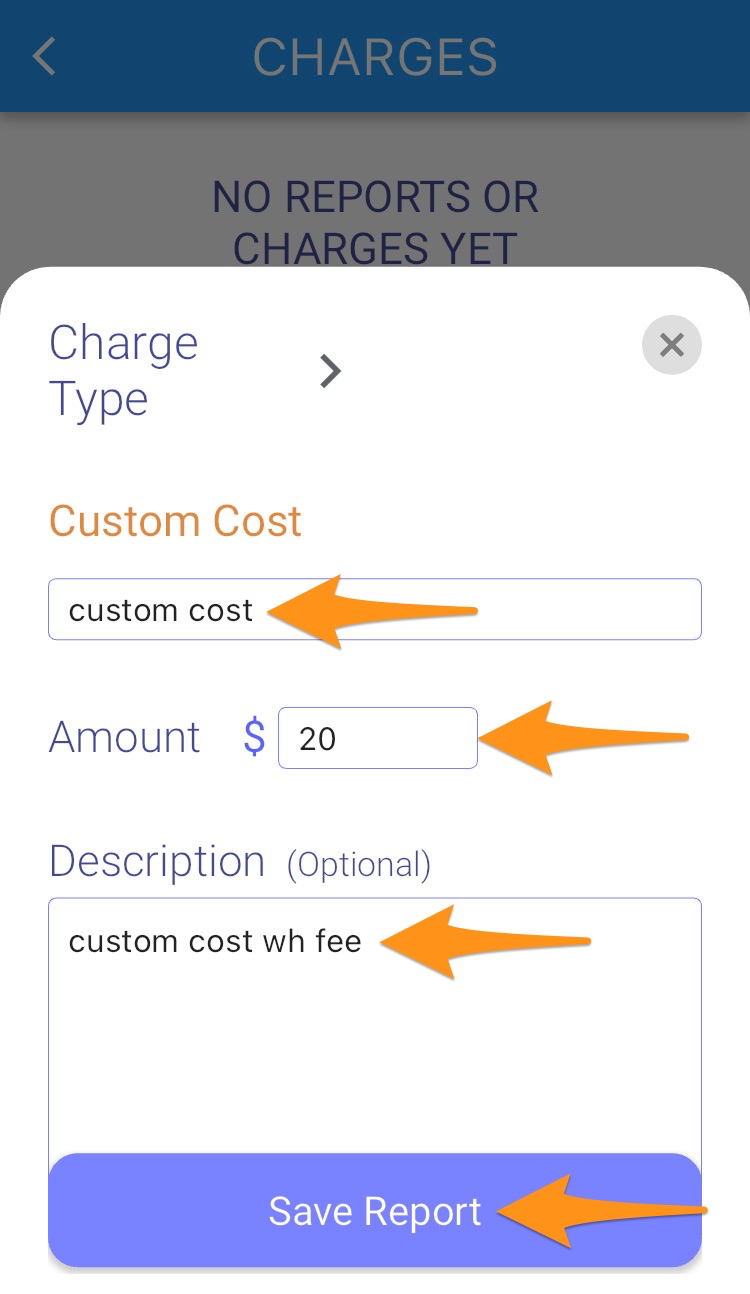
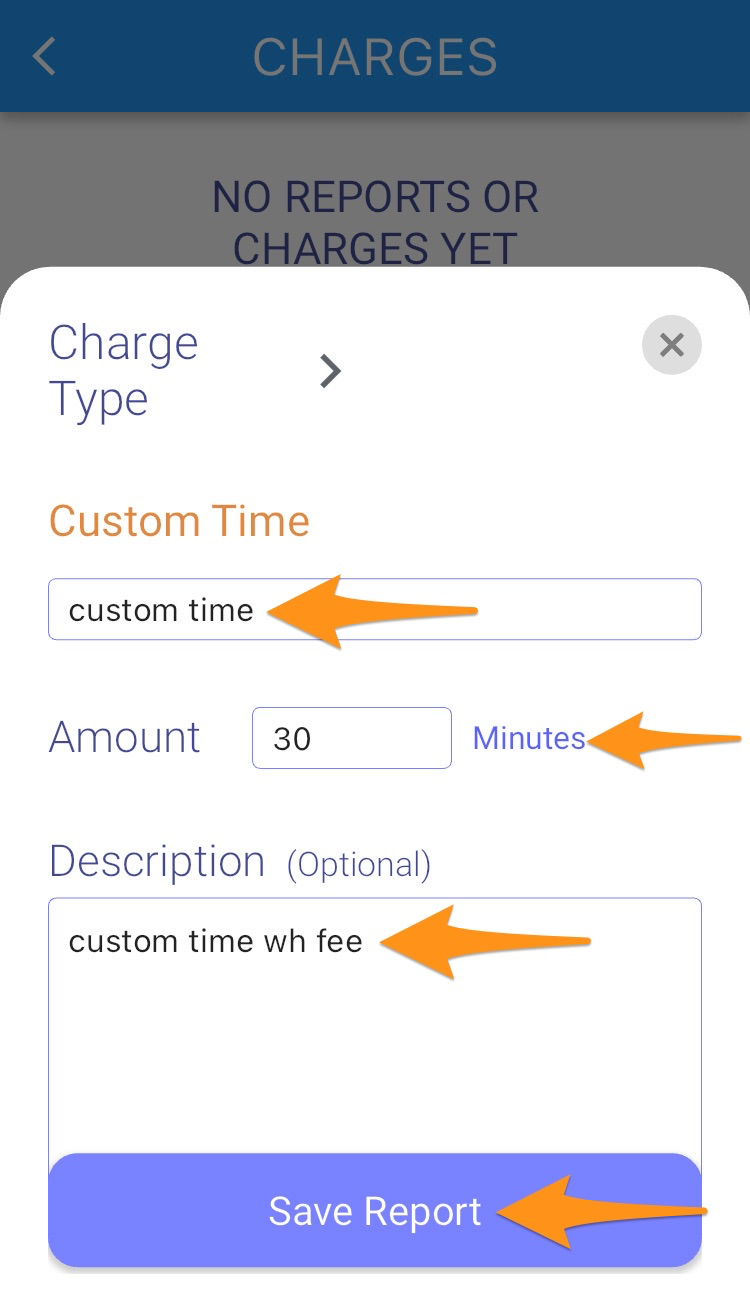
Enter the following details for each charge type then tap on Save Report
- Receiving – minutes, description (optional)
- Inspection – minutes, description (optional)
- Packing Material – amount, description (optional)
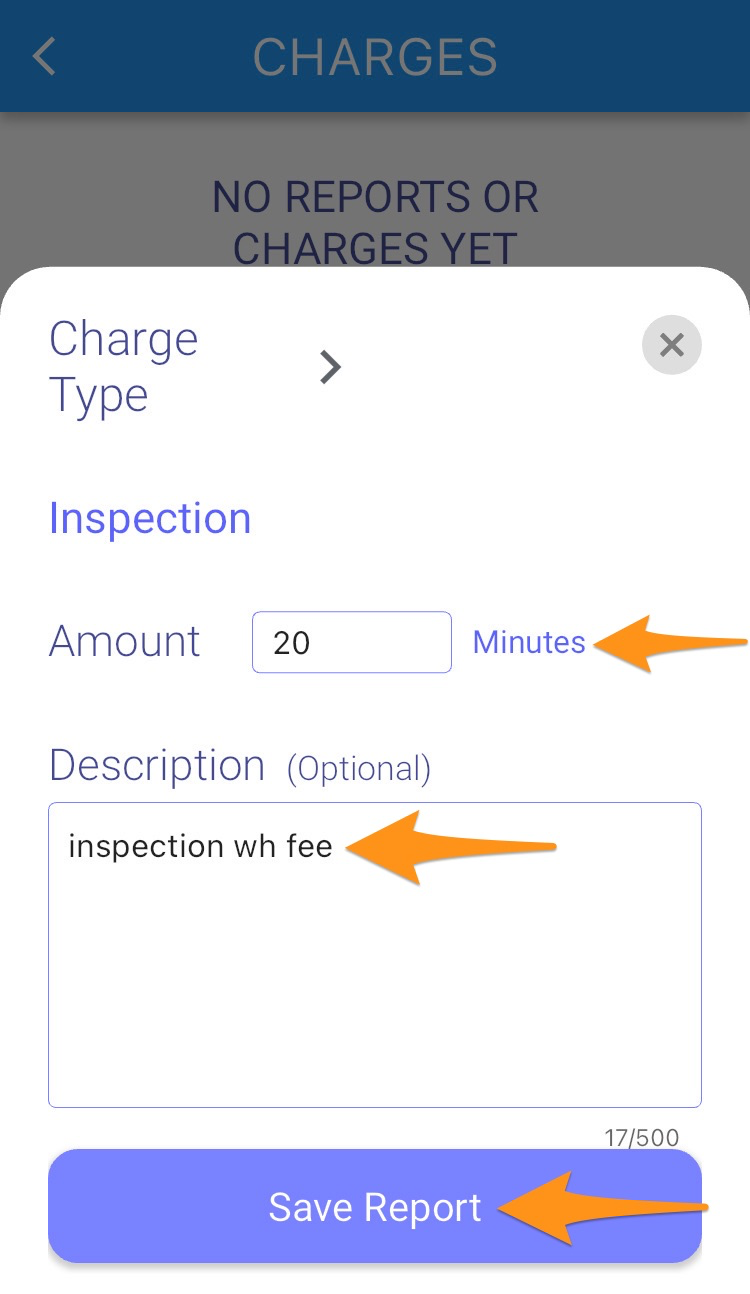
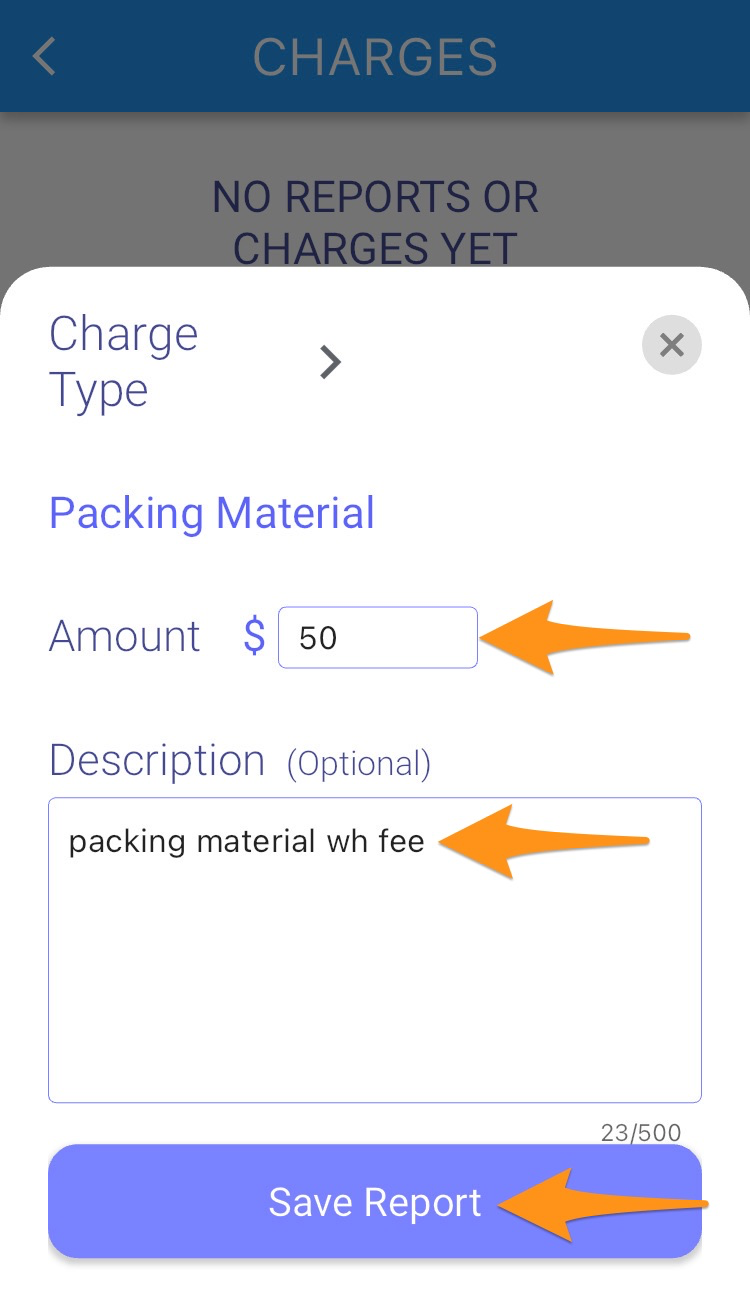
Enter the following details for each charge type then tap on Save Report
- Disposal – amount, description (optional)
- Custom Cost – type in the charge title, amount, description (optional)
- Custom Time – type in the charge title, minutes, description (optional)
Step 5
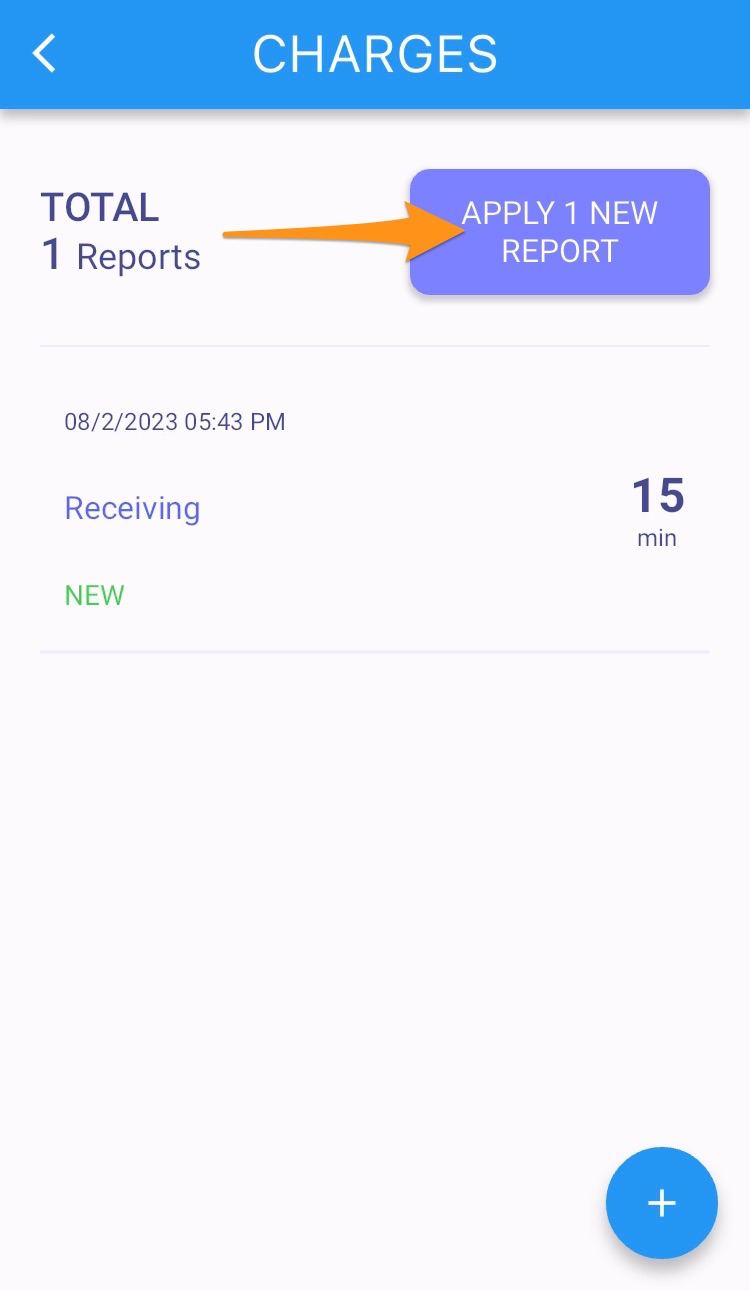
Tap on Apply 1 New Report then select Let’s do it! to proceed
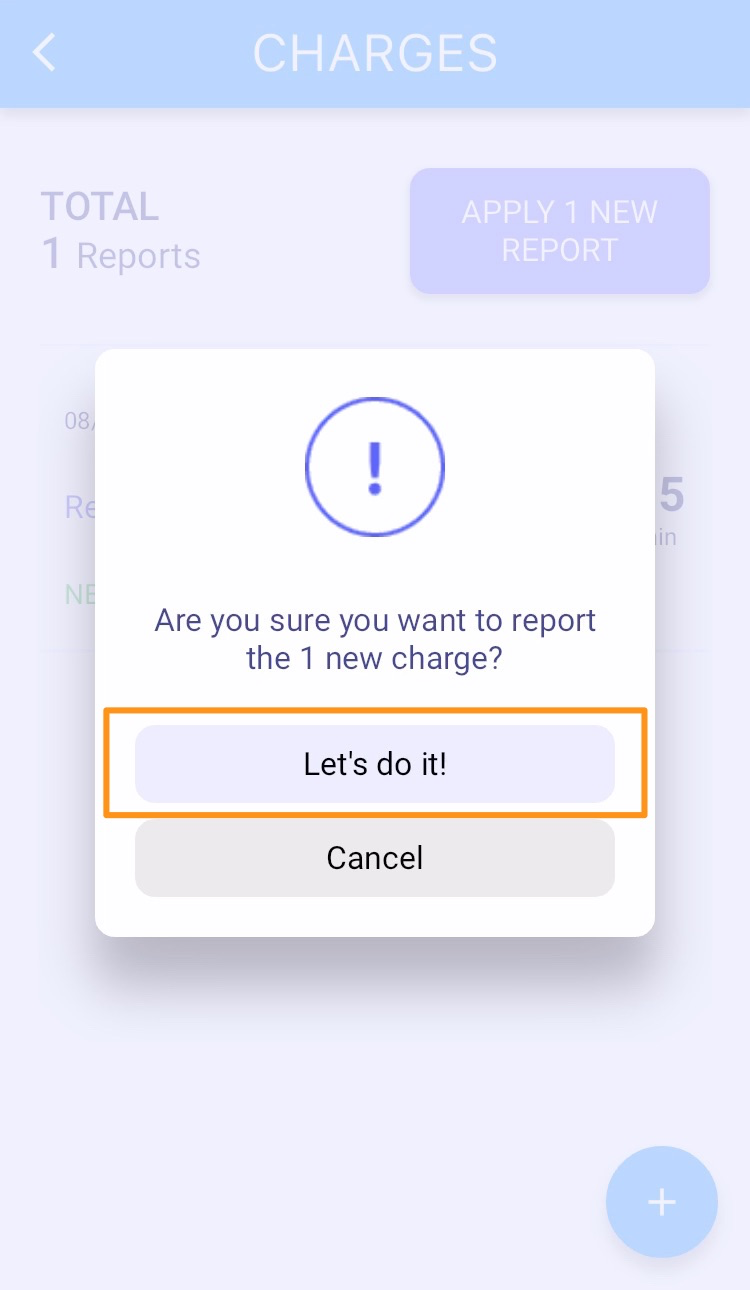
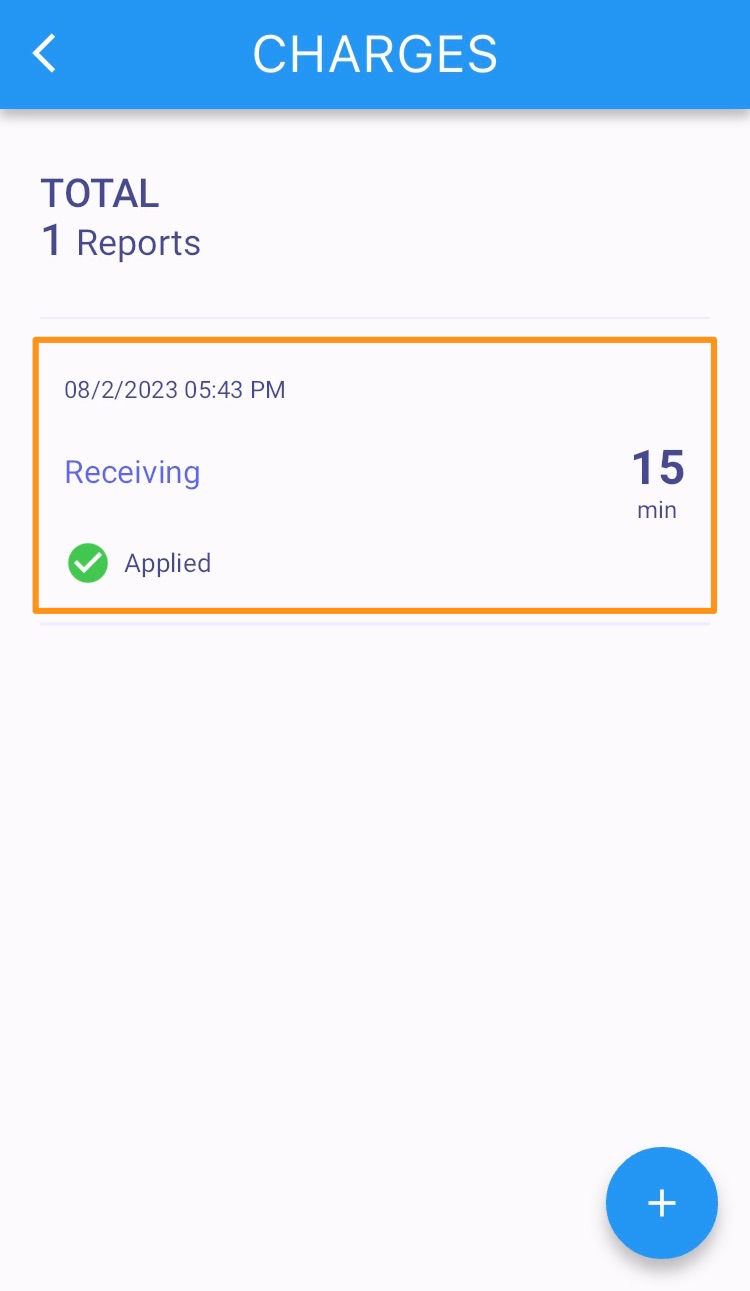
Confirmation that the Warehouse Charge (type, minutes or amount would show depends on what was selected and entered) has been applied