A Cycle Count is performed to reconcile the inventory in Grasshopper with the physical items in the warehouse, ensuring data accuracy and inventory integrity.
Step 1
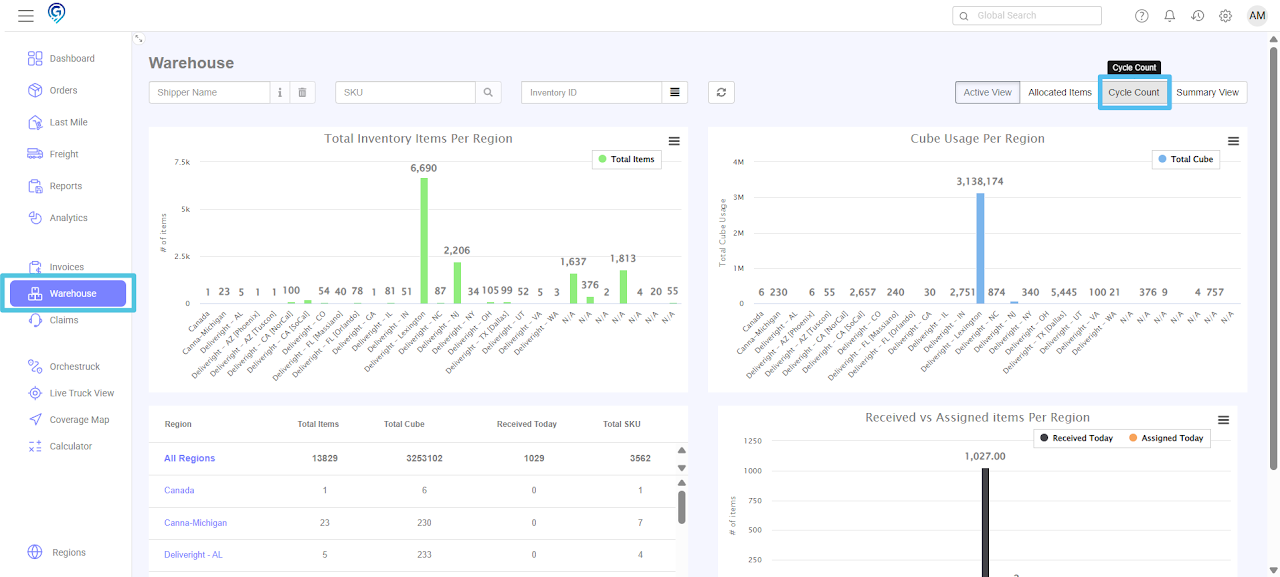
From the Warehouse Grid, select Cycle Count
Step 2
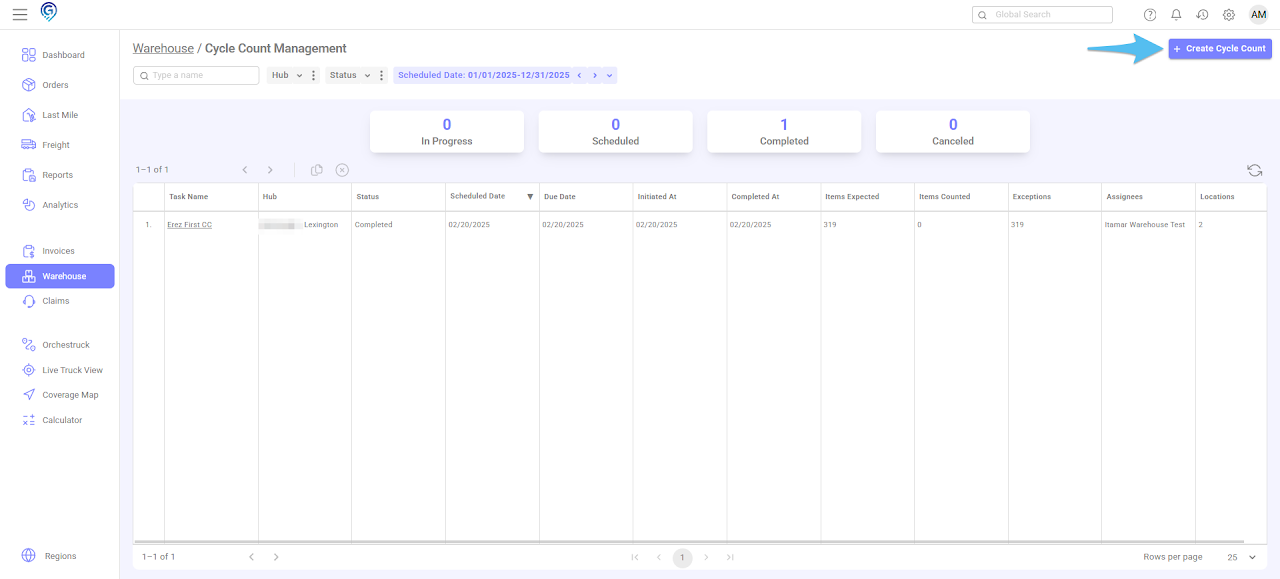
Click + Create Cycle Count
Step 3
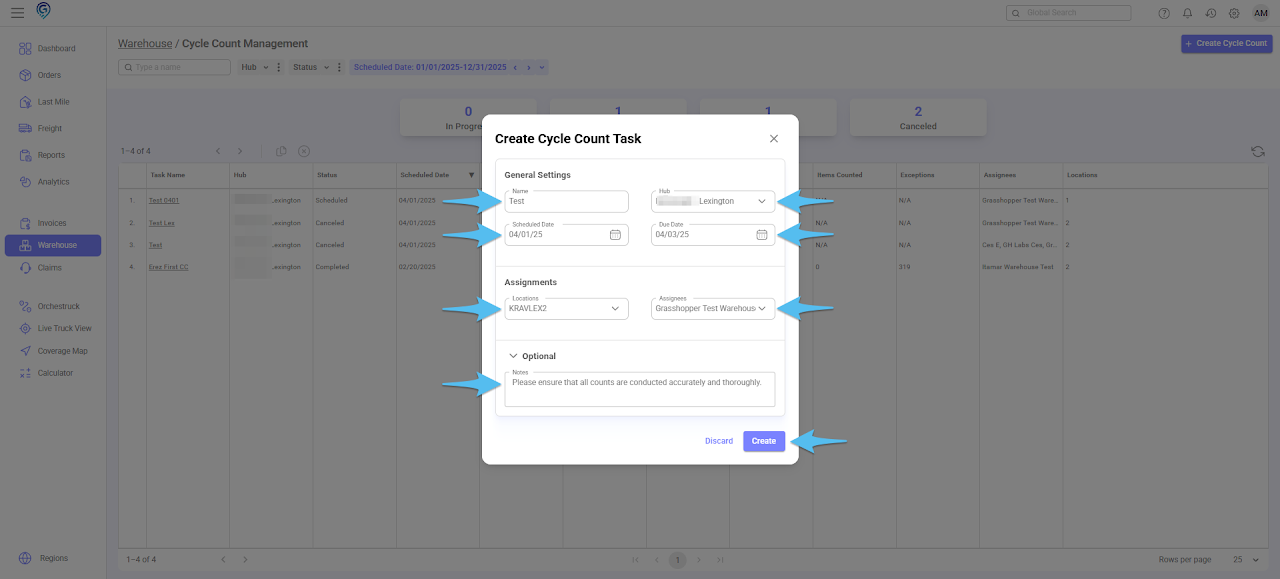
Fill in the required details including the Cycle Count Name, Hub, Scheduled Date, Due Date, Location(s), Assignee(s) (Warehouse Users Only) and / or Notes (Optional). Once completed, click Create.
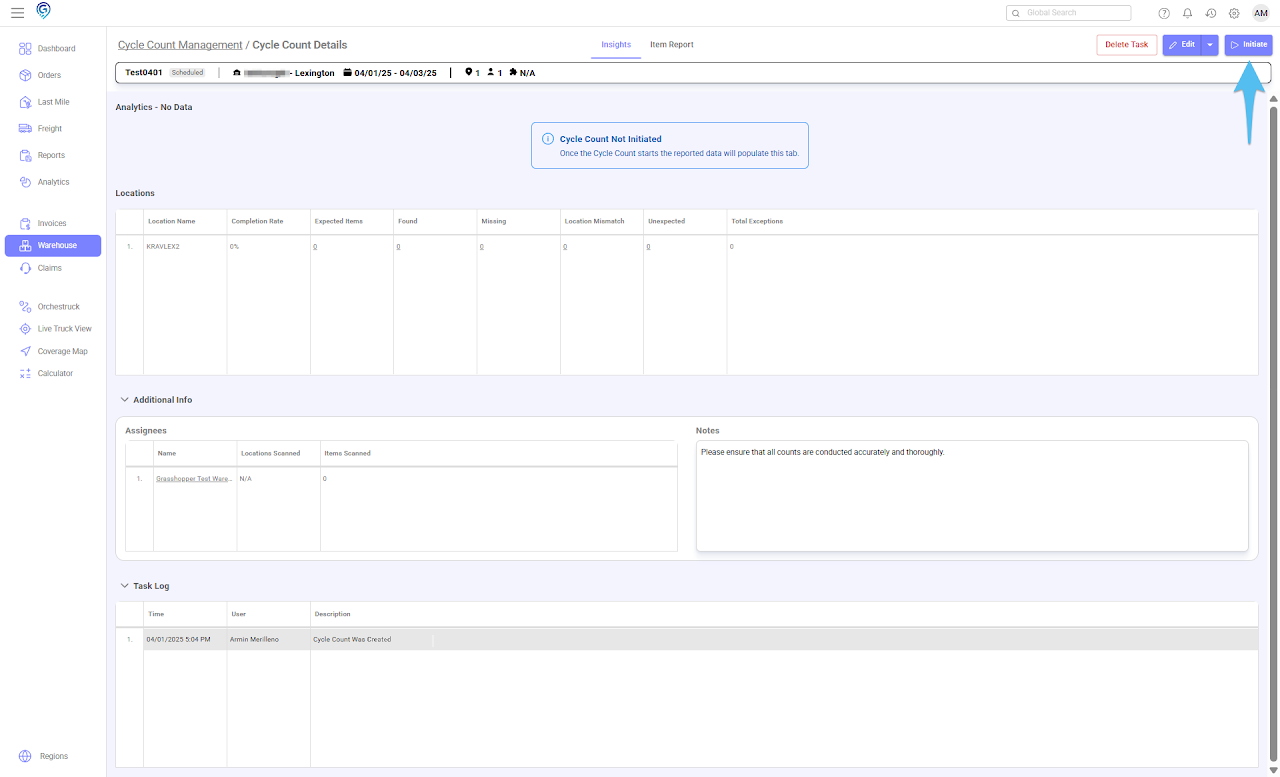
If a Cycle Count has not been initiated, there will be no data available yet. Once a Cycle Count is initiated, the data begins to populate based on the inventory snapshot taken at that time.
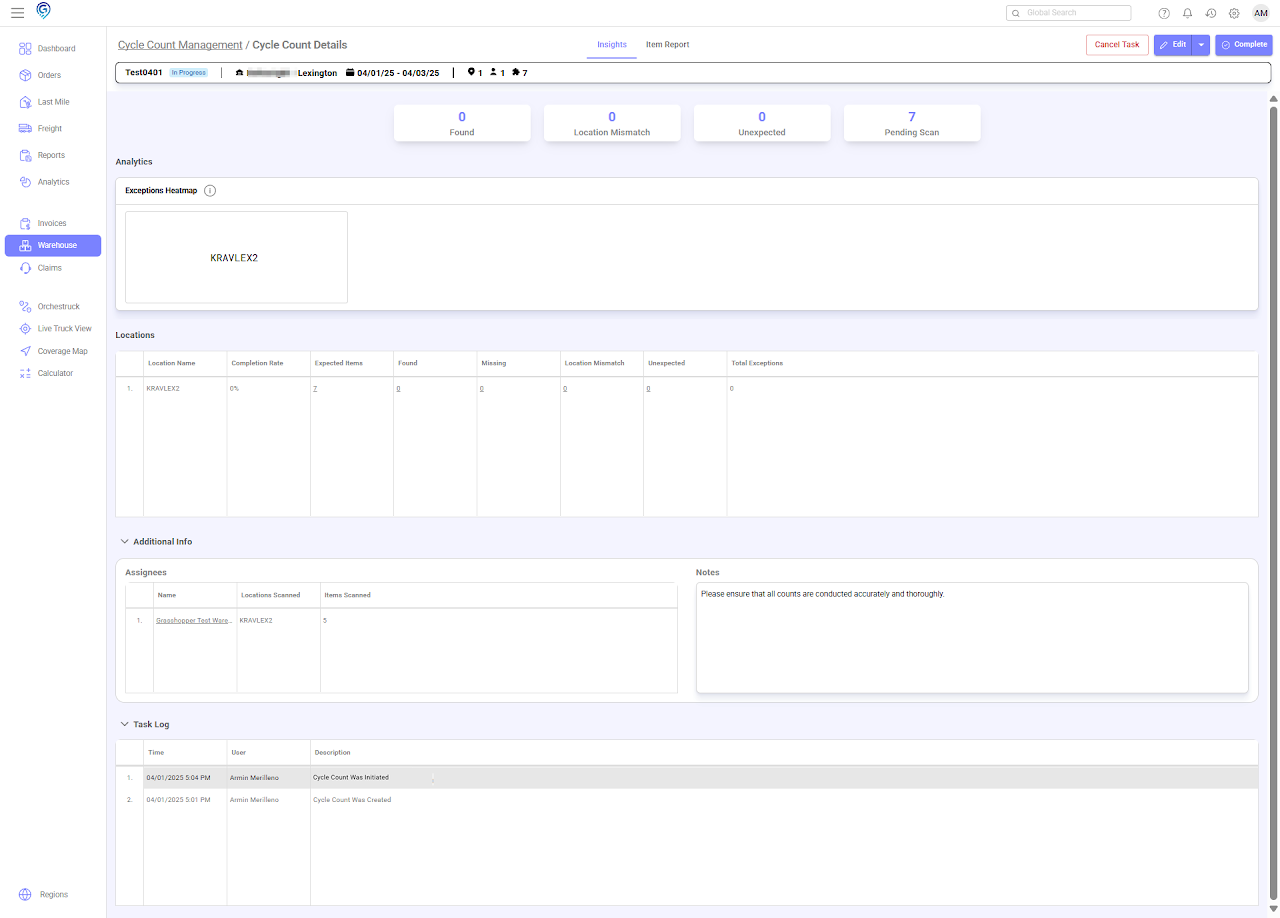
Any items moved into the location after the Cycle Count is initiated will not be included in the expected list. These items will be flagged as unexpected as they were not part of the inventory at the initiation moment.
Step 4
Click Initiate then Initiate Task to begin counting using the Warehouse Mobile App.
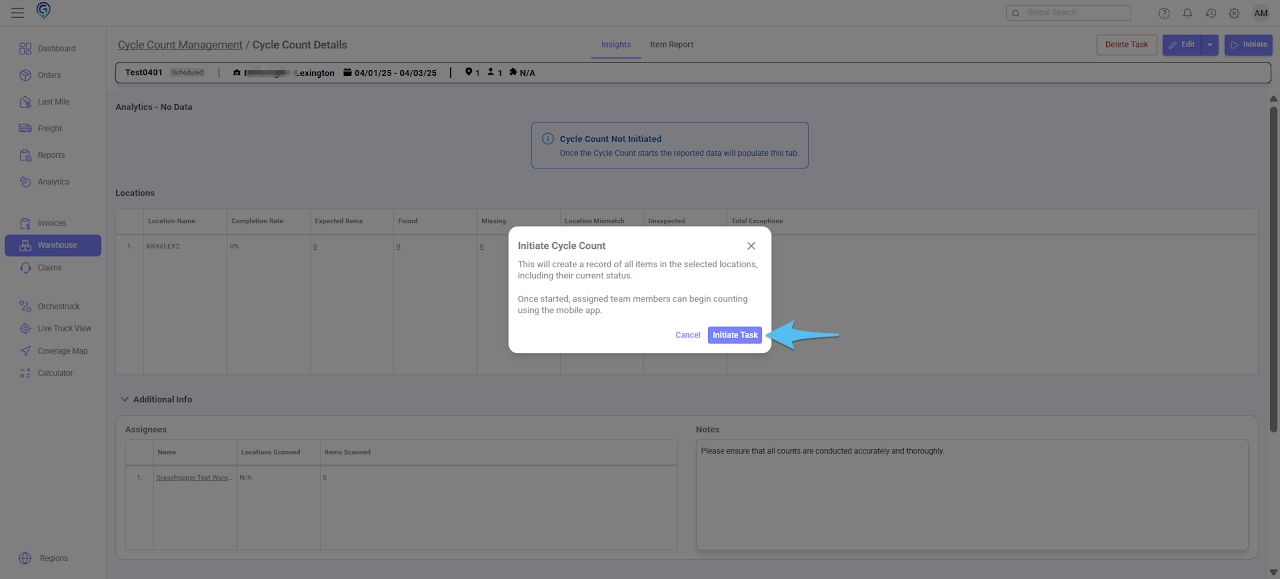
After Initiating the task, Grasshopper will provide a snapshot of the inventory at that specific time and location.
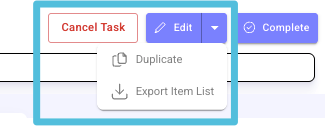
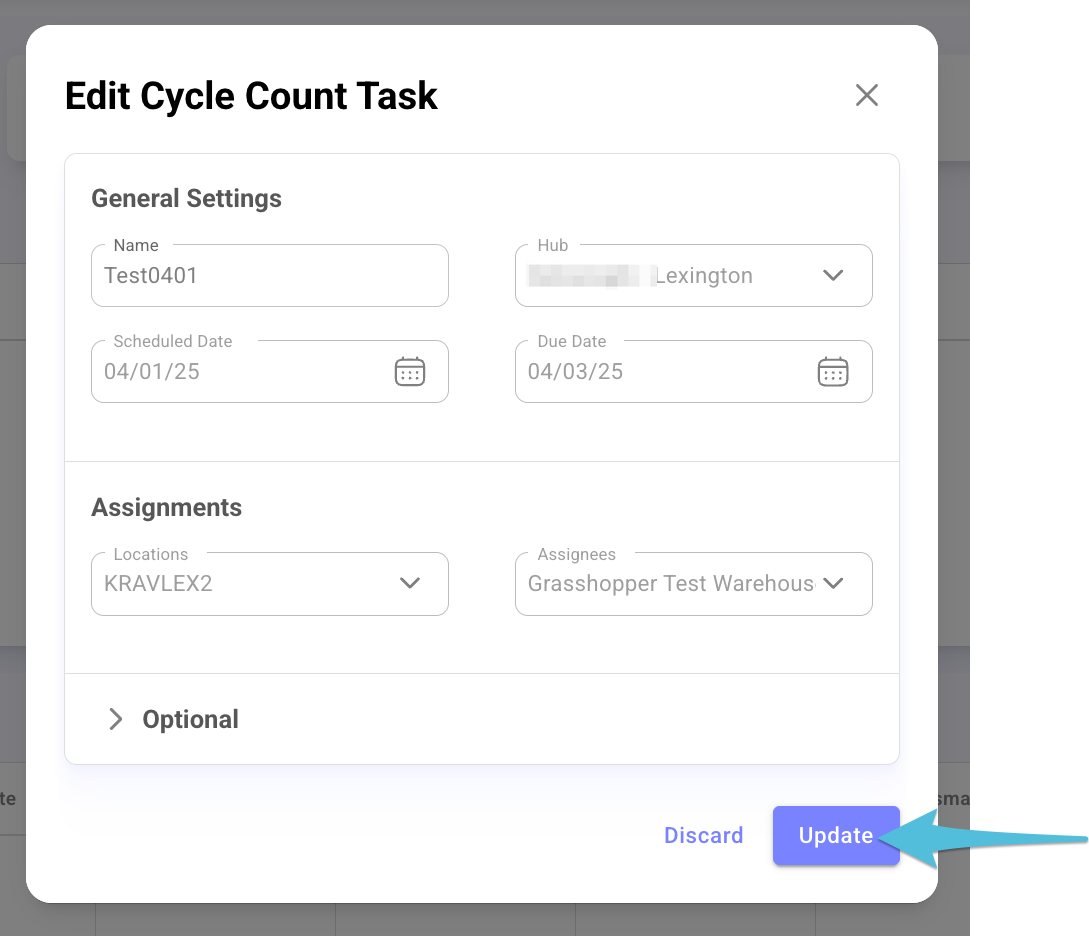
Note that you can make changes on the created task by clicking Edit. The arrow down button next to Edit gives you the option to Duplicate or Export Item List.
Click Update once editing is completed.
Step 5
Click here to Initiate the Cycle Count through the Warehouse Mobile App
Step 6
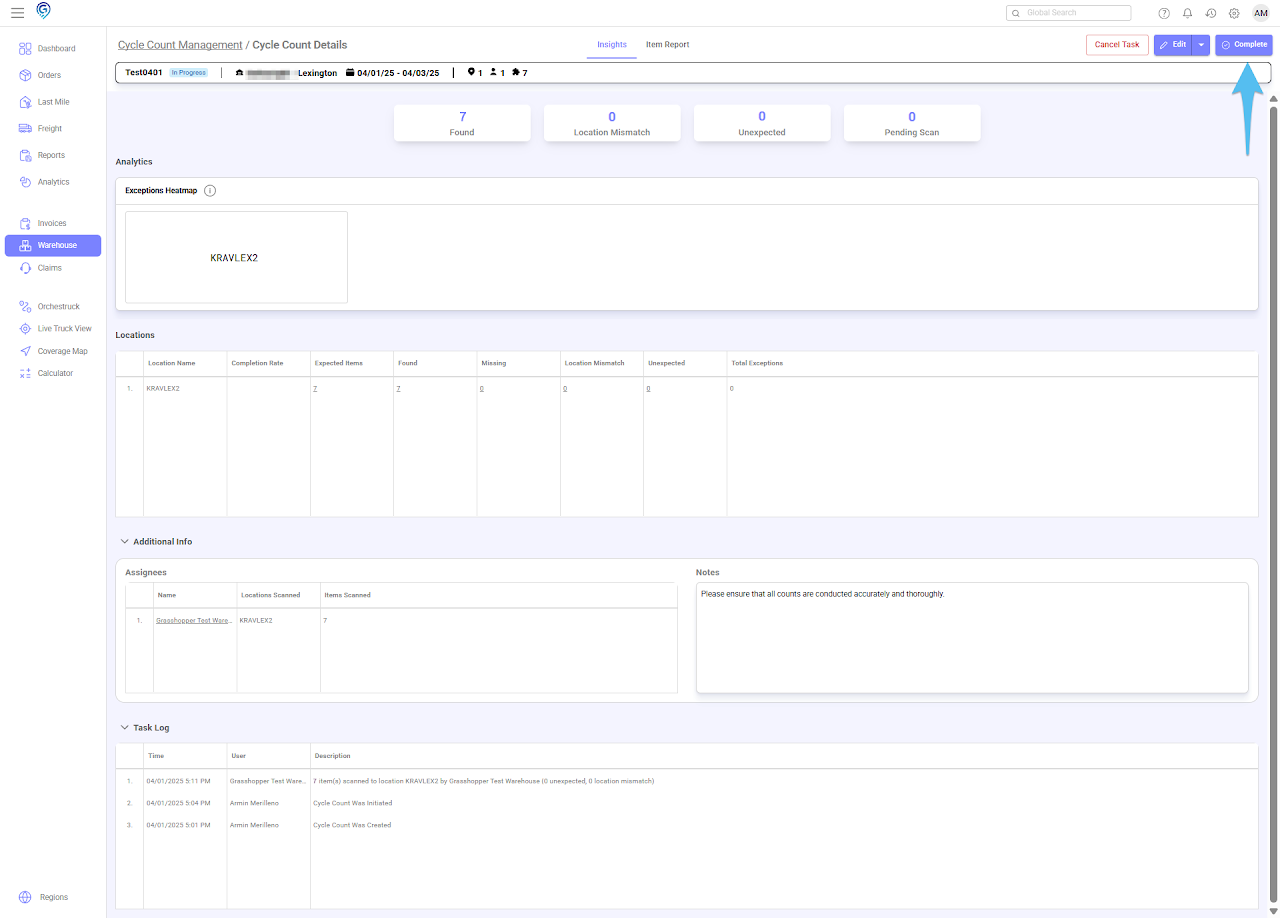
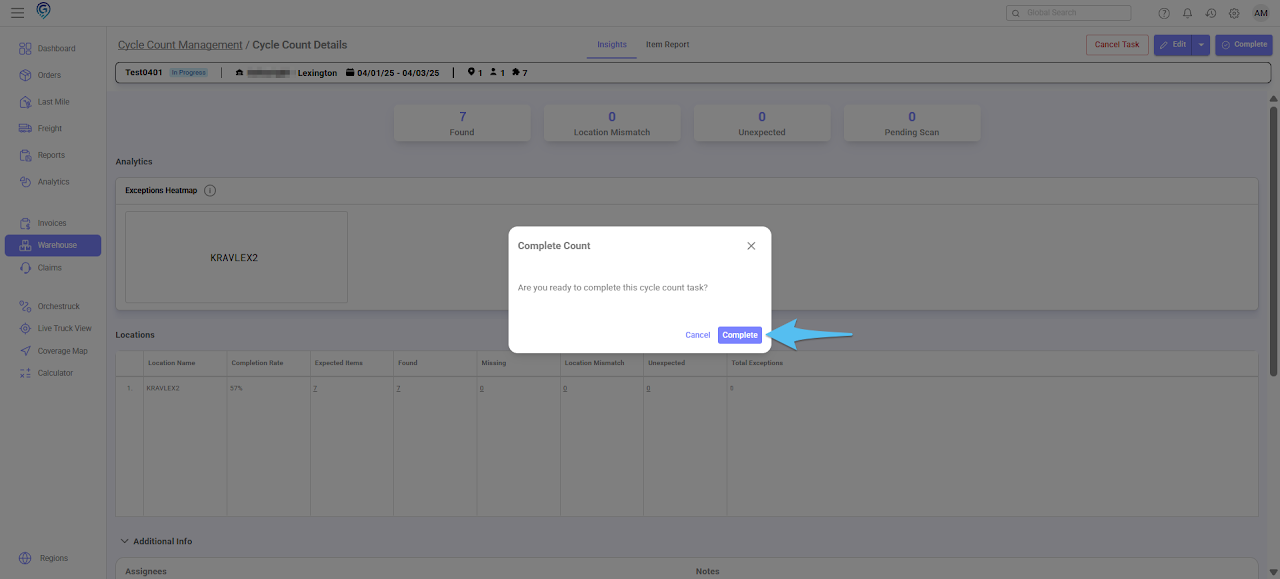
Open the task and click Complete.
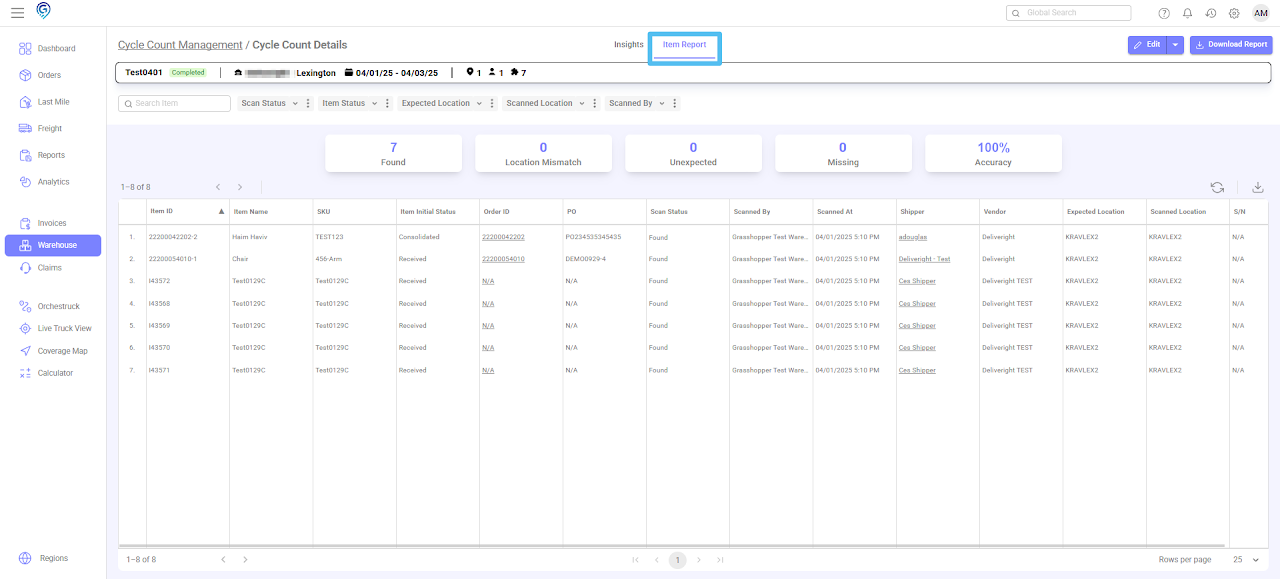
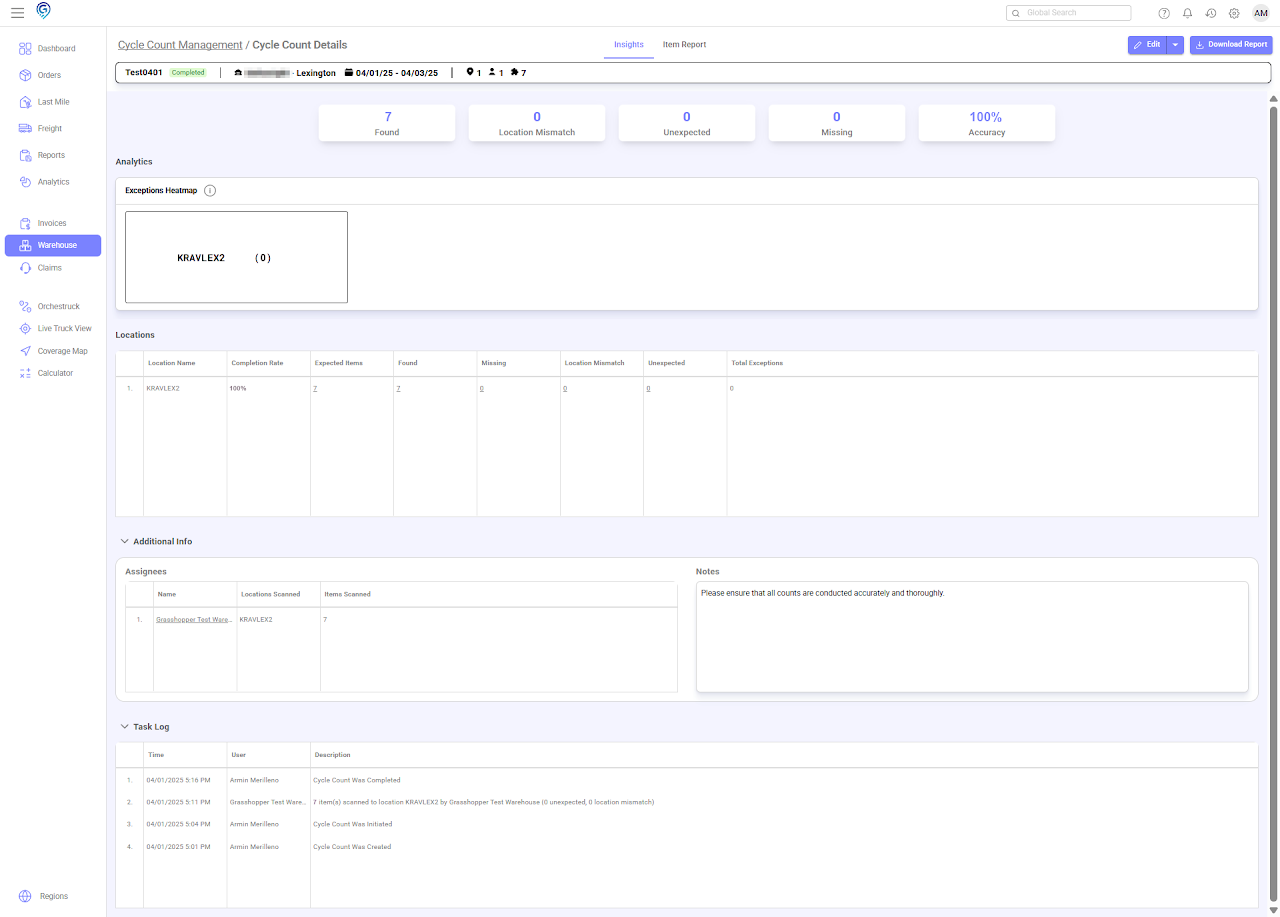
View of the Completed Cycle Count Task.
Click on the Item Report tab to view a detailed breakdown of the count results for each item.