
The Dedicated Shipper feature allows orders from a specific shipper to be automatically assigned to a dedicated Last Mile Manifest. This helps streamline routing and ensures that specific shippers’ deliveries are grouped and managed efficiently.
Step 1
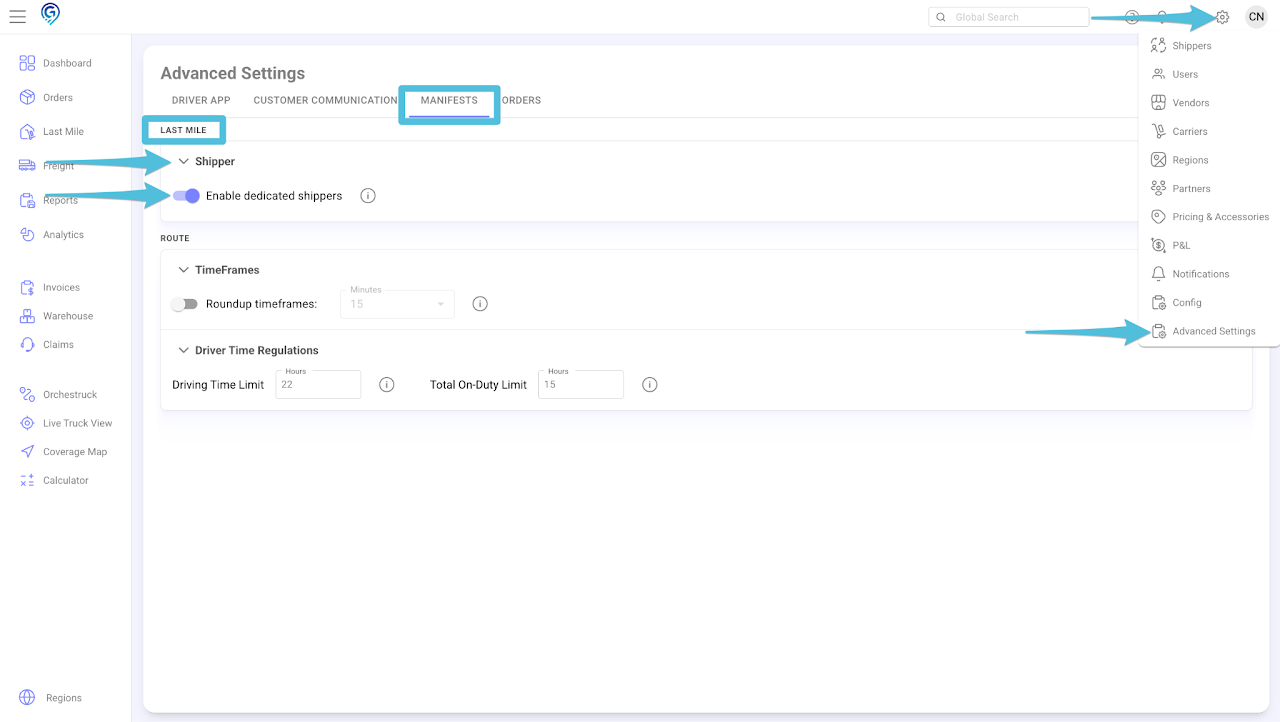
Click the gear icon and choose Advanced Settings.
Under the Manifests Tab, scroll to the Last Mile section and expand the Shipper section by clicking the arrow next to it.
Toggle the Enable dedicated shippers to activate the feature.
Step 2
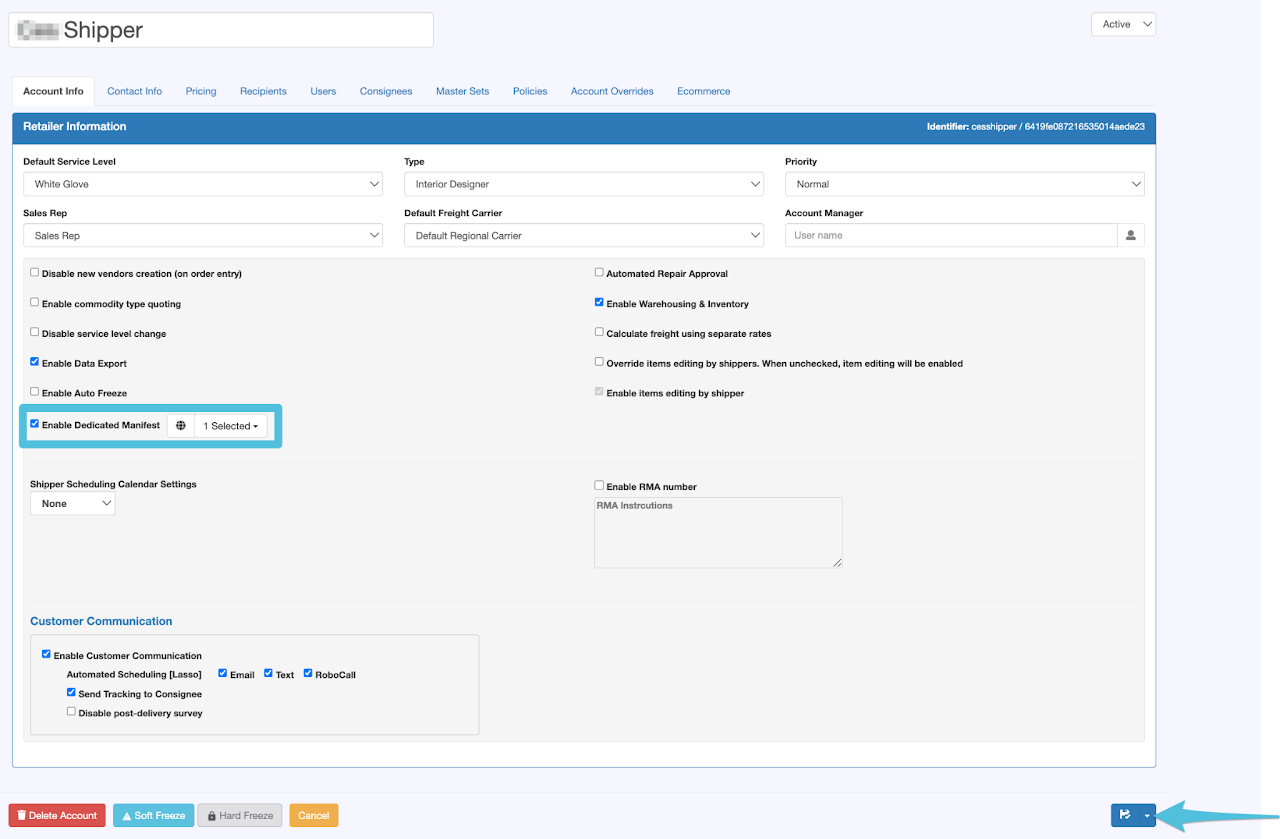
Go to the specific Shipper’s Account and under Account Info, check the box for Enable Dedicated Manifest and choose the Region to which this configuration should apply. Then click Save.
You may select a specific region or choose All depending on your requirements.
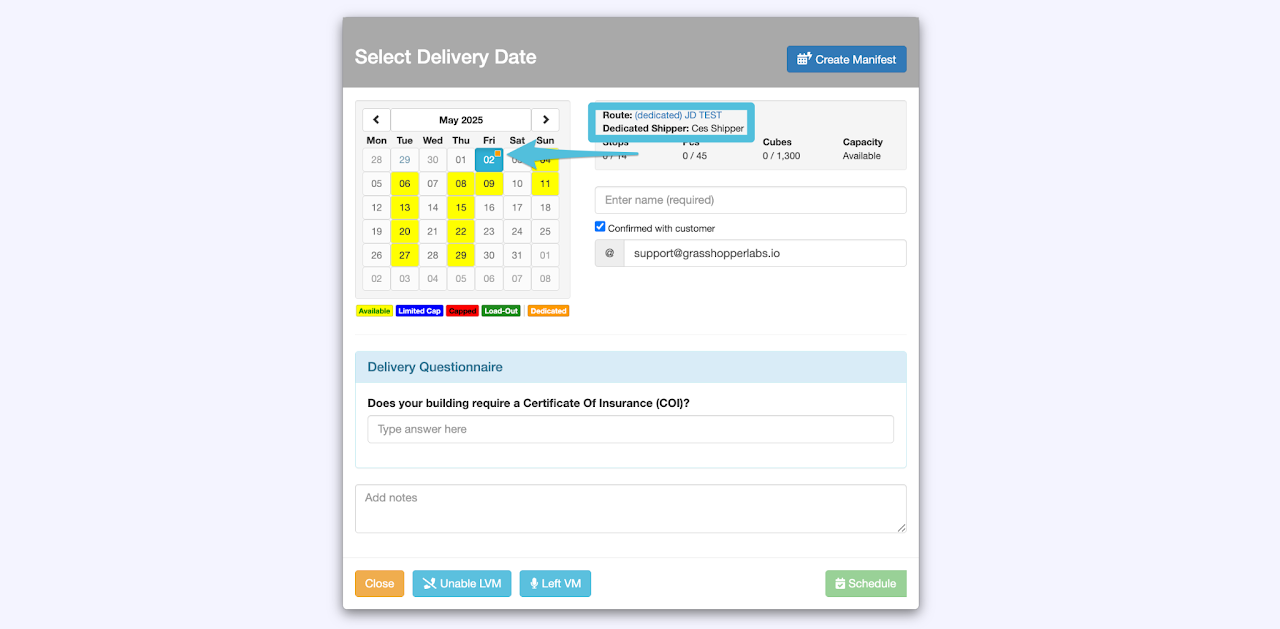
A Last Mile Manifest created for a Dedicated Shipper will have:
- An orange square at the top-right corner of the manifest date.
- The term “dedicated” included in the Manifest Name and Dedicated Shipper’s Account Name.
Important Notes:
- Once enabled, consignees will only be able to schedule their orders on open Dedicated Manifests associated with their shipper.
- Other open routes (non-dedicated manifests) will not be visible to the consignee during scheduling.
- However, Grasshopper users retain the ability to override this setting and manually schedule orders to other non-dedicated Last Mile Manifests within the consignee’s service area.