Step 1
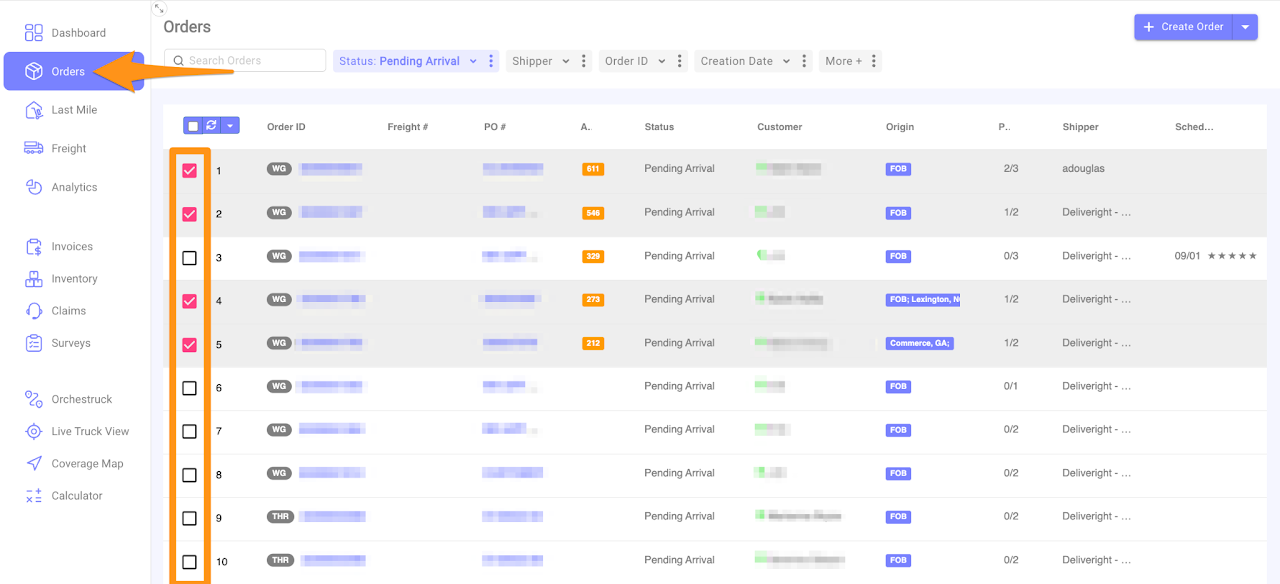
Go to Orders tab to sort/filter the orders you need to mark as Received and make your selection
Step 2
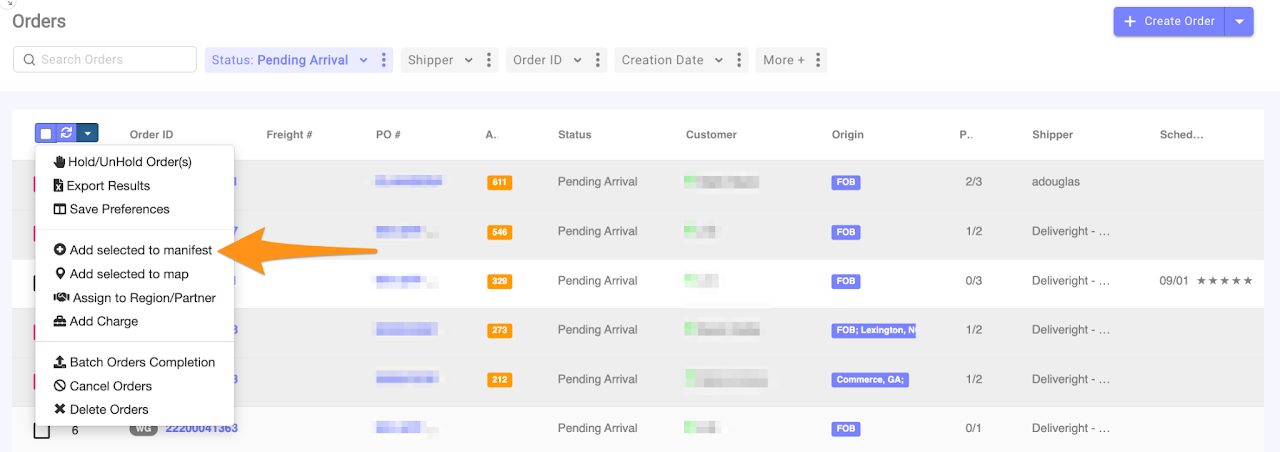
Click on the drop down arrow and choose Add selected to manifest
Step 3
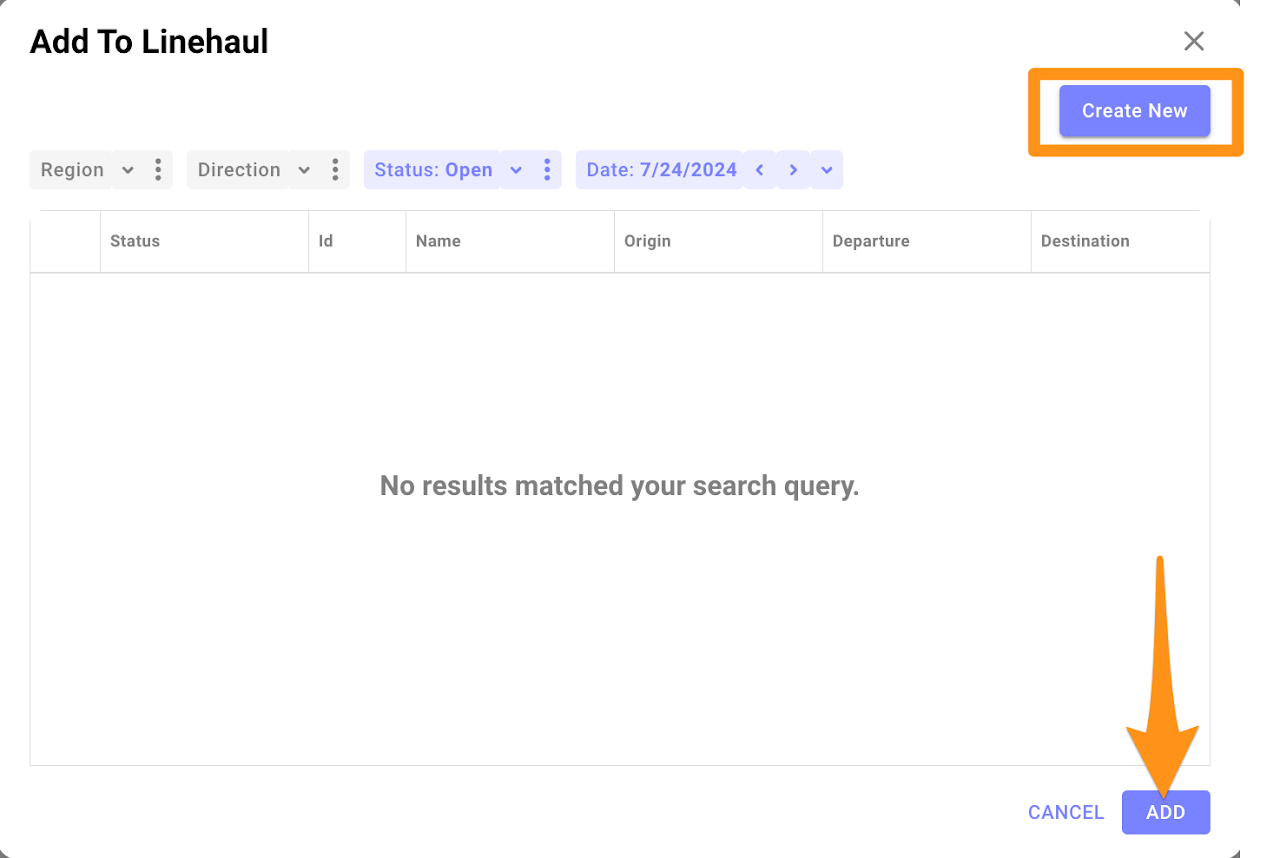
Choose a date and find the Inbound Manifest to add the selected orders or Create New (Manifest) if it doesn’t exist yet then proceed by clicking Add
Step 4
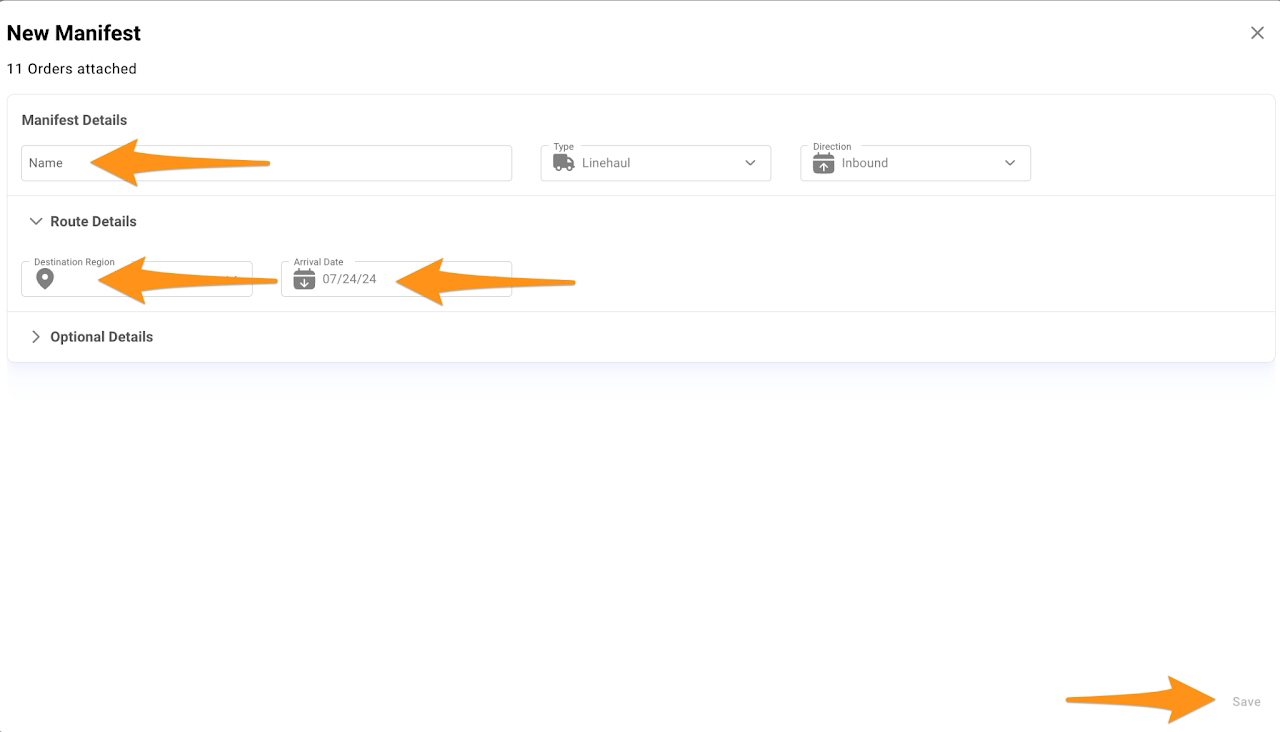
Enter the Manifest Details – (Name, Destination Region and Arrival Date) then click Save
Note: make sure that the Destination Region matches the region you want to receive the items in.
Step 5
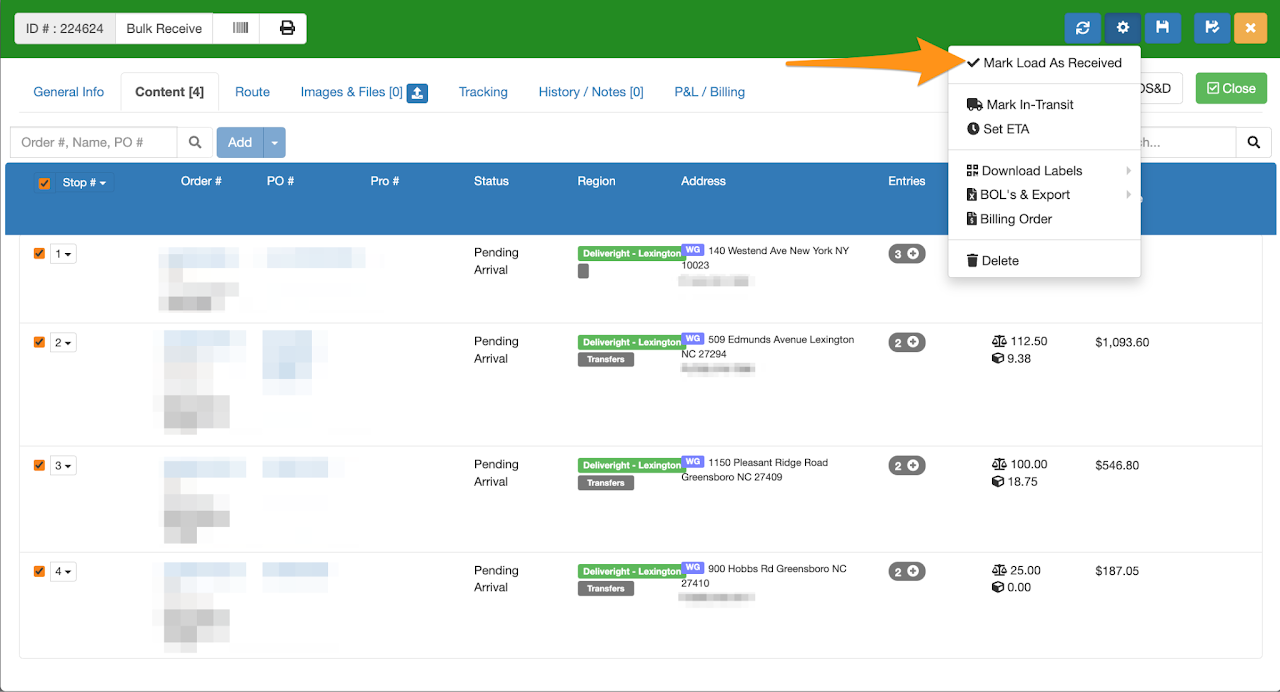
Click on the gear icon and select the option Mark Load as Received
Step 6
Click on Start to begin marking the orders as Received
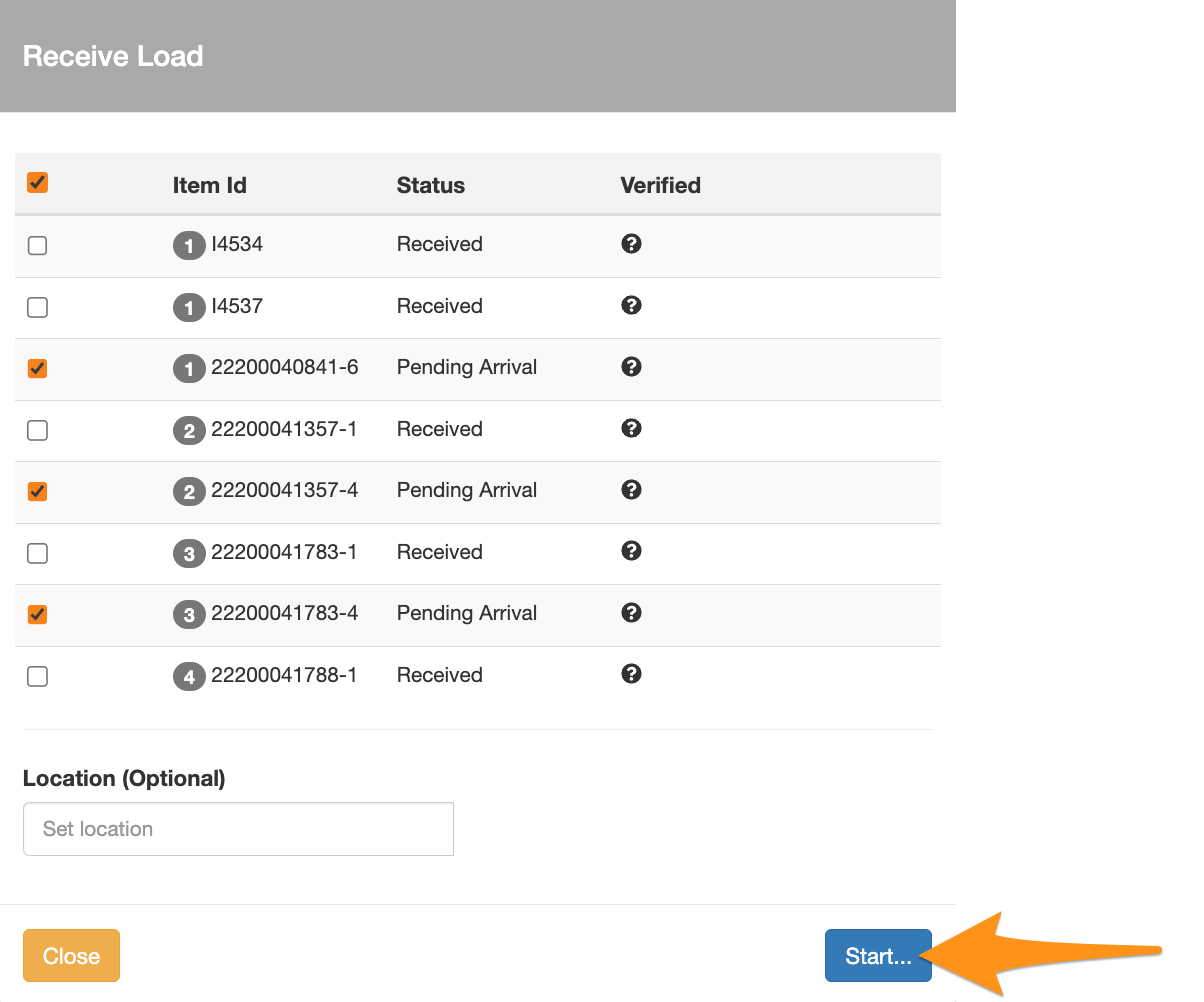
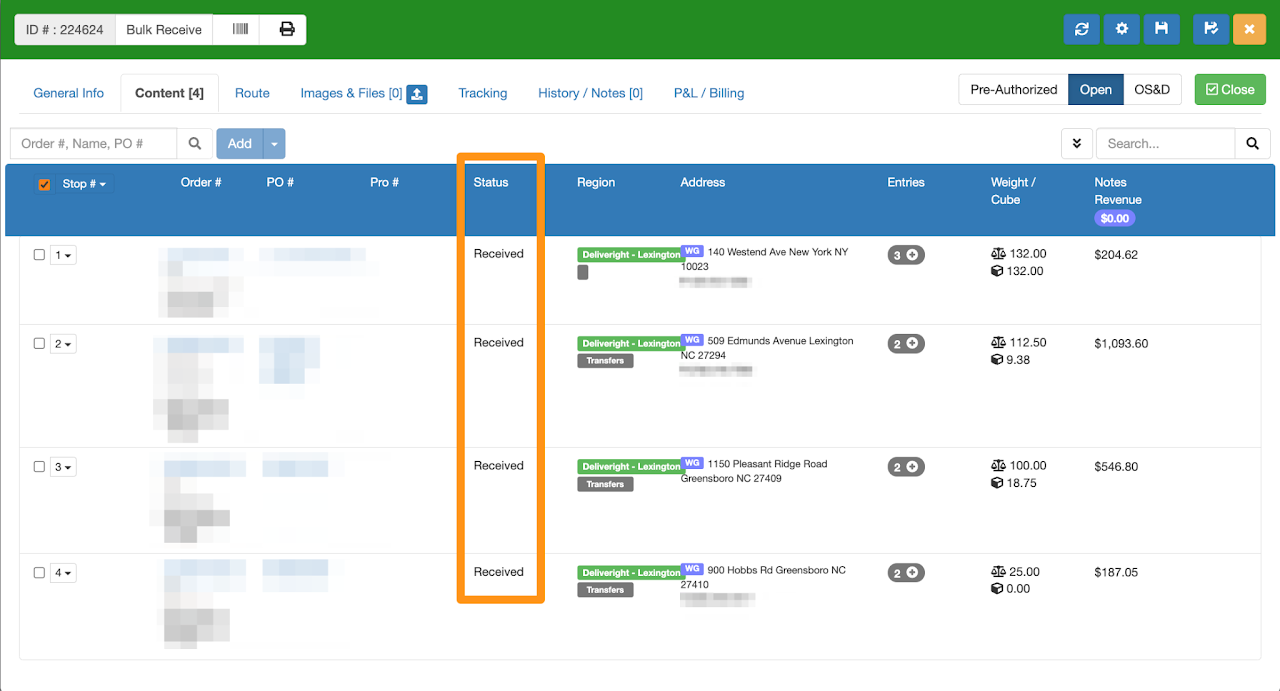
Confirmation that orders are marked as Received successfully