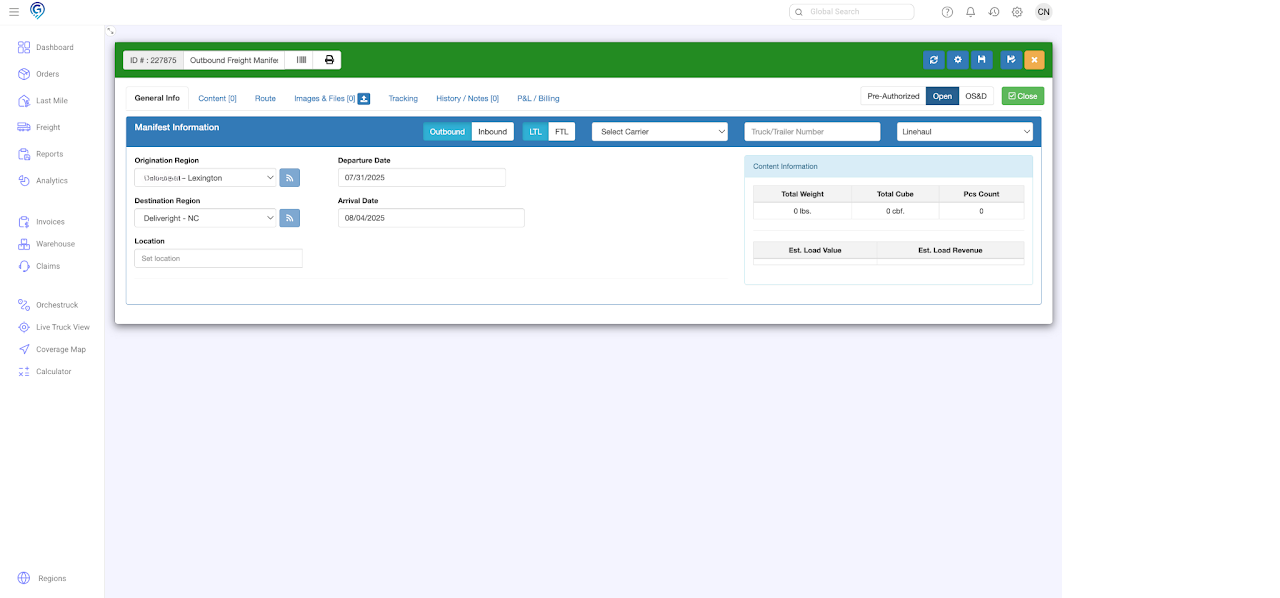
Step 1
Option 1 – Click Freight then + Create Manifest
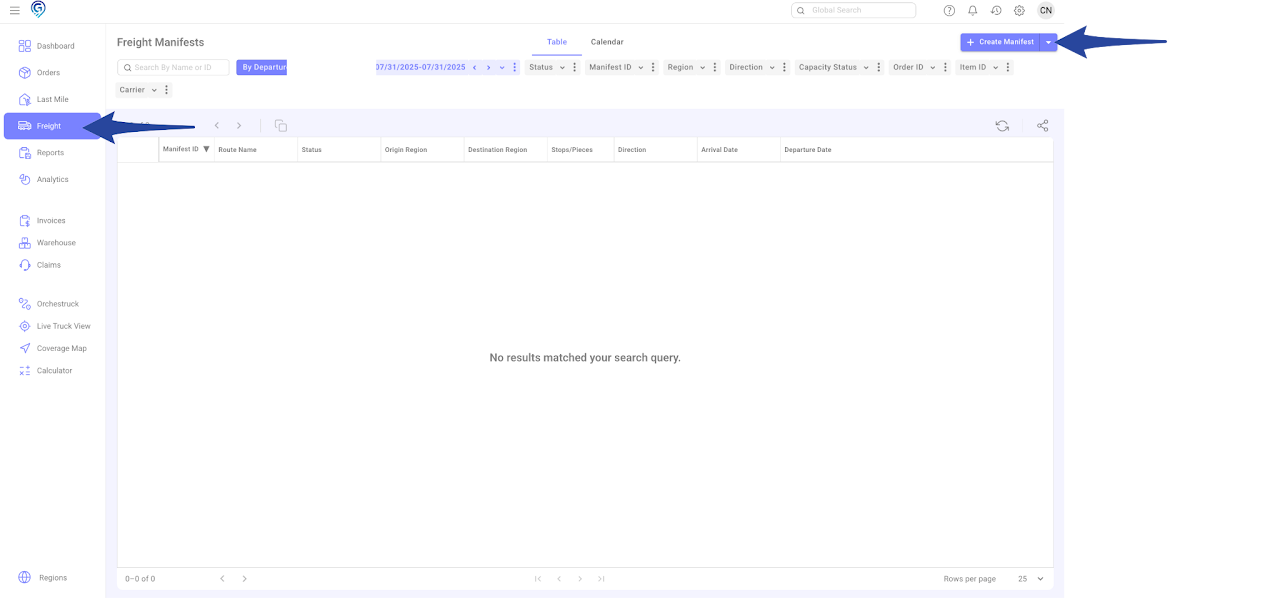
Option 2 – In the Freight section, click the dropdown arrow beside + Create Manifest, then choose either Create Inbound Manifest or Create Outbound Manifest from the list.
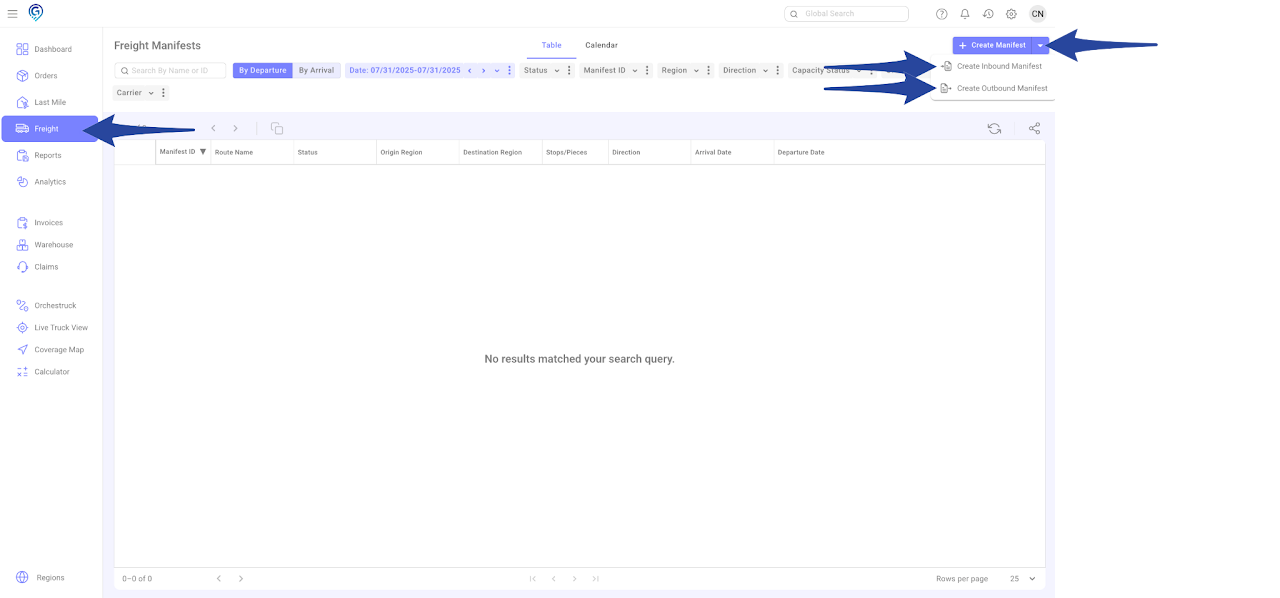
Step 2
For Inbound:
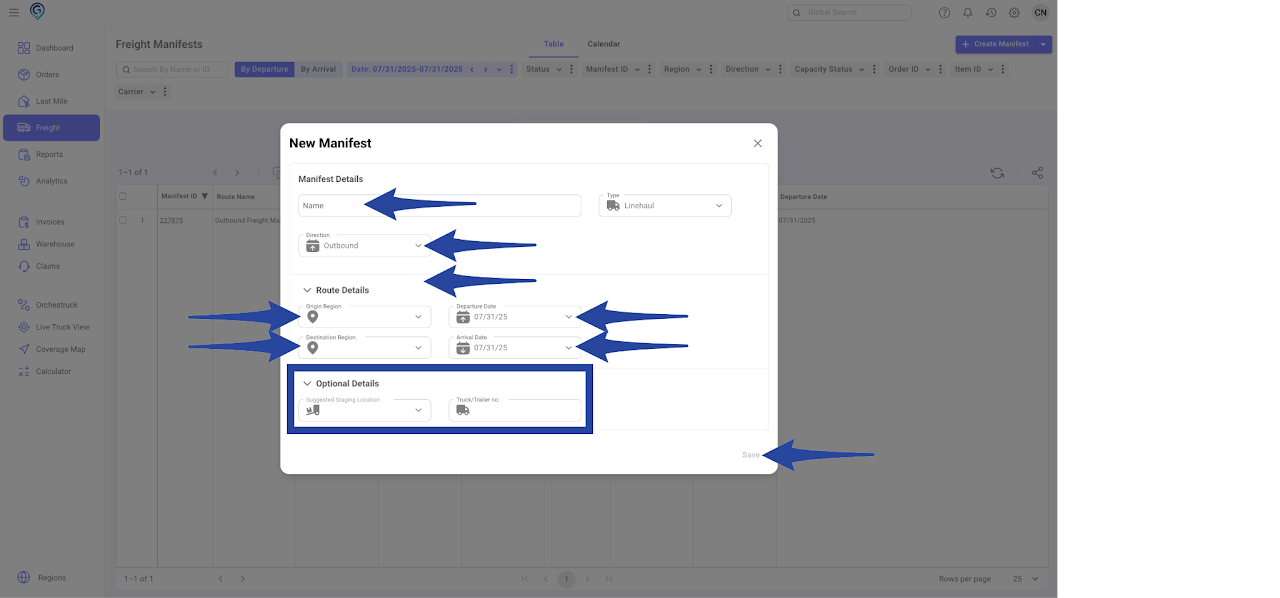
Update the following then click Save
- Manifest Details – Name (Manifest Name) and Direction (Inbound or Outbound)
- Route Details – Destination Region and Arrival/Departure Date
You also have an option to enter the Staging Location and Truck/Trailer No.
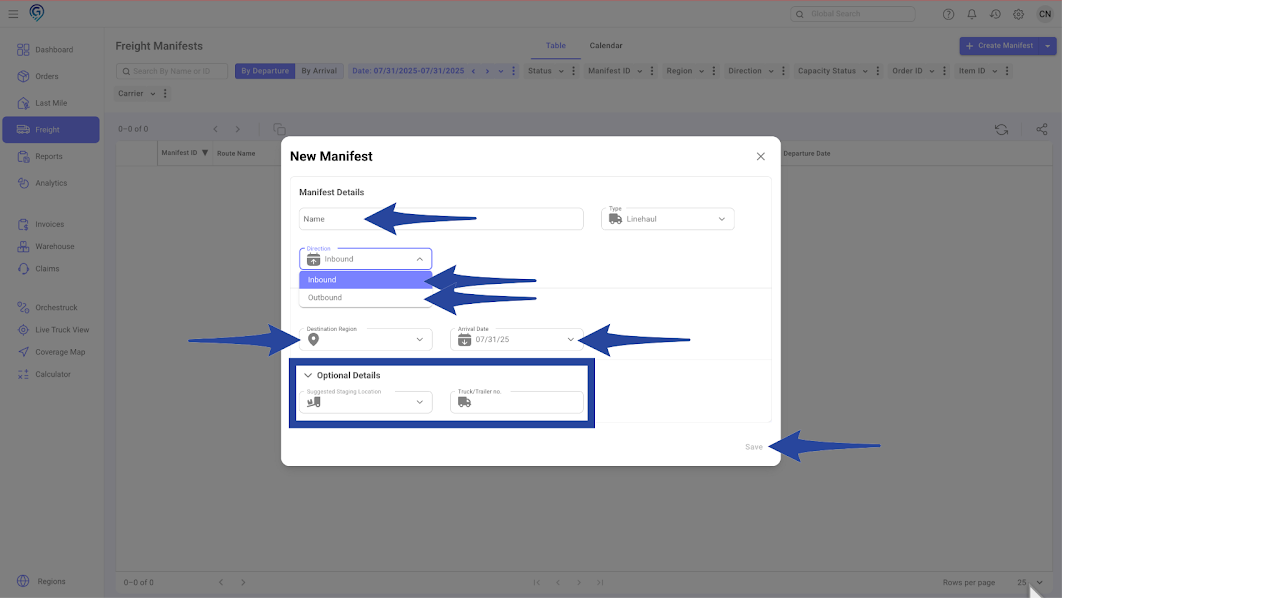
For Outbound:
Update the following then click Save
- Manifest Details – Name (Manifest Name) and Direction (Outbound)
- Route Details – Origin Region and Departure Date, followed by the Destination Region and Arrival Date
You also have an option to enter the Staging Location and Truck/Trailer No.
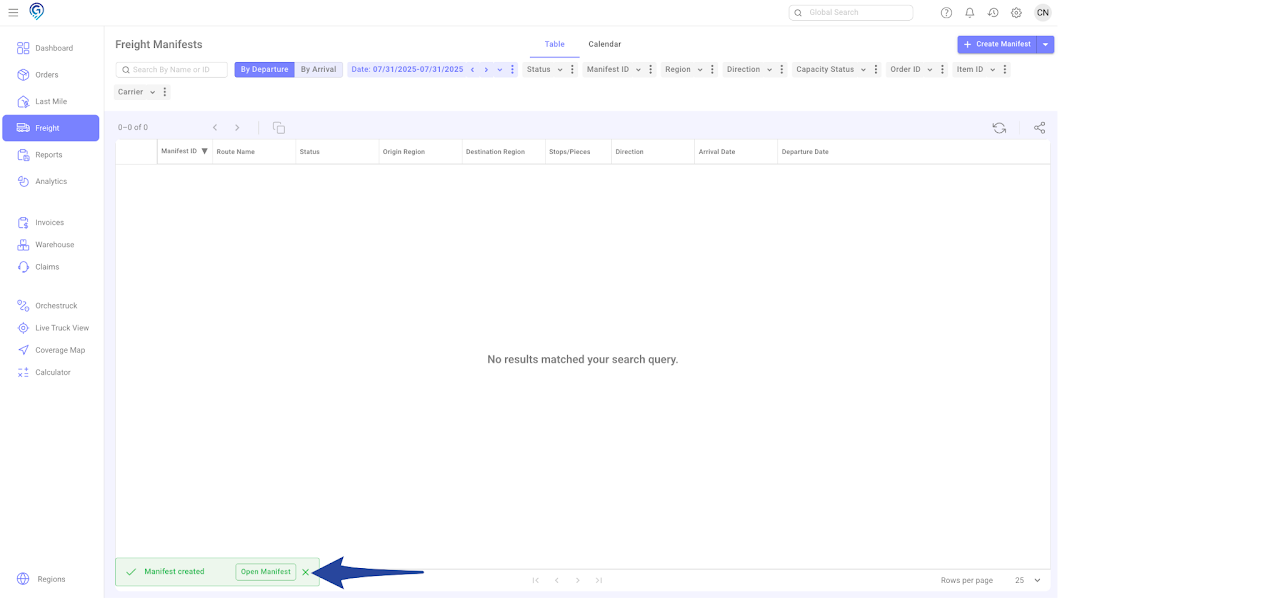
This is a confirmation that the Manifest has been successfully created. You can click on “Open Manifest” to view or access the Freight Manifest you created.
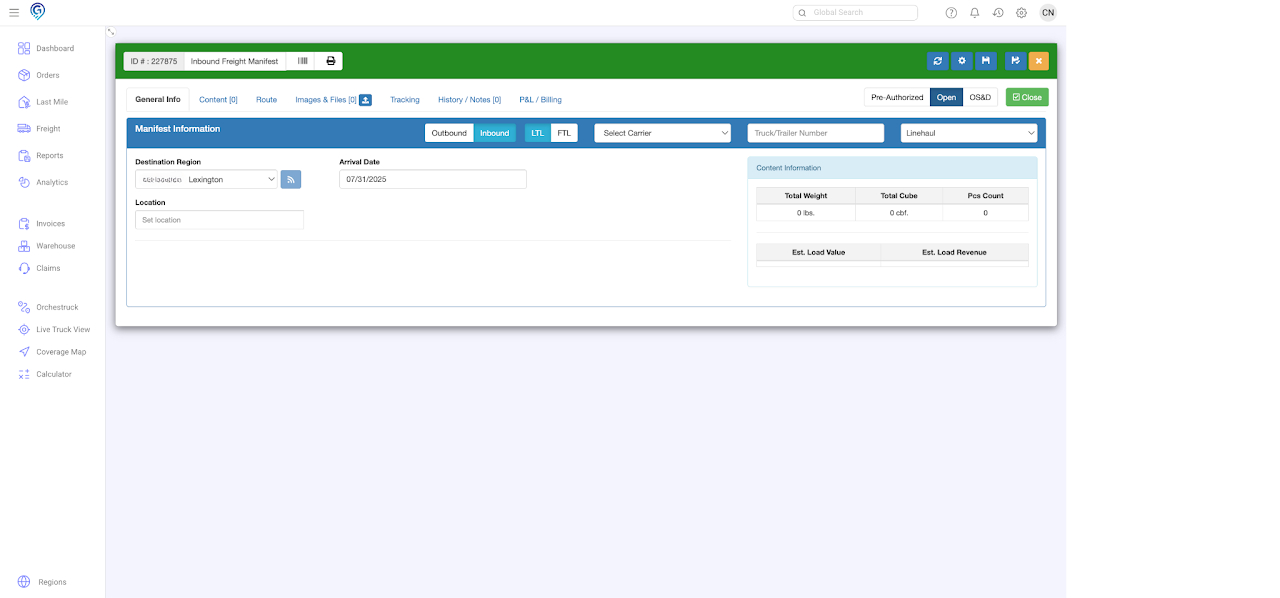
Inbound Manifest
Outbound Manifest