
Release Notes
Version 3.26.07
Feature Enhancements
Settings & Navigation
Freight Classes Settings Page Migrated to React
The action menu on the Orders grid can now organize actions into labeled categories, making it easier to find the right action on grids that expose many options.
Key Enhancements:
- Item action menus can now group actions into labeled categories instead of one long list.
- Rolled out first on the Orders grid, which supports more than 10 actions.
Updated Scheduling Warning for Pending Return Orders
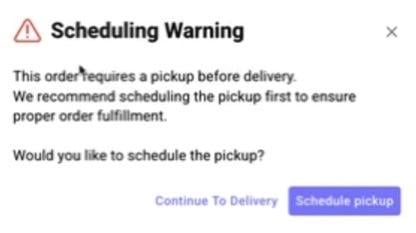
The warning shown when a delivery is scheduled before its required pickup has been rewritten for clarity, and now defaults to guiding users toward the correct workflow.
Key Enhancements:
- New warning copy: “This order requires a pickup before delivery. We recommend scheduling the pickup first to ensure proper order fulfillment.”
- “Schedule Pickup” is now the default, right-hand action; “Continue to Delivery” remains available as a secondary option.
- Applies to orders in Pending Return status; the underlying trigger logic is unchanged.
Web App — Manifest & Route Planner
Breadcrumb Navigation Added to Route Planner
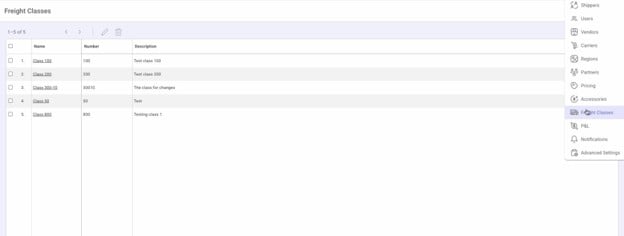
The Freight Classes settings page has been migrated from Angular to React as part of the ongoing settings modernization effort, with no change to existing functionality.
Key Enhancements:
- Freight Classes settings now run on the same React framework as other modernized settings pages, improving performance and maintainability.
- Existing create, edit, and validation behavior is unchanged.
Settings Menu Redesigned With Grouped Tiles
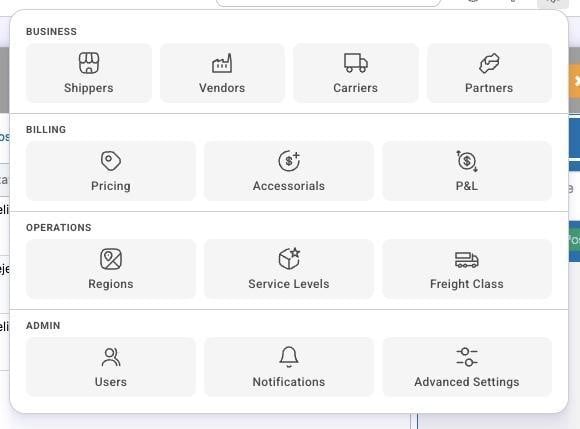
The Settings menu has been redesigned from a long, ungrouped list into a grouped tile layout, with related pages organized under clear sections to make settings easier to scan and navigate.
Key Enhancements:
- Settings pages are now grouped into sections (Business, Billing, Operations, Admin) instead of one long flat list.
- Applies to both Licensee and Shipper account types.
- Which settings a given user can see is unchanged — only the layout is new.
Consistent Pages for Not Found and Access Denied
Pages that previously failed silently or inconsistently when a user hit a broken link or an unauthorized page now show a dedicated, consistent page instead.
Key Enhancements:
- A generic “Page Not Found” page now displays for any unrecognized URL.
- A generic “Access Denied” page now displays when a user’s role or account doesn’t have access to a page, replacing inconsistent behavior across different pages.
Accessorial Definition Values Now Support 5 Digits
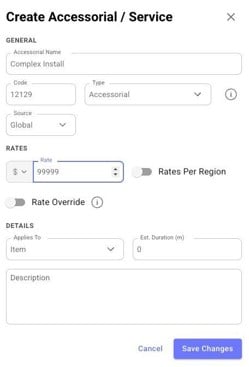
Accessorial definitions were previously capped at 4-digit values, which was too low for some pricing configurations. The limit has been increased to 5 digits.
Key Enhancements:
Accessorial definition values can now be entered up to 5 digits.
Reporting & Analytics
New SKU Summary Report
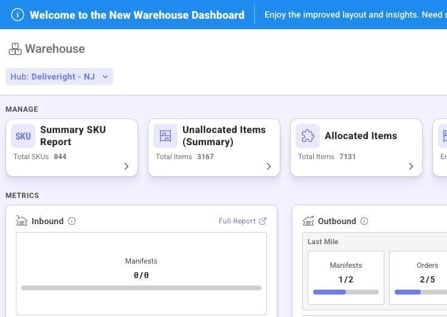
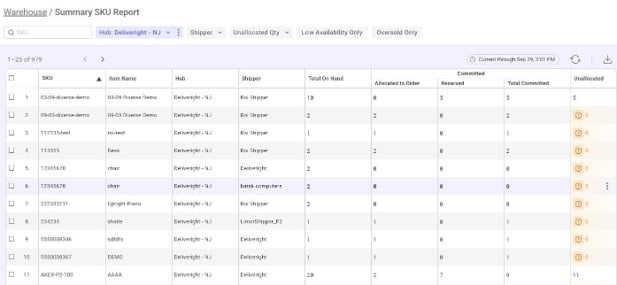
A new SKU Summary Report gives warehouse and inventory teams a per-hub view of each SKU’s total, allocated, reserved, committed, and available-to-sell quantities, with an export for sharing availability outside Grasshopper.
Key Enhancements:
- Side navigation icons no longer jitter on click.New SKU Summary Report screen, with server-side export, showing per-SKU totals, allocated, reserved, committed, and available-to-sell quantities by hub.
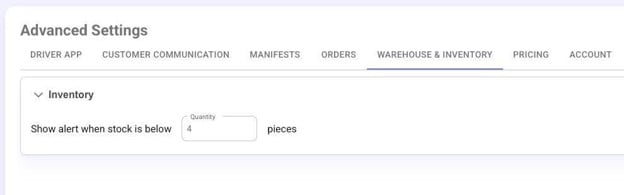
- A new account-wide Low Stock Level Alert threshold (Advanced Settings → Warehouse) flags SKUs running low directly on the report.
- The underlying data grid now supports multi-level column headers, used here to group related columns under a shared header and available to other grids going forward.
System Audit Report Now Tracks Key Advanced Settings Changes
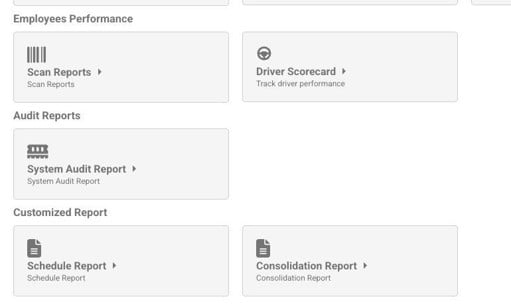
Changes to a first batch of Advanced Settings that affect system or customer behavior are now tracked on the System Audit Report, so admins and support can see who changed a setting and when.
Key Fixes:
- Audit entries now cover changes to POD Flow, Delivery Scan, Consignee Waiting Time, Driver Verification, Lasso “Days to Wait,” dedicated shipper manifests, and Driving Time Limit.
- Entries show the new value (and previous value where available) and are grouped by settings tab in the existing report and export.
- No history exists prior to this release; tracking begins going forward.

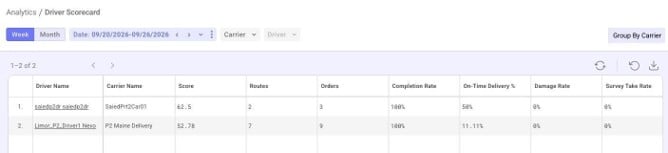
Driver ScoreCard Now Opens With Data Loaded
The Driver ScoreCard report previously opened to an empty screen until a period and filters were selected. It now defaults to the previous week and loads the active drivers grid automatically.
Key Fixes:
- Driver ScoreCard opens with the previous week’s data pre-loaded, showing all drivers active in that period.
- Weekly and monthly period views are supported; custom date ranges are planned for a later phase.
“Signed By” Column Added to Order Grid and Export
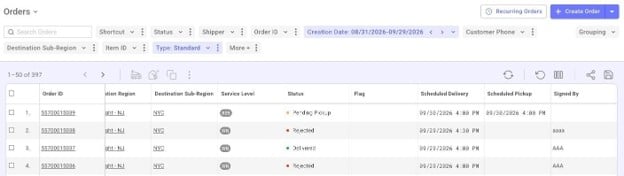
The name of the person who accepted or signed for a completed delivery — already captured from the Driver App — is now visible in the Orders grid and its export, for shippers who rely on the grid rather than integrations for delivery confirmation.
Key Fixes:
- New “Signed By” column available in the Orders grid.
- Included in all relevant Orders grid exports.
“Scheduled” Column Split Into “Scheduled Delivery” and “Scheduled Pickup”
The Orders grid’s single “Scheduled” column switched between showing the pickup or delivery date depending on order status, making it hard to see both legs of an order at a glance. It’s now split into two dedicated columns.
Key Fixes:
- New “Scheduled Delivery” and “Scheduled Pickup” columns always show their respective leg’s date and time, instead of flipping based on status.
- “Scheduled Pickup” covers both vendor pickup and customer pickup.
- The existing “Scheduled” column is unchanged.
Webhooks (New Events)
New “Out for Delivery” and “Order Received” Webhook Events
Two new webhook events give partners real-time notice at two points they previously had to infer: when an order goes out for delivery, and when it’s received at the final-mile warehouse.
Key Fixes:
- New out_for_delivery event, fired once when an order transitions to out-for-delivery status.
- New order_received event, fired once when an order is received at the final-mile warehouse.
- Both use the new external v2 payload schema and are recorded in the Webhook Delivery Log.
New “Order Scheduled” and “Order Unscheduled” Webhook Events
Partners can now get notified in real time when an order is scheduled (added to a manifest with a delivery date) or rescheduled, and when it’s removed from a manifest and unscheduled.
Key Enhancements:
- New order_scheduled event fires when an order is assigned a delivery date via manifest assignment, and again on reschedule.
- New order_unscheduled event fires when an order is removed from a manifest and its delivery date is cleared.
New “Order Scheduling Offered” Webhook Event
Partners can now see when the system reaches out to a consignee with a delivery or pickup scheduling option, on any channel.
Key Enhancements:
- New order_scheduling_offered event, fired whenever a scheduling-offer communication goes out to the consignee by email, SMS, or robocall, carrying the channel and stop type.
“Floor” Field Added to the Order Webhook Payload
The delivery floor number, already captured on the order, was missing from the order webhook payload.
Key Enhancements:
- The order webhook payload now includes the delivery floor number.
Complete Stop Webhook indicates a full or partial delivery
An additional flag was added to indicate if delivery was partial, only some of the items were delivered the flag indicates it.
Key Enhancements:
- The order webhook message info now provides an additional property “partial_delivery_success”: false/true
Order Management
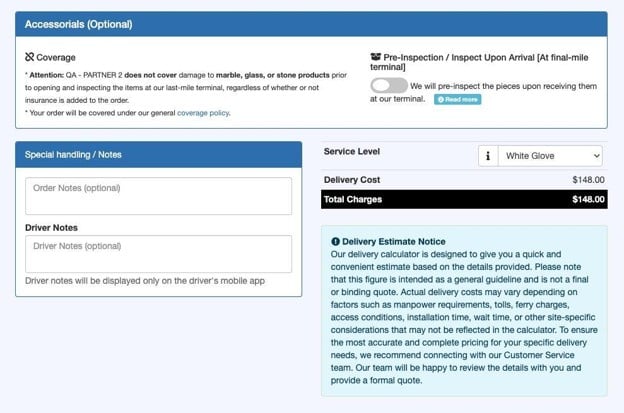
Driver Notes Field Added to Order Creation
Shippers who only ever use order-creation notes as driver instructions can now enter them directly as driver notes at order creation, instead of adding them after the fact.
Key Enhancements:
- New “Driver Notes” field on order creation; entries save directly as driver notes.
- Know limitation : Not yet supported for orders created via Virtual Carrier.
Defect Fixes
Reporting
Audit Report Page and CSV Export Fixed
The Audit Report page was failing to load, and its CSV export was affected as well.
Key Fixes:
- The Audit Report page now loads correctly, along with its CSV export.
Deliveries Report Filter Correctly Labeled “Shipper”
The shipper filter on the Deliveries Report was labeled “Status” instead of “Shipper.”
Key Fixes:
- The filter is now correctly labeled “Shipper.”
Driver ScoreCard Upload No Longer Errors
Uploading a Driver ScoreCard report failed with a server error for some accounts.
Key Fixes:
- Driver ScoreCard report uploads now complete successfully.
UI / Grid
Status Cell Sizing and Border Issues Fixed
A status indicator used across grids had a fixed height taller than its row, causing rows to jump, and had side borders that looked out of place.
Key Fixes:
- The status cell now matches row height and no longer shows stray side borders.
Settings Menu Tooltip No Longer Blocks Adjacent Button
Hovering over the upper button in the shippers settings menu opened a tooltip that covered the button below it, making it hard to select.
Key Fixes:
- The tooltip no longer overlaps the adjacent button.
Driver and Order Notes No Longer Resizable
The driver and order notes text areas could be manually resized by dragging, which wasn’t intended.
Key Fixes:
- Driver and order notes fields are no longer resizable.
Driver App — Photo Policy
Service Photos Required, Asset Photos Optional as Intended
A regression let drivers skip required service-level photos while blocking them from skipping optional asset photos — the opposite of the intended behavior.
Key Fixes:
- Service-level photos are required again before continuing.
- Asset photos can be skipped via “Continue Anyway” as intended.
“All Files” Now Always Listed First in the Assets Filter
The Assets filter’s “All Files” (default) option was sorting alphabetically instead of always appearing first.
Key Fixes:
- “All Files” now always appears at the top of the Assets filter list.
Signature Screen Disclaimer Restored After Asset Photos
The disclaimer normally shown on the Signature screen was missing after a driver captured asset photos.
Key Fixes:
- The disclaimer now displays on the Signature screen in this flow, as in every other flow.
“Done” Button Now Clickable on Unattended Orders After Asset Photos
On unattended orders, the “Done” button became unresponsive after a driver captured asset photos, blocking delivery completion.
Key Fixes:
- The “Done” button is clickable again and completes the delivery flow.
Asset Photo Preview No Longer Displays Black
Tapping a just-captured asset photo to preview it showed a black screen instead of the photo.
Key Fixes:
- Asset photo previews now display correctly.