
Step 1
Go to https://developer.intuit.com/app/developer/qbo/docs/develop
Step 2
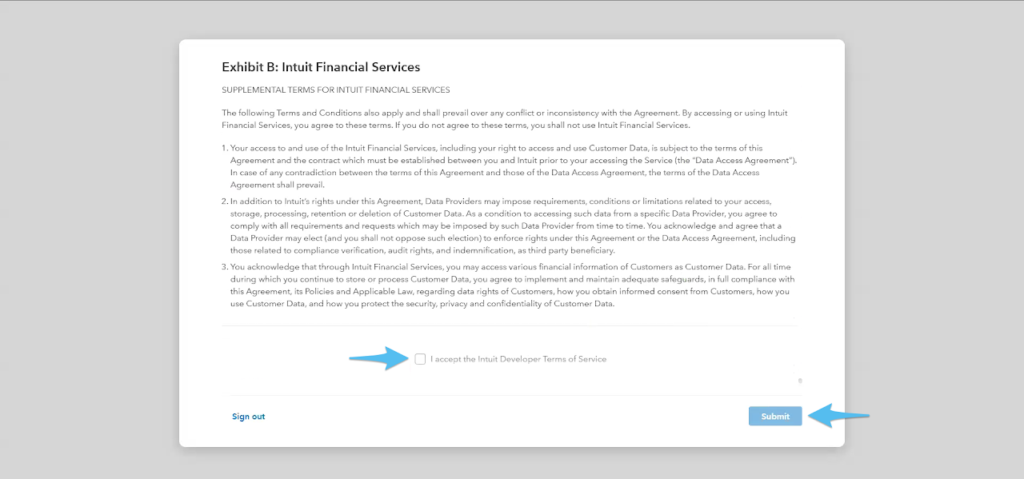
Once you are on the website, scroll down to the bottom section labeled Exhibit B: Intuit Financial Services.
Check the box to accept the terms then click Submit.
Step 3
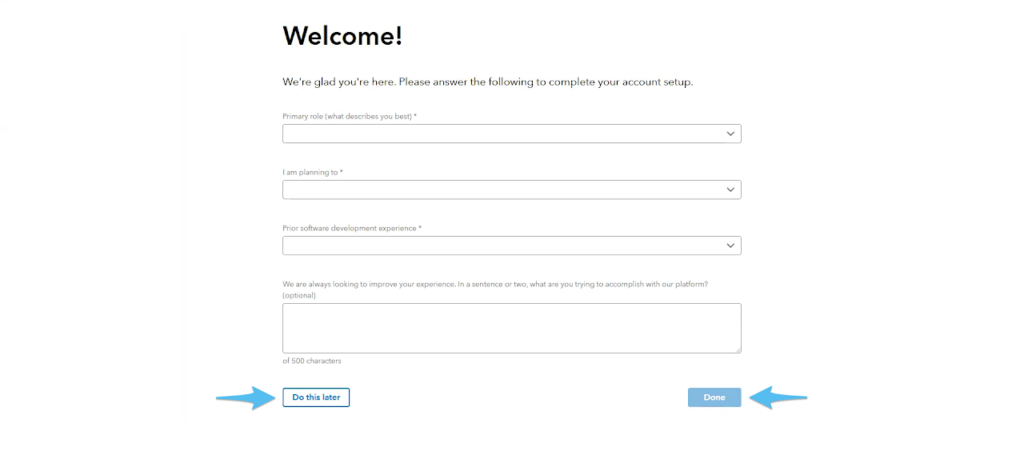
You may complete the questionnaire now or choose to do it later by clicking Do this later.
Step 4
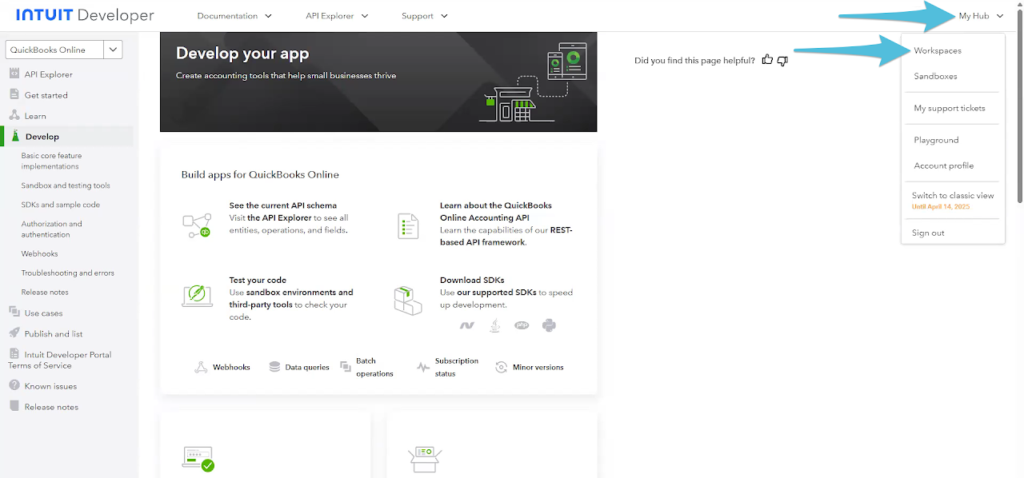
Go to My Hub and select Workspaces
Step 5
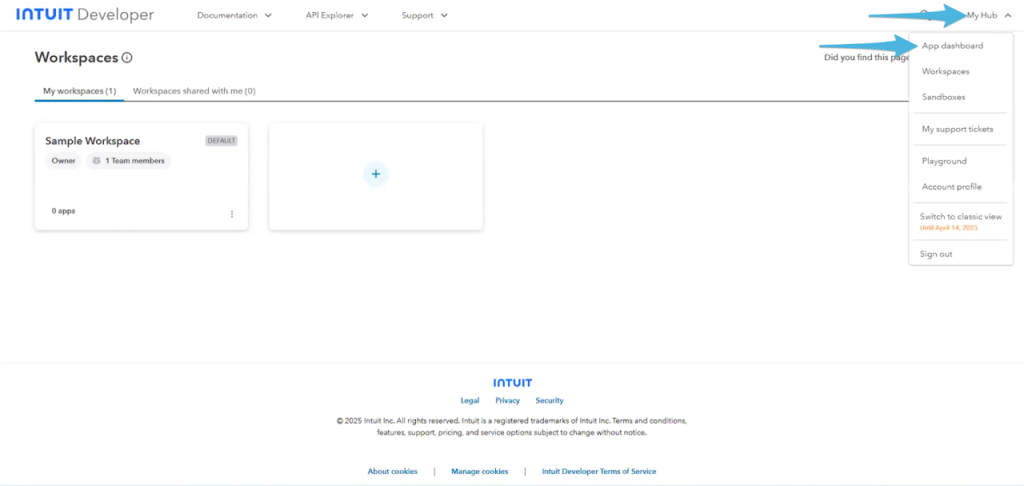
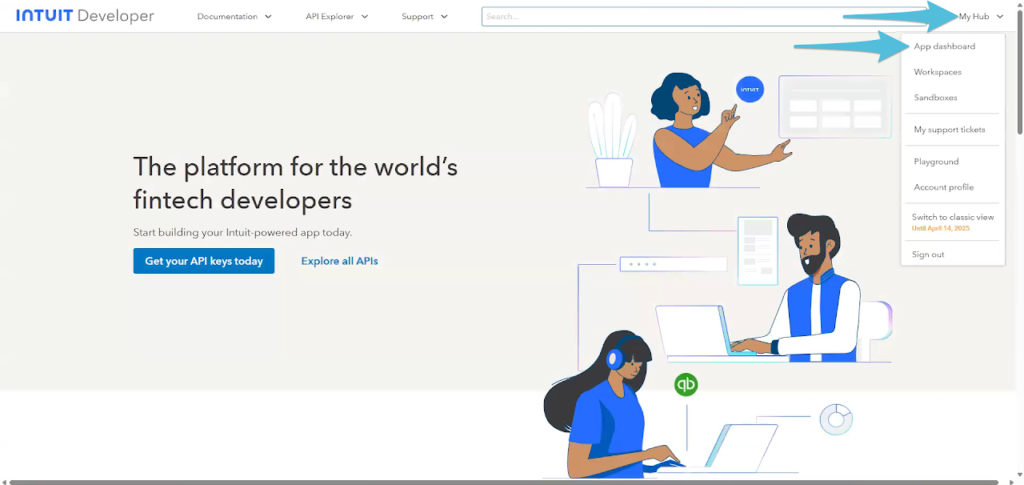
Go to My Hub again and select App dashboard
Step 6
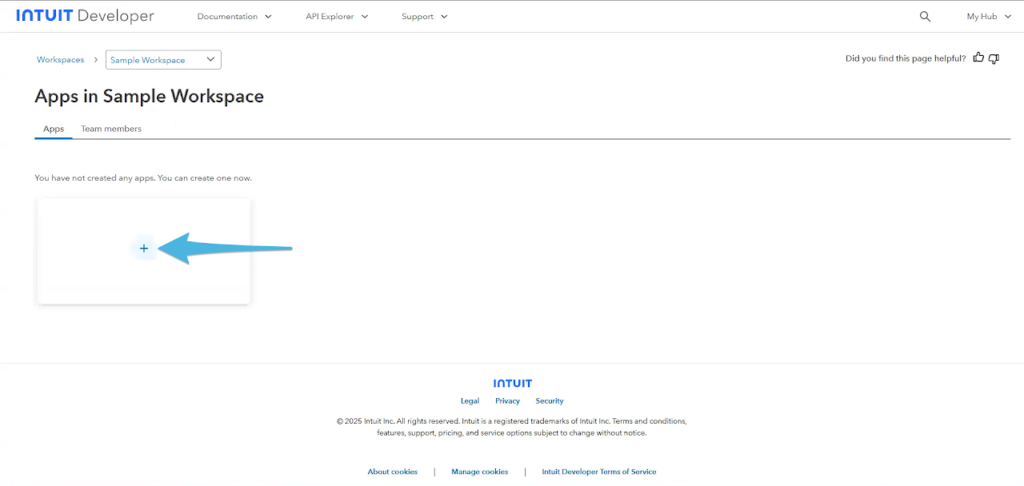
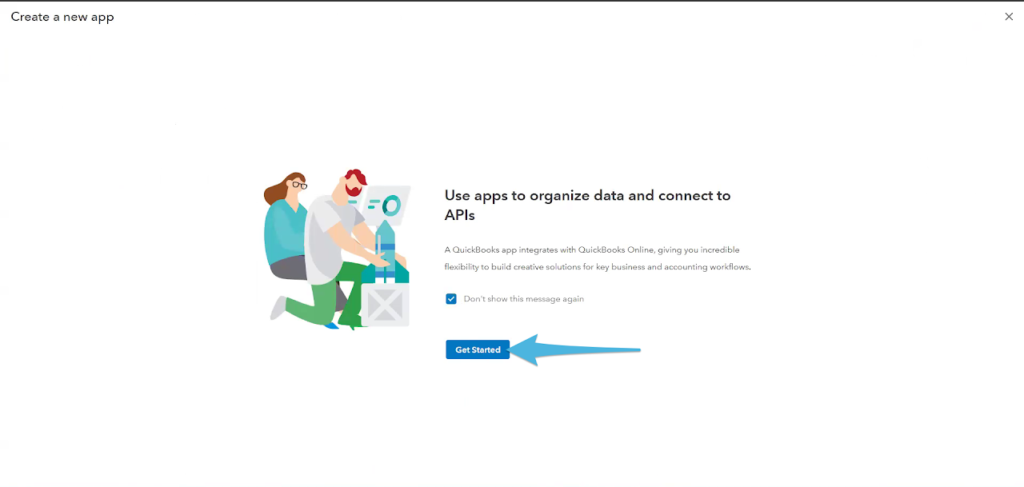
Under the Apps tab, click the + icon to create a new app, then Get Started
Step 7
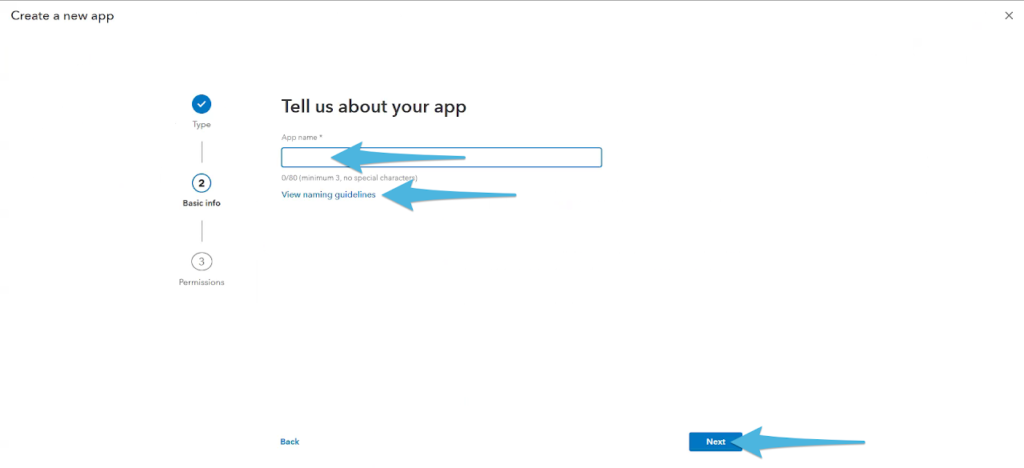
Enter your preferred App name, then click Next.
For guidance on appropriately naming your app, please click on View naming guidelines.
Step 8
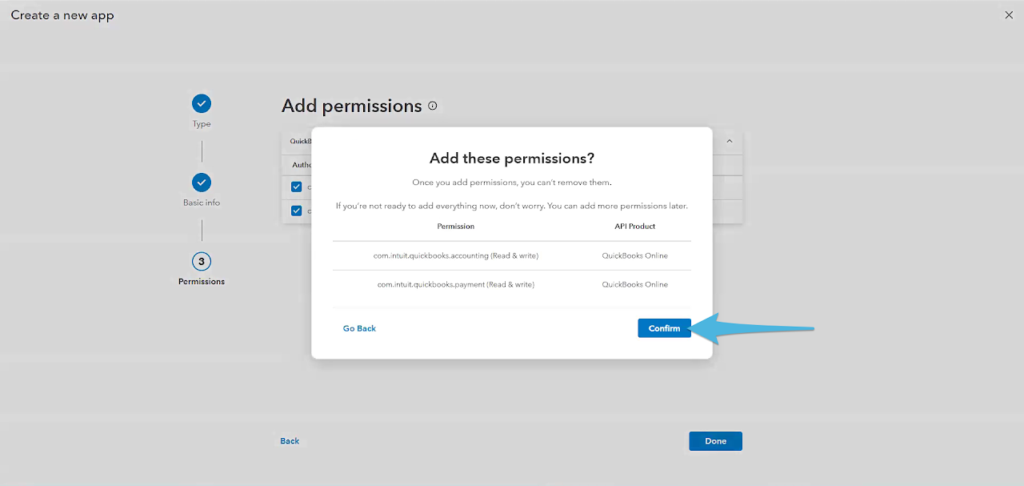
Check the Authorization scope for Accounting and Payments, click Done then Confirm
Step 9
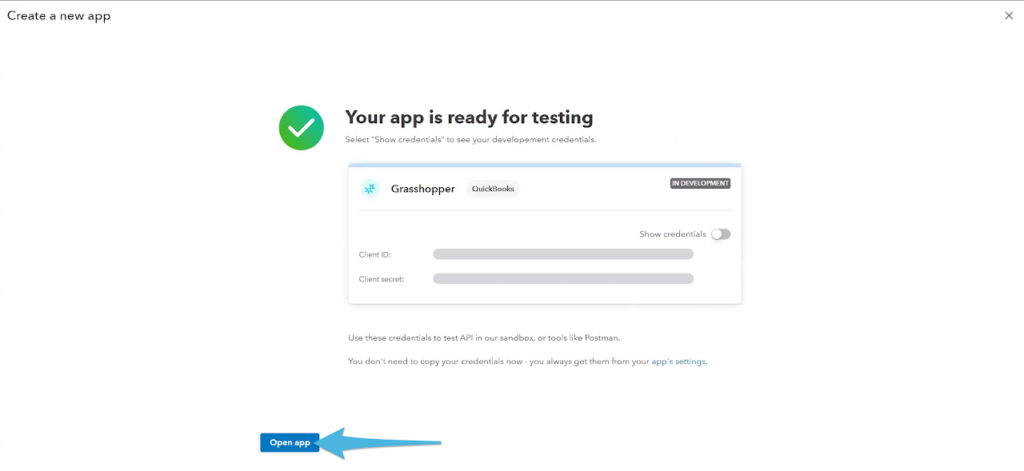
Click Open app
Step 10
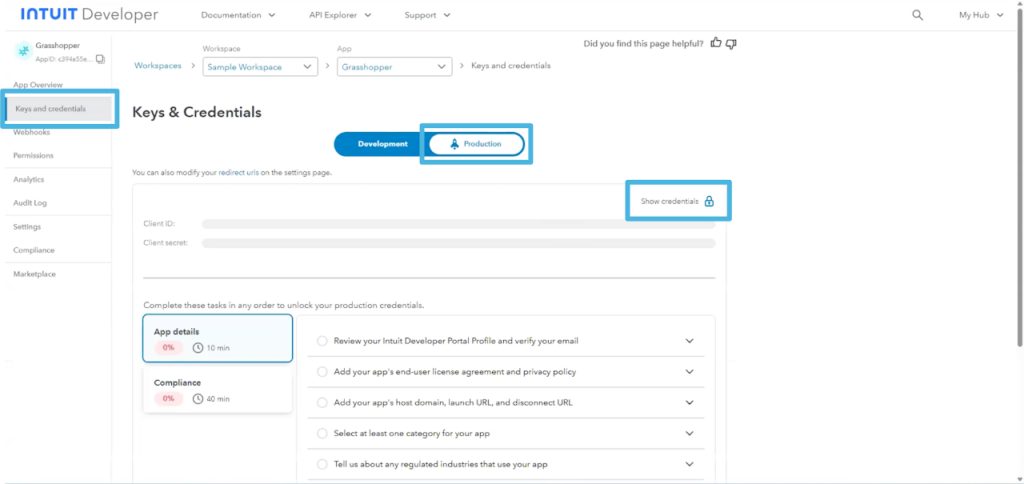
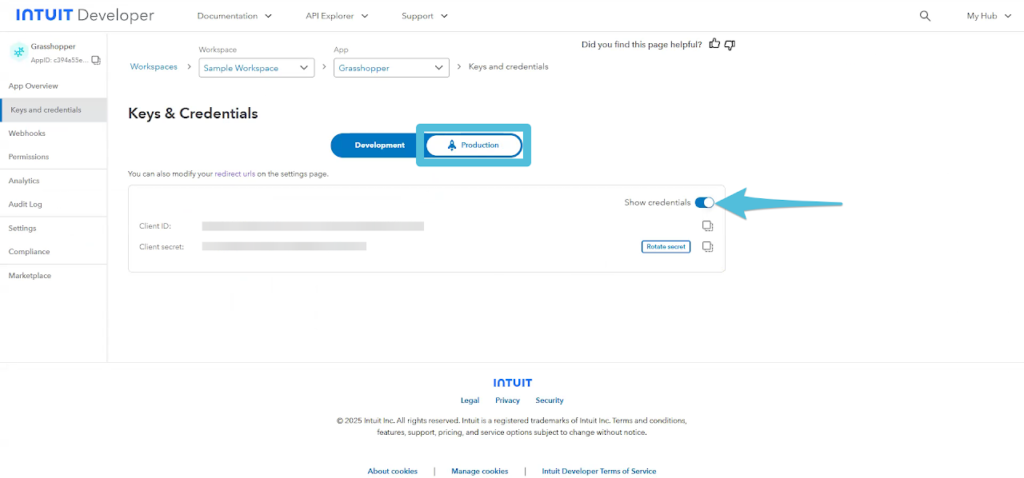
Go to Keys and Credentials. Under the Production section, complete the required task to Show Credentials.
Part 1: App details
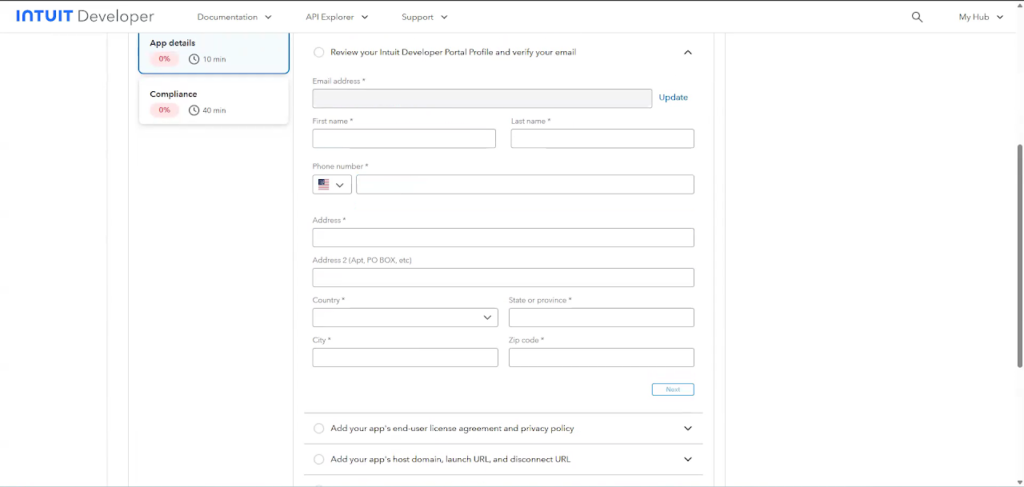
Review your Intuit Developer Portal Profile and verify your email.
- Please complete the required information.
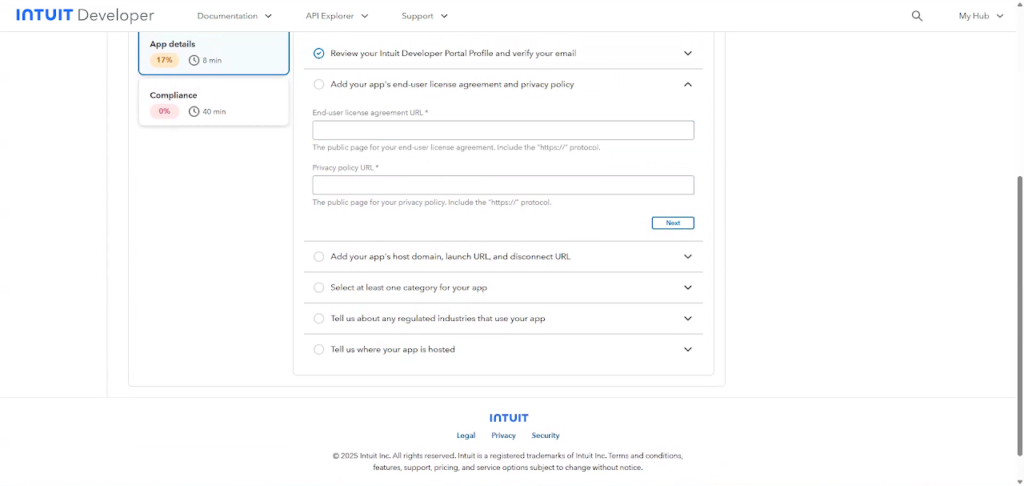
Add your app’s end user license agreement and privacy policy
- End-user license agreement URL – this is your company’s official website URL
- Privacy policy URL – the same as the URL in the End-user license agreement
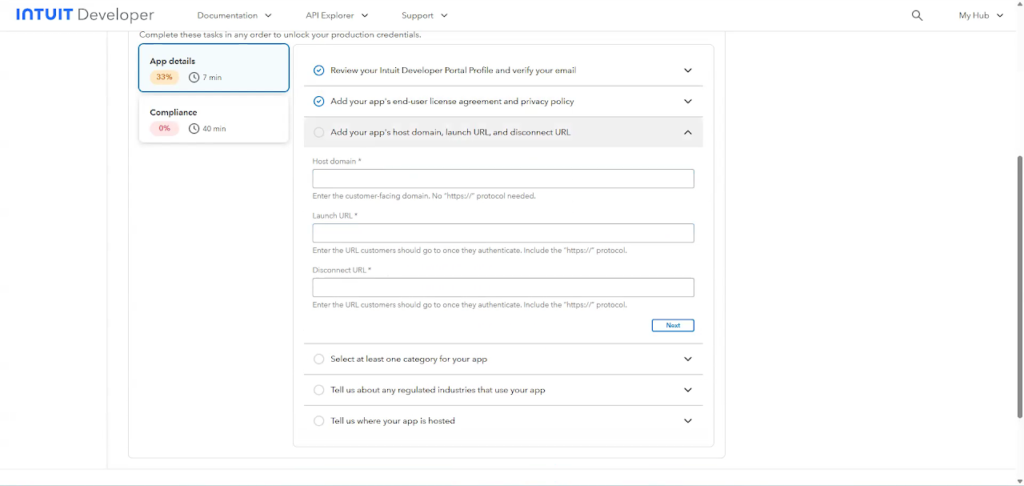
Add your app’s host domain, launch URL and disconnect URL.
- Host domain – Your Grasshopper Server URL (no https://)
- Launch URL – Your Grasshopper Server URL (include the https://)
- Disconnect URL – Your Grasshopper Server URL (include the https://)
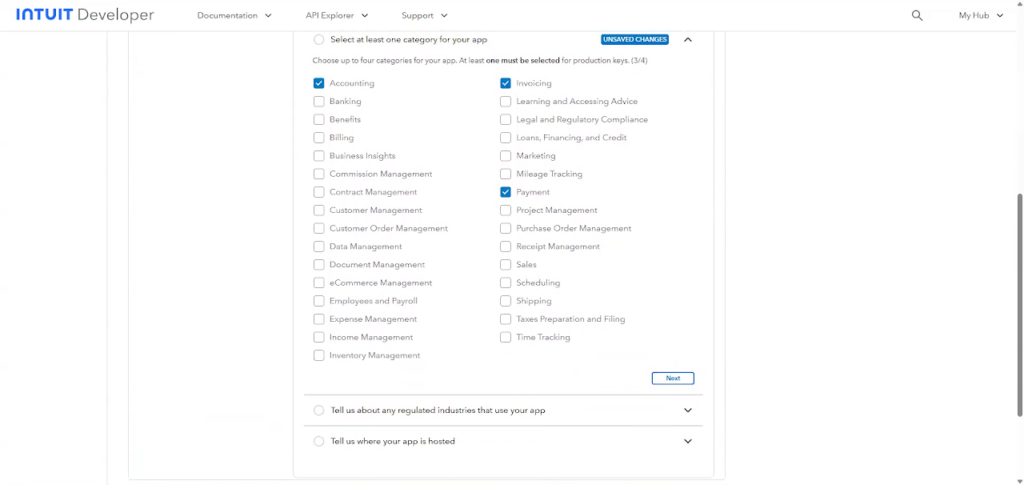
Select at least one category for your app.
- Accounting
- Invoicing
- Payment
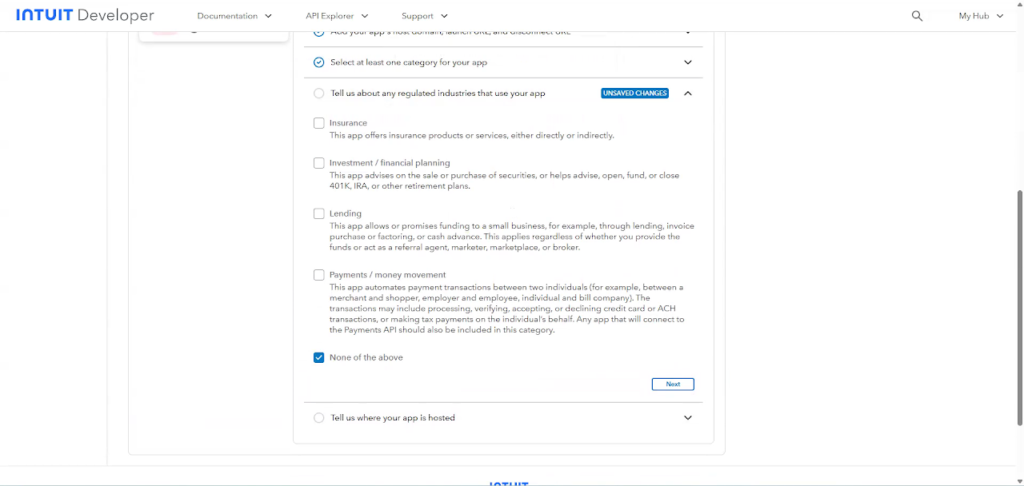
Tell us about any regulated industries that use your app.
- Select None of the above unless your company provides Insurance, Investment, Lending and Payment / money movement services
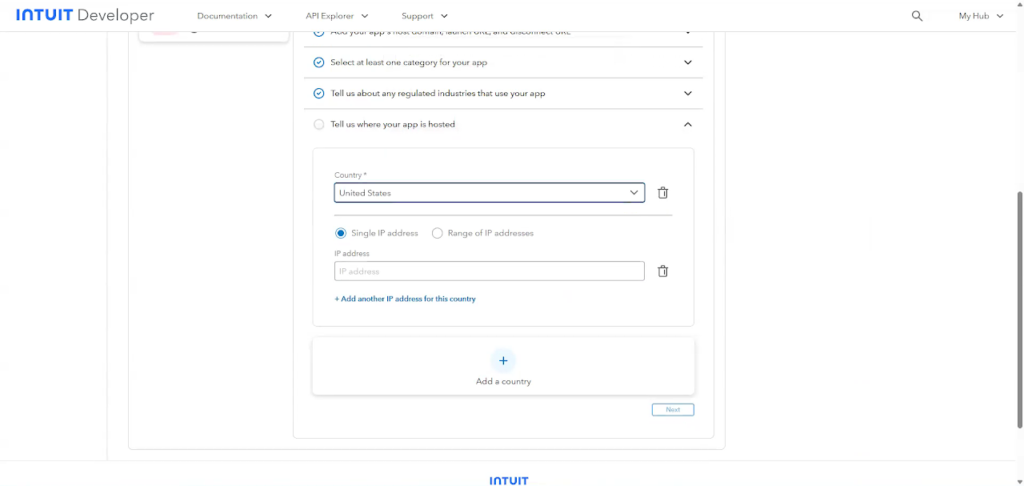
Tell us where your app is hosted.
- Select United States and Single IP address
- Leave the IP address blank
Part 2: Compliance
Click Start Questionnaire.
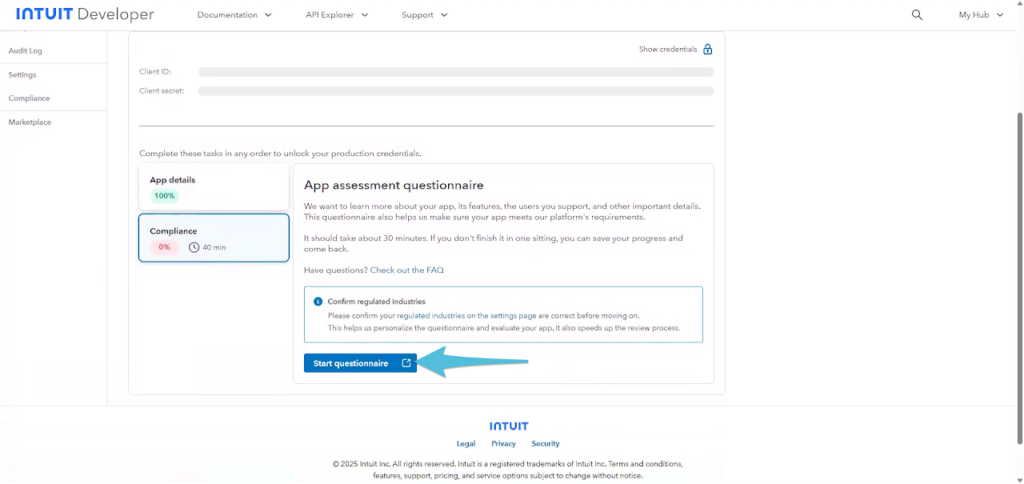
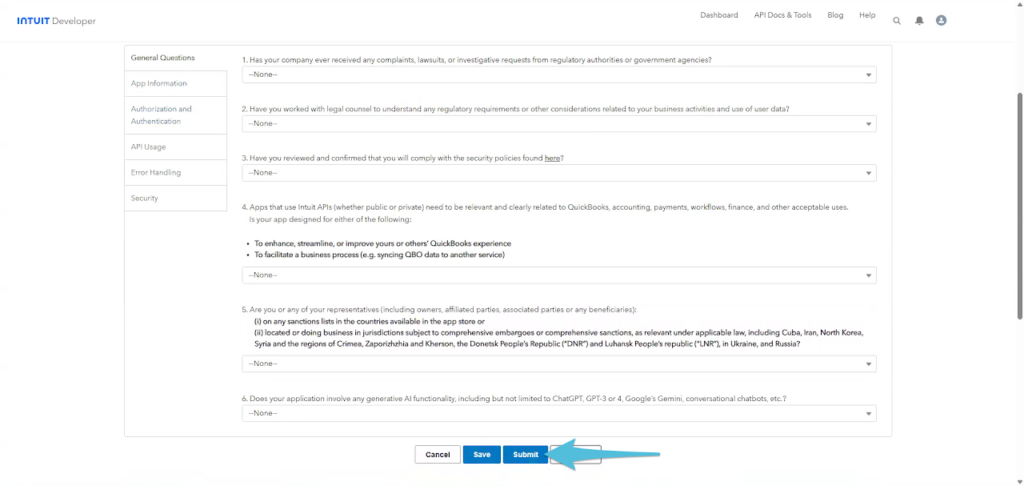
Answer the General Questions then click Submit when done.
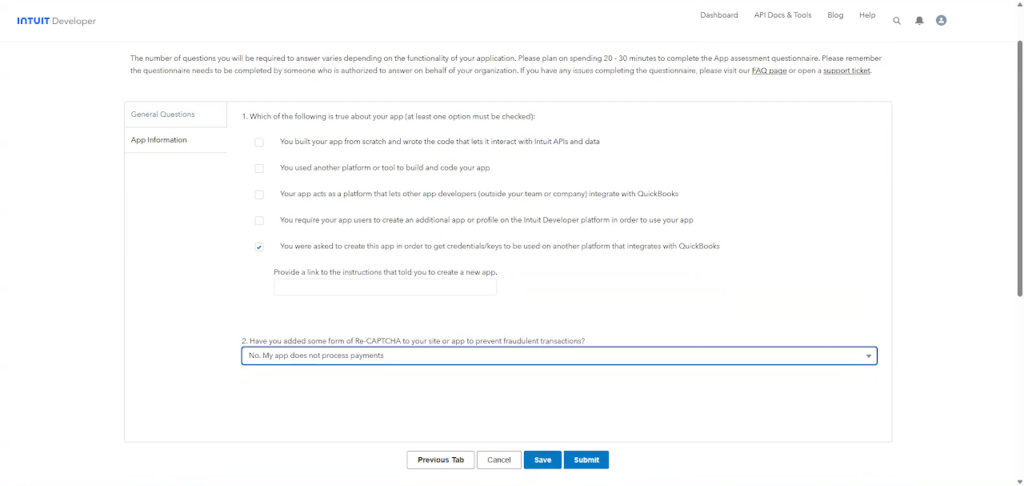
In the App Information tab:
- Check the last choice You were asked to create this app in order to get credentials/keys to be used on another platform that integrates with QuickBooks.
- Provide a link to the instructions that told you to create a new app – enter your Grasshopper server URL
- Have you added some form of Re-CAPTCHA to your site or app to prevent fraudulent transactions?
- Select No. My app does not process payments
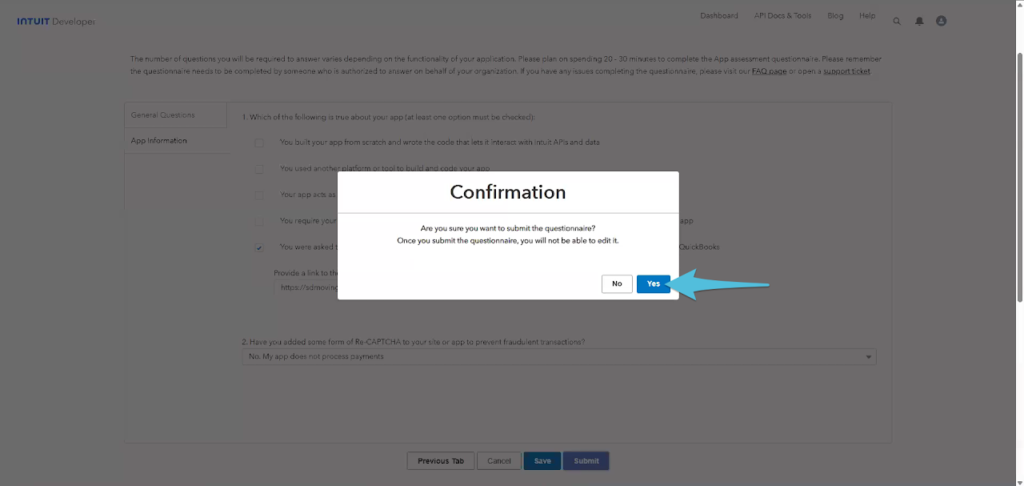
Then click Yes to confirm
If in case you got stuck, you can go back My Hub and select App Dashboard
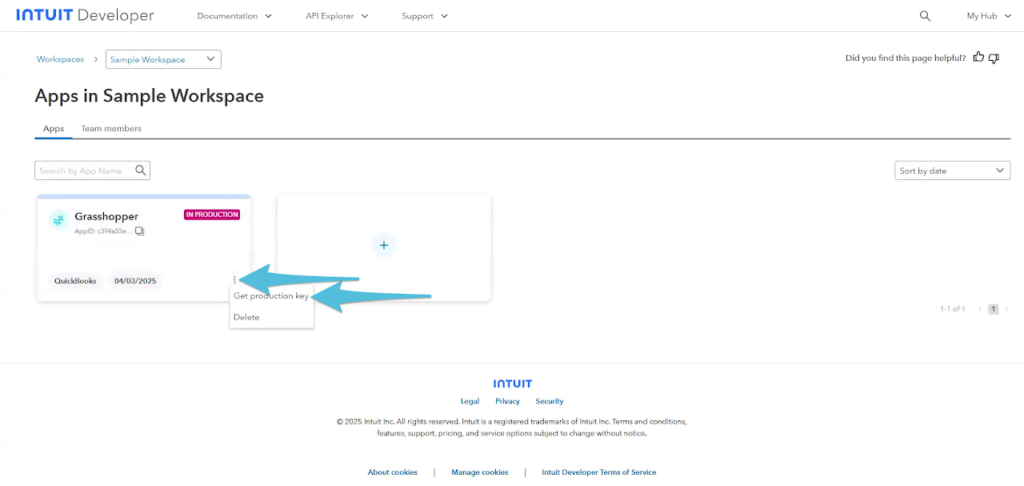
Select Get production key
Toggle on Show Credentials and copy the Client ID and Client secret
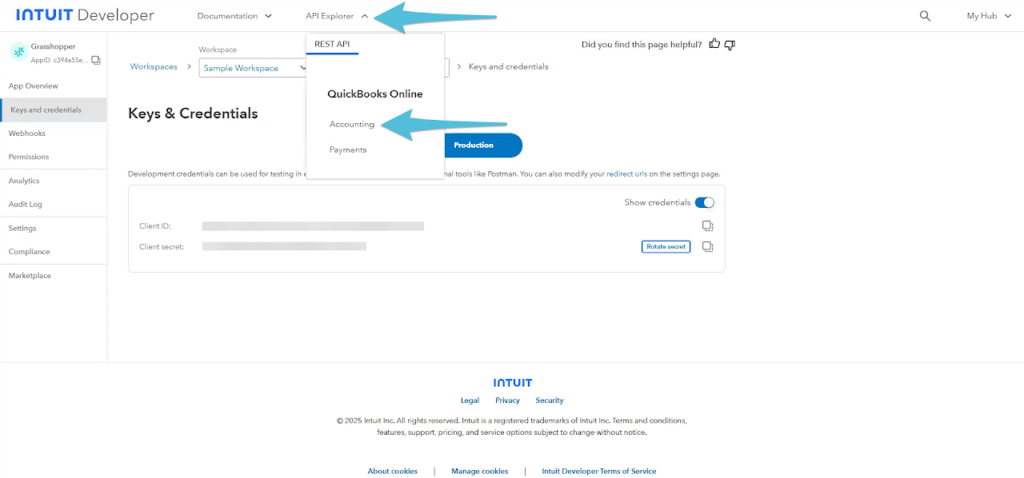
Step 11
Go to API Explorer and select Accounting
Step 12
Go to My Hub and select Sandboxes
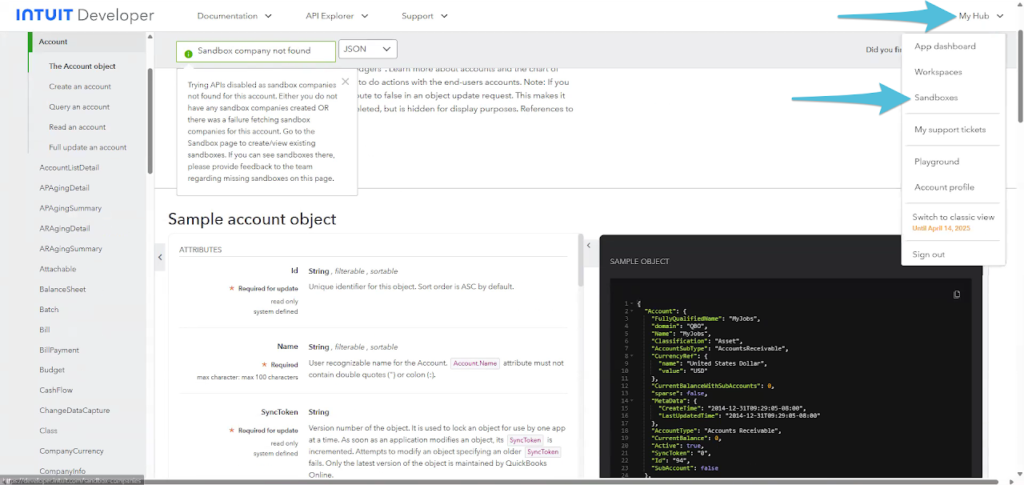
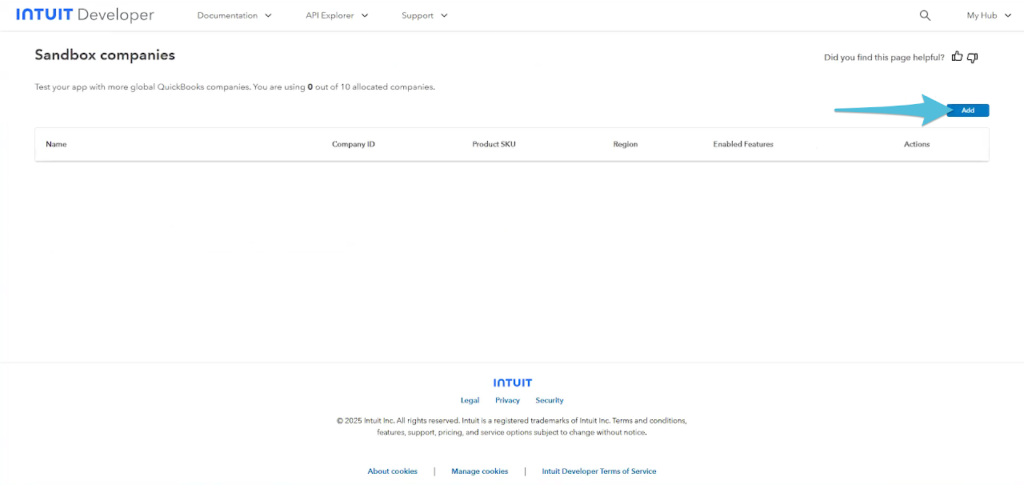
Step 13
Click Add to create a sandbox company
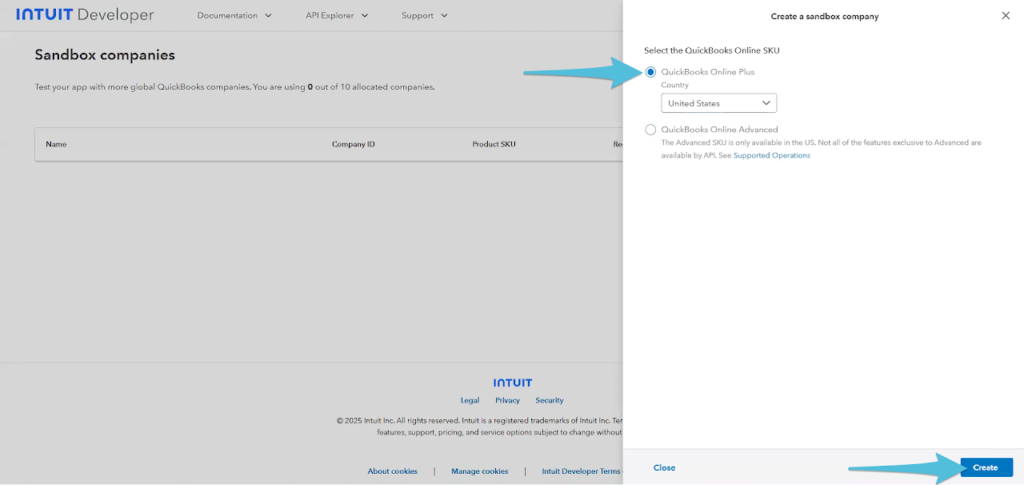
Step 14
Select the first option QuickBooks Online Plus then click Create
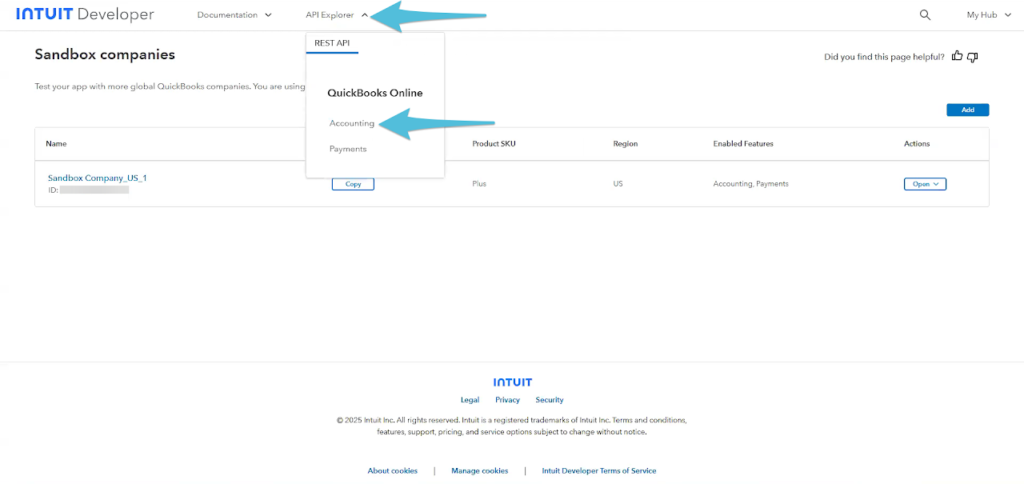
Step 15
Go to API Explorer and select Accounting
Step 16
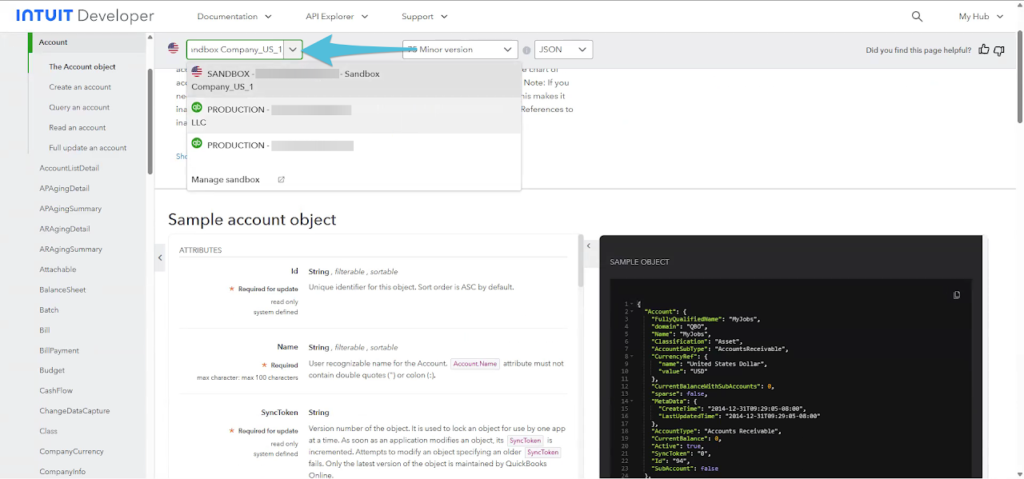
Select the Production Company from the drop-down list and provide the Realm ID of your production’s environment displayed with a green icon.
Step 17
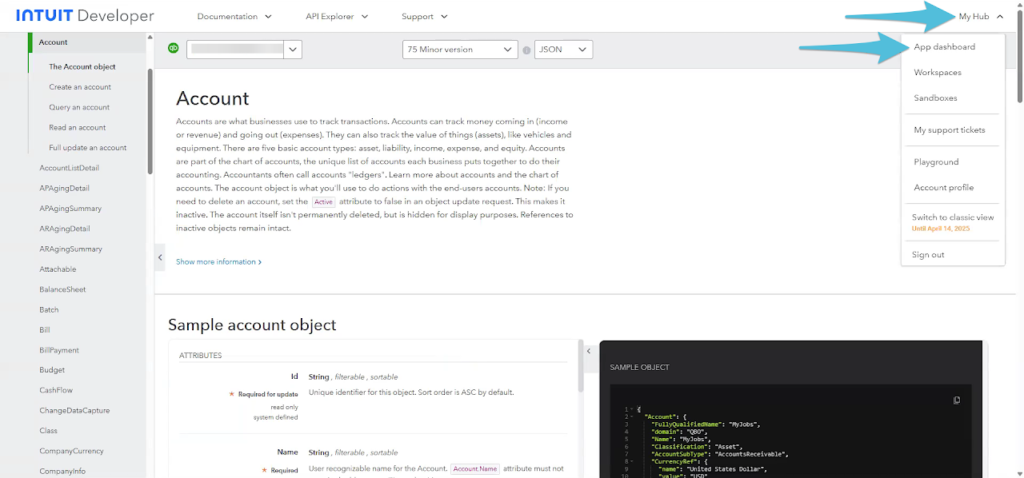
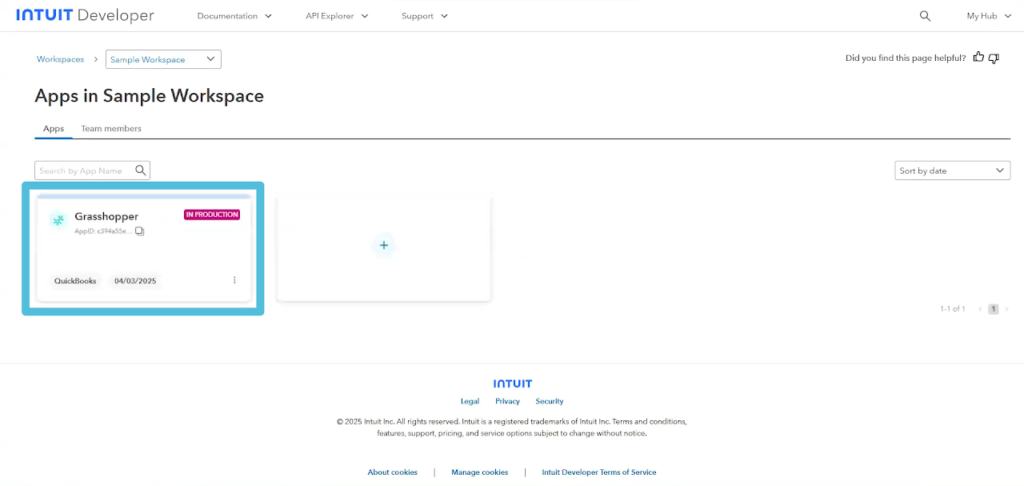
Go back to My Hub and select App dashboard. Select your Workspace.
Step 18
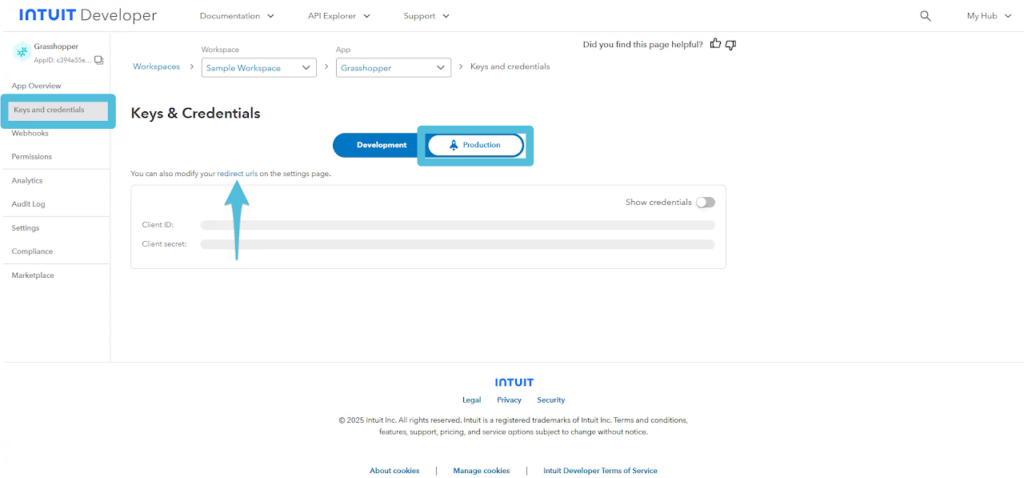
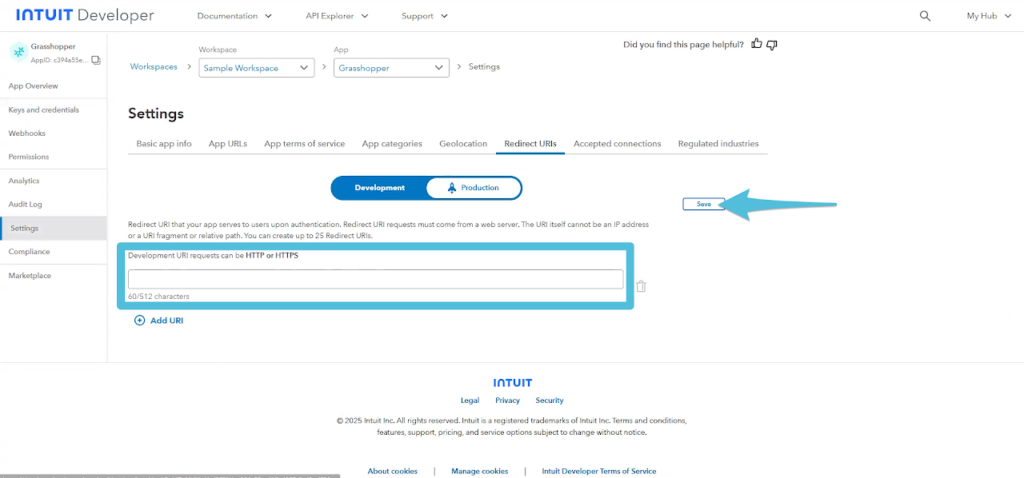
Navigate to Keys and Credentials, then to Production section and click redirect URLs
Step 19
Enter the URL ([Grasshopper URL]/dashboard/reports/shipper_deliveries) and click Save.
Step 20
Restart the server.