Step 1
Choose the stop or order to be completed
Step 2
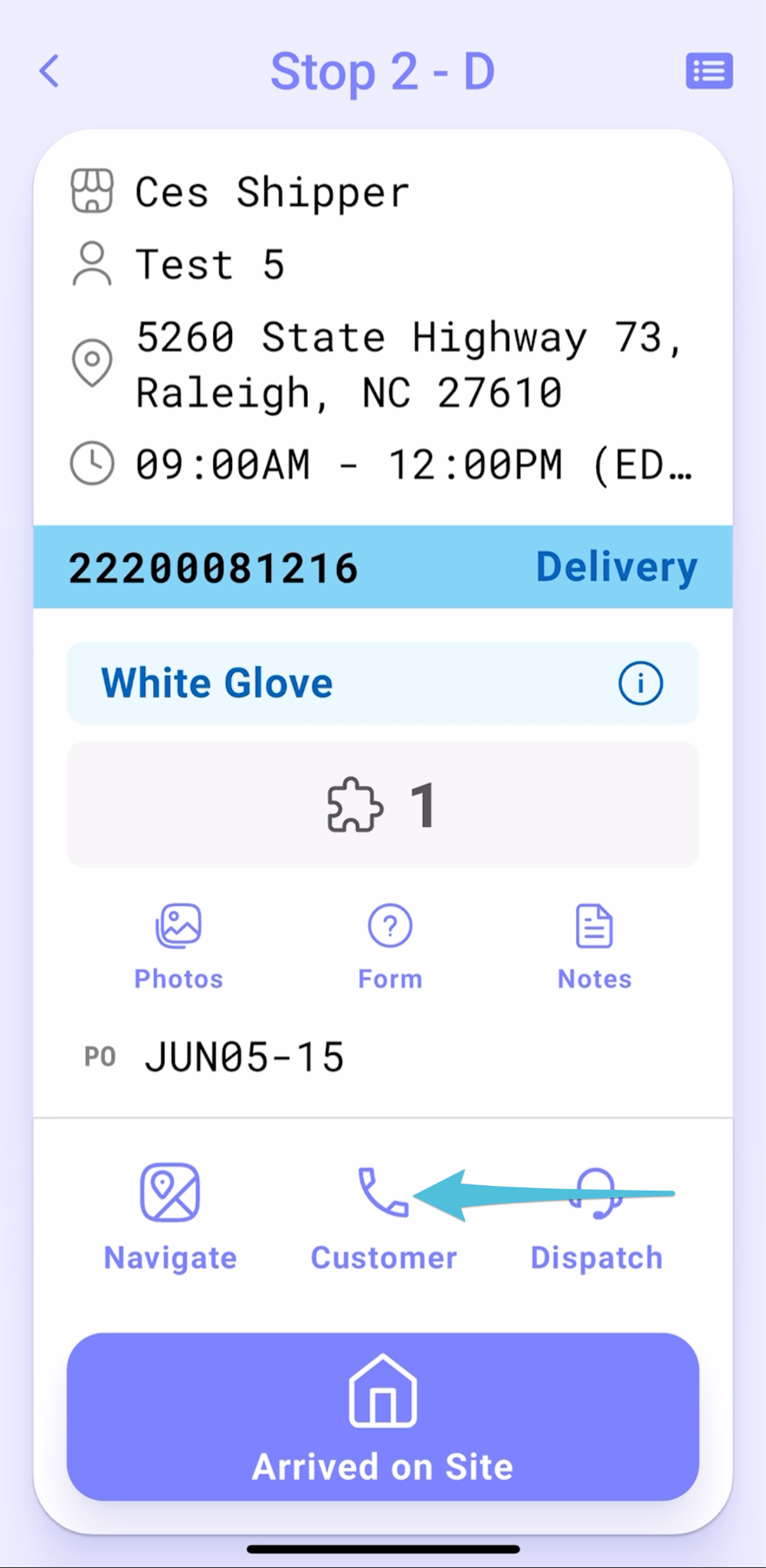
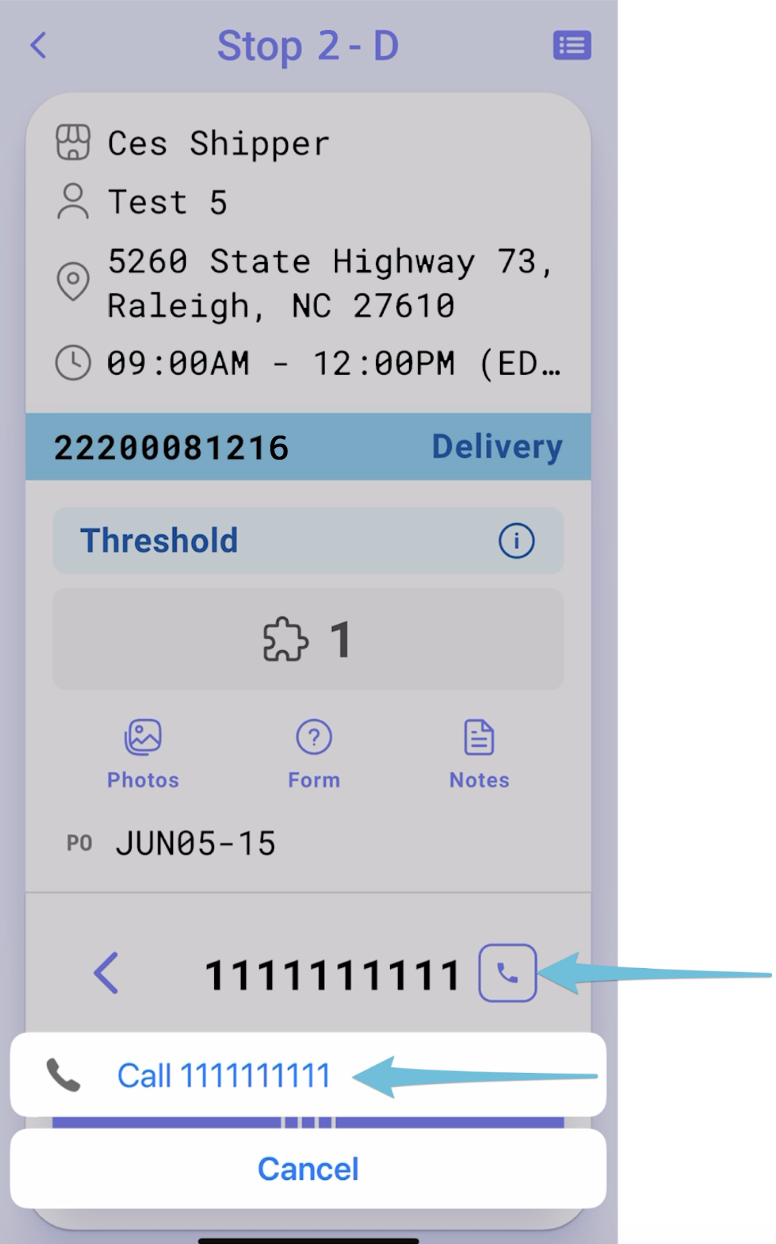
Tap on Customer Phone icon then the contact number to make a Pre-call
Step 3
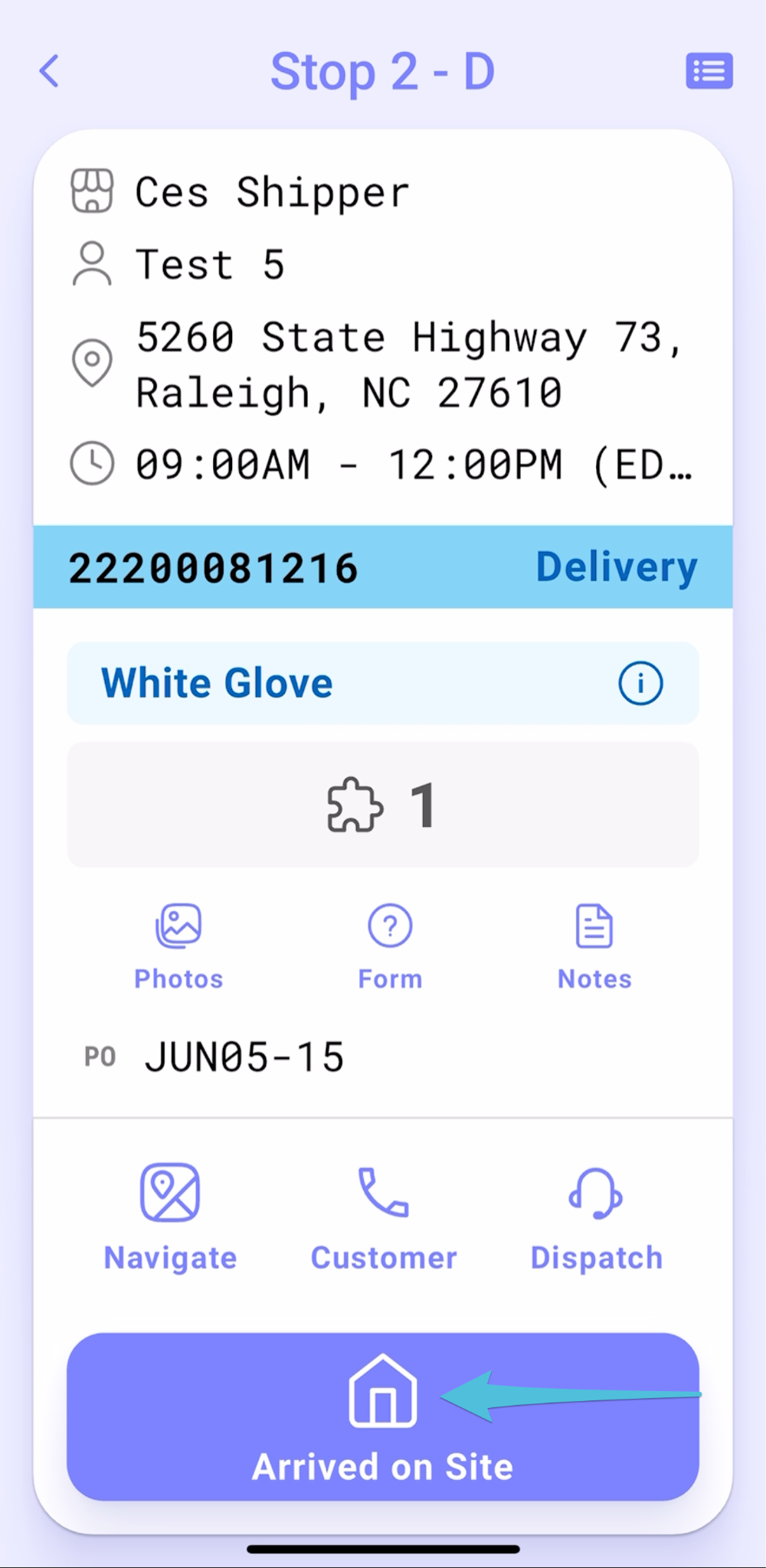
Tap Arrived on Site
Step 4
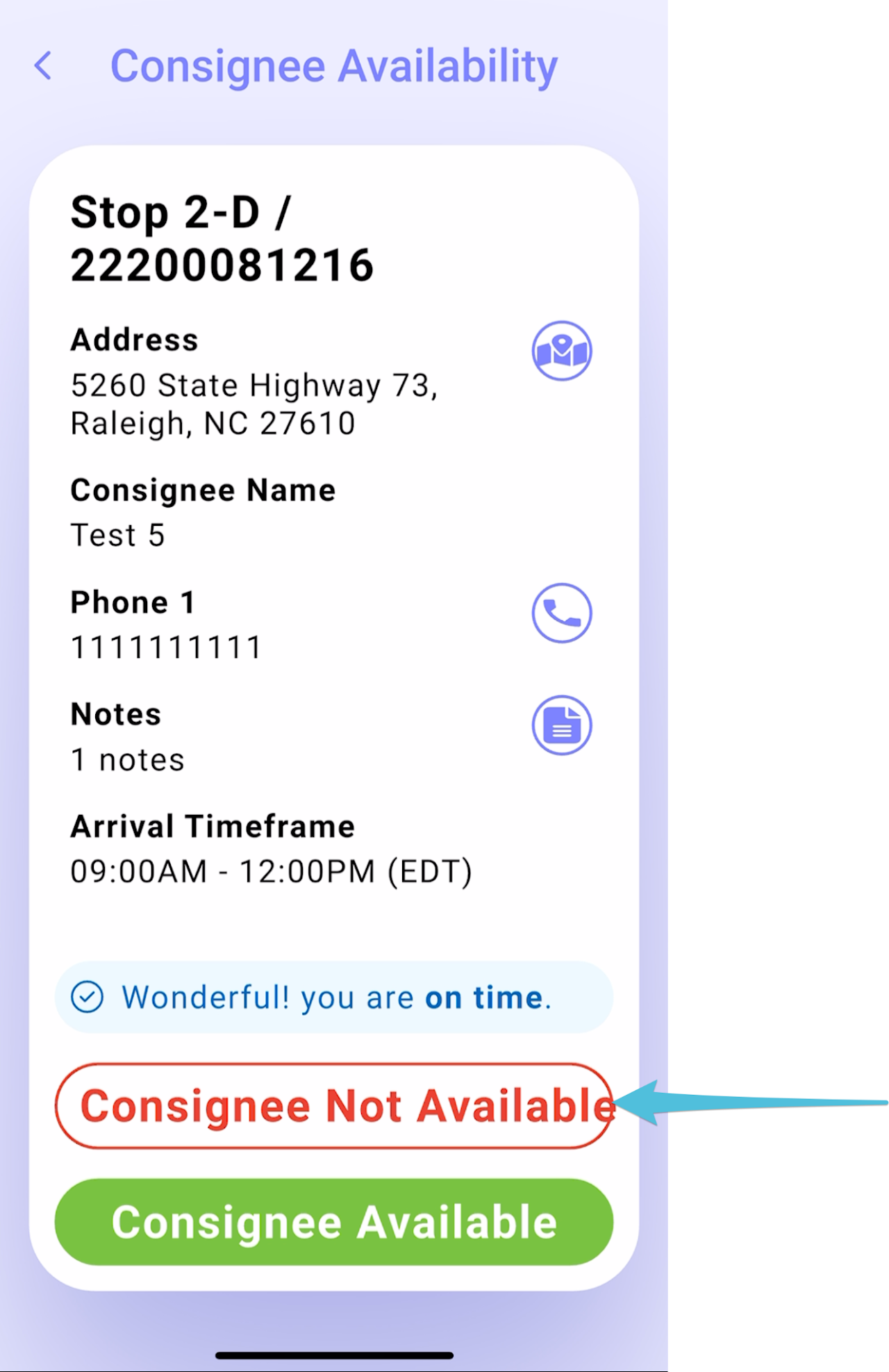
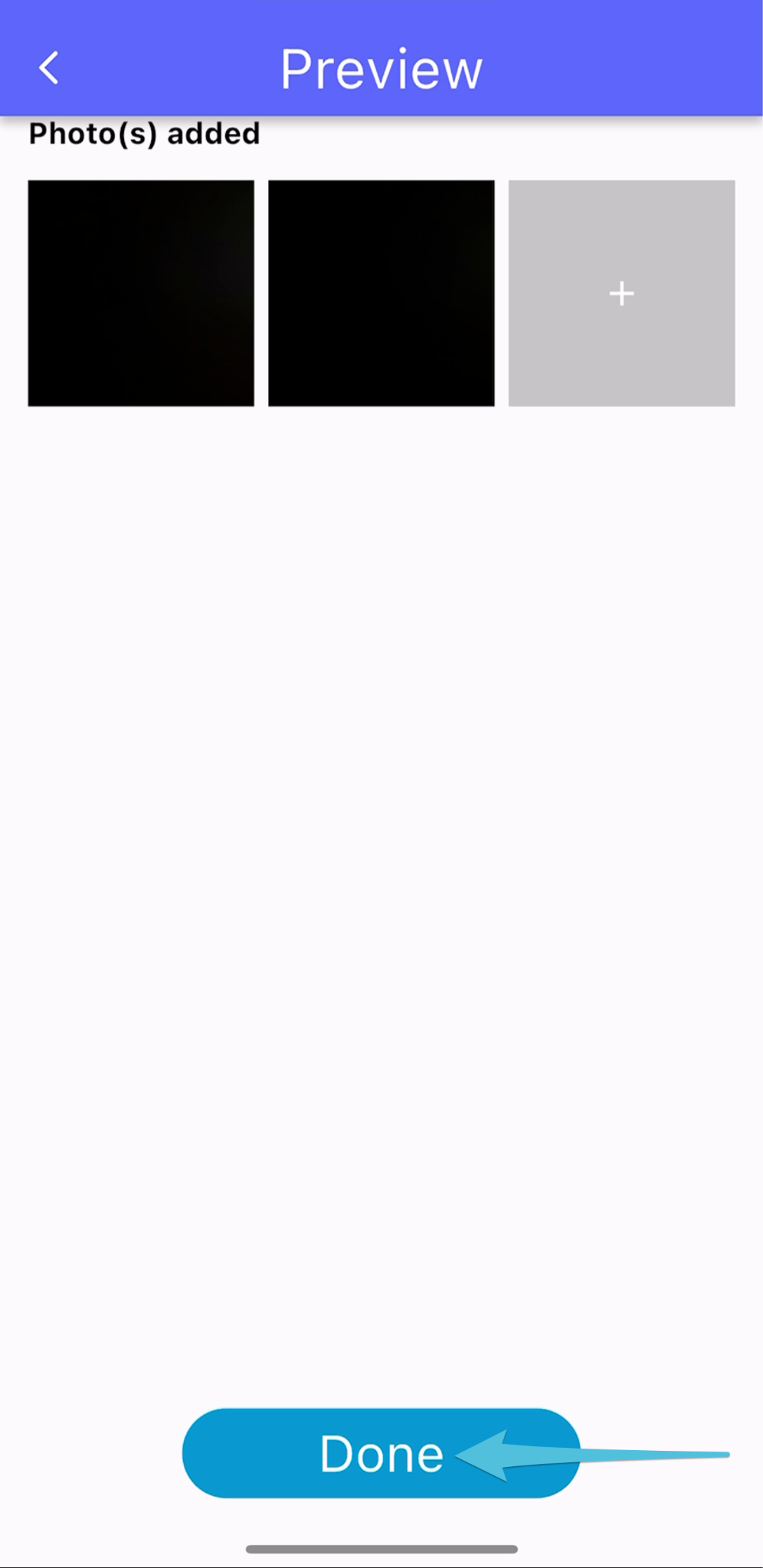
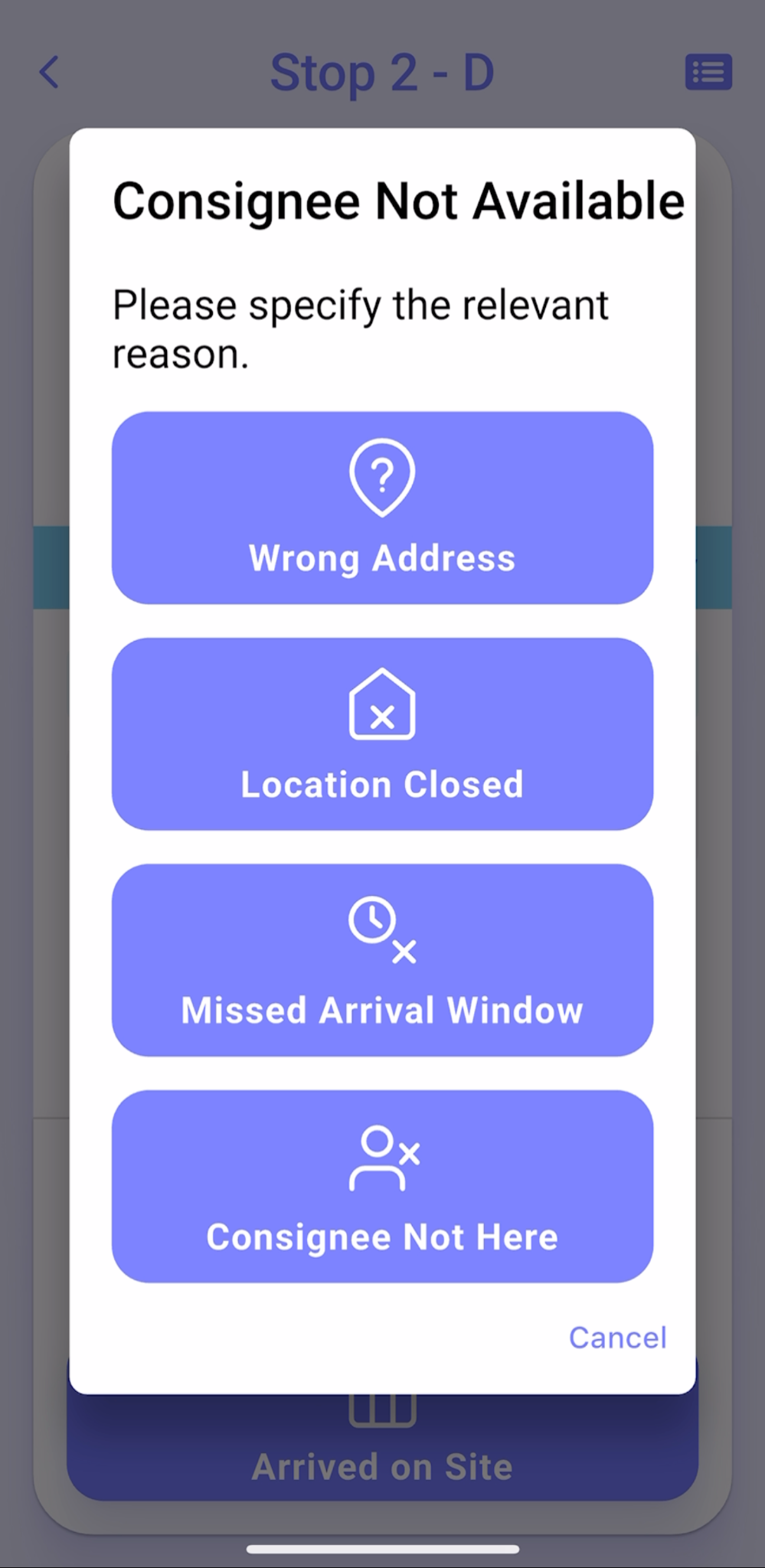
Choose Consignee Not Available if the customer is not on site when you have arrived. And take at least 2 photos of the customer’s area while waiting.

Step 5
Then click Done.
Step 6
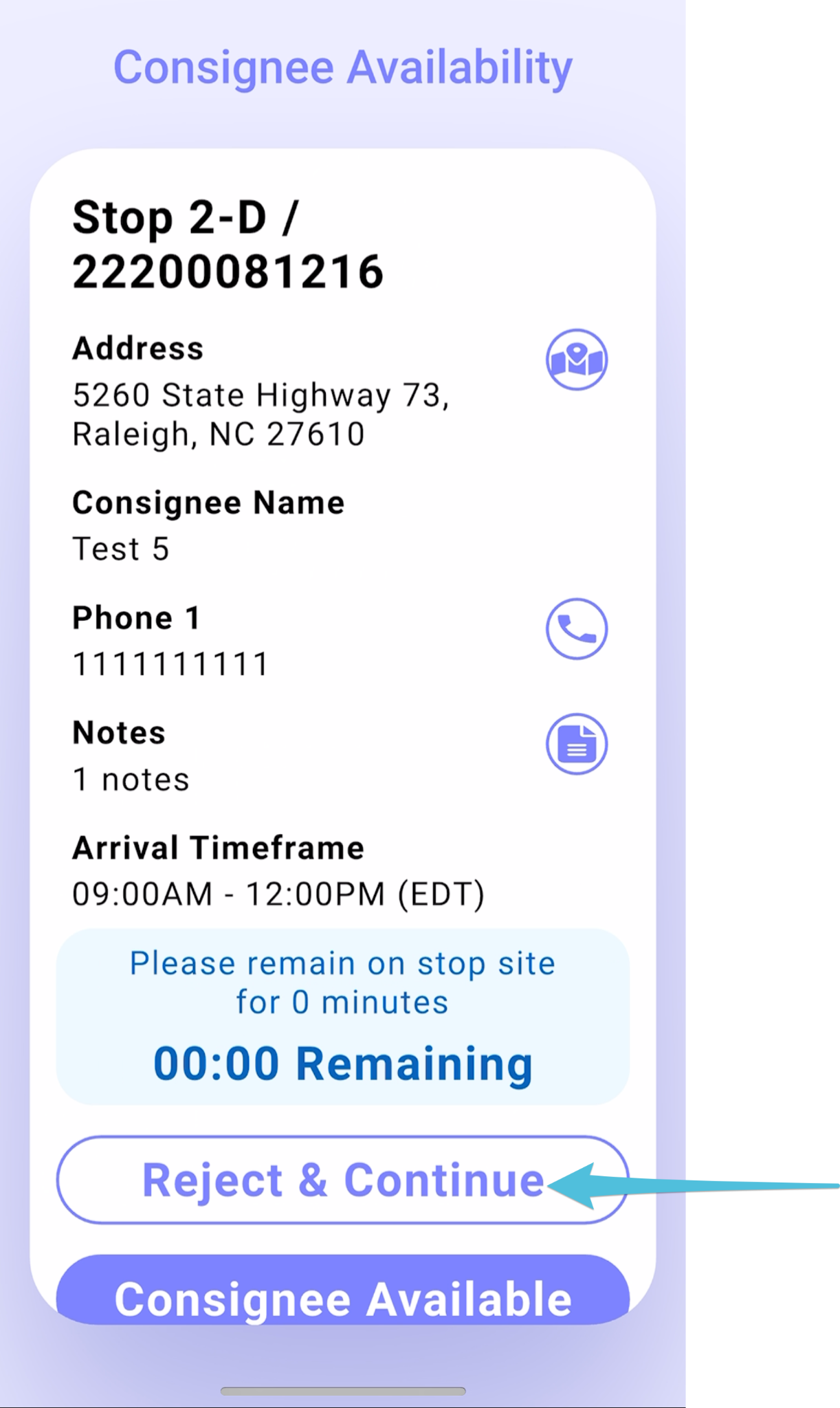
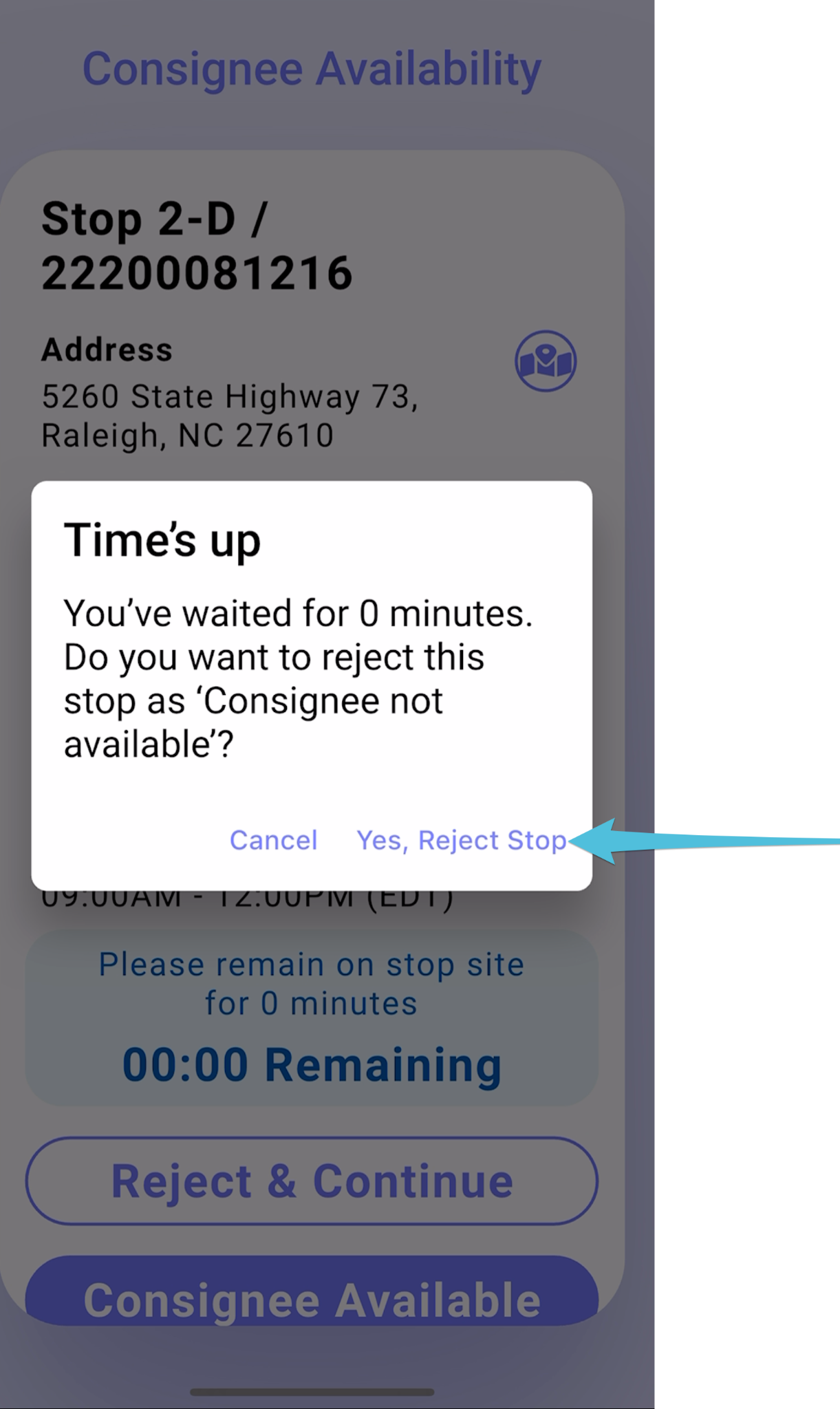
If the customer is not present after the designated waiting period, select Reject & Continue and confirm by tapping Yes, Reject Stop.
Step 7
Choose the appropriate reason from the list.
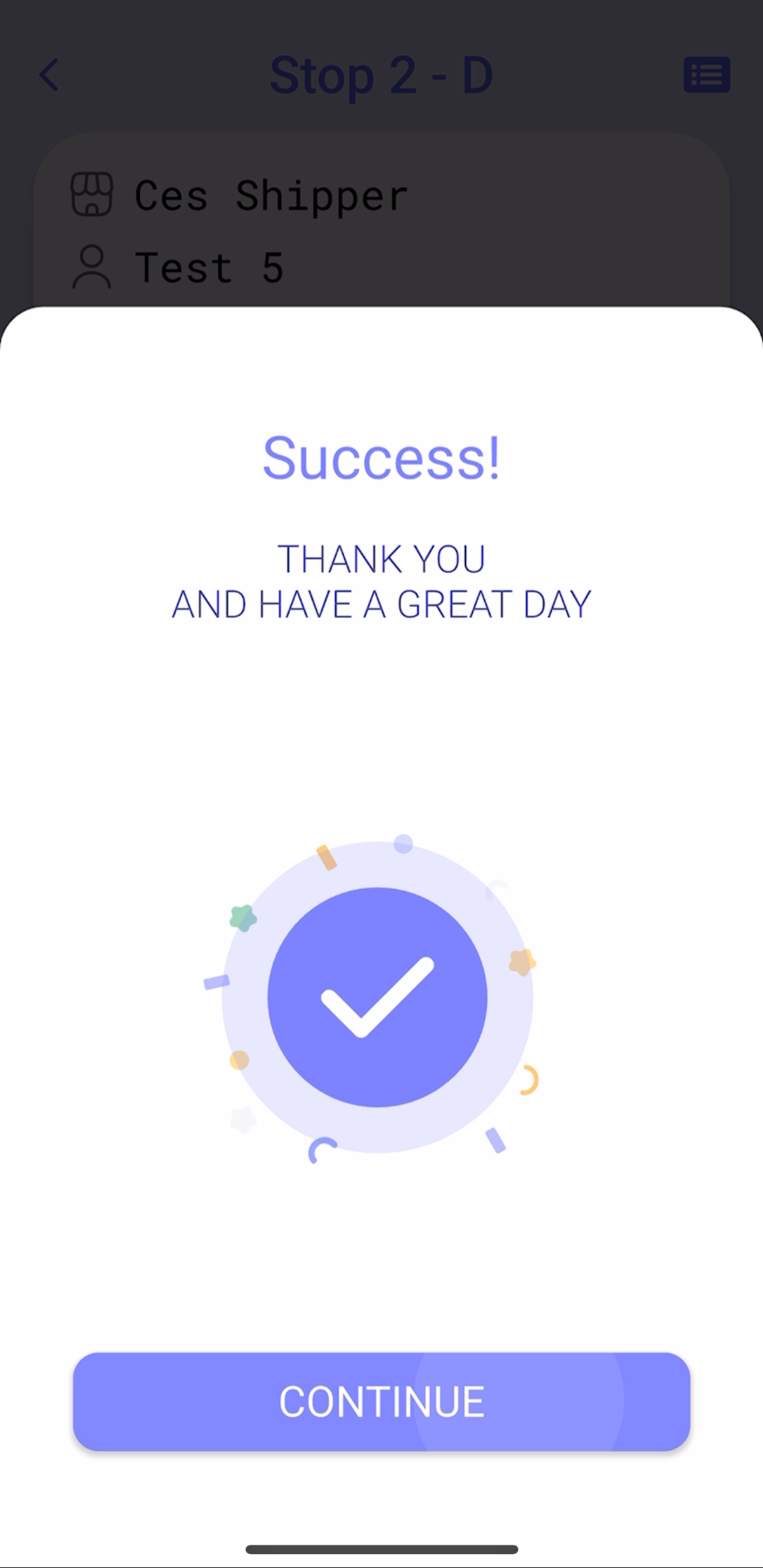
Confirmation that the stop has been completely rejected/completed.