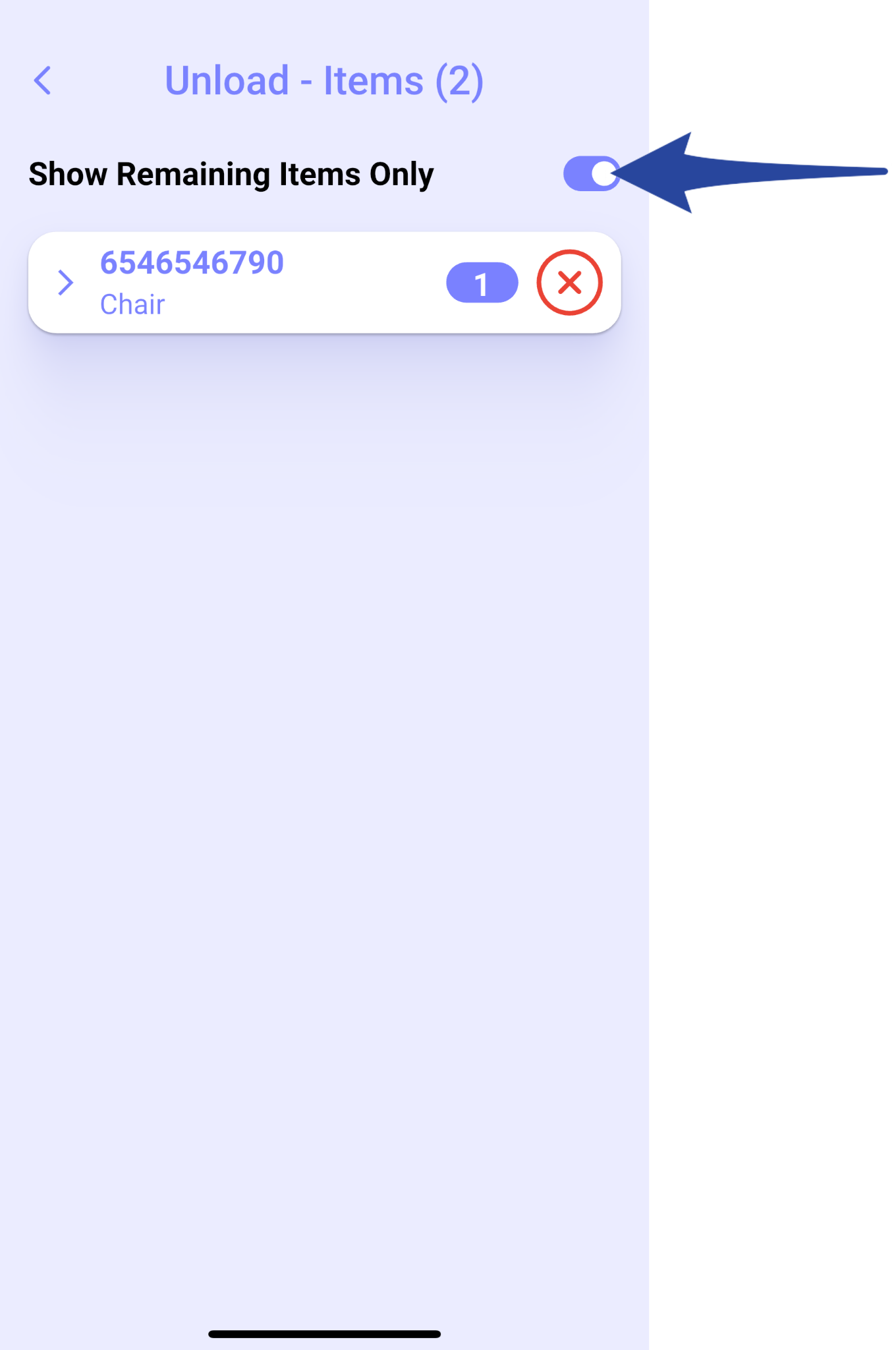
Step 1:
Tap the gear icon to open the Warehouse Mobile App Settings.
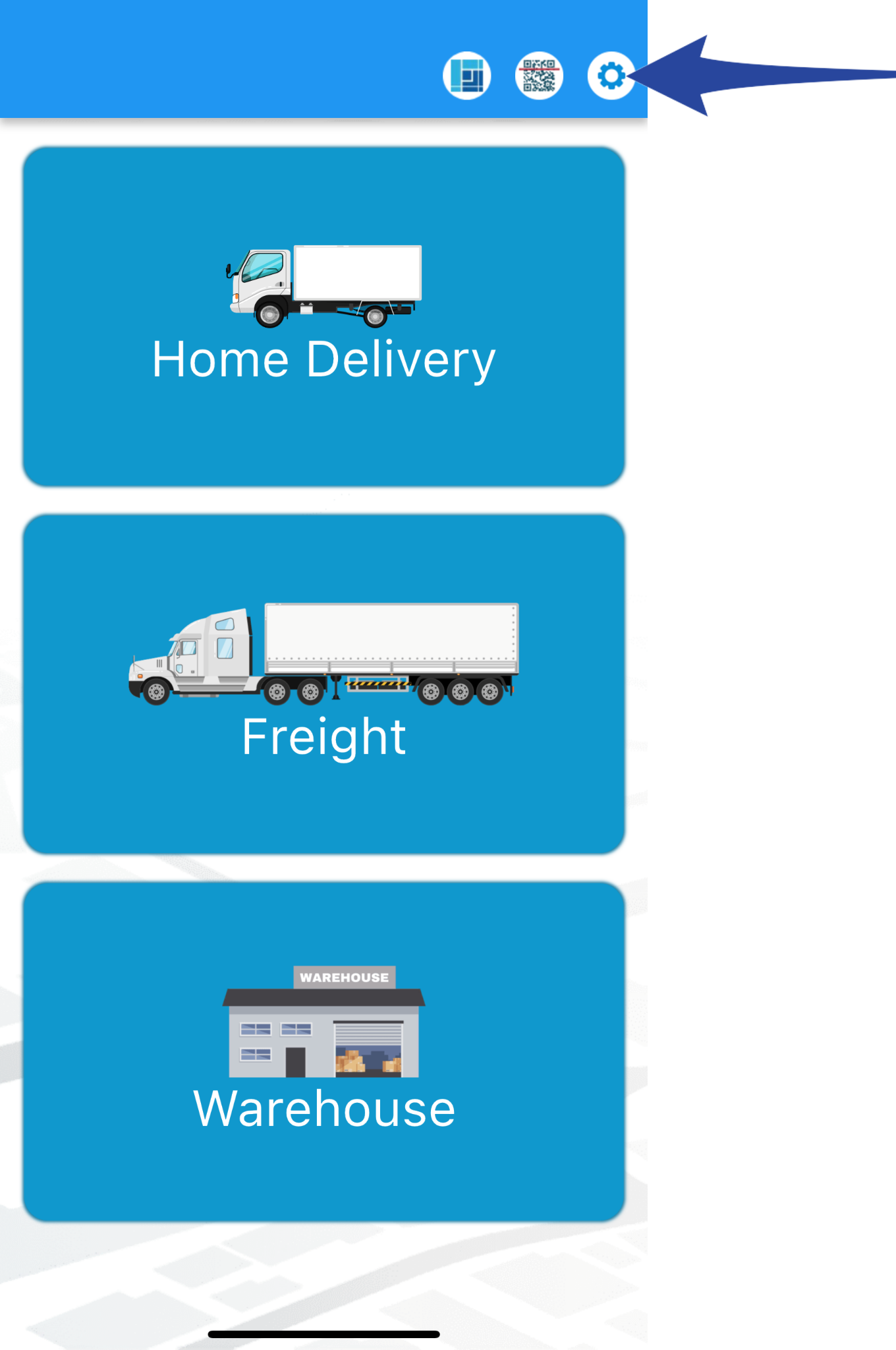
Step 2:
Under Active Region, ensure your access is set to the correct active region.
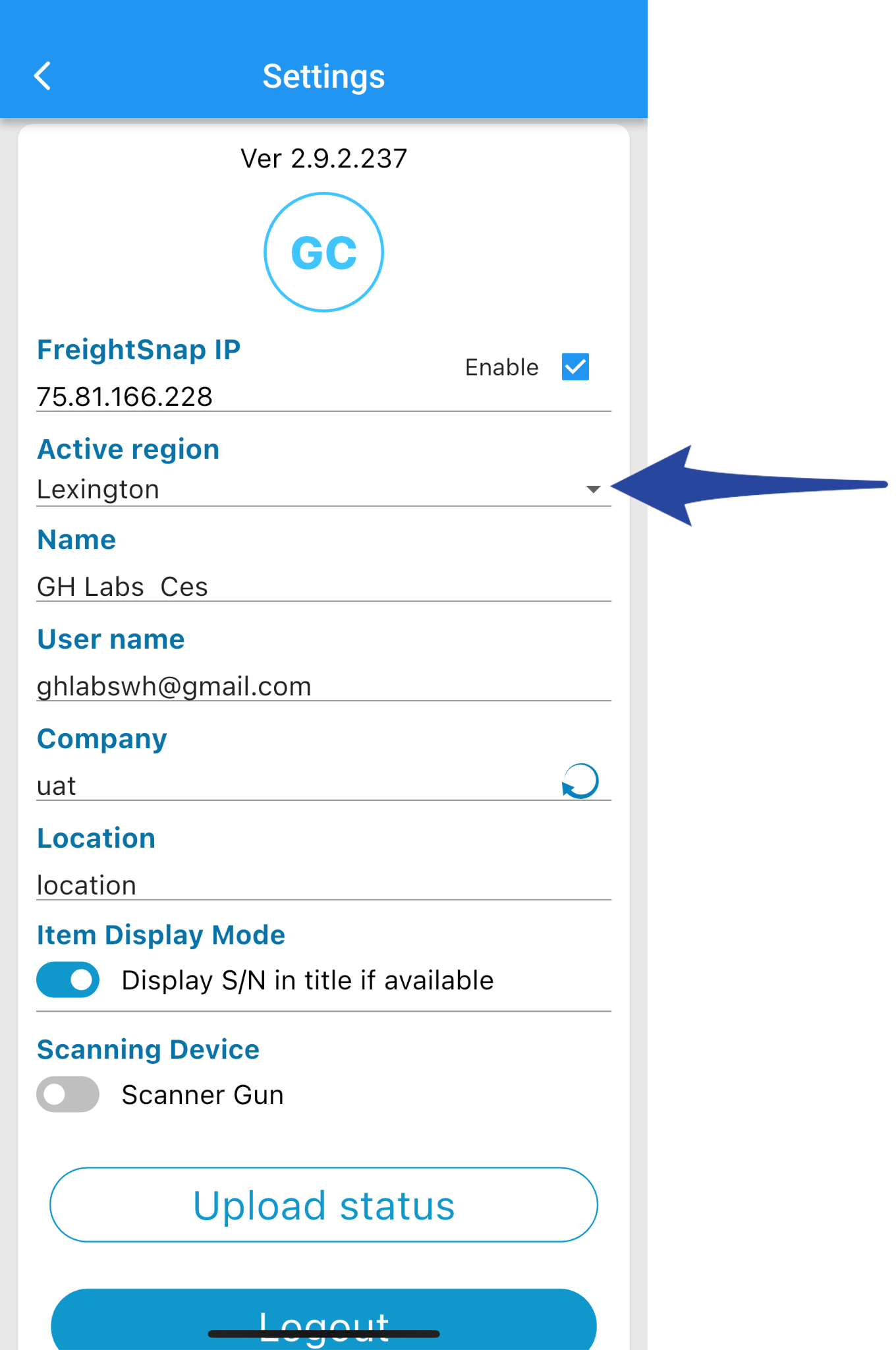
Step 3:
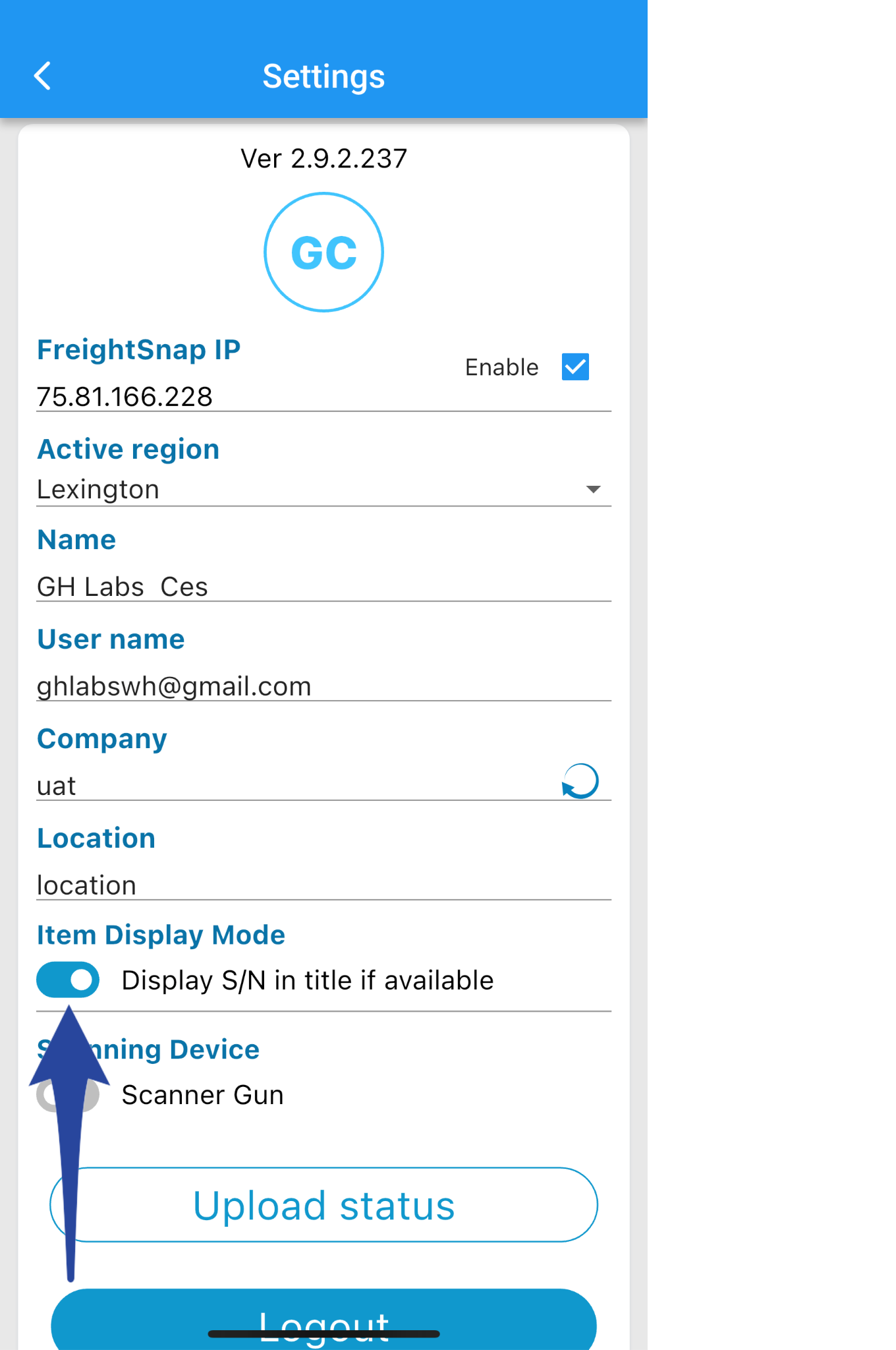
Scroll down to Item Display Mode and turn on Display S/N in title if available. This ensures that serial numbers will appear when viewing items.
Step 4:
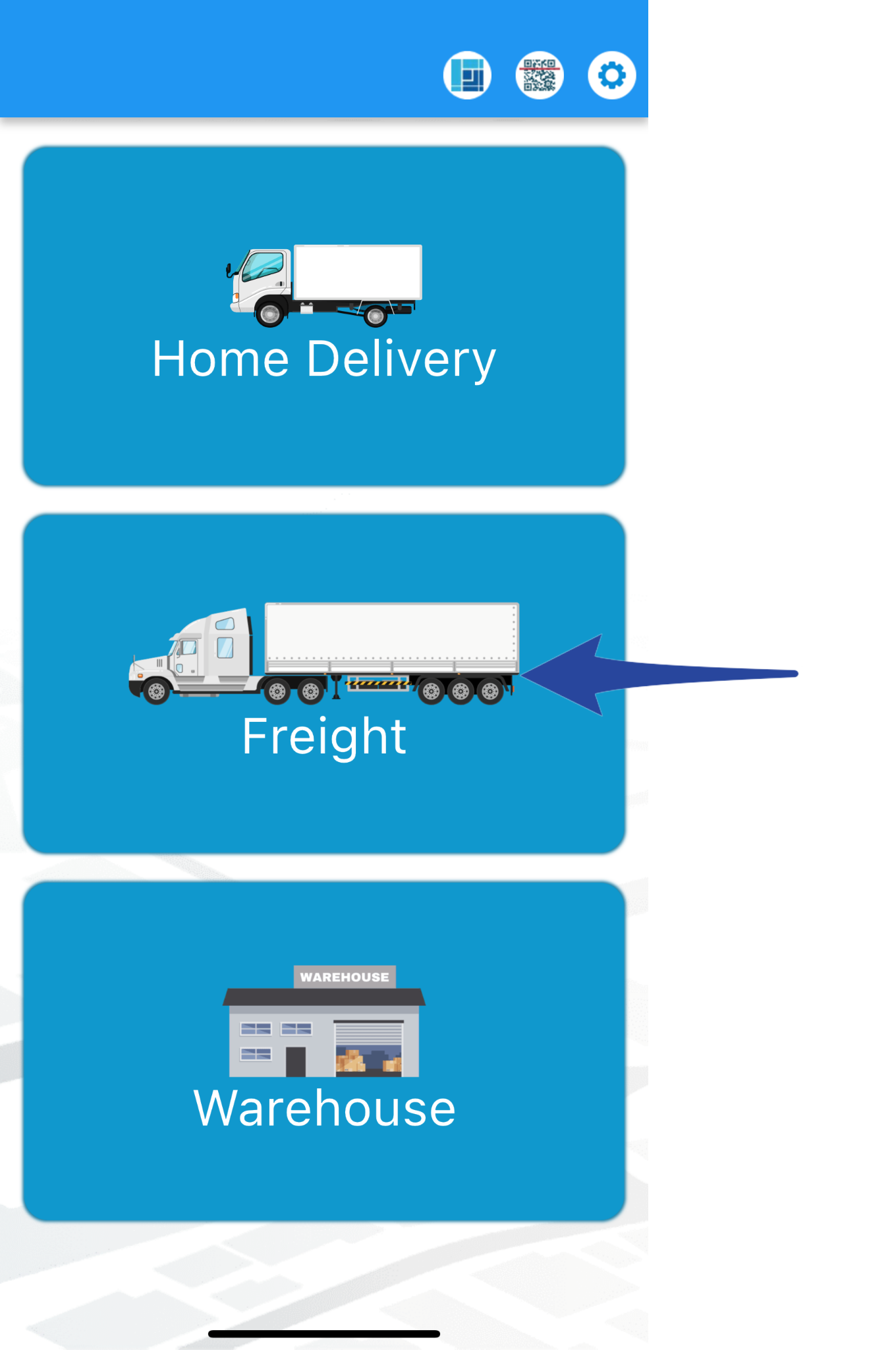
Go back to the main page and choose Freight.
Step 5:
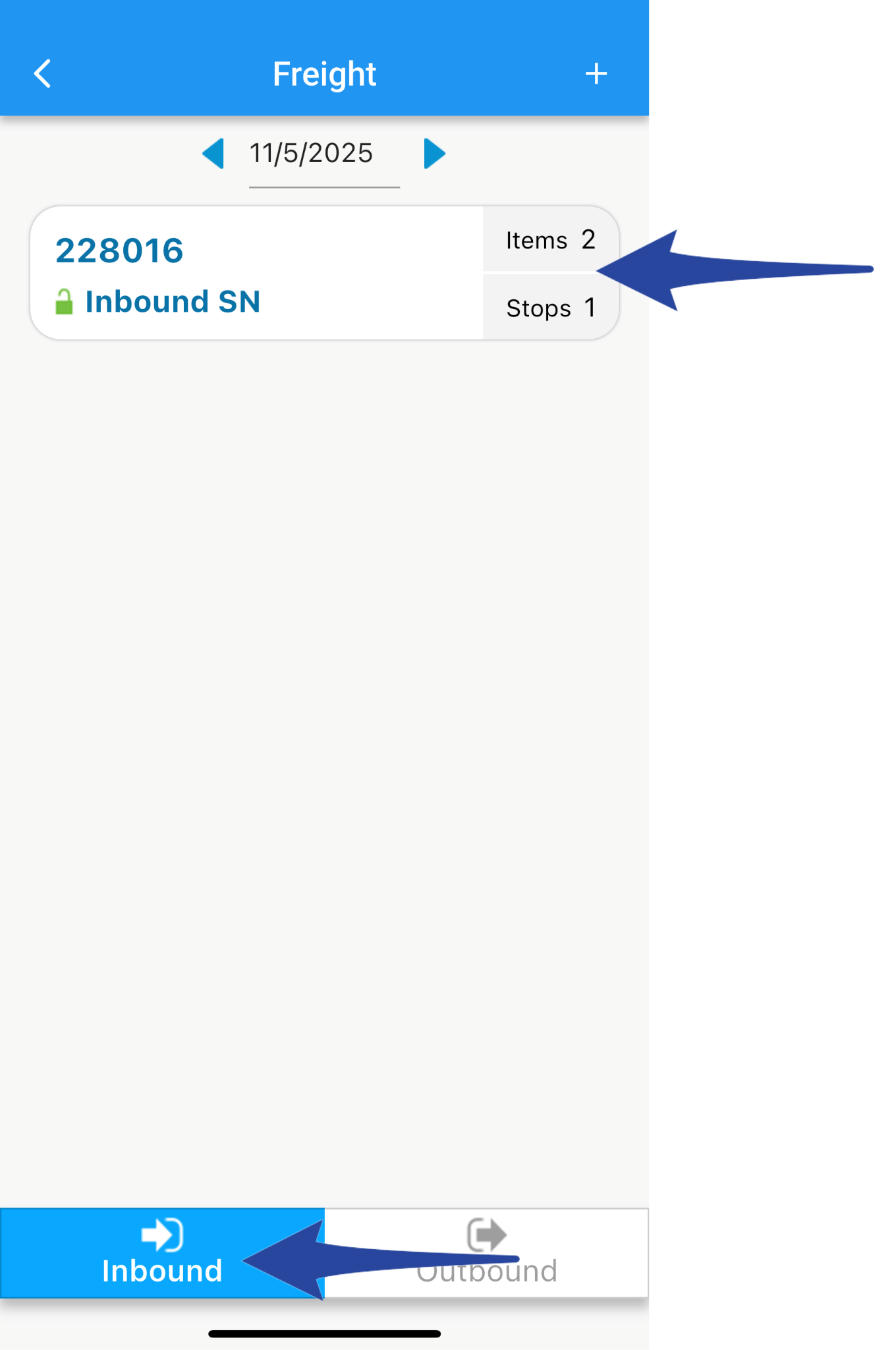
Select the Inbound Manifest that you wish to receive / unload. Make sure that the Inbound tab is selected.
Step 6:
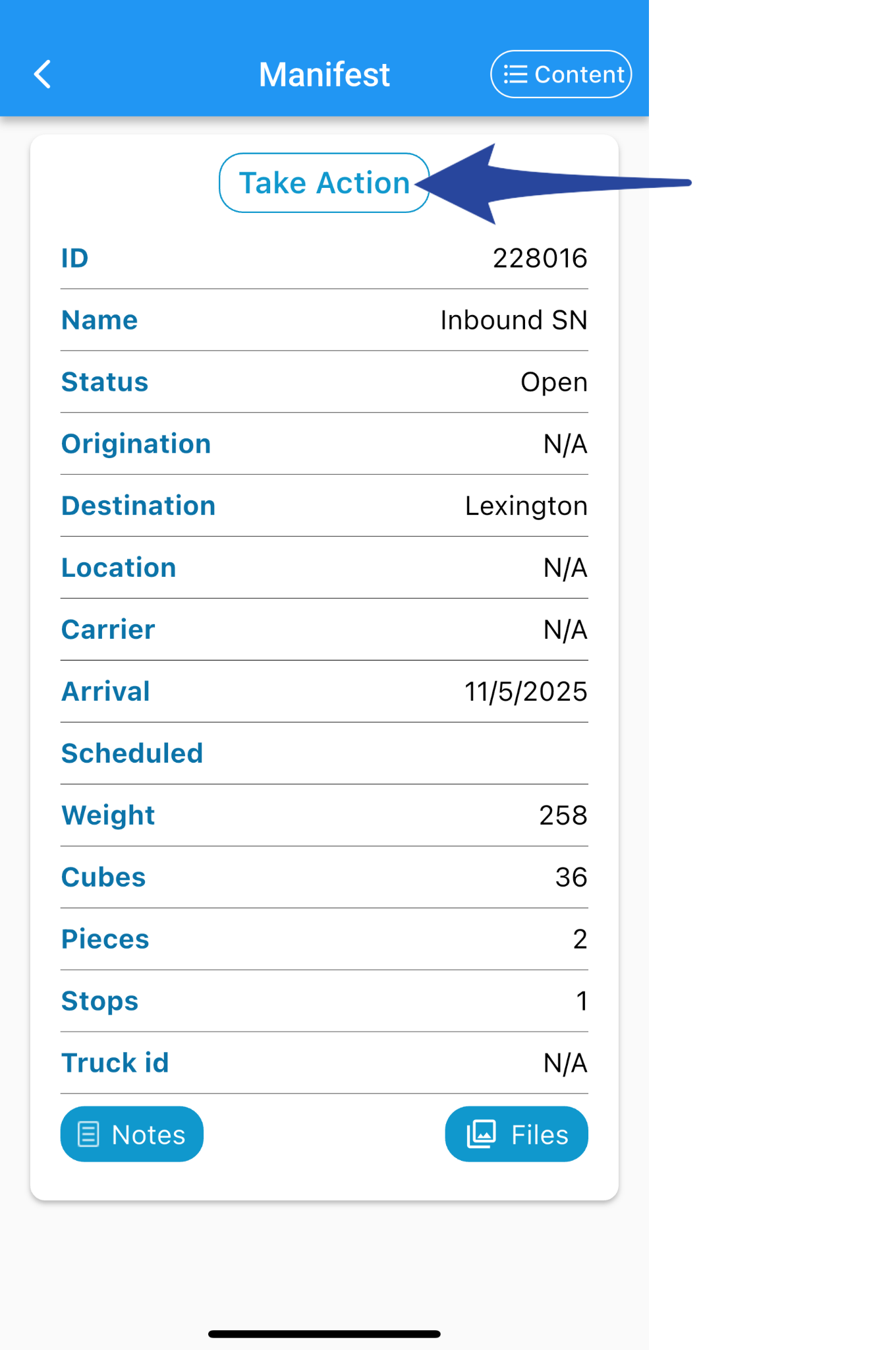
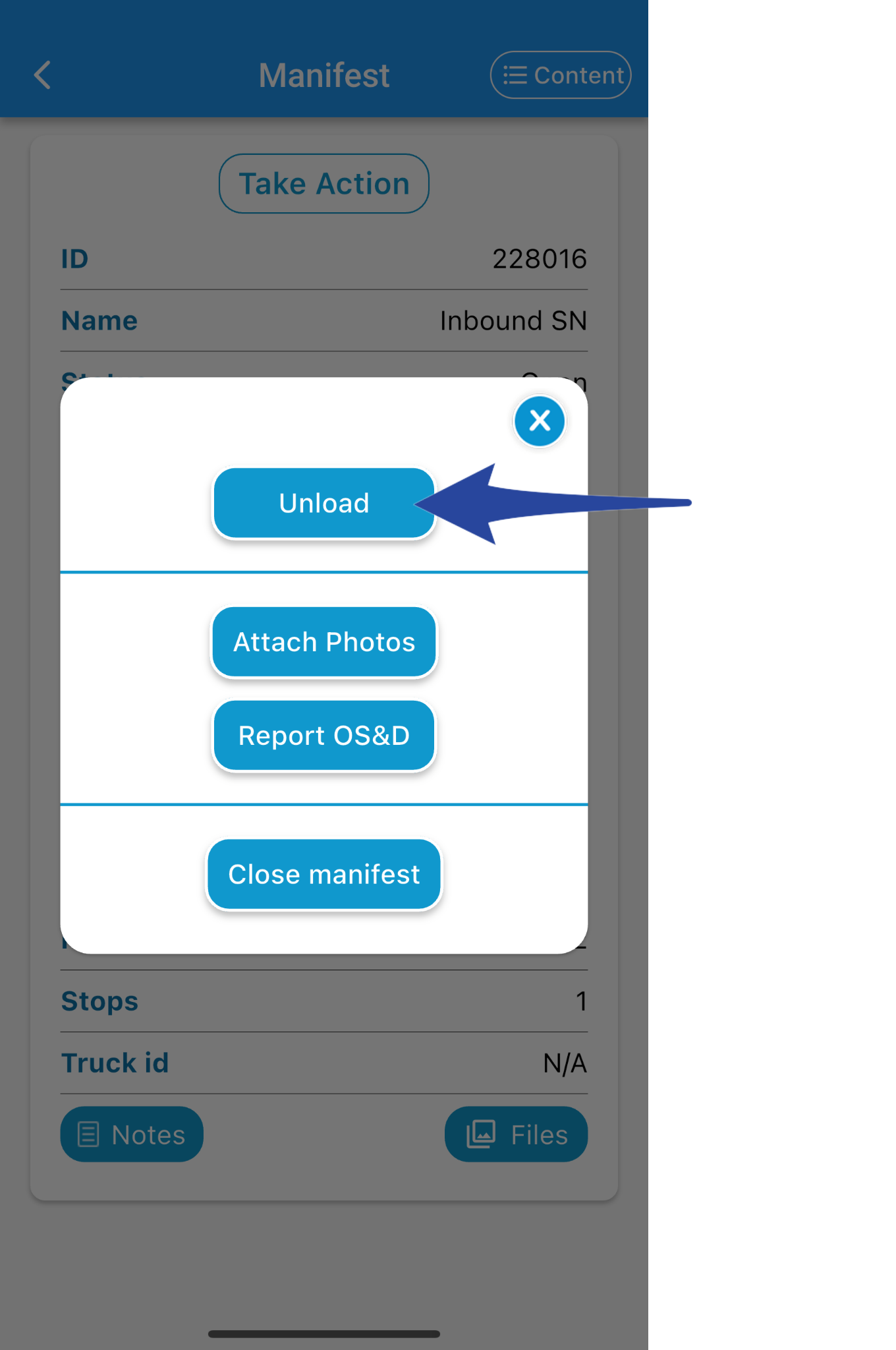
Tap Take Action and choose Unload.
Step 7:
Begin by scanning the location. The screen will show the total number of pieces that need to be unloaded or scanned.
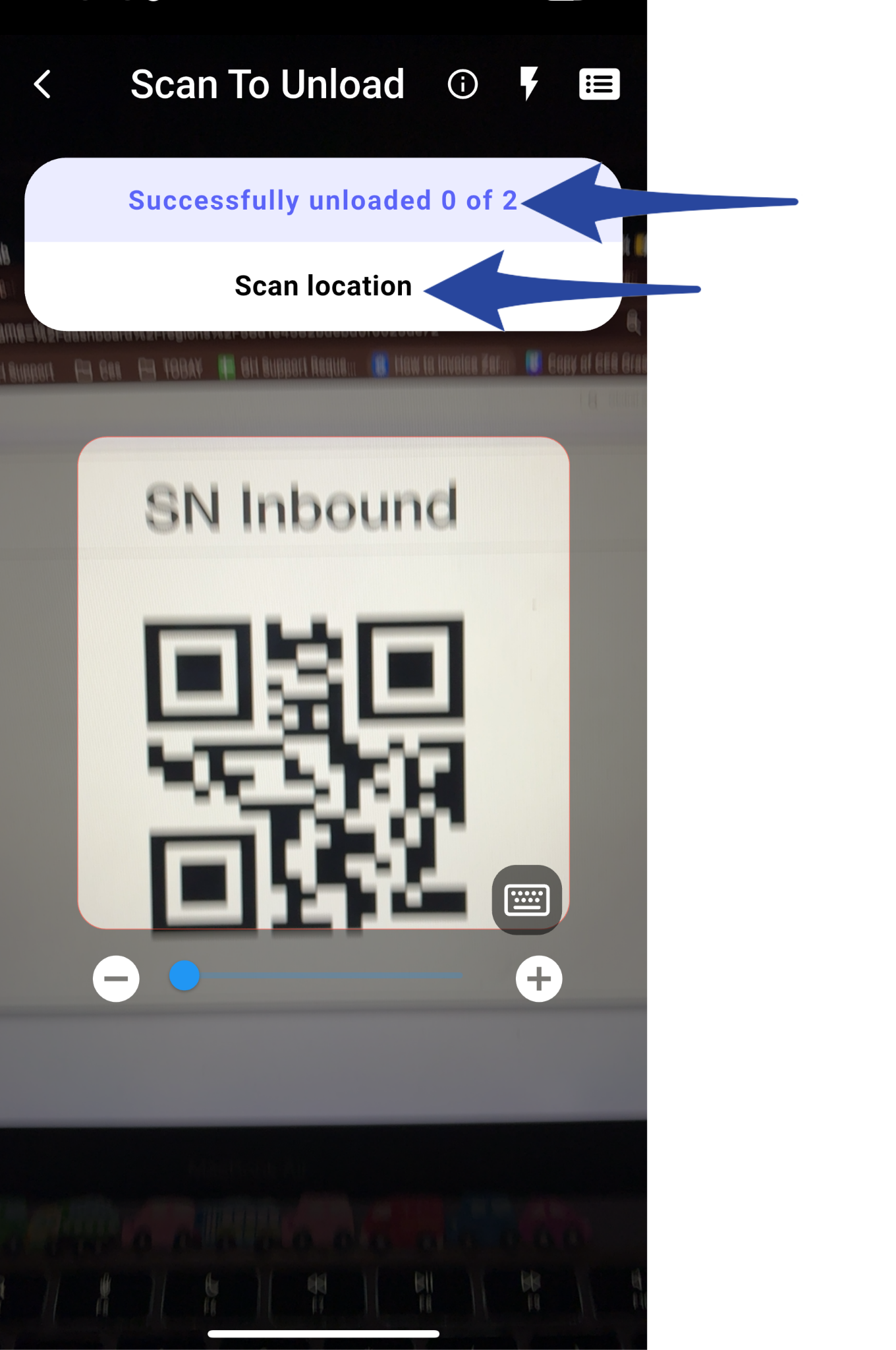
Step 8:
Tap the Barcode Scanner icon to switch to barcode scanning mode.
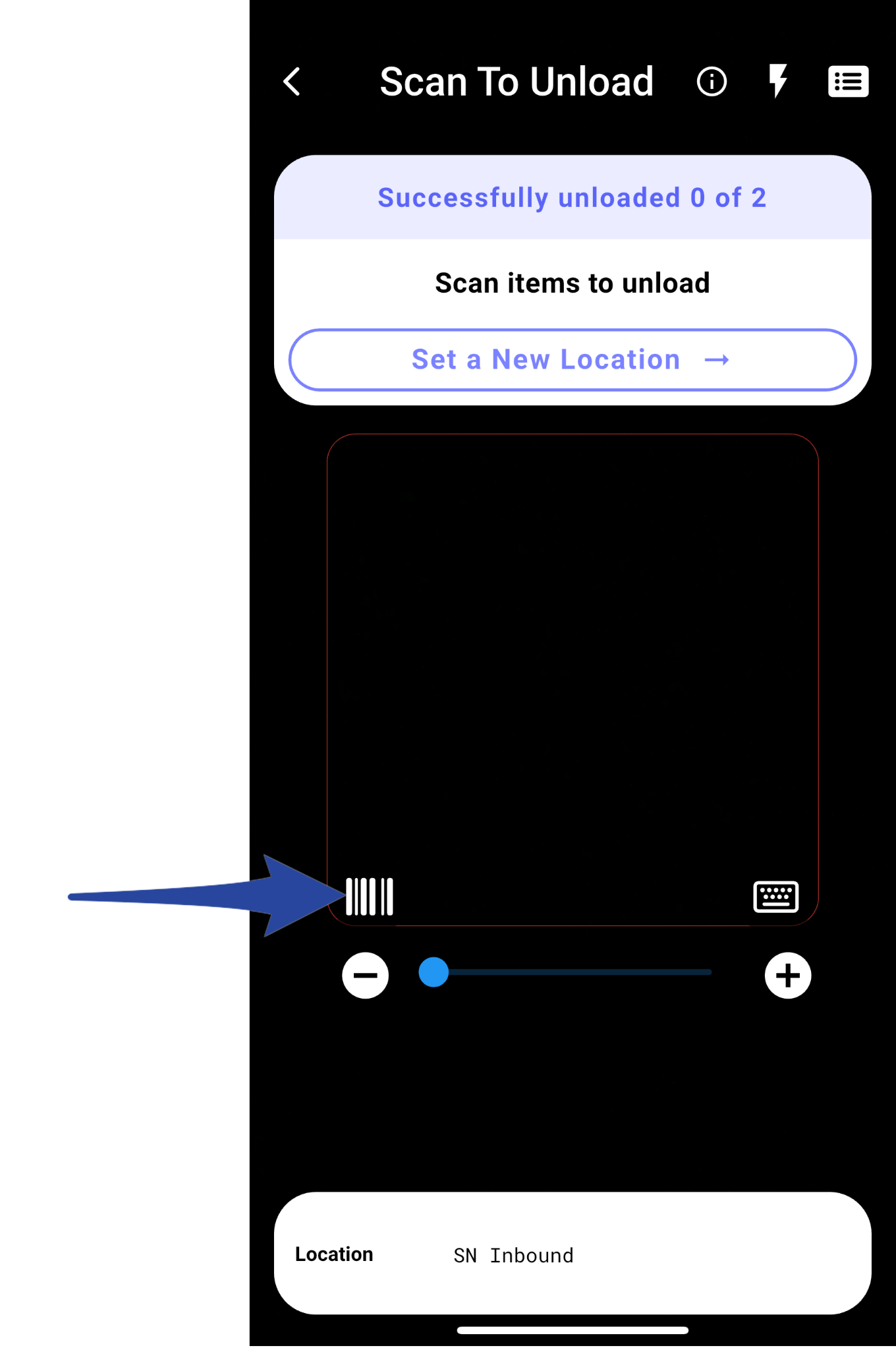
This is the barcode scanning mode.
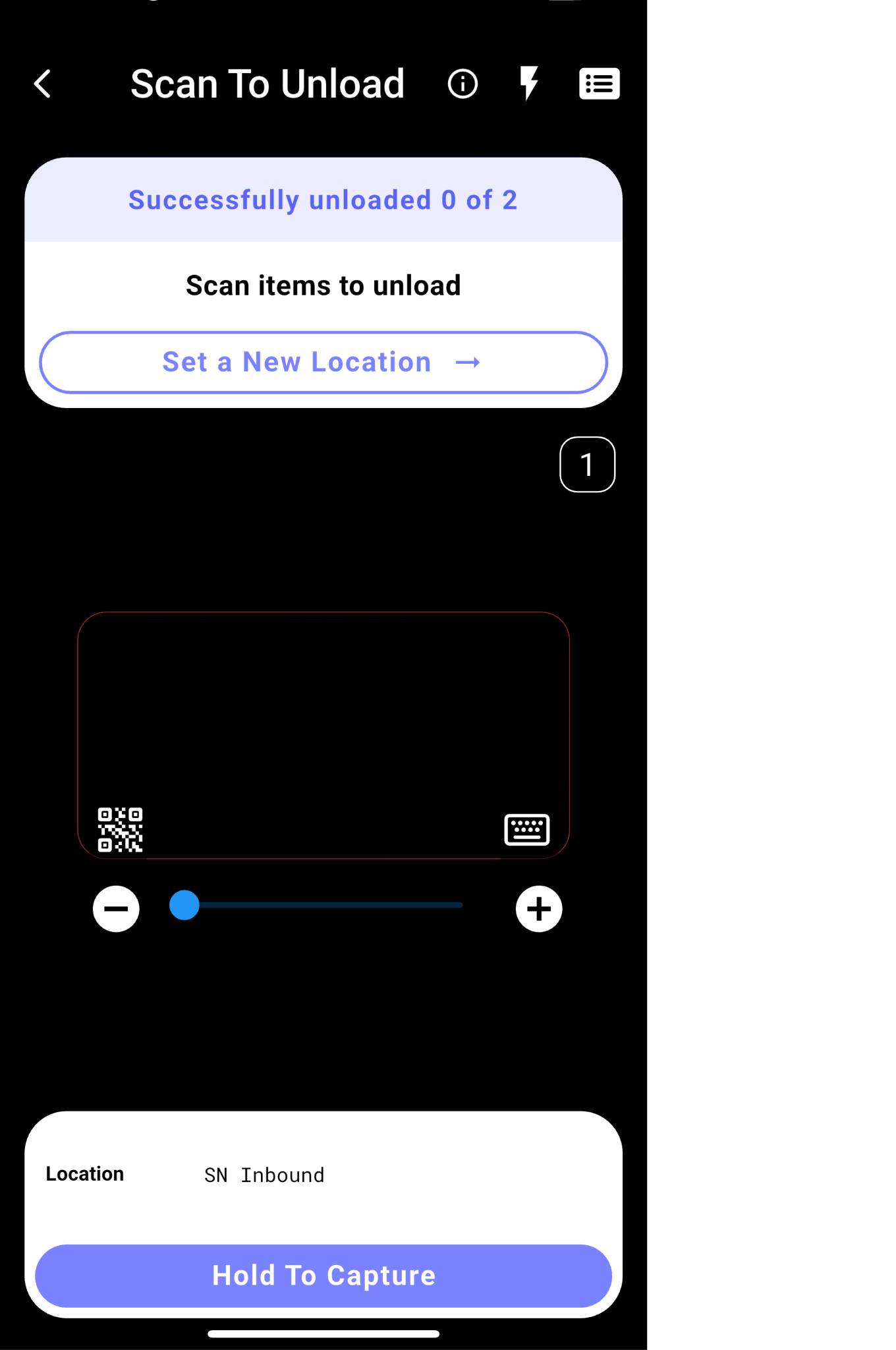
Step 9:
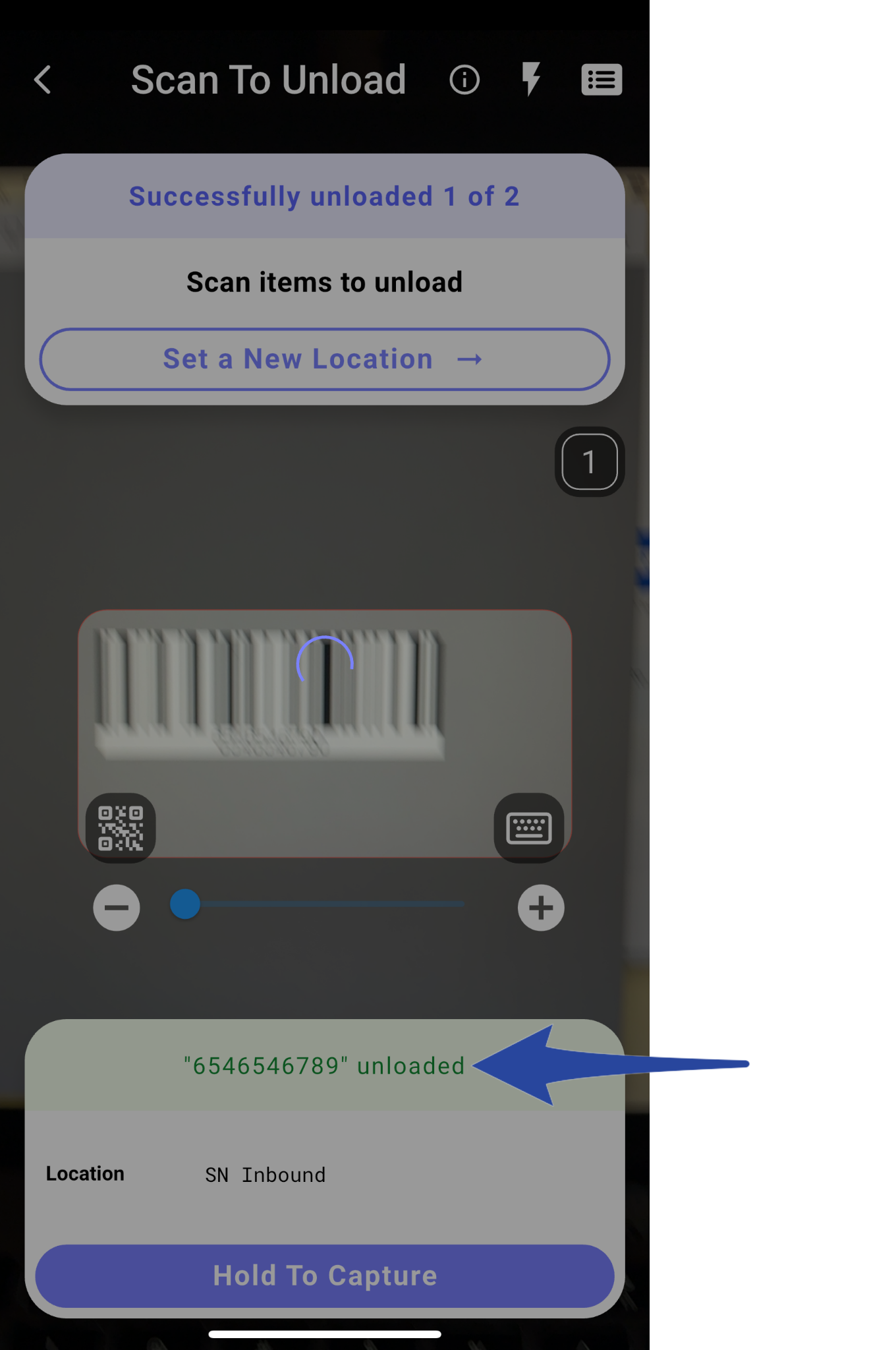
Start scanning all barcodes until all items are captured.
When scanning, press and hold the Hold to Capture button to scan each barcode.
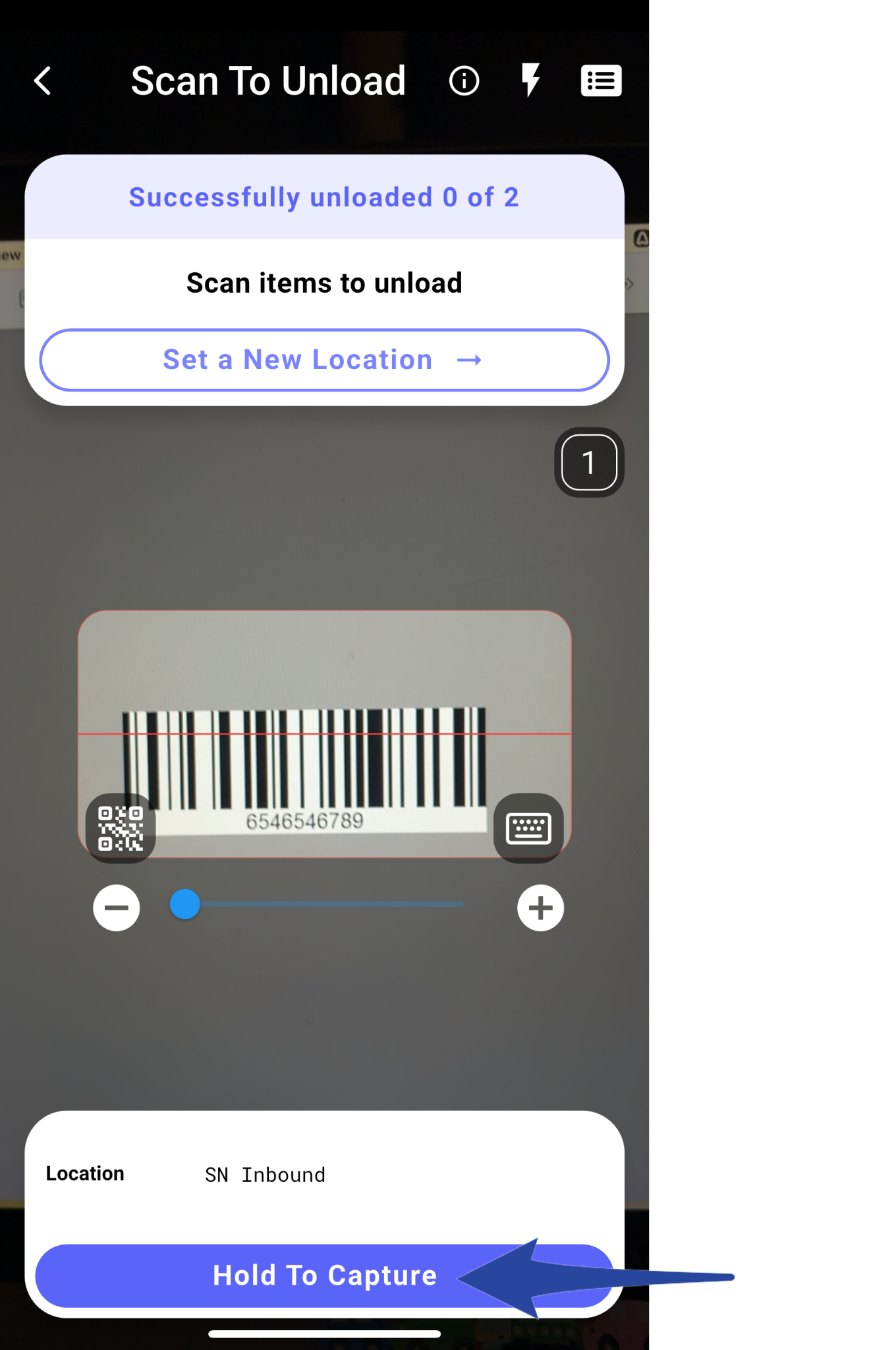
This is a confirmation that the item has been successfully scanned / unloaded.
Step 10:
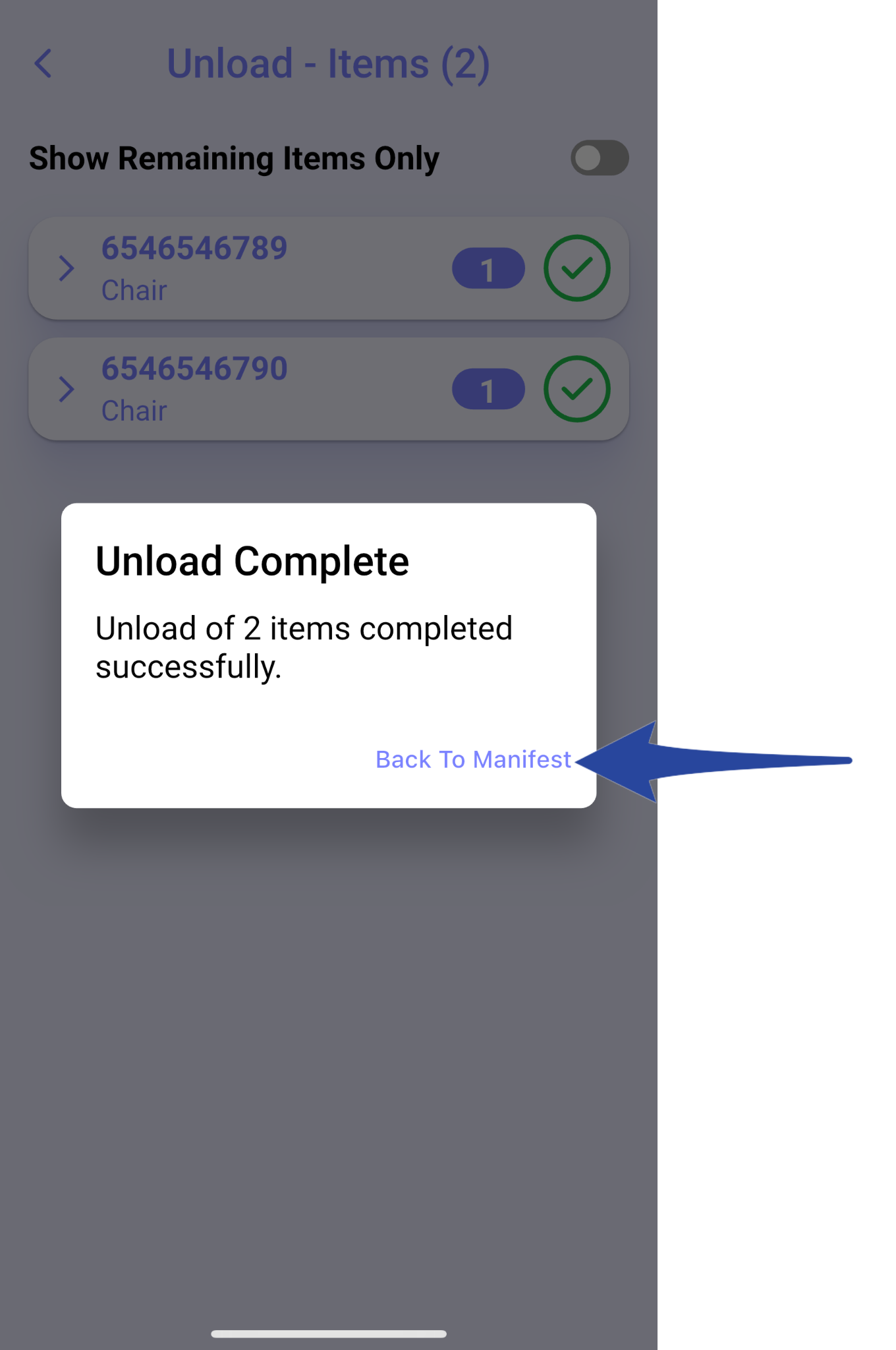
Once all barcodes are successfully scanned, you will see the message Unload Complete.
This confirms that all items have been received and unloaded properly.
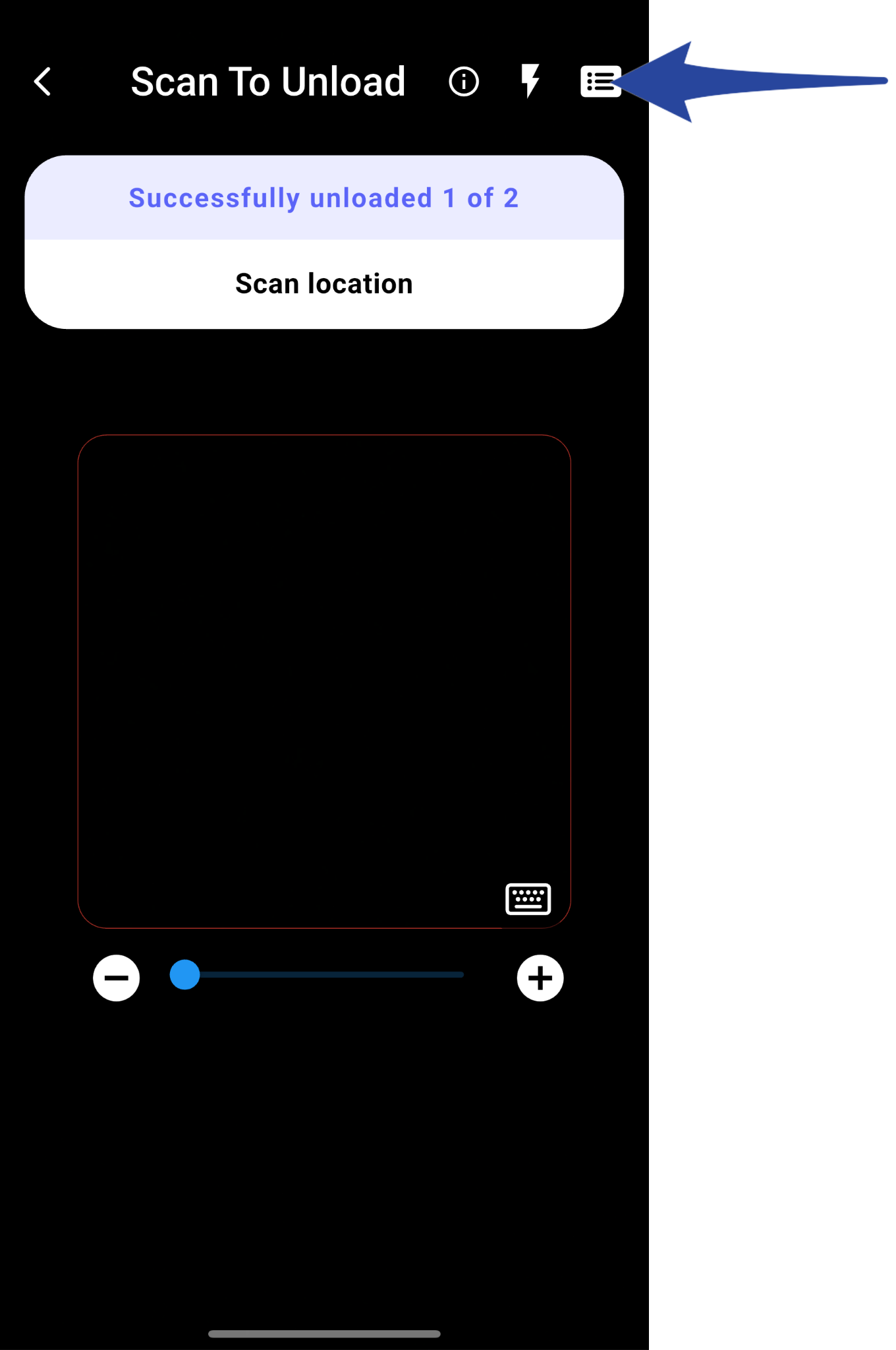
If an item is missing, click the items list box in the top right corner. This will display a list of all items that still need to be scanned.
Here’s what the screen will look like when there are items that haven’t been scanned. Items that haven’t been scanned will have an “X” next to them.
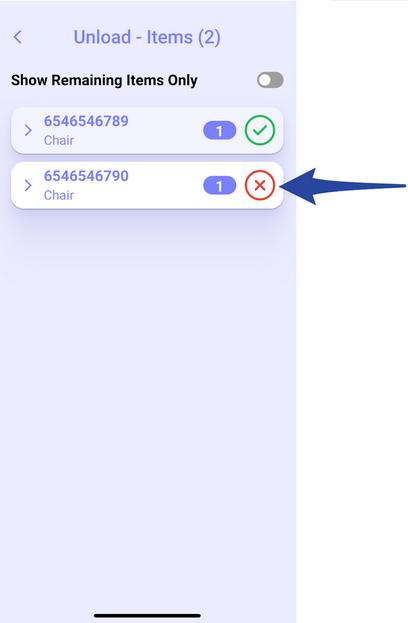
You can toggle the view to show only the items that haven’t been scanned, or display all items, depending on your preference.