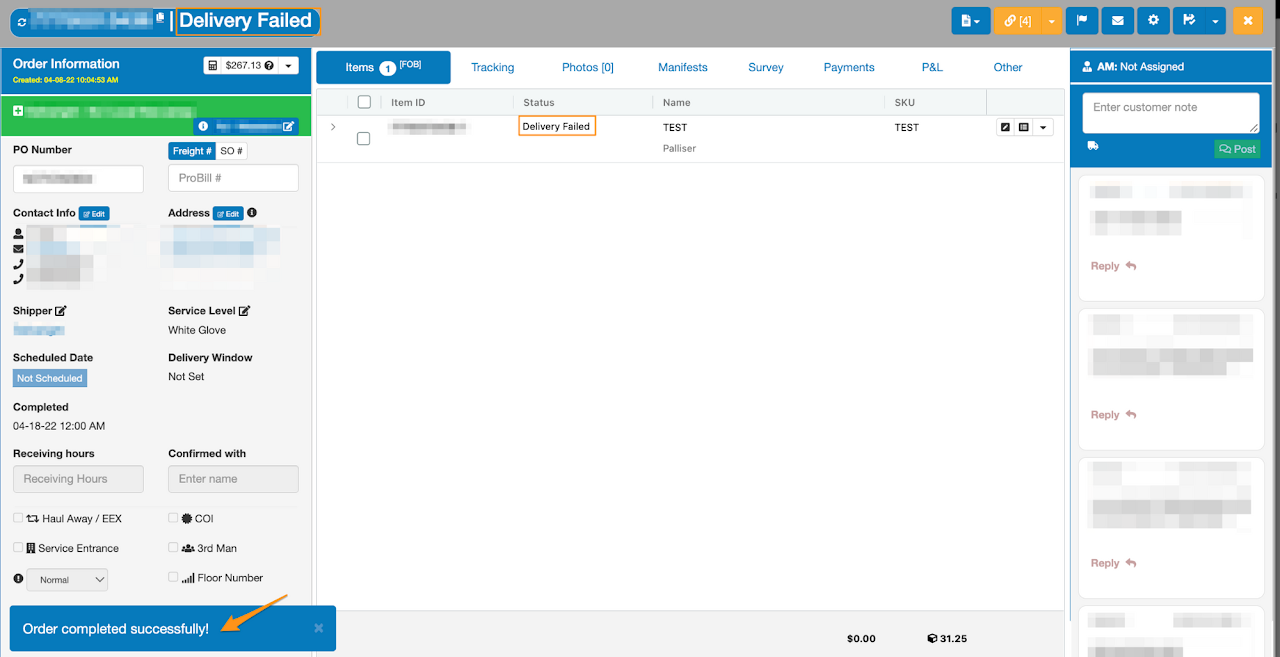
Step 1
Enter the Purchase Order Number or Grasshopper Order ID then click the order number

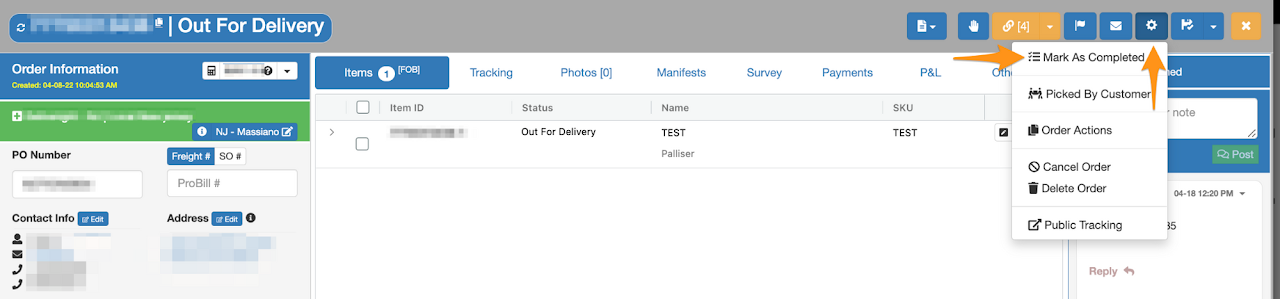
Step 2
Click Order Actions and select Mark As Completed
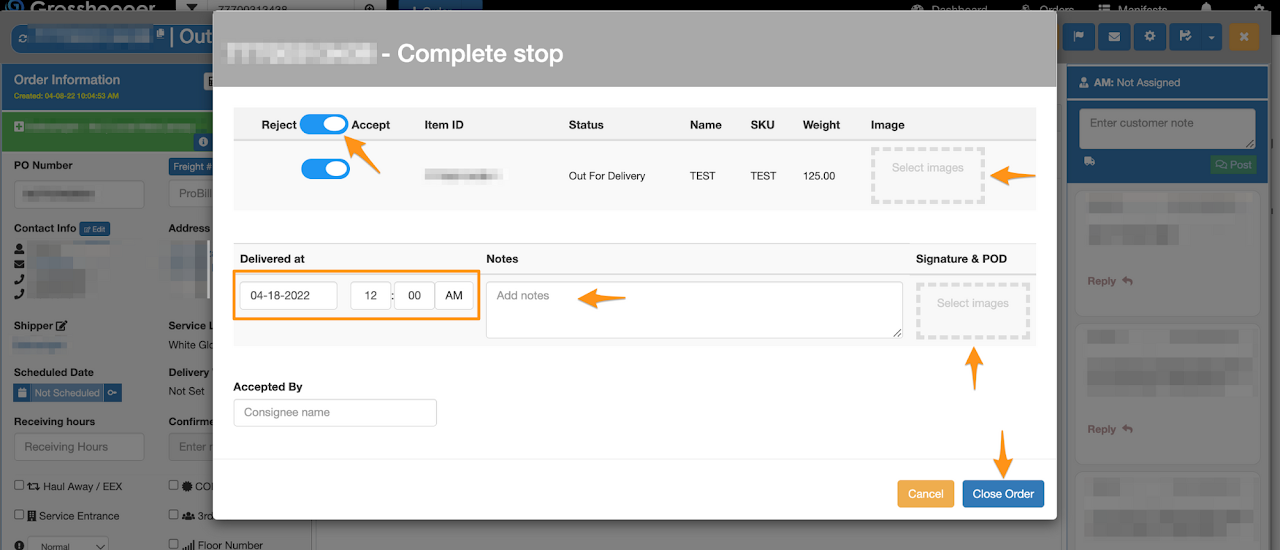
Step 3
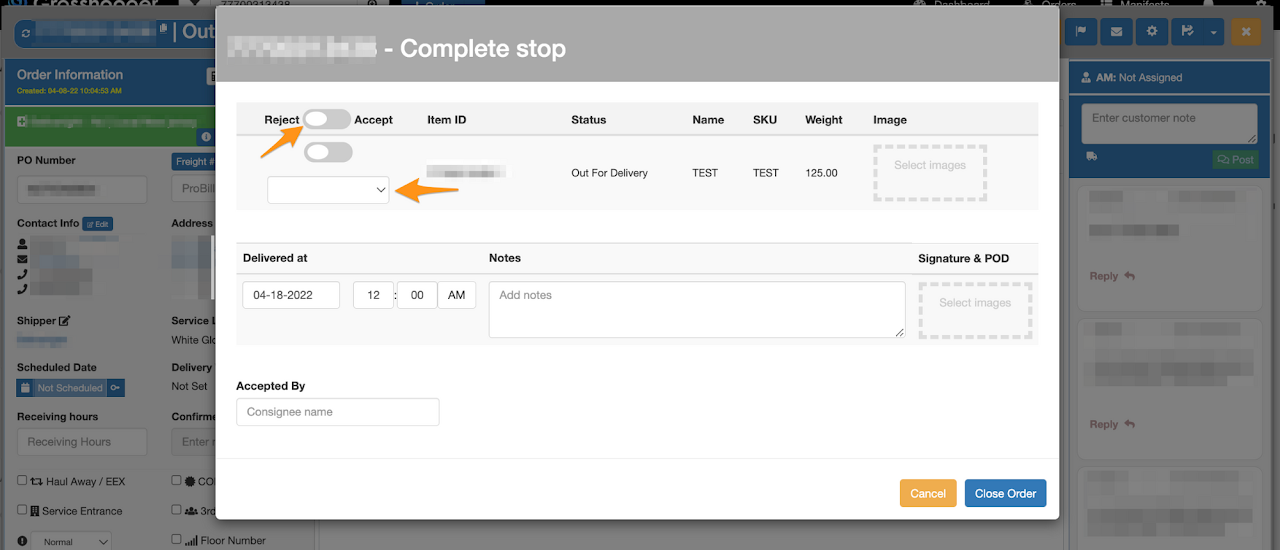
- Toggle onto Accept if the order is successfully delivered to the customer and do the following:
- Upload image for each line item (you may also upload bulk images at once)
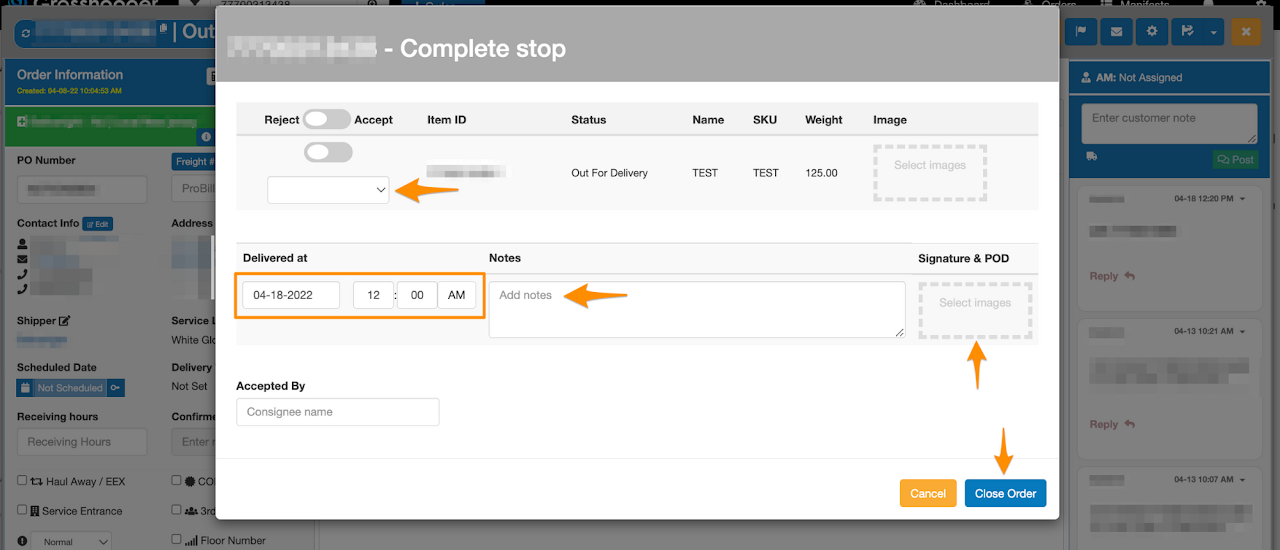
- Enter the delivery date and time, Add Notes, upload the copy of signed POD then click on Close Order
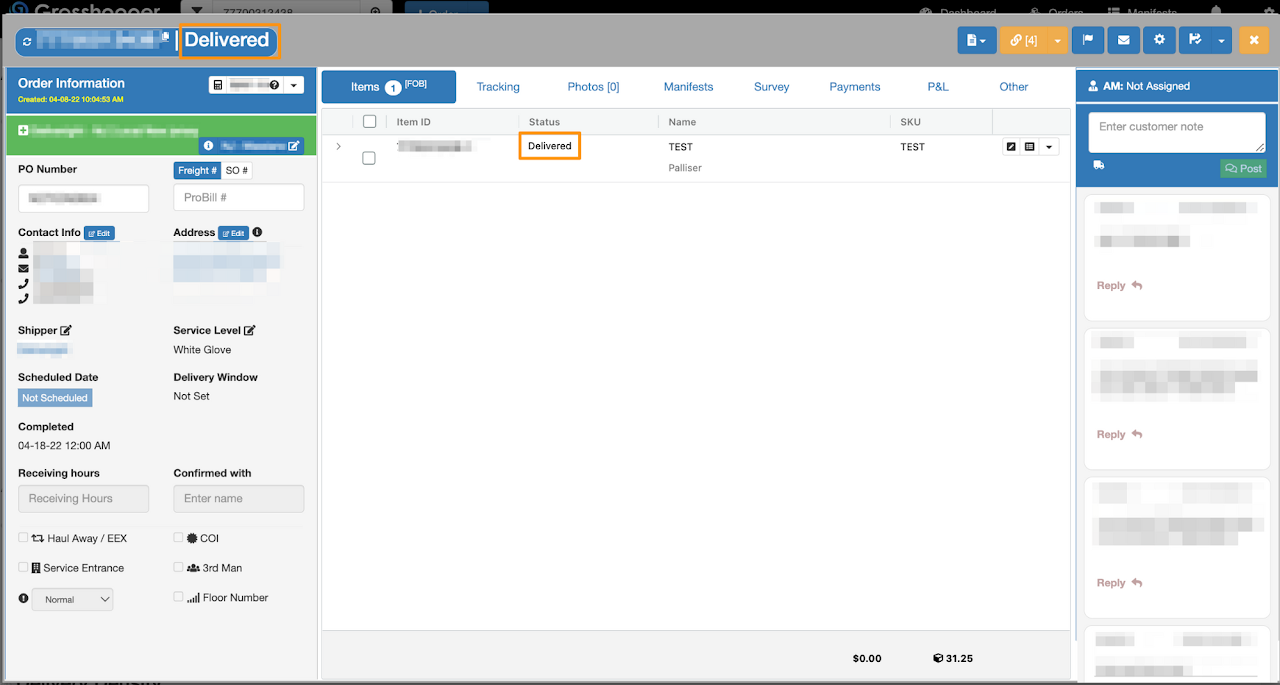
Confirmation page of a Delivered order
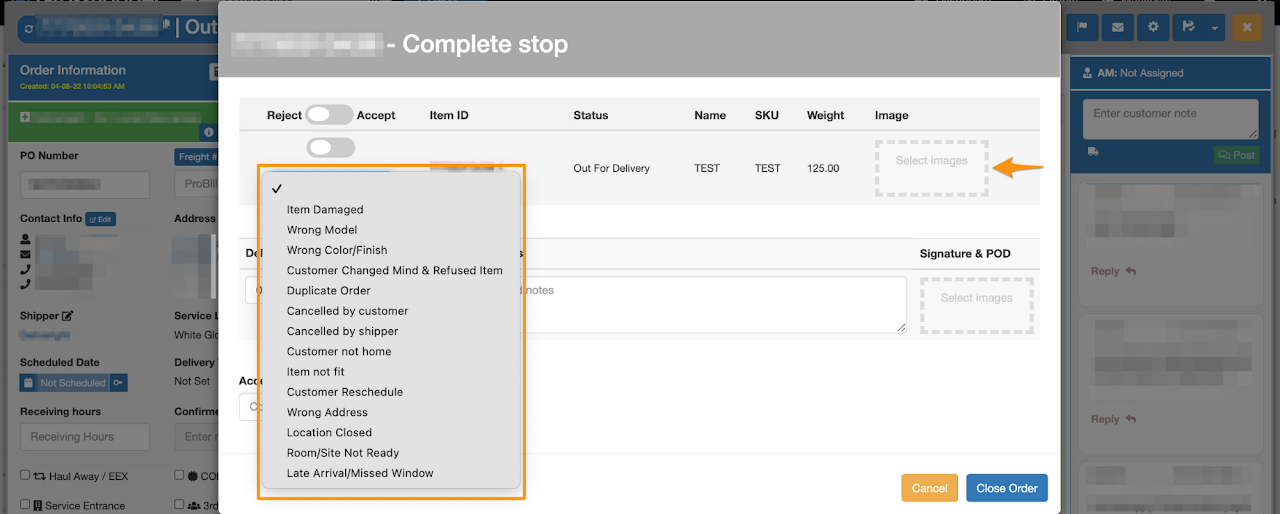
- Toggle onto Reject if the order is not accepted by the customer and is to be returned to the warehouse.
Please select the reason why the order was rejected from the drop down list and do the following:
- Upload image for each line item (you may also upload bulk images at once)
- Enter the schedule date and time, Add Notes, upload the copy of signed POD (if the customer signs or has a note) then click on Close Order
Confirmation page of a Rejected order